Why Convert PDF Files into Google Slides?
Google Slides allows you to create an interactive presentation with embedded videos, transition effects, and animations. If you already have material in PDF form, you don’t want to waste time creating the same or similar material in Google Slides. Instead, you can just implement your PDF file into the Google Slide presentation.
Another reason why you might want to convert PDF into a Google Slide is the ease of sharing. PDF files can be large and it can take quite some time to send them as an attachment via email. But if you create a Google Slide presentation you can simply share a link to it.
Google Slides also allows other people to join your work, or leave notes and feedback directly in the presentation you’re making. This way ideas can be shared in real time, in a dynamic way. Although PDF files allow you to leave comments, it’s a more static environment not suitable for collaboration.
If you’re looking to convert PDF files into Google Slide presentations, you should understand that you’ll be working with two different file formats. That’s what makes it difficult to convert PDFs to Google Slides. Essentially, they’re not compatible. So what you need to do is convert your PDF file into a file format that can be easily implemented into Google Slides Presentation such as PowerPoint or Jpeg files. Let’s see all the ways in which you can convert your PDF to Google Slide Presentations.
1. Convert PDF to PowerPoint With Adobe Acrobat
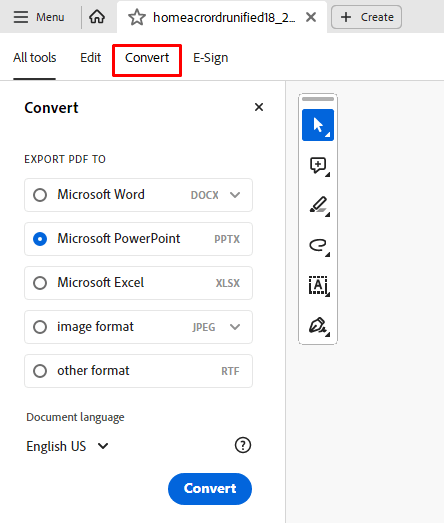
Adobe Acrobat is a PDF editor which contains some very powerful tools. You can use it to create new PDF files, edit the existing ones, convert them to different file formats, sign, and share your PDFs. The best part is that it supports both native and scanned PDF files.
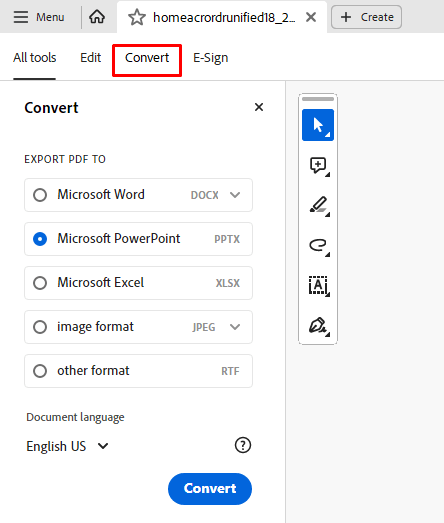
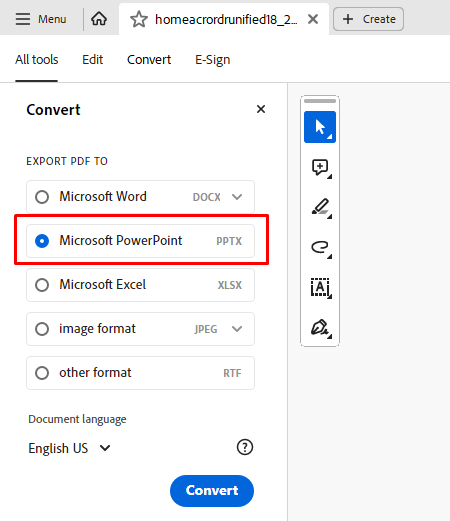
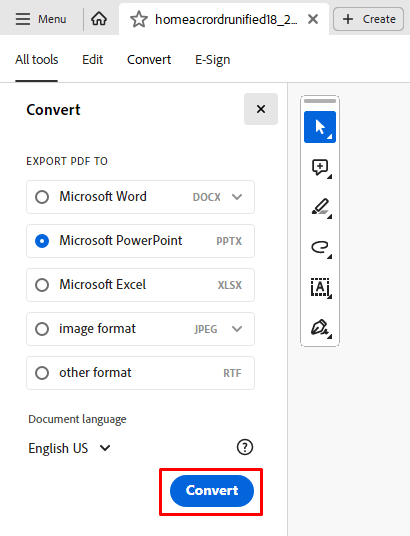
You can use Adobe Acrobat to convert your PDF files to PowerPoint which can then easily be implemented into your Google Slide presentation. Here’s how:
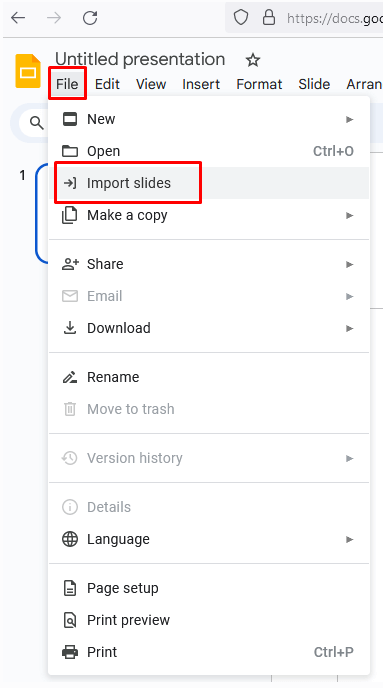
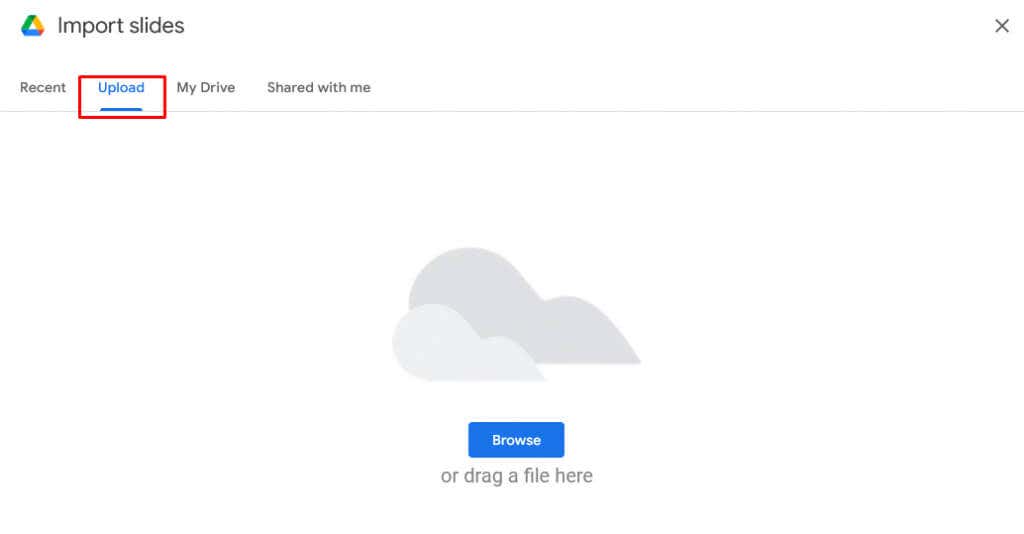
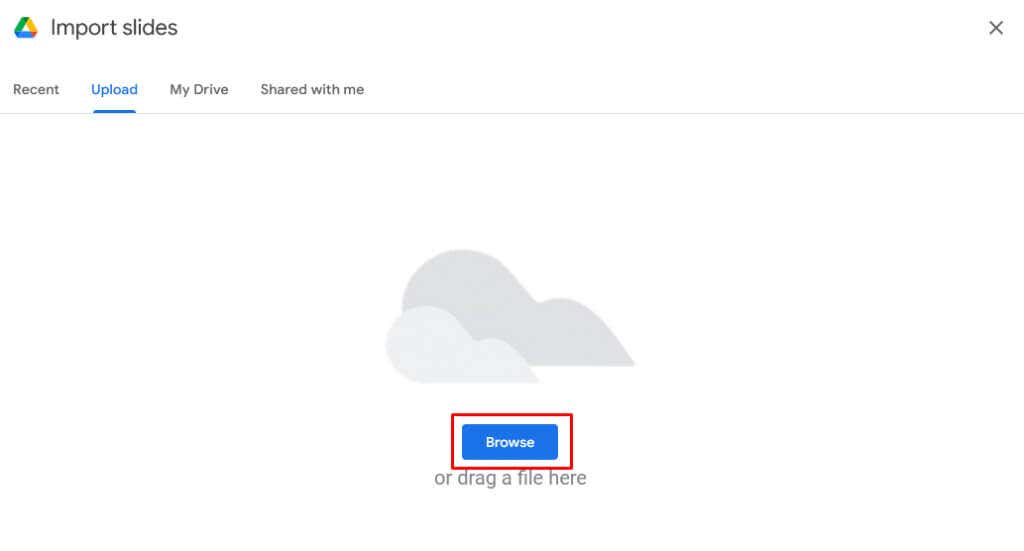
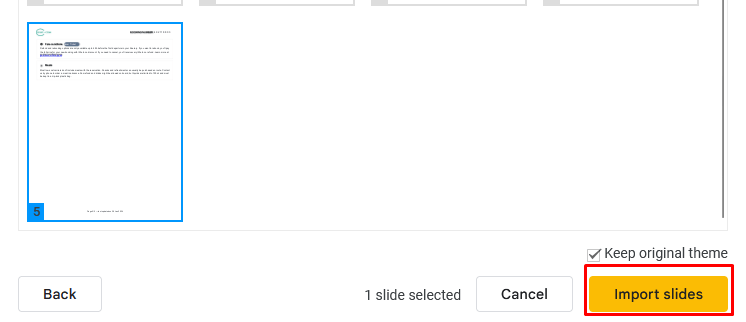
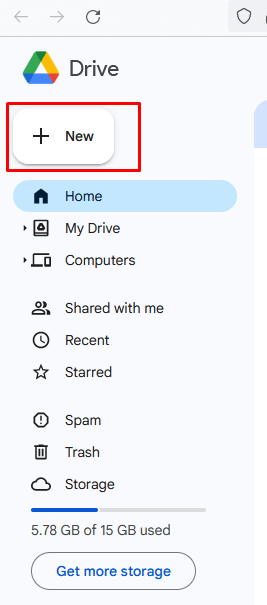
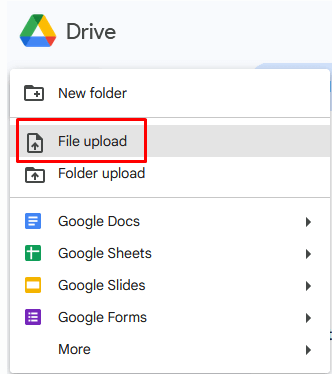
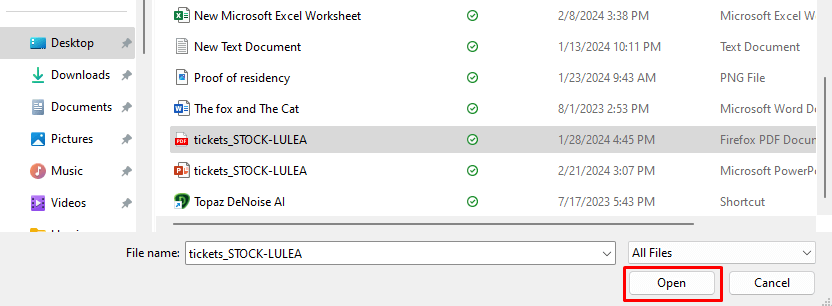
Now you can upload this newly made PowerPoint file into your Google Slides. Here’s how:
And that’s it. You can now continue making your Google Slides Presentation with converted PDF files.
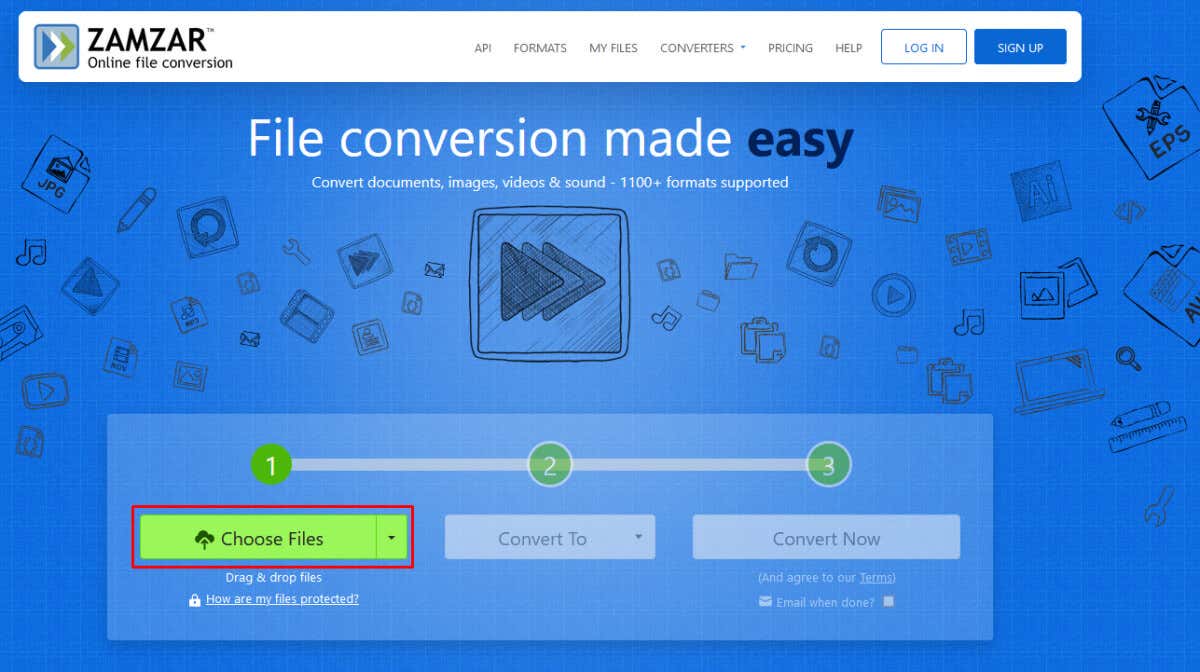
2. Convert PDF to PowerPoint With a Free Online Tool
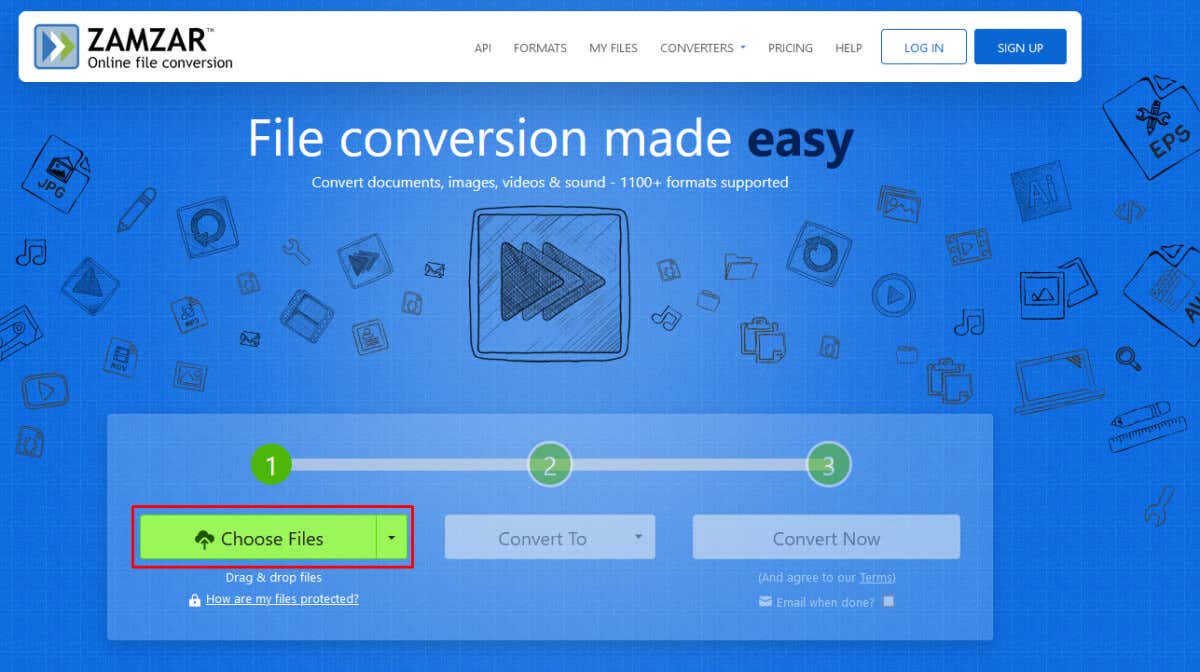
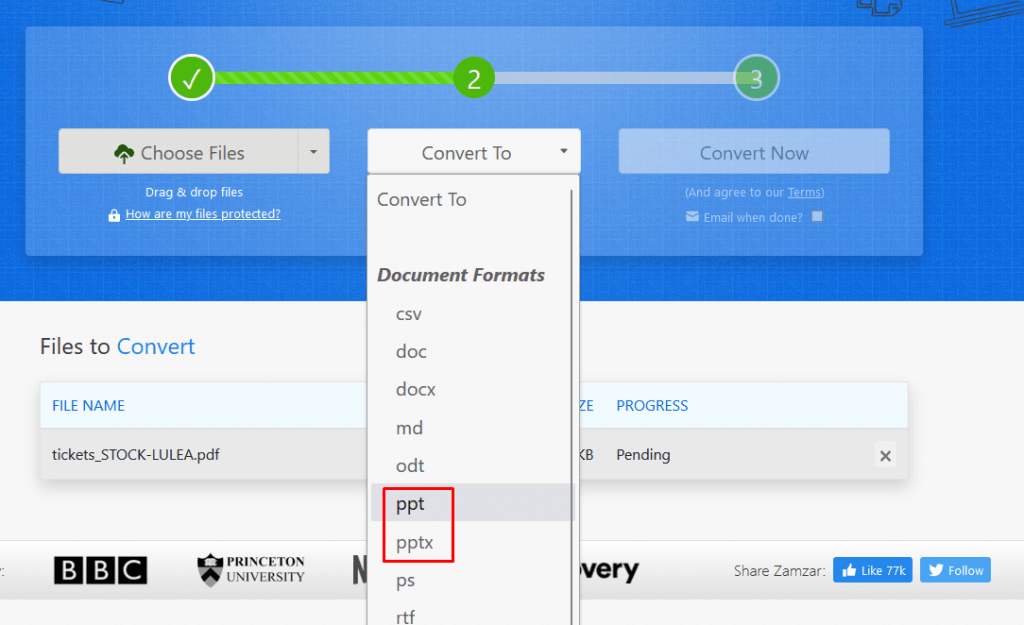
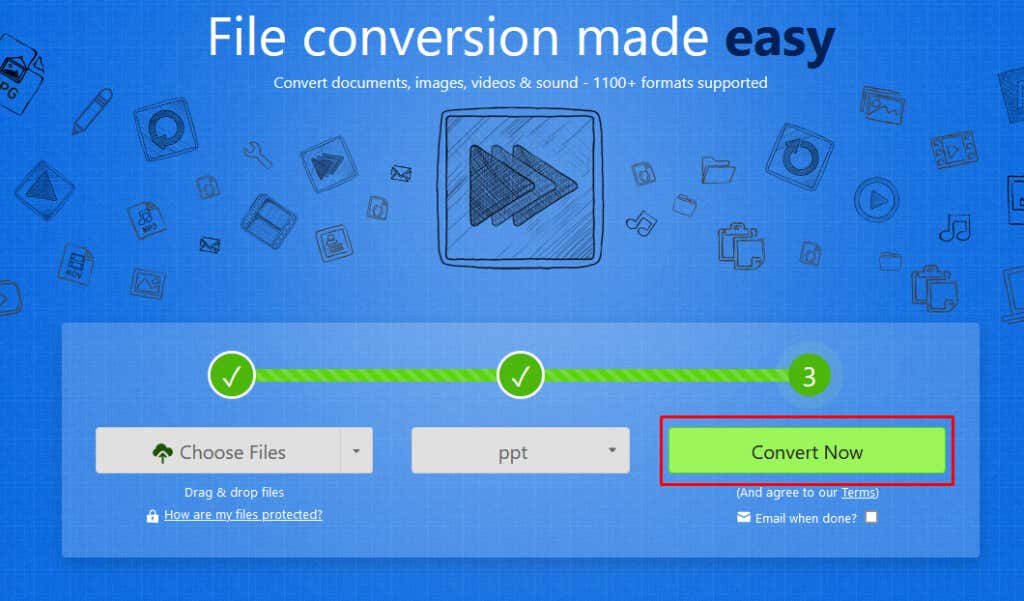
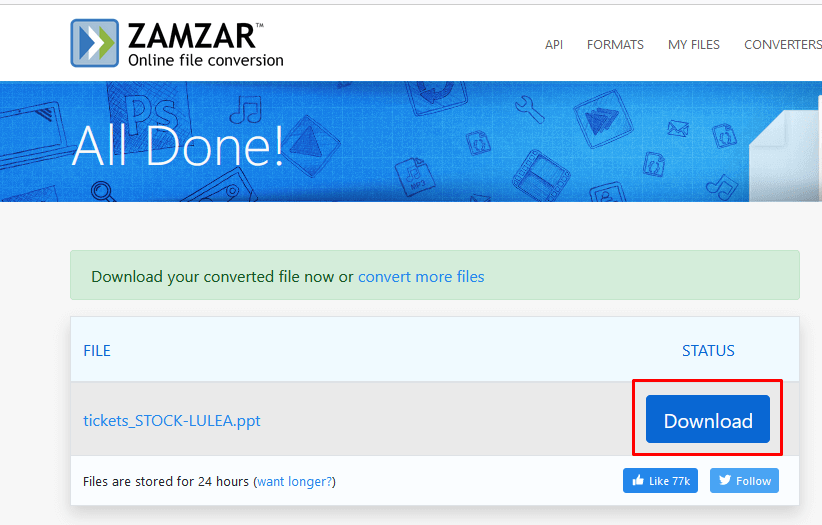
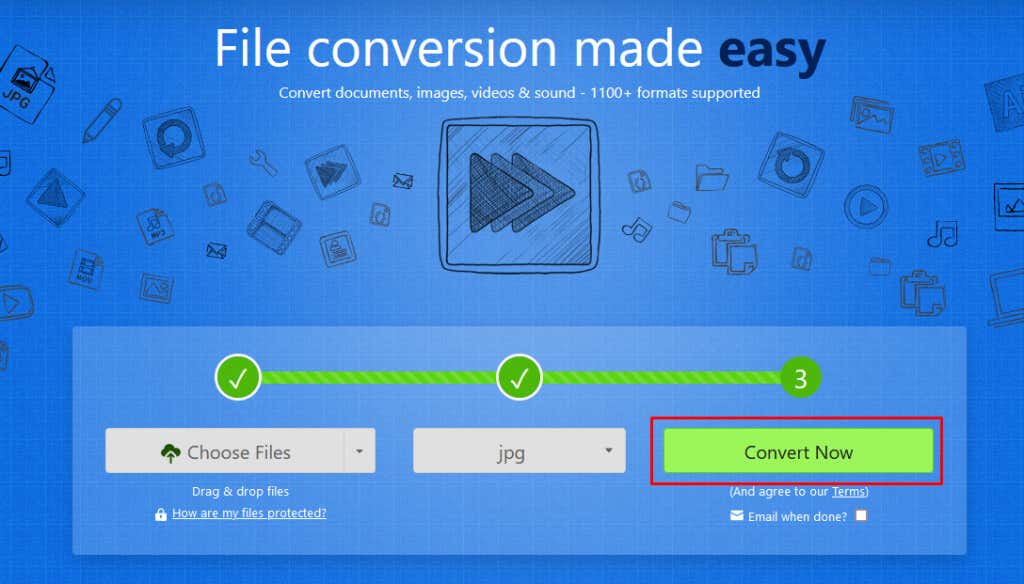
If you don’t use Adobe Acrobat, some free online tools can convert your PDF into a PowerPoint file. The most popular ones are Zamzar and ilovePDF. Both these websites will convert your PDF files to high quality. Another great thing about Zamzar and ilovePDF is that they don’t have a bunch of distracting advertisements on their web pages. Instead, they’re pretty straightforward online converters. Let’s see how online converters work taking Zamzar as an example: You can import converted PPT files into Google Slides by using the same method as described in the previous section.
3. Convert PDF to an Image
You can convert your PDF files into images and then implement them into the Google Slides presentations. There are several ways you can convert a PDF into an image. Let’s check them out
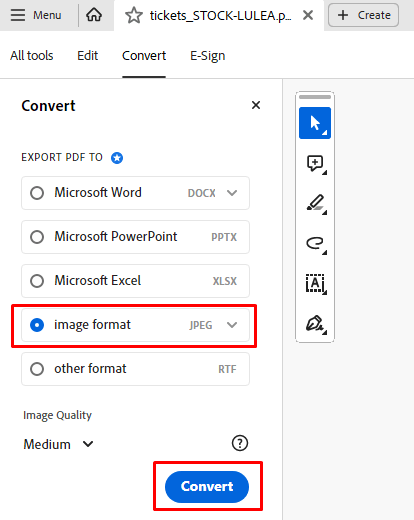
1. Use Adobe Acrobat to Convert PDF to JPEG
If you decide to use Adobe Acrobat to convert your PDF into an image:
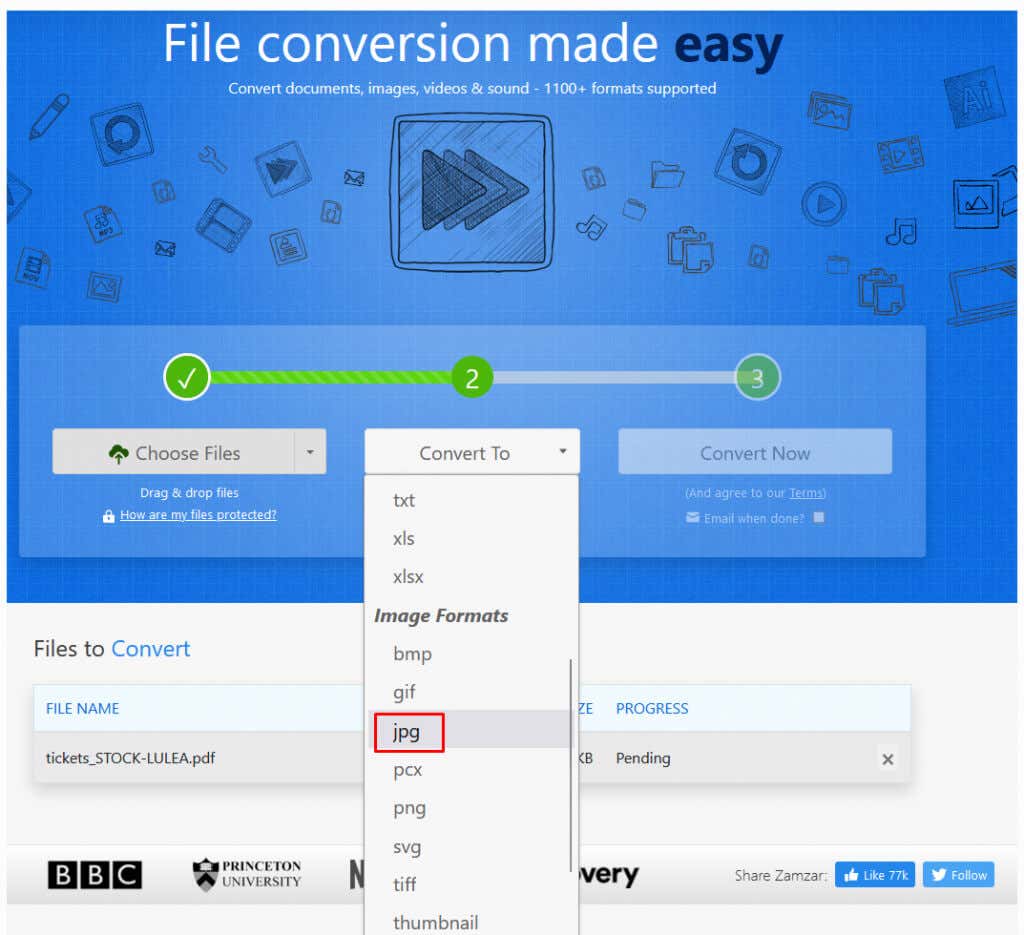
2. Use an Online Tool to Convert PDF to JPEG
Zamzar and ilovePDF let you convert your PDF files into multiple file extensions, not just PowerPoint. Instead of selecting PPT or PPTX, you’ll just need to select the JPEG file format to convert to. Here’s how:
3. Take Screenshots of Your PDF to Convert to Images
If you don’t want to use Adobe Acrobat, or you prefer not to use the conversion websites, you can take screenshots of your PDF file to convert them to images. This will require some manual work on your part, but it’ll get the job done. The images you create by screenshotting your PDF file can then be used in Google Slides just like any other images.
5. Share Your PDF as a Link Within Google Slides Presentation
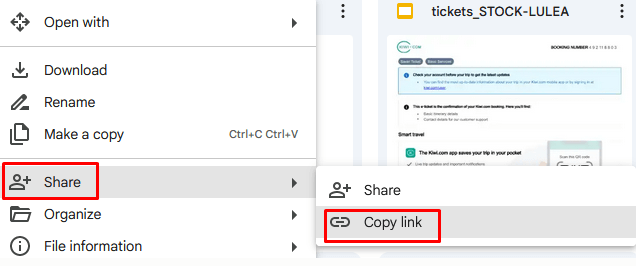
Google Slides lets you implement clickable links within the presentation. This can be a great way of sharing your PDF file with the audience without converting it. However, you’ll have to upload your PDF file into Google Drive first, and then share it as a link in Google Slides. But the process is very simple. Here’s how: Converting PDF files to Google Slide presentations opens up a world of possibilities for sharing information in a more engaging and interactive manner. By following the steps outlined in this article and leveraging the power of Google Slides, you can breathe new life into your presentations, making them more dynamic, visually appealing, and impactful for your audience. So, don’t hesitate to explore the possibilities and elevate your presentation game with the seamless conversion of PDF files to Google Slide presentations.