Can You Connect a Router to a Router?
The short answer is “yes,” and there are several reasons why you should add a secondary router to your home network. Two interconnected routers in your home might solve poor internet connection issues. A secondary router could serve as an access point (AP) or wireless repeater to extend coverage of an existing network. You could also use the secondary router as a switch to add more Ethernet ports to your network.
Requirements for Setting Up a Second Router at Home
Not every Wi-Fi router can be set up as a secondary router for extending wireless range or as an access point (AP). Here’s what you need:
Administrator access to your primary and secondary router. To set up an AP or switch, an Ethernet cable to connect the two routers.
If your secondary router isn’t capable of being used in these different modes because it’s older, look for a firmware update. The update may expand its capabilities. We’re using an Asus RT-N300 as our secondary router for this tutorial. The instructions in this tutorial will vary depending on your router’s brand and model. However, the same concepts apply whether it’s a D-Link, TP-Link, Linksys, Netgear, or any of the many good router models available.
How to Set Up a Second Router as a Wireless Access Point
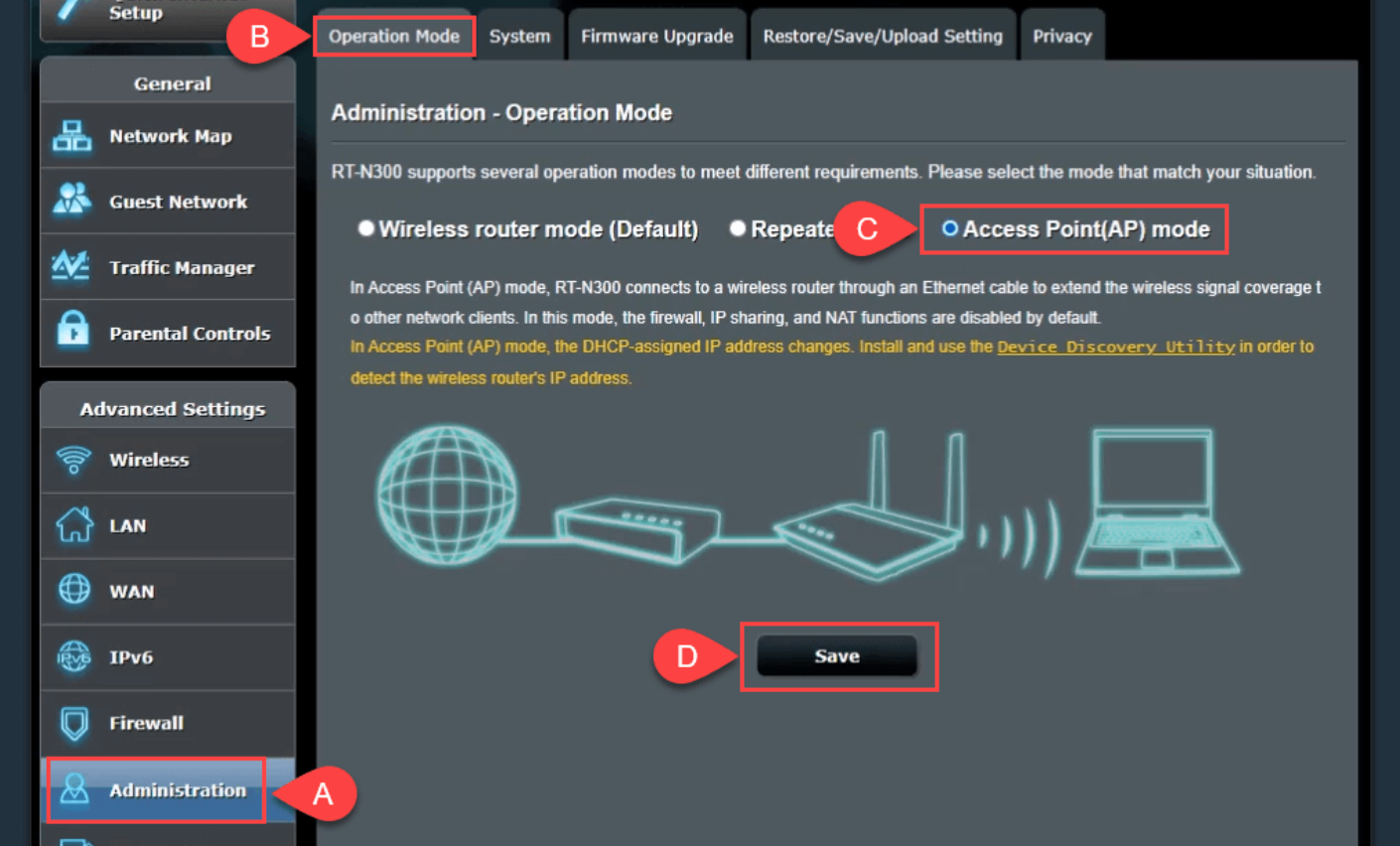
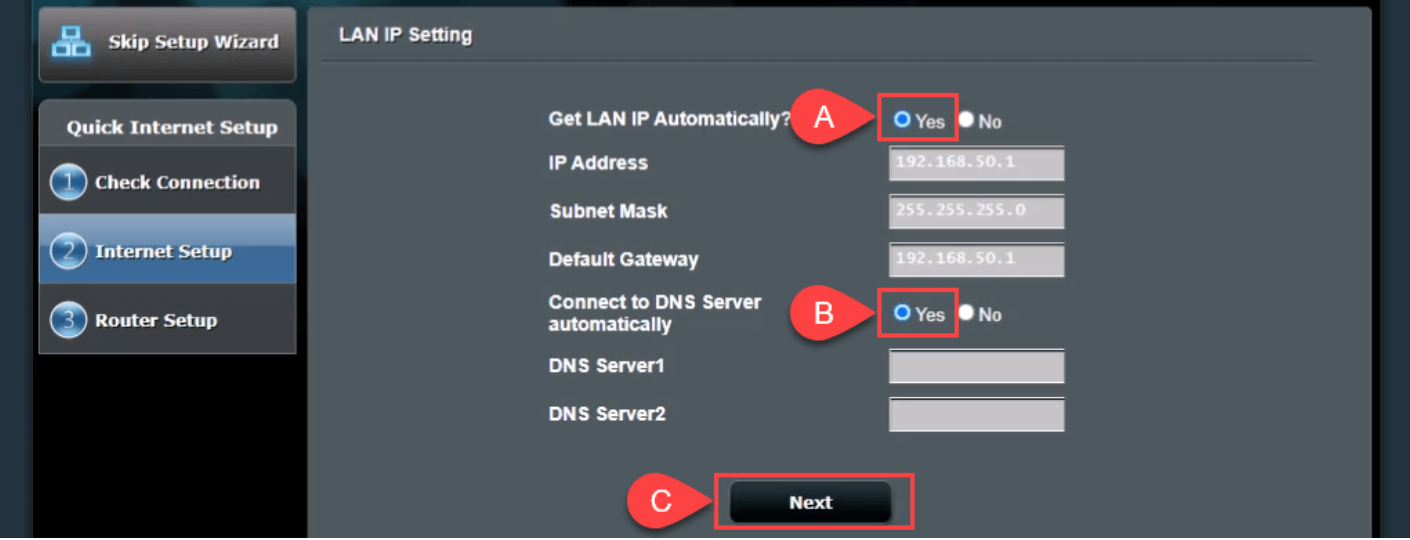
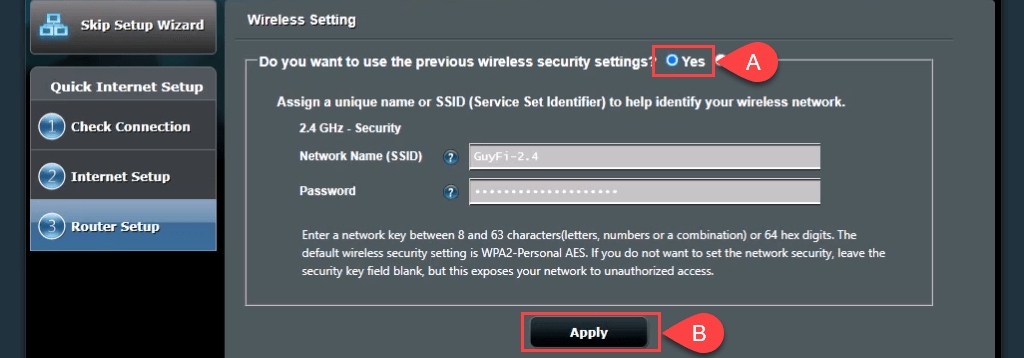
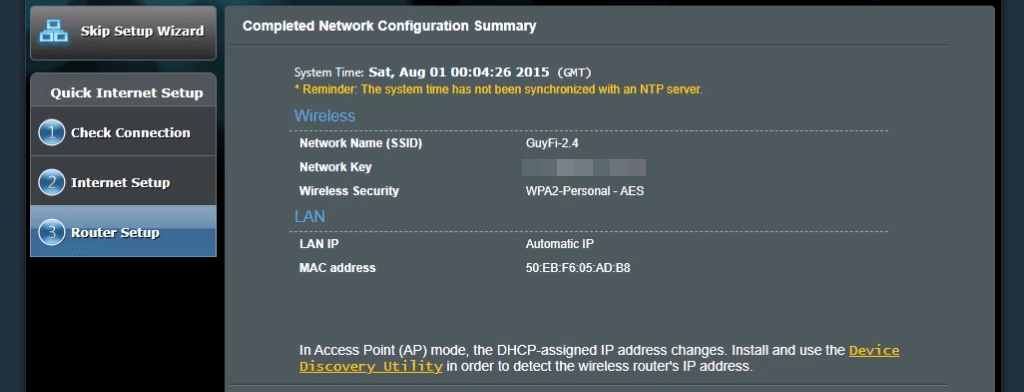
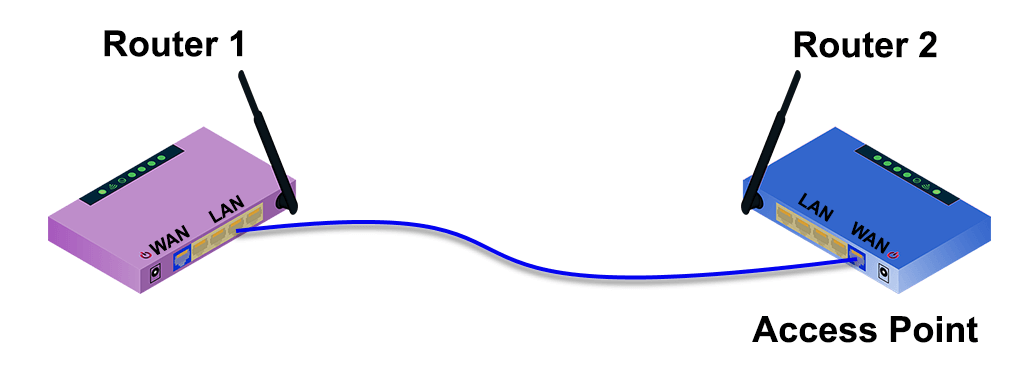
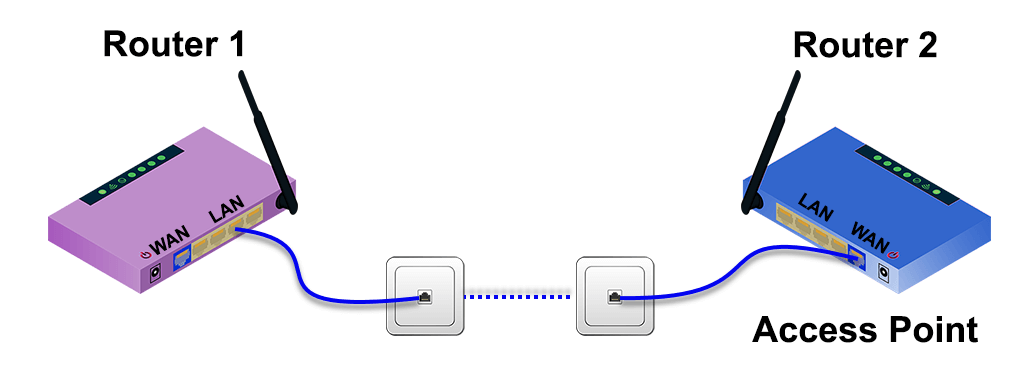
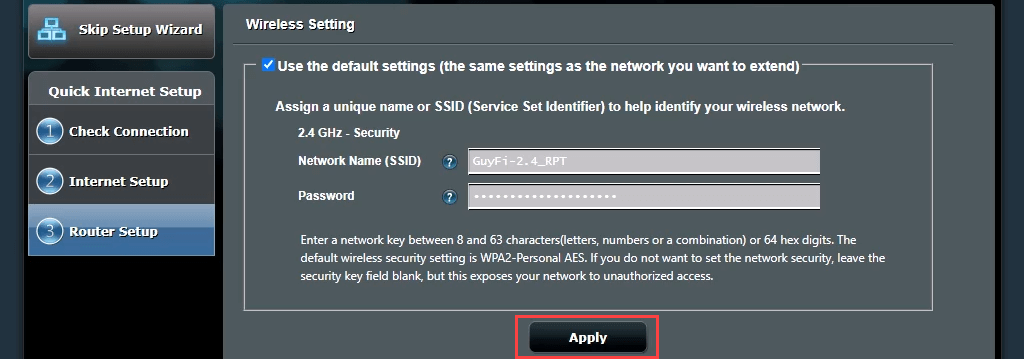
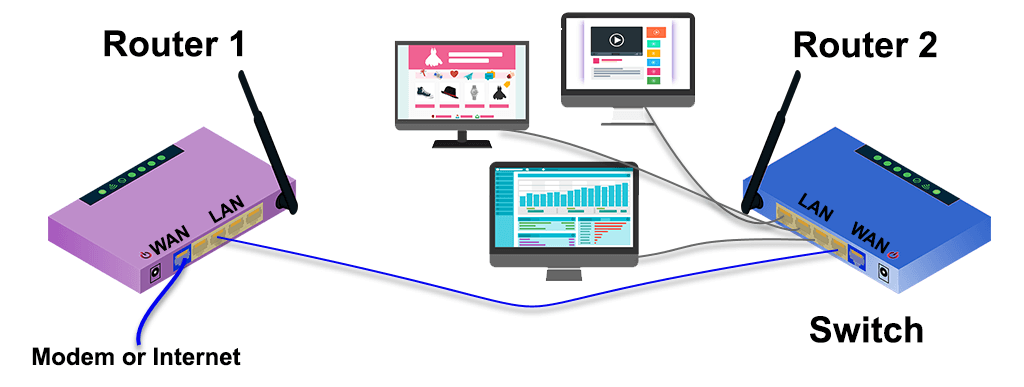
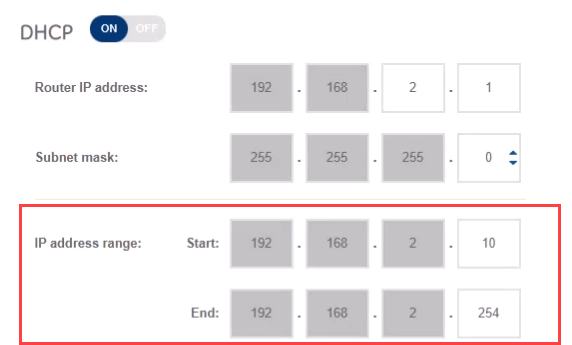
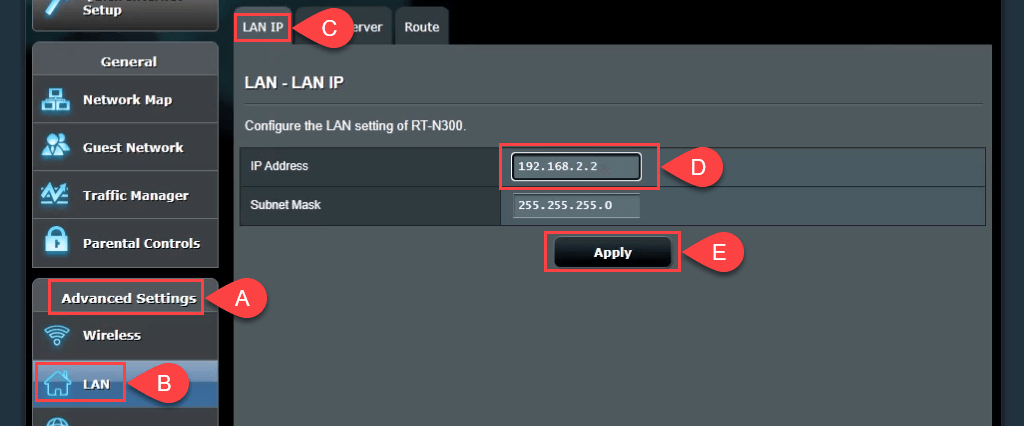
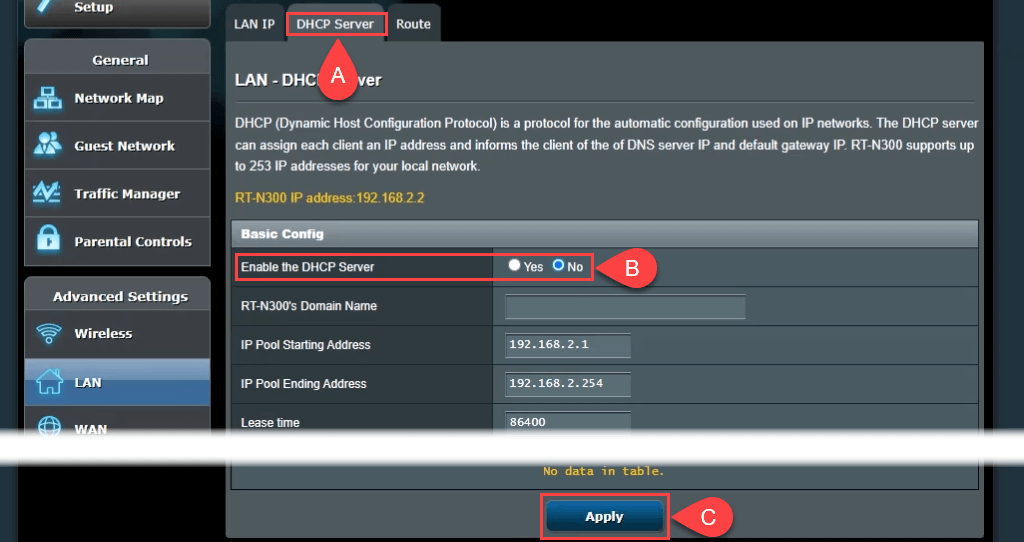
Is your home wired for Ethernet? Do you want excellent wireless coverage and internet access everywhere in your home network? If you answered “yes” to both questions, consider using a secondary router as an access point (AP). Setting up a wired connection between your secondary and primary router results in excellent and stable Wi-Fi coverage. Follow these steps to set up a wireless access point from your primary router. That lets you connect to the AP with the same network SSID and password as the primary router, making for a seamless transition between the two routers when moving around. If you want to make a guest network with a different SSID and password, select No and change the values as needed. The guest network wouldn’t be completely separate from your personal network; it would just mean you don’t have to share your personal network’s password. Image #1: Image #2:
How to Setup a Second Wi-Fi Router to Extend the Range
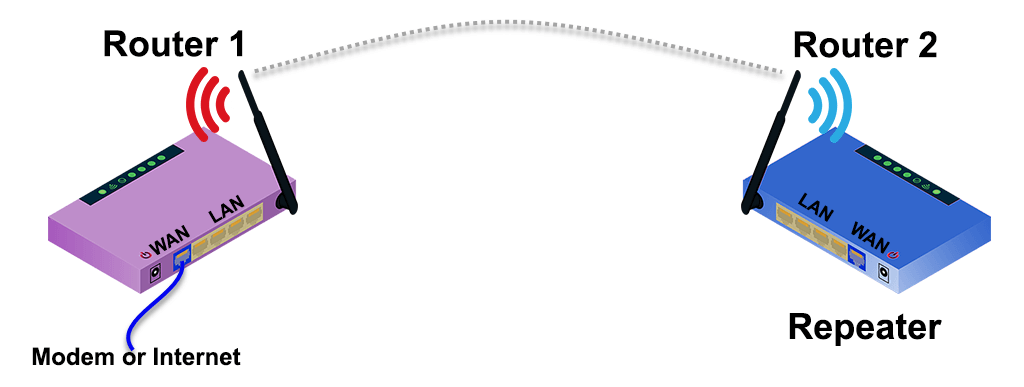
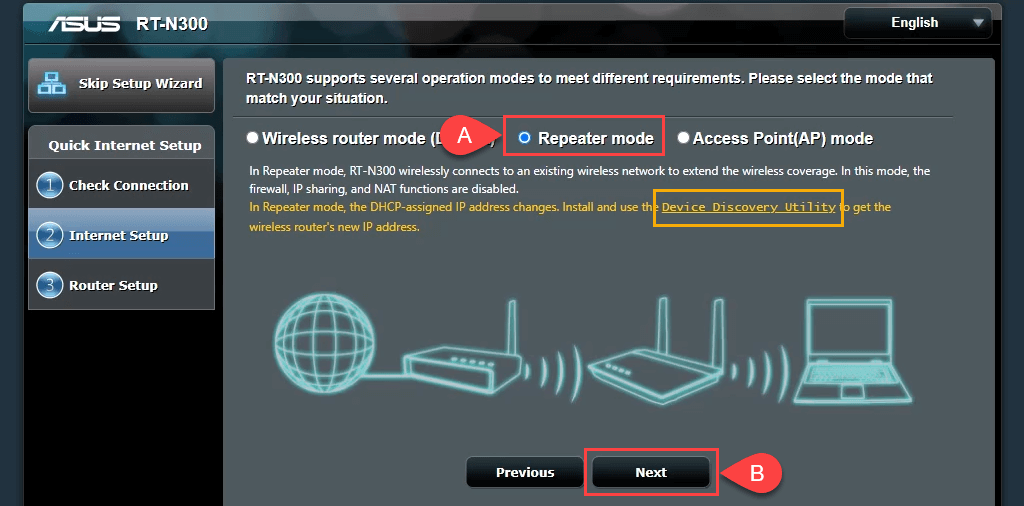
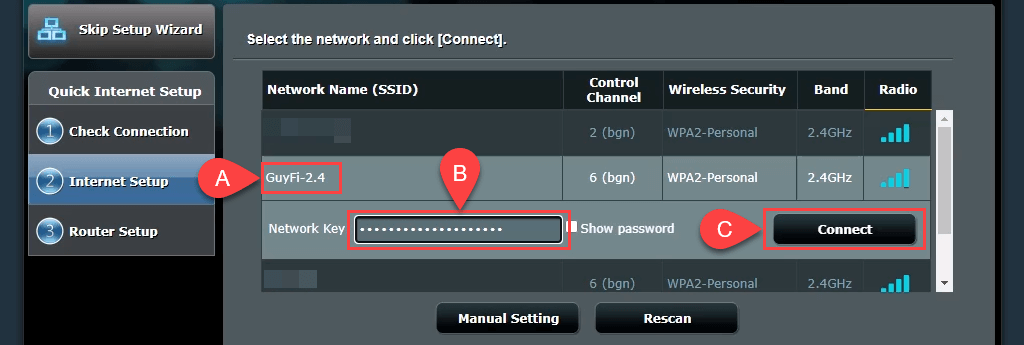
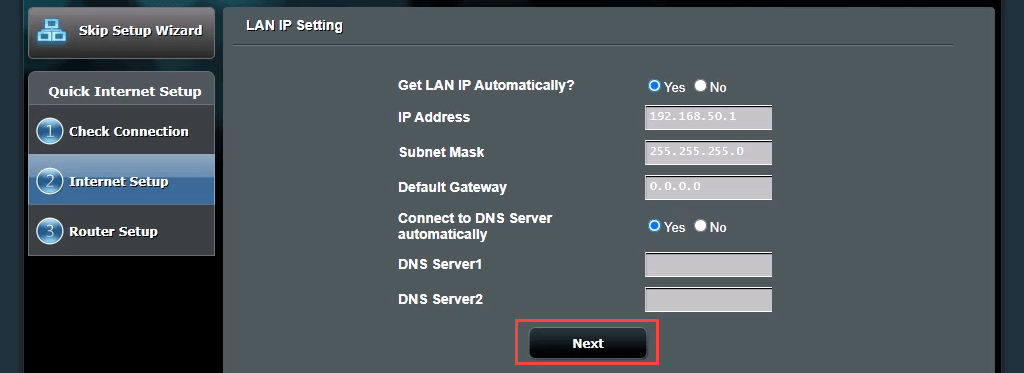
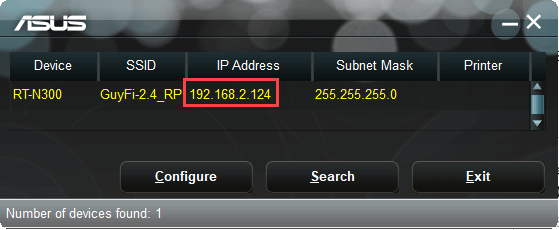
Wireless routers are often (set up) on one end of the house, where services come into the home. The setup results in uneven signal distribution and fluctuating internet speed around the house. Rooms close to the (primary) router enjoy fast internet speed, while the far end of the home has poor or no Wi-Fi signal. Using a secondary router as a Wi-Fi range extender (in a central location) will improve your home’s wireless connection. The best part is that the setup doesn’t require a wired Ethernet connection to the primary router. Fortunately, many new routers have a wizard process to set it up as a wireless range extender. For example, the Asus RT-N300 provides a simple repeater mode option during the initial setup. To estimate where to place the second wireless router, use an app to measure the wireless signal strength and find where it starts to drop. Go back a few feet to the area with a better signal area, and that’s a good spot to put it. Note the link to a Device Discovery Utility. That link is dead; however, we found a new link for the Device Discovery Utility. There’s also an ASUS Device Discovery app for iOS for iPhones and iPads. The Device Discovery Utility makes finding the router’s IP address easier after setting it up as a wireless repeater. The secondary router now connects to the primary router. It doesn’t return to the router management page when this is complete because the secondary router’s IP address has changed. This is where you need the Device Discovery Utility. The default RSSI setting of -70 dBm is suitable for most situations. That means your secondary router will disconnect any device with a signal strength lower than -70 dBm. The device can now try to connect to your primary router, giving a seamless transition between the two. It’s similar to how your cellphone call gets passed from tower to tower as you’re driving. It can take a few minutes to finish. You now have wireless coverage around your secondary router.
How to Setup a Second Router to Act as a Switch
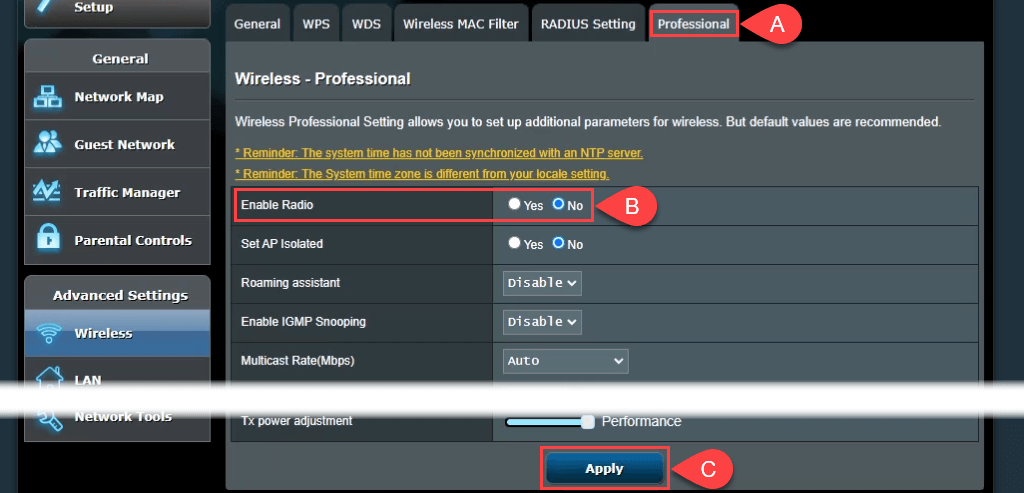
Most home networks have a combination modem/router with four or five Ethernet ports on the back for wired connections. Once those ports are full and you still want wired connections, you can use your router as a switch. You can also use an Ethernet router for this. If possible, turn off wireless access. Go to Wireless > Professional and set Enable Radio to No. If your router doesn’t have this option, secure the wireless access by setting ridiculously strong passwords and hiding the network’s Service Set Identifier (SSID), also known as the name of your Wi-Fi. That prevents anyone from connecting to it as a wireless device, accidentally or on purpose. Now, can connect more devices via Ethernet to your network by plugging them into the remaining LAN ports.
Connect Two Routers for Faster Internet
Now you have a use for one thing in your electronics doom pile and a better internet connection in your home. Remember that these instructions will vary depending on your router model or brand. Check your router manufacturer’s website or instruction manual for tutorials on setting up a secondary router. Otherwise, contact your router manufacturer or internet provider for technical support.