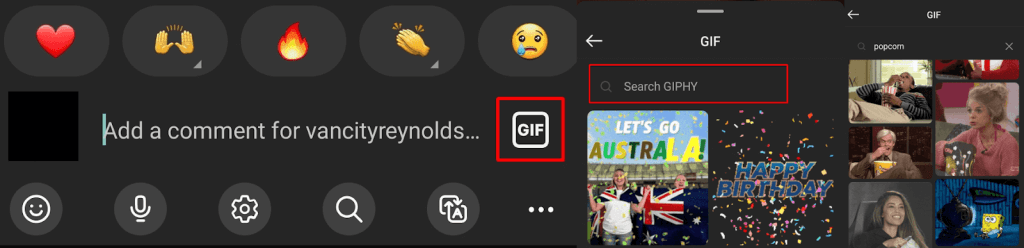
We’ll show you how to comment with a GIF on Instagram, as well as how to delete a GIF comment if you accidentally choose the wrong GIF (we’ve all been there).
How to Comment GIF on Instagram on Android and iOS
Note: Before proceeding with any of the below steps, make sure you’ve updated your Instagram app to the latest version. Here’s how to comment using a GIF on Instagram in just a few seconds. The steps are the same for both Android and iOS devices:
How to Comment GIF on an Instagram Post on the Web
Unfortunately, there’s currently no way to comment with a GIF on a post on Instagram’s web version. You’ll need to download the iOS or Android app to send comment GIFs.
How to Delete a GIF Comment on Instagram
Because GIFs post automatically as comments as soon as you tap them, it’s easy to accidentally post a GIF without meaning to. There’s no need to worry, though, as it’s easy to delete a GIF comment if the worst happens. Here’s how to do that:
Can You Use a GIF From Your Gallery as an Instagram Comment?
It’s not possible to use a GIF you have stored in your gallery to comment on an Instagram post. Because Instagram has GIPHY integrated, you should be able to find most GIFs by searching the GIPHY library.
How to Reply to an Existing Comment With a GIF on Instagram
There might be times you want to reply to an existing comment on Instagram using a GIF. Sadly, this isn’t possible — you can only create a new comment with your GIF of choice. As you can see, it’s easy to comment on a GIF on Instagram once you know how. While you’re here, why not check out how to pin a comment on Instagram, or how to unread messages on Instagram.