However, outdated cache files could lead to issues with performance and storage. If you’re on an iPhone, this tutorial will show you how to clear the Facebook cache to fix app-related problems and free up space.
What Does Facebook Cache Mean on iPhone?
The Facebook cache on the iPhone consists of temporary files—images, scripts, and videos—that the app saves to make it feel faster and more responsive. This data helps Facebook load quicker when you re-open the app, switch between tabs, or revisit posts and Facebook profiles. However, cached data has its downsides. For instance, if Facebook fails to refresh its cache, the obsolete data might slow performance or cause the app to freeze or crash. Moreover, a rogue cache could eat away at the storage and leave little space for other apps.
Note: Facebook’s app cache is not the same as the Safari browser cache—app caches are stored separately from browser caches. However, if you access the web version of Facebook via Safari, the website will use the browser cache to speed things up.
Why Clearing Facebook Cache on iPhone Is Important
There are several reasons why you might want to clear the Facebook cache. This includes:
Improved performance: A large cache can cause slowdowns, crashes, and freezes within the app. Fix glitches: Clearing the cache can help resolve app glitches or problems with content not loading. Free up storage: A bloated cache can consume a lot of storage, so the occasional purge can help free up space in older iPhone models.
Suppose you aren’t experiencing any problems with Facebook or don’t have storage issues. In that case, it’s generally a good idea not to manually clear the cache and let the app manage it instead. Messing with the cache for no reason can slow down the app. Did you know? A public Facebook profile is a magnet for stalkers and other bad actors. That’s why you need to know how to lock your Facebook profile.
How to Clear Facebook Cache on iPhone
The Facebook app does not offer a built-in option to clear the cache, and iOS also does not provide a way to delete Facebook’s cached data. The workaround is to offload and reinstall the app, which tends to remove most of an app’s temporary files. That said, Facebook does provide an option to clear its built-in browser cache. And if you use Safari to access Facebook, you can quickly clear cached data related to the web app or the entire browser cache.
Offload and Reinstall Facebook
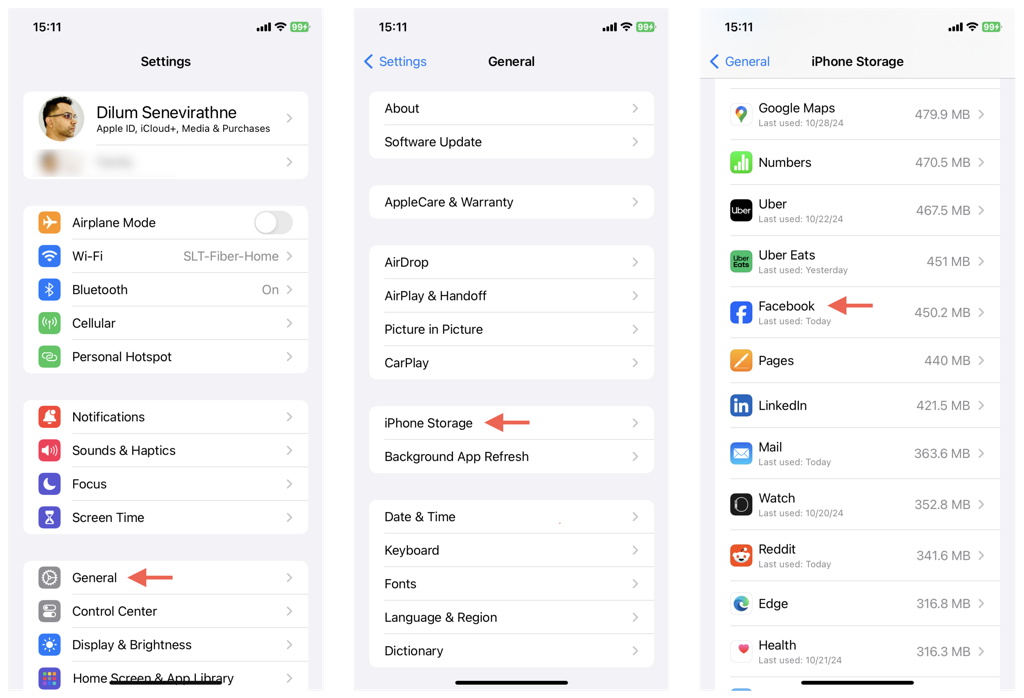
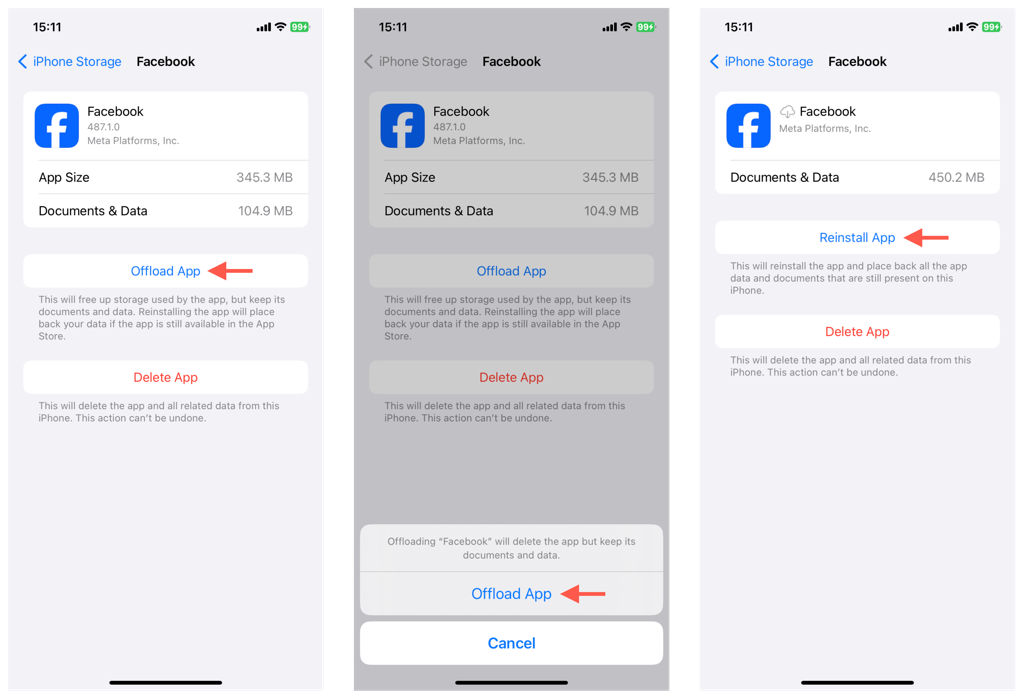
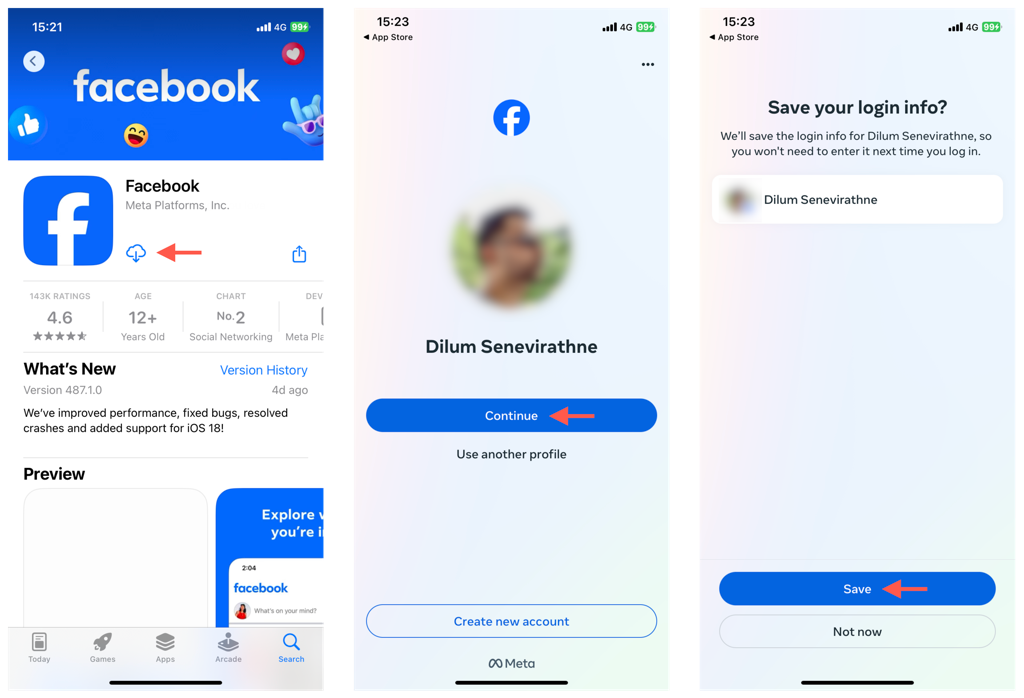
Offloading Facebook deletes the application and its cache while leaving any user-generated documents and data behind. You can then reinstall the app and pick up where you left off—you don’t have to sign back in. To offload and reinstall Facebook on your iPhone:
Clear Facebook’s In-Browser Cache
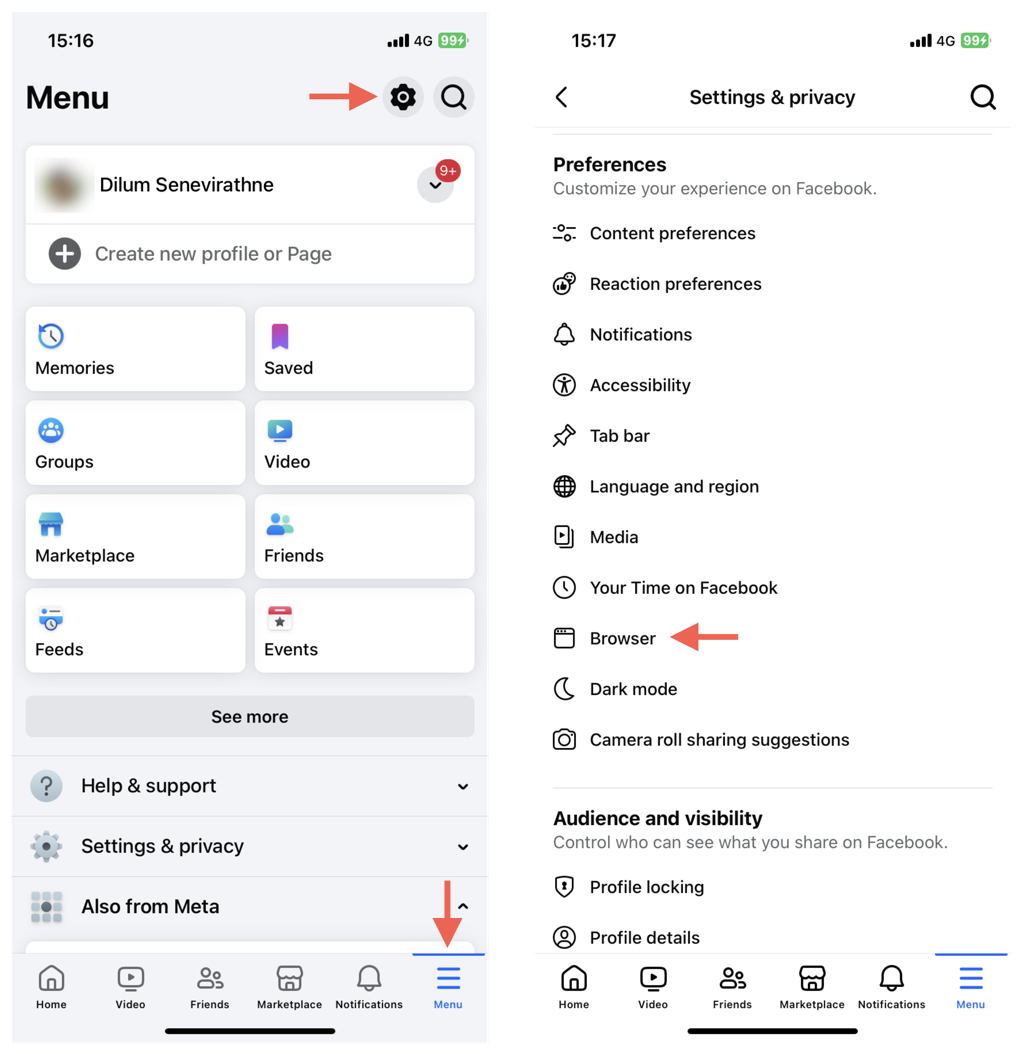
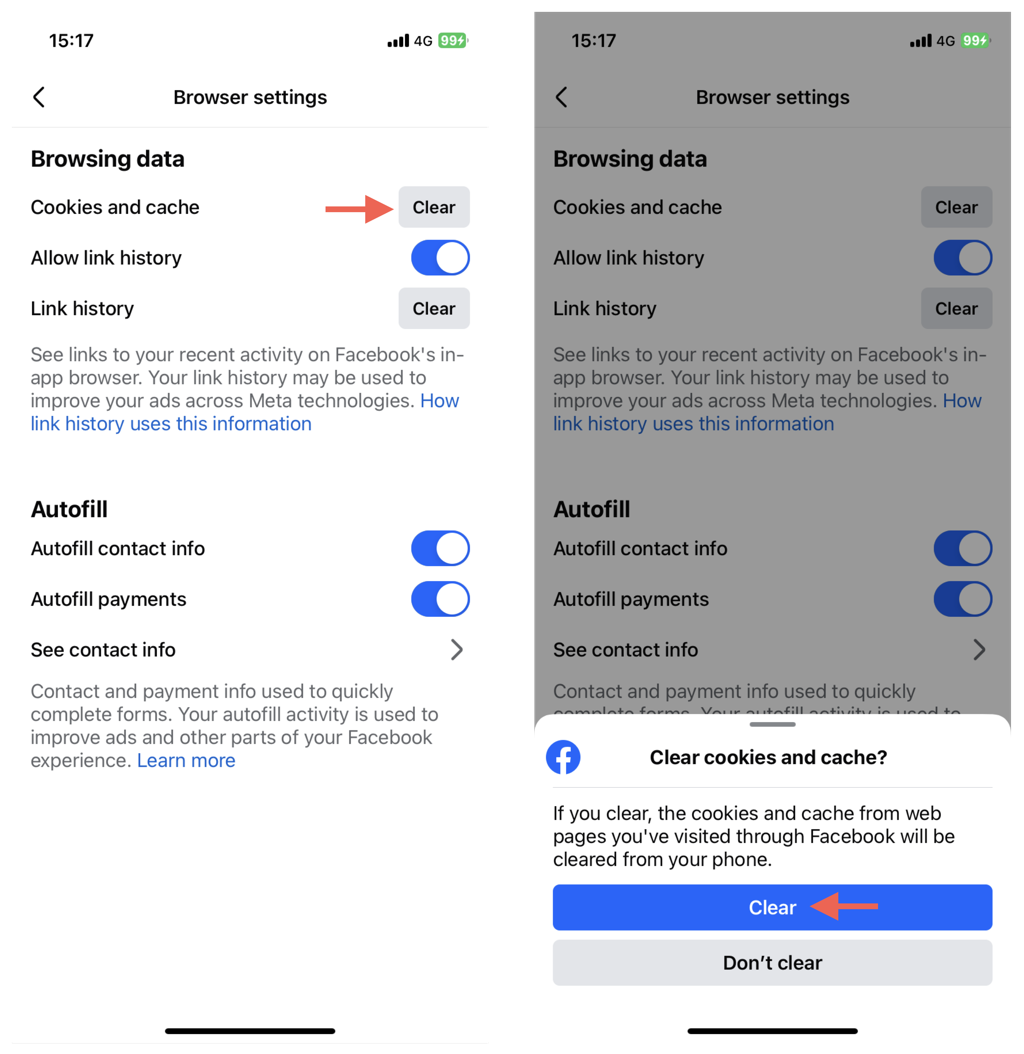
The Facebook app has an in-built browser that allows you to open and interact with links. Luckily, the app provides an option to clear its cache if you have problems loading links. To clear Facebook’s in-browser cache:
Clear the Safari Browser Cache
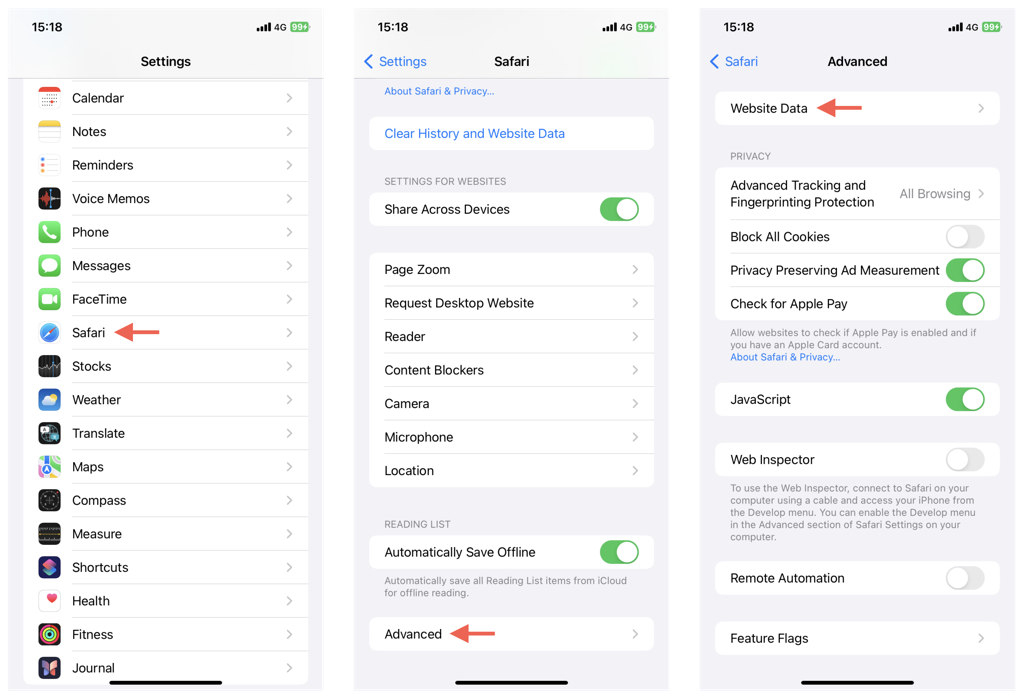
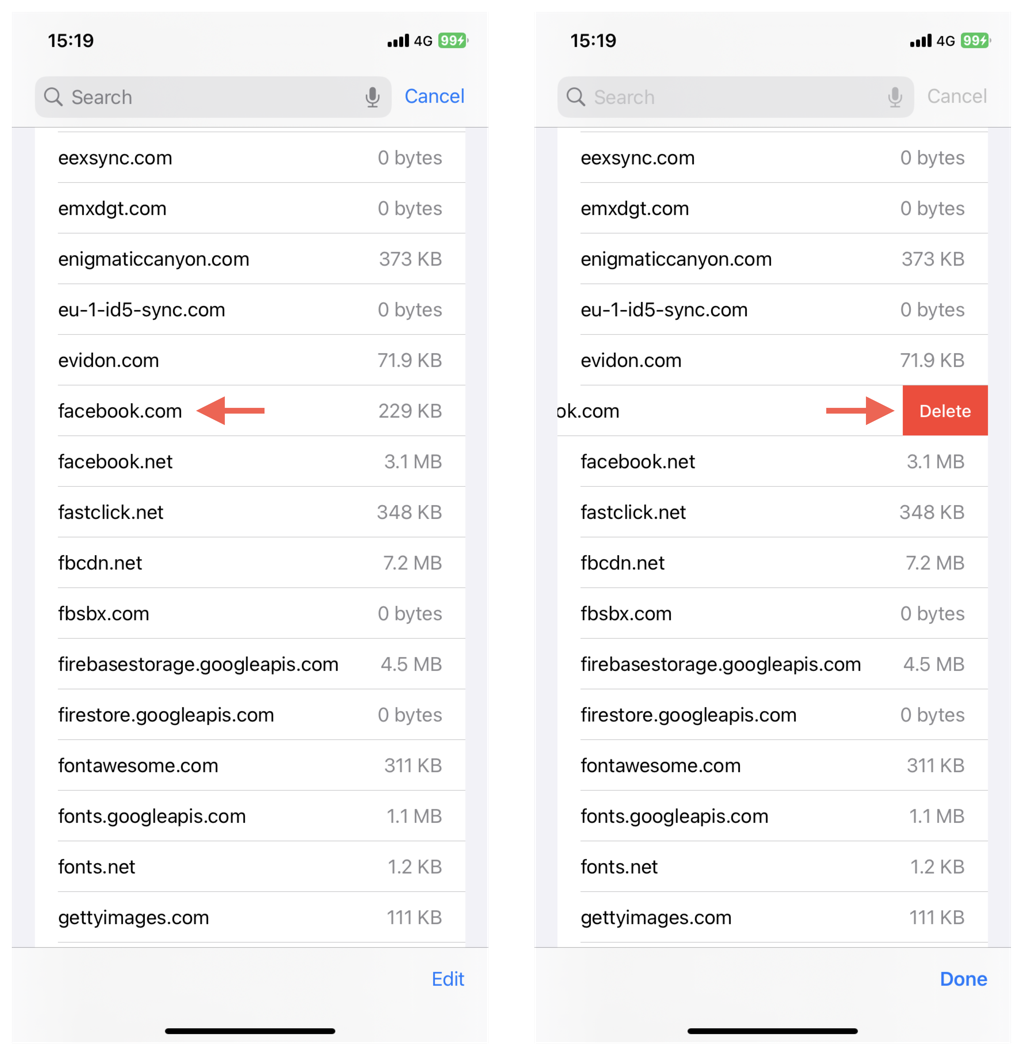
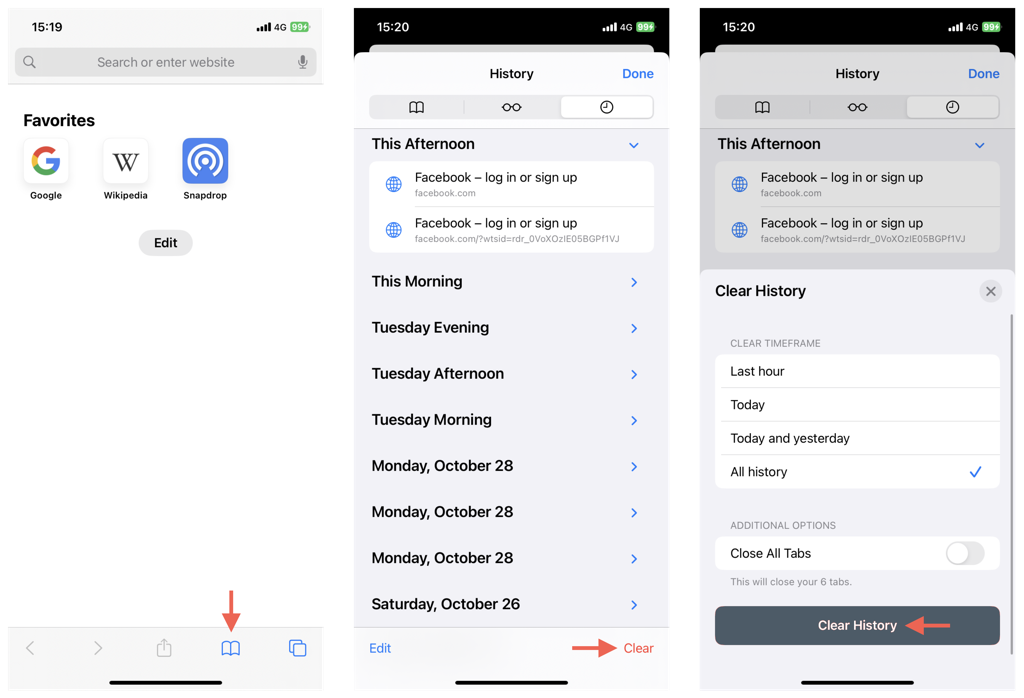
If you use Safari to access your Facebook, clearing the related browsing data could help resolve problems with the website. If you continue to experience issues, you can choose to clear cached data related to the web app only or the entire browser cache. Note that you’ll have to sign back into Facebook in both cases. To clear the Facebook web app cache only: To clear the entire Safari browser cache:
How to Clear Facebook Cache on iPhone by Uninstalling the App
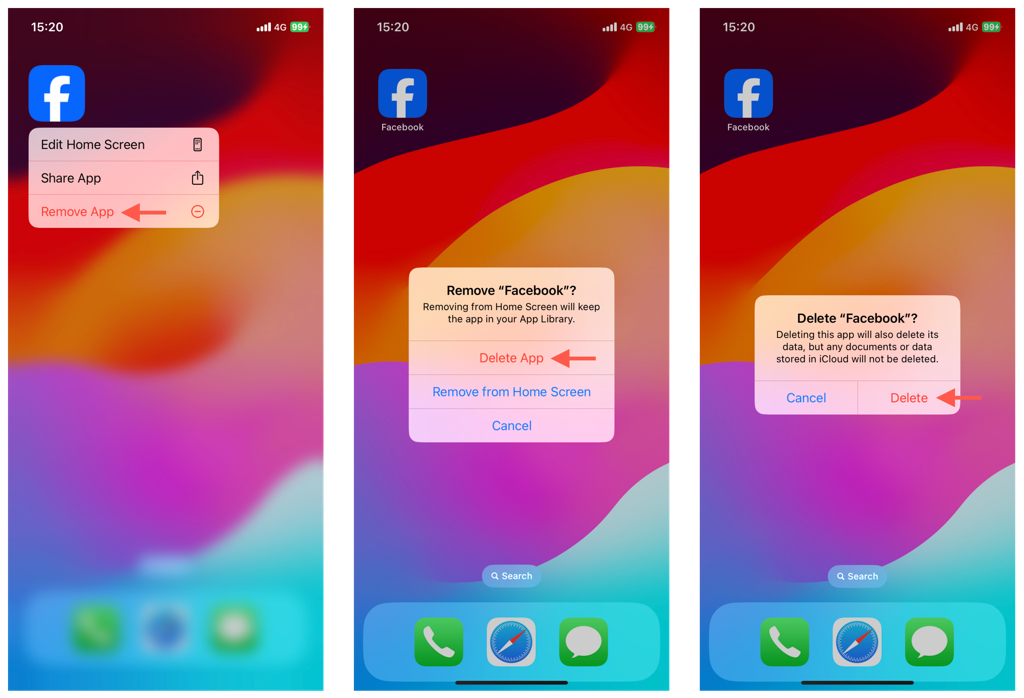
To clear every bit of cached Facebook data on your iPhone, you must fully remove and reinstall the app. You’ll have to sign back in manually, but if you choose to save your Meta account information on your iPhone, you should be able to log back quickly on subsequent reinstallation attempts. Note: All your account data, such as posts and friends lists, will remain intact despite removing the app because they are stored on Facebook servers. To fully remove and reinstall the Facebook app:
Conclusion
Facebook’s app cache shouldn’t bother you in most cases, and in the instances that it does, quickly removing the cached data should take care of most of the problems. Also, if your iPhone has little storage remaining, trashing Facebook’s temporary files can help keep things rolling. The same applies to Facebook Messenger as well.