Why Check Your Purchase History on Steam?
There are a number of reasons why you might want to check your Steam purchase history. If you’re considering purchasing a game or DLC, you might want to make sure you don’t already own it. Or perhaps you want to check if the game you own is a special edition. You might also have forgotten how much you paid for an item or game and need to check.
Reviewing your purchase history on Steam is also useful in the event something goes wrong. For example, if there’s a Steam transaction on your bank statement that you don’t recognize or if you have been overcharged for a game, you can check your purchase history.
You may need your purchase history as proof of purchase if a game or DLC goes missing from your Steam library, if a game key you purchased doesn’t work, or if a Steam game won’t launch. Finally, if you need a refund on a game or in-game item, you’ll need the details from your Steam purchase history.
Below, we’ll show you three ways to check your Steam purchase history.
Check Purchase History on Steam via the App
The quickest and easiest way to check your purchase history on Steam when you’re on the go is via the mobile app on Android or iOS. Here’s how to do that: You should be able to see the date of the purchase, the name of the game or item purchased, the transaction type (e.g., card, PayPal, etc.), and the transaction amount.
Check Steam Purchase History on PC
Another way to check your purchase history on Steam is on your desktop or laptop PC. It’s often easier to see details of your transactions on a larger screen! You can either use the Steam client (recommended) or check your purchase history on the Steam website.
How to Check Purchase History on Steam via the Desktop Client
It only takes a few seconds to check your Steam purchase history via the desktop client. Here’s how to see purchase history on Steam using the client:
Check Steam Purchase History via the Website
If you don’t use the Steam client or just prefer to check your purchase history on Steam via the website, here’s how to do that:
Understanding Steam Purchase History
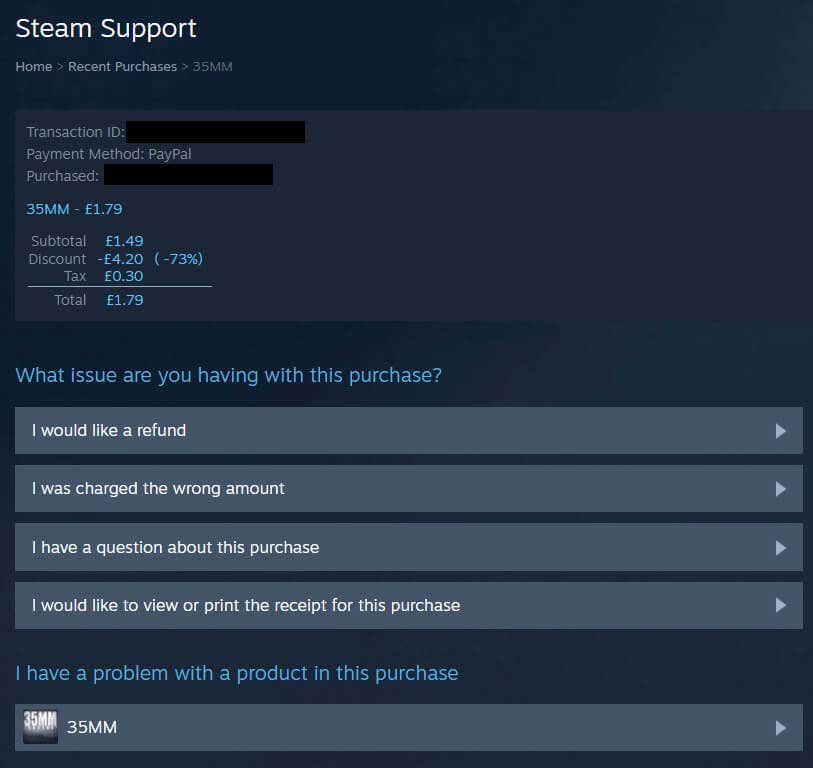
You can click on any item in your Steam purchase history to bring up further details about that transaction. You’ll also see a number of support options available to choose from, including I would like a refund, I was charged the wrong amount, I have a question about this purchase, and I would like to view or print the receipt for this purchase.
If you’re having any issues with your item, for example, if you need a refund for a game on Steam after an accidental purchase, or if you’re having trouble with a game key, select I have a problem with a product in this purchase. On the following page, select the issue that applies and follow the on-screen prompts for support.
Now, you no longer need to worry about how to check purchase history on Steam. It takes just a few seconds of your time and you can easily check your purchase history via the app, website, or desktop client, depending on your preferences.