How to Change Modified Date of a File?
There are several ways to change a file’s attributes in Windows. You can use built-in tools (like Windows PowerShell and File Explorer) or third-party applications. This tutorial covers instructions on using PowerShell and File Explorer to change a file’s modified date in Windows. Our YouTube video below explains how to use third-party apps to change the date you modified a file.
Change File Attributes Using Windows PowerShell
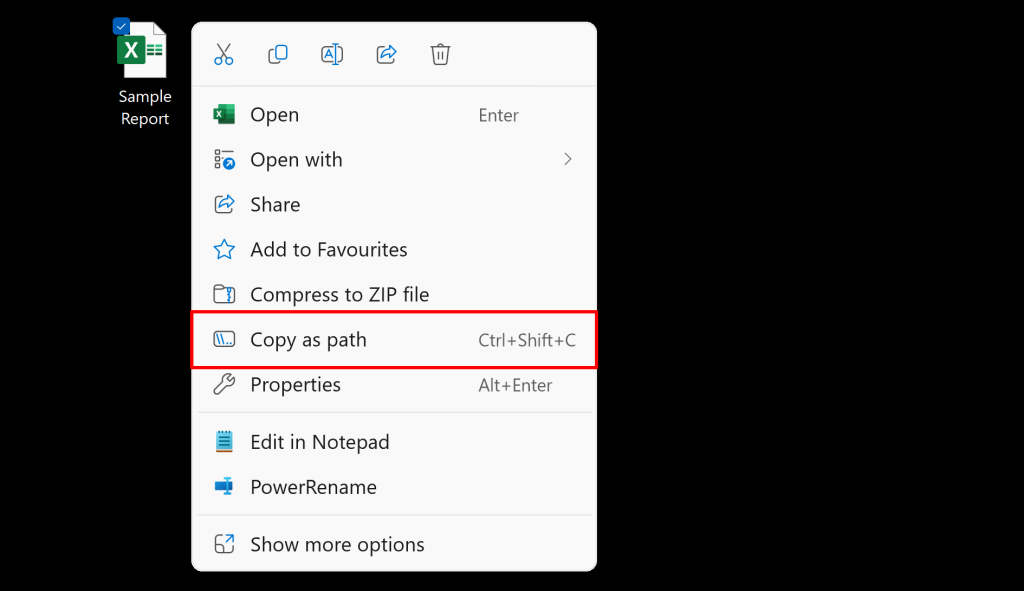
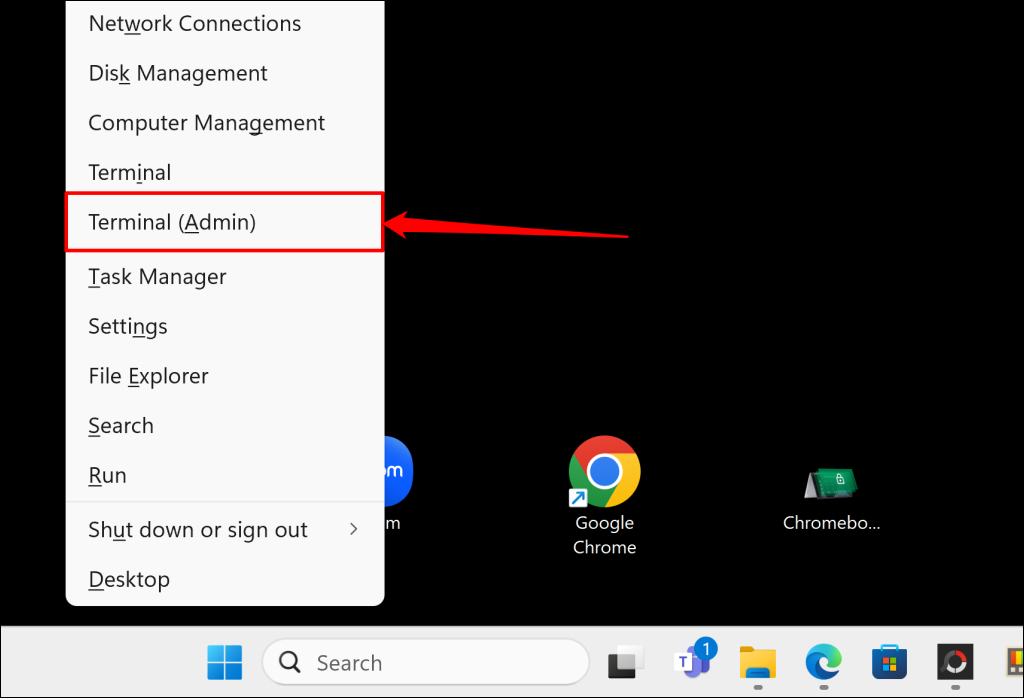
Modifying the original date(s) attributed to files using Windows PowerShell is straightforward. For this tutorial, we used PowerShell to change the last time/date we edited an Excel document. Here’s how:
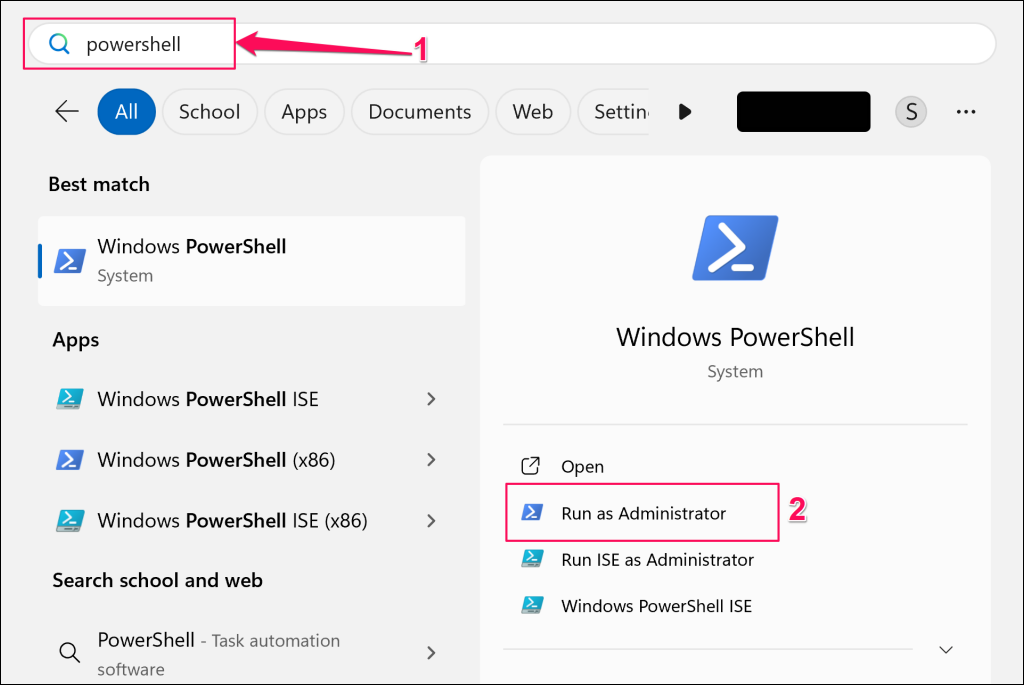
Alternatively, type “powershell” in the Windows Search bar and select Run as Administrator in the Windows Powershell menu.
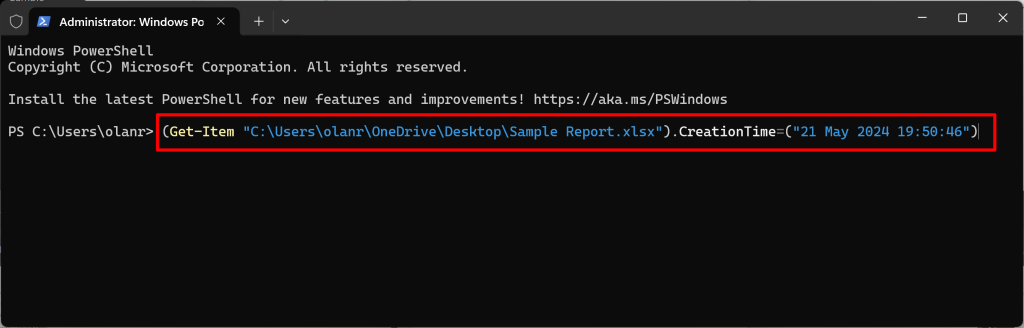
Replace file_path with the file directory you copied in step #1 and the other attributes (Day, Month, Year, HH, MM, and SS) with your preferred value. HH, MM, and SS stand for hour, minute, and second, respectively. The resulting command for the sample document we’re modifying looks like this:
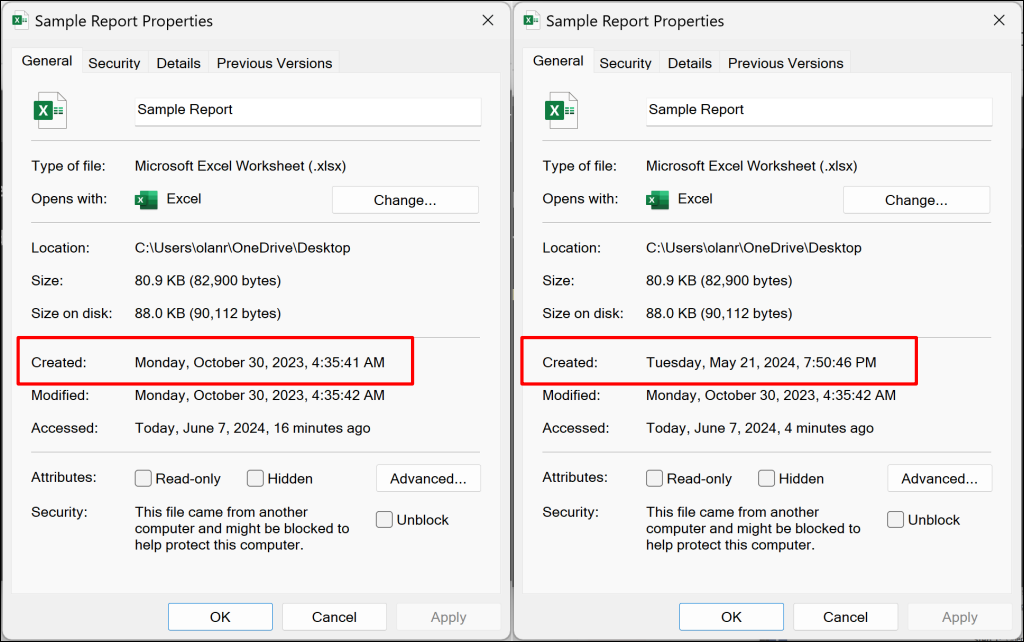
We successfully changed an Excel document’s creation date and time from “Monday, October 20, 2023, 4:35:41 AM” to “Tuesday, May 21, 2024, 7:50:46 PM.”
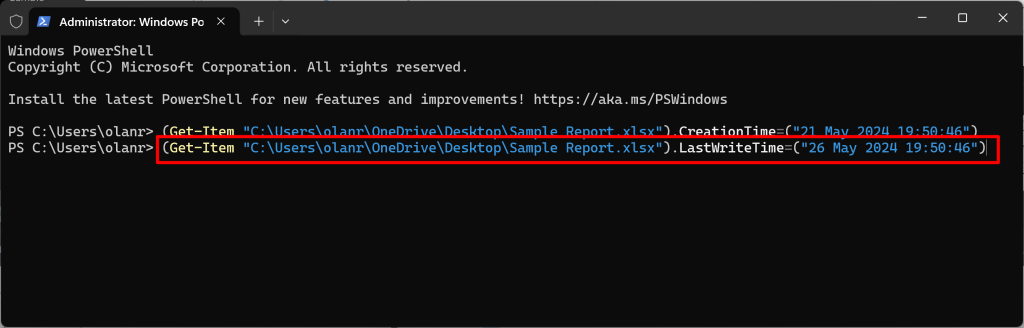
Again, replace file_path with the file path you copied in step #1 and the other attributes (Day, Month, Year, HH, MM, and SS) with your preferred value. The command should look like the one below:
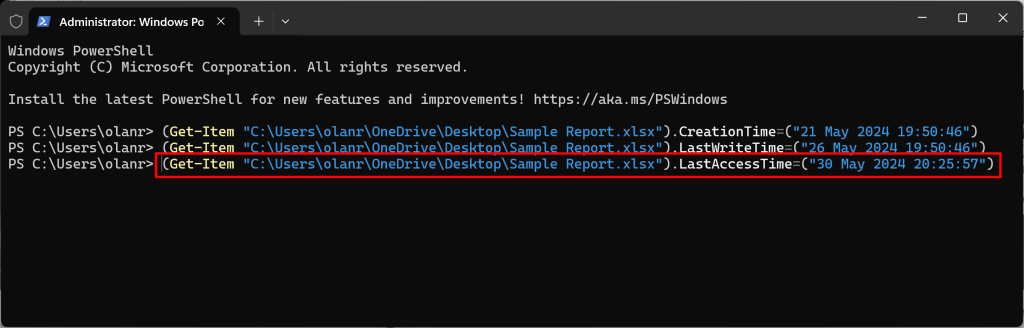
That should change the file’s modification date immediately. Check the file properties to verify. Replace file_path with the file path you copied in step #1 and the other attributes (Day, Month, Year, HH, MM, and SS) with your preferred value. The command should look like the one below:
Windows will change the date accessed to the values provided in the command. Note: These commands permanently change a file’s “Created,” “Modified,” and “Accessed” dates. However, opening or editing the file updates its modification or accessed date. If you intend to share a file with the new date(s), don’t open it (in any app) after running these PowerShell commands. Doing so discards your changes and restores the modified attributes to their original dates.
Remove File Attributes Using Windows File Explorer
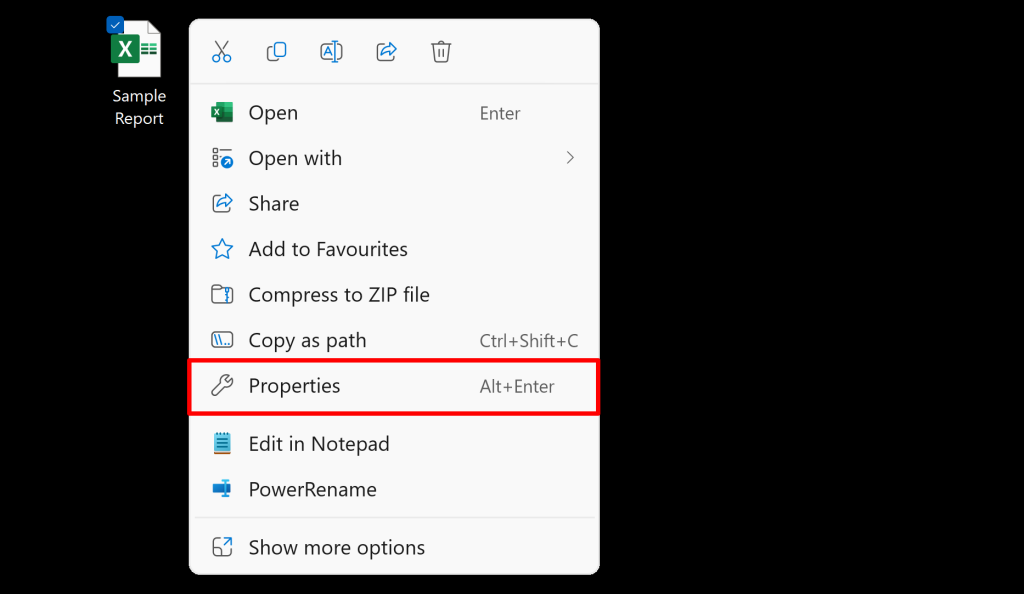
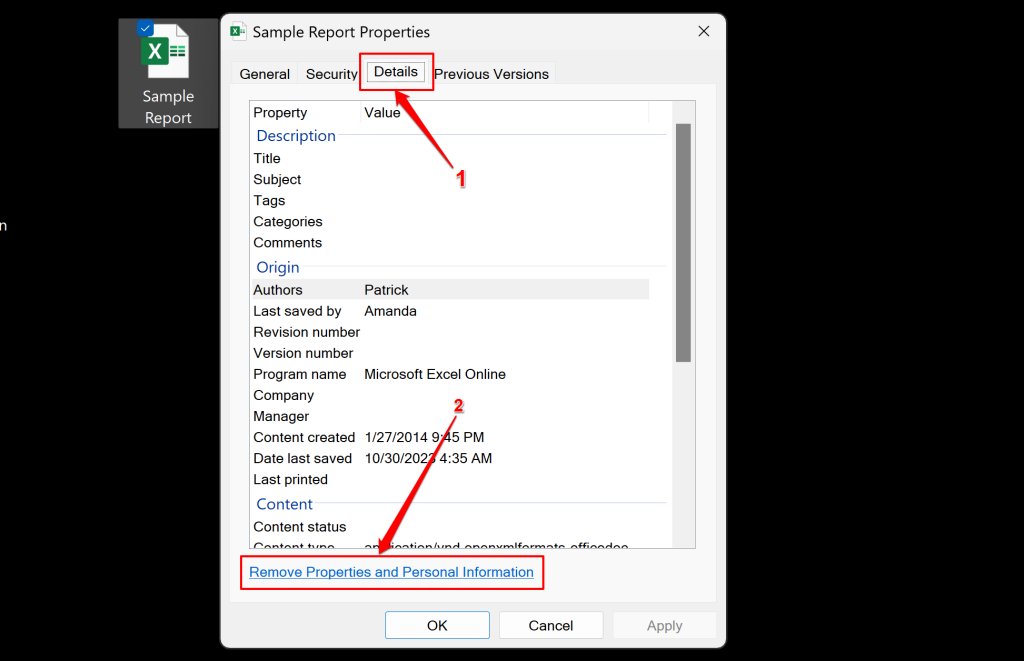
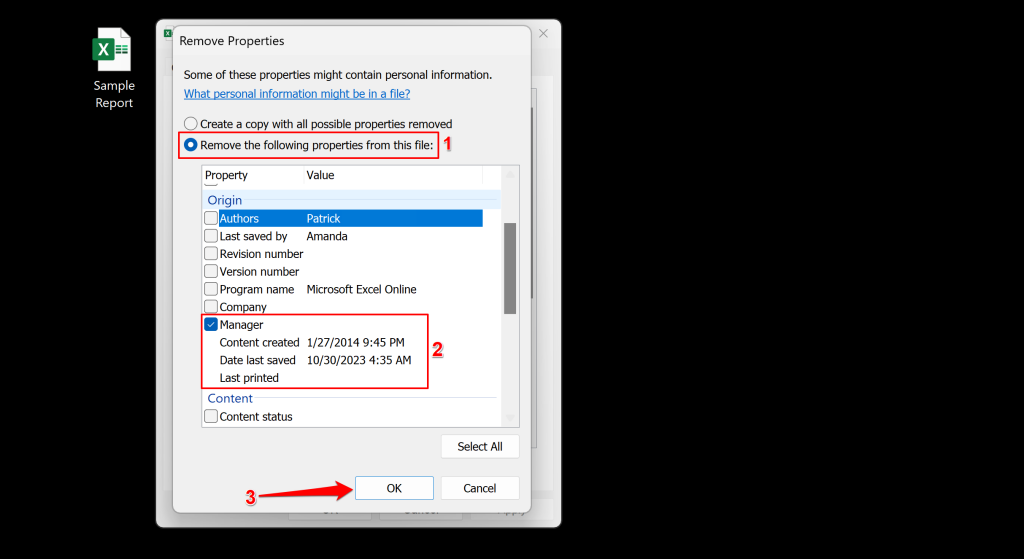
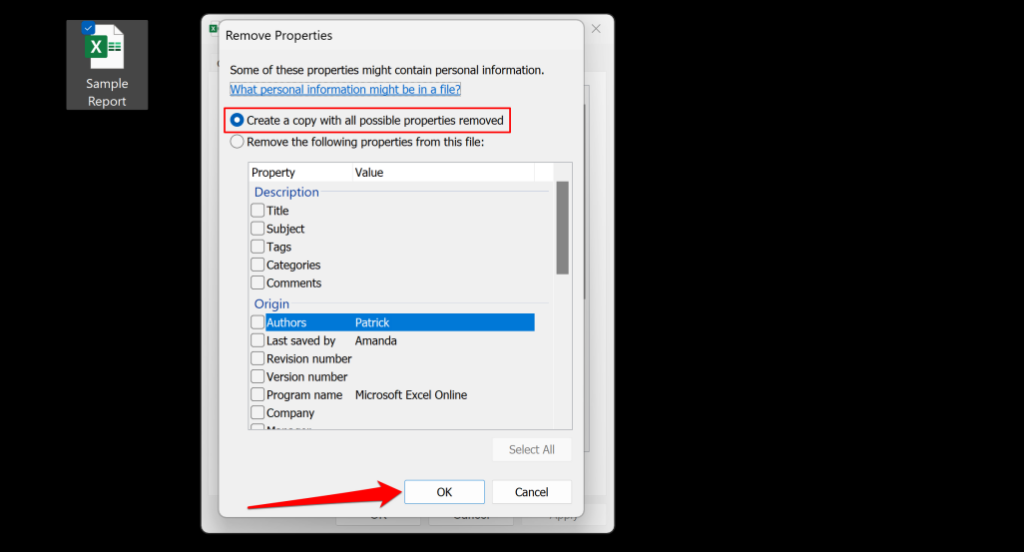
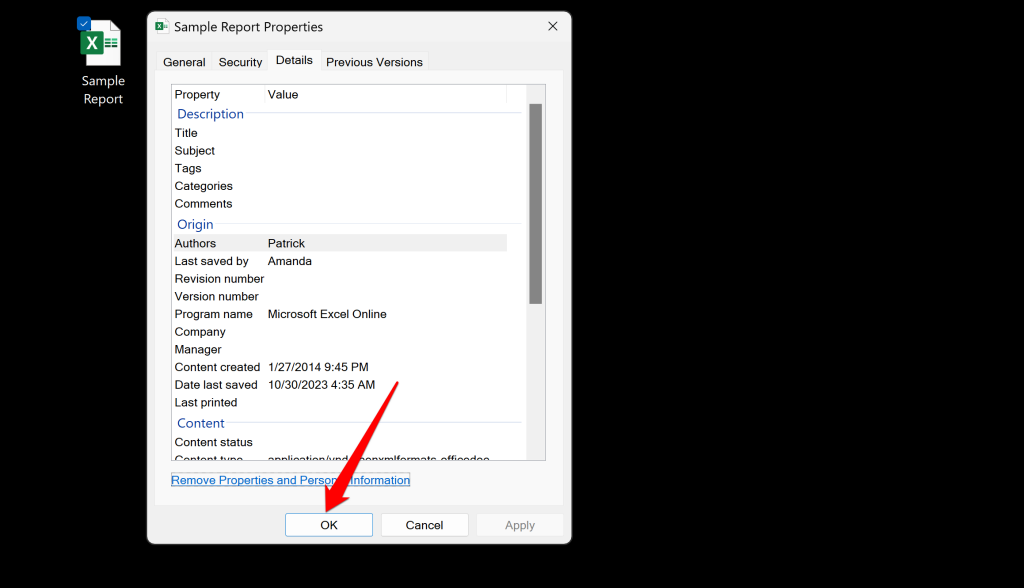
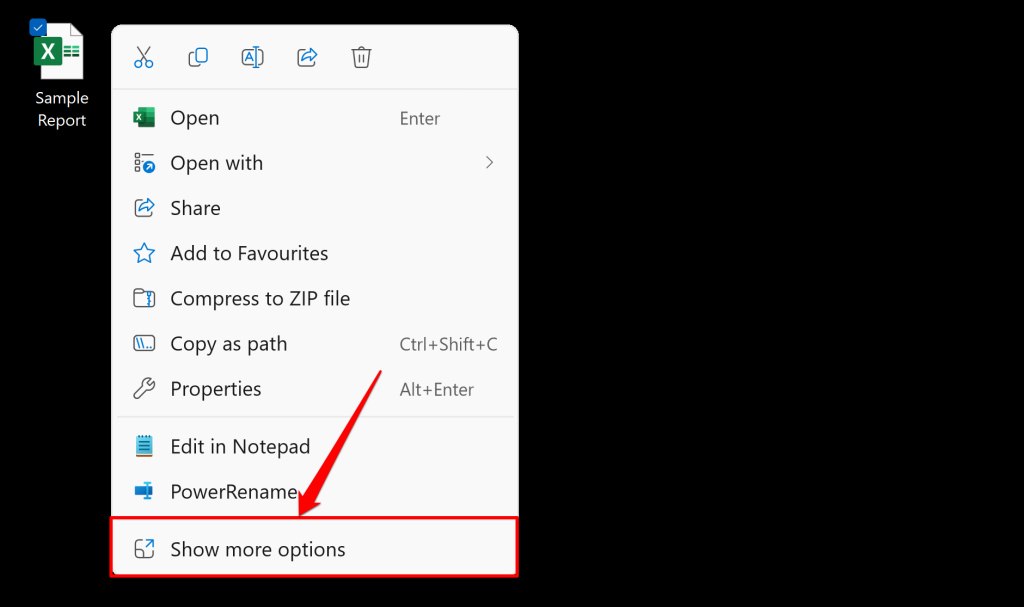
You can’t change a file’s last viewed, edited, or creation date through File Explorer. However, you can use the utility to remove dates (and other personal data) from files you intend to share.
File Explorer will create a new copy of the file (without any personal information) in the same folder as the original file.
You can also remove attributes like author name, comment, etc. The attributes you can remove will vary depending on the file type or format. For image files, you can remove authors, dates, and parameters like copyright, tags, rating, etc.
Use Attribute Changer to Change File Attributes in Windows
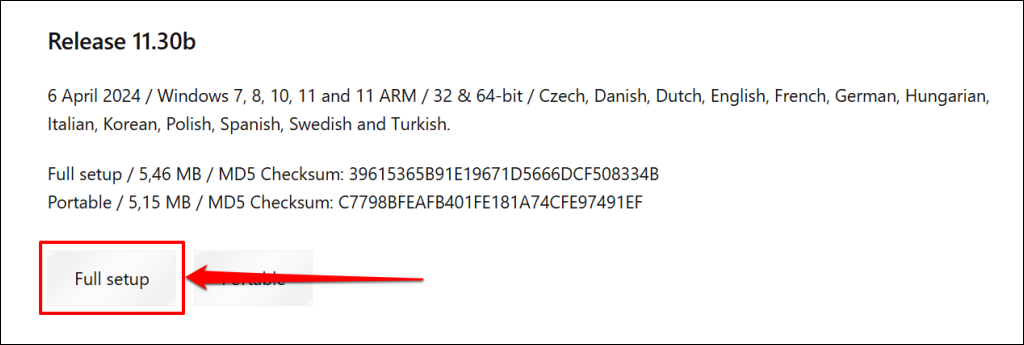
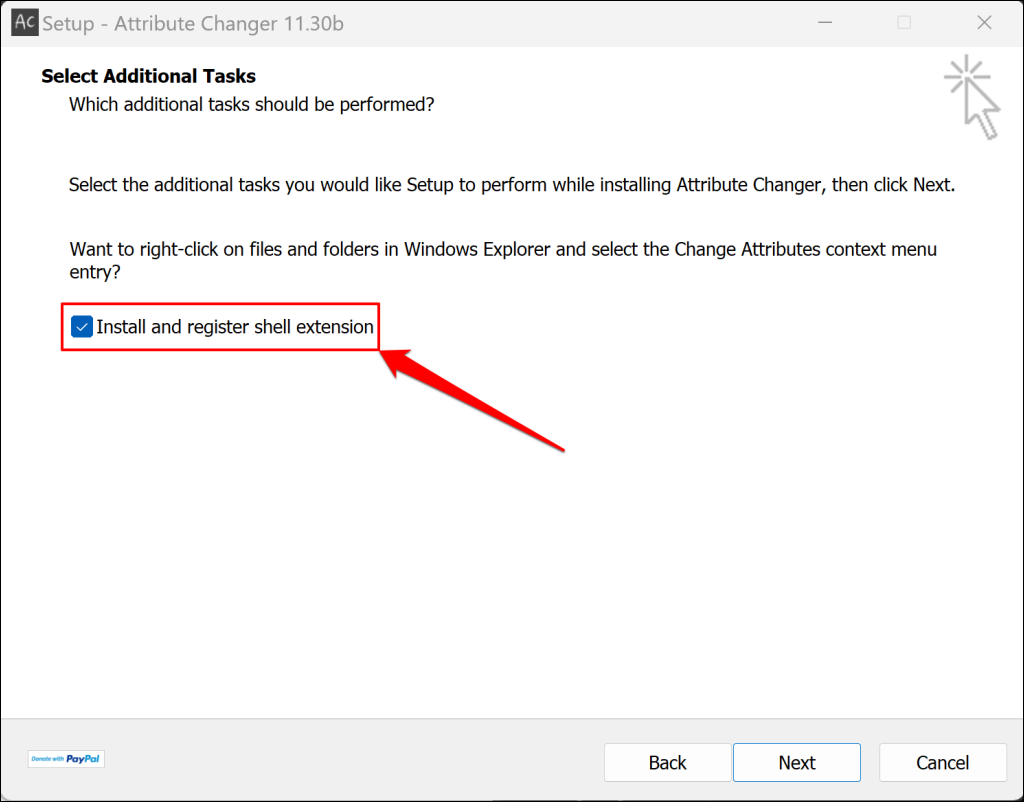
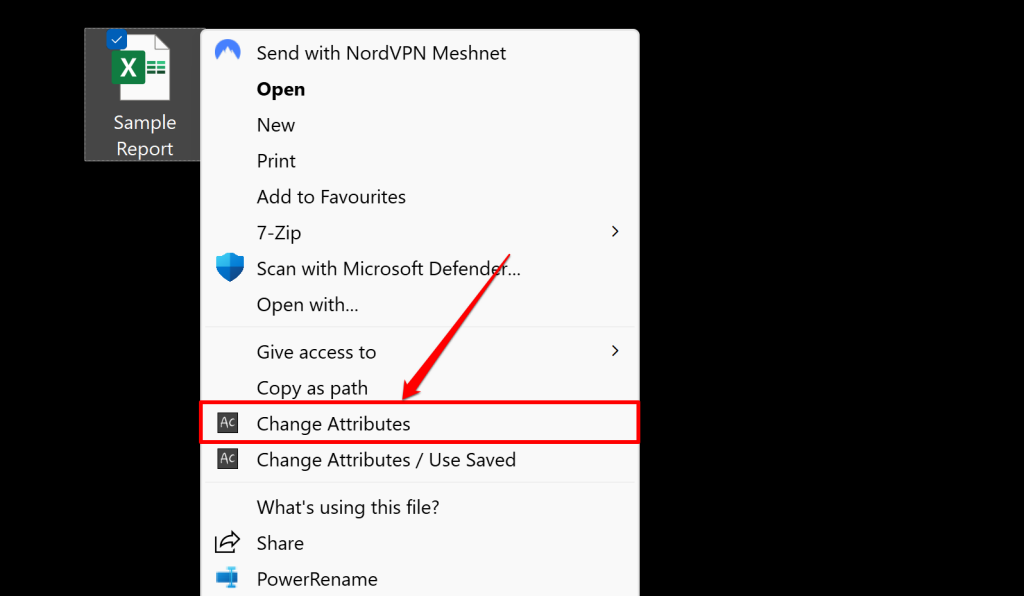
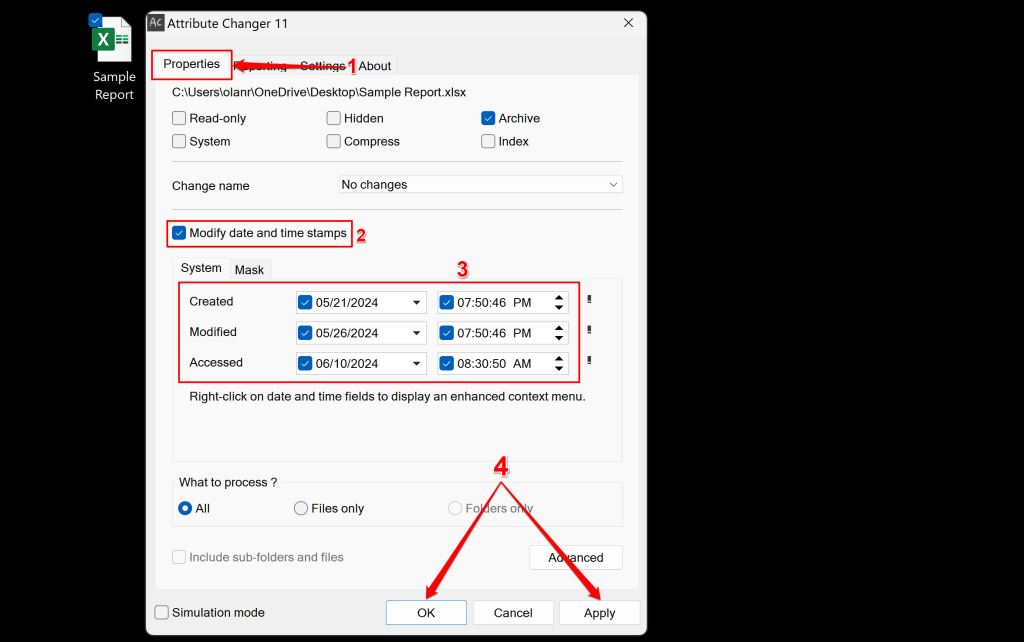
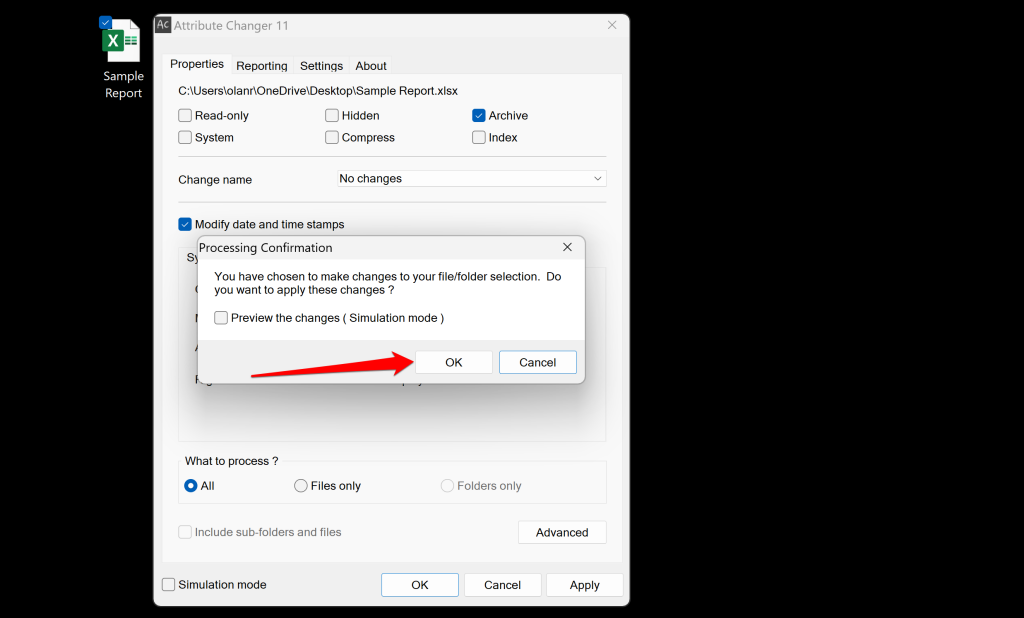
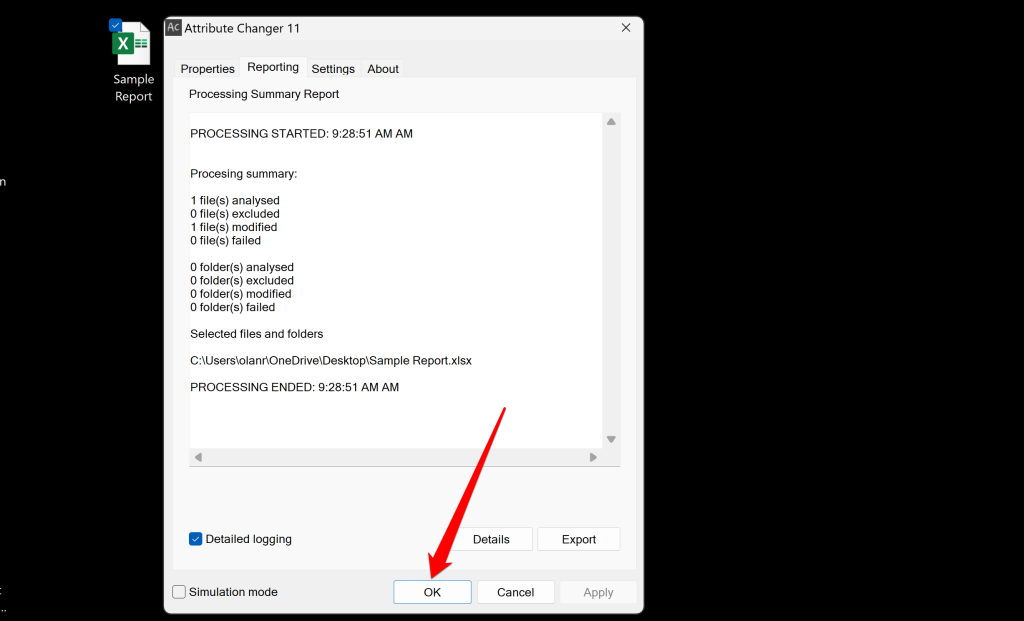
Third-party apps expedite changing a file’s modified date on Windows computers. The Attribute Changer software supports Windows 11, 10, 8, and 7 and is free for personal and commercial use. It can modify the date and time attributed to documents, folders, and multimedia files.
Date Modification Made Easy for Windows Files
Now you know all available options for modifying file attributes in the Windows operating system. You can change a file’s modification date (and other dates) by running the correct commands in PowerShell. If you need to remove personal information from your files, then File Explorer is your best option. Attribute Changer performs date changes and attribute removal in a few mouse clicks. Download the tool if you frequently edit the dates attributed to your files.