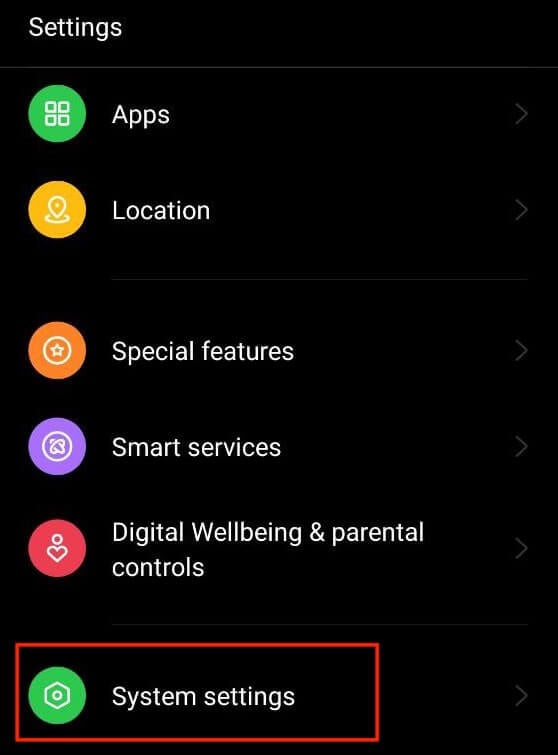
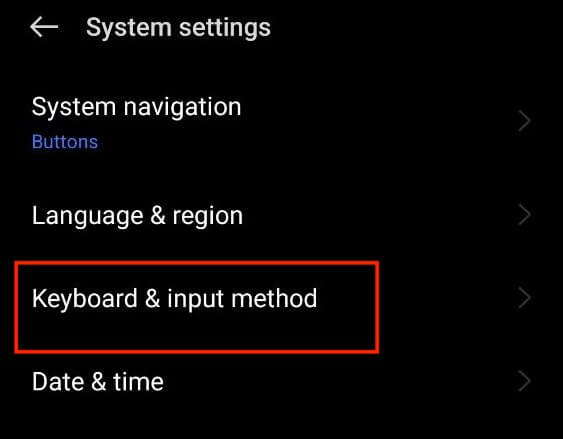
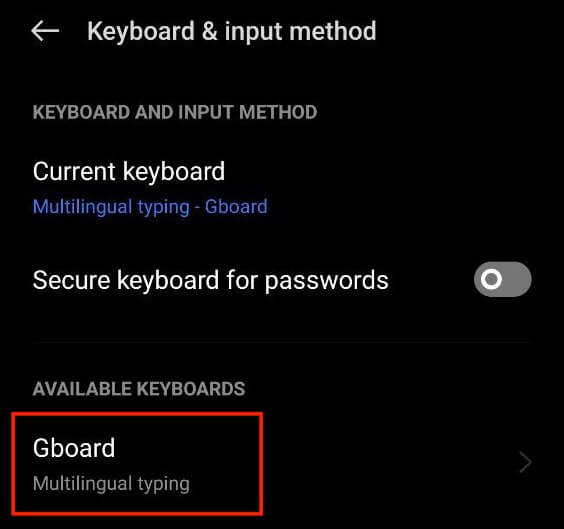
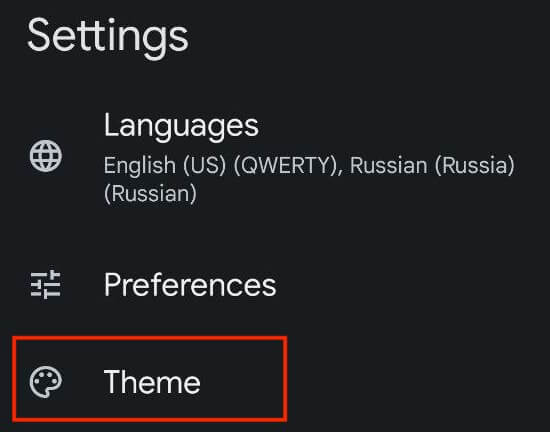
Whether you’re looking for a subtle shift or a bold transformation, exploring the steps to modify your keyboard color on Android can bring a refreshing new look to your digital interactions. In this tutorial, we’ll show you how to customize your keyboard color scheme using the Android built-in option or a third-party app.
Why Change Keyboard Color on Your Android Device
Ever wondered why someone would want to change the keyboard theme on their Android phone? Here are a few possible reasons why someone would want to change the color of the keyboard on their device.
Make It Easier to See. If you have trouble seeing well, especially in darker places or if you can’t see certain colors, changing the keyboard color can help you see and type better. Customize It. Your phone is like your own special thing. You probably want it to be unique and match your style. Changing the keyboard color or keyboard background is another way to do that. Improve Visual Aesthetics. Different colors can make you feel different ways. Choosing a color you like for your keyboard can make using your phone feel more enjoyable and improve your overall user experience. Reduce Eye Strain. Staring at your phone for a long time can lead to eye strain, especially if the default keyboard color doesn’t offer optimal contrast. By adjusting the keyboard color to something easier on your eyes, you can contribute to a more comfortable and enjoyable screen experience. Express Yourself. Just as your choice of words and emojis reflects your thoughts and emotions, your choice of keyboard color can convey your mood and feelings. Switching colors can add an extra layer of expressiveness to your messages, making your digital communication more engaging and dynamic.
By changing your Android keyboard’s colors, you’re making your phone work better for you. It’s a simple thing to do that can make a big difference, from making things easier to see to expressing yourself in a fun way.
How to Change Keyboard Color on Android
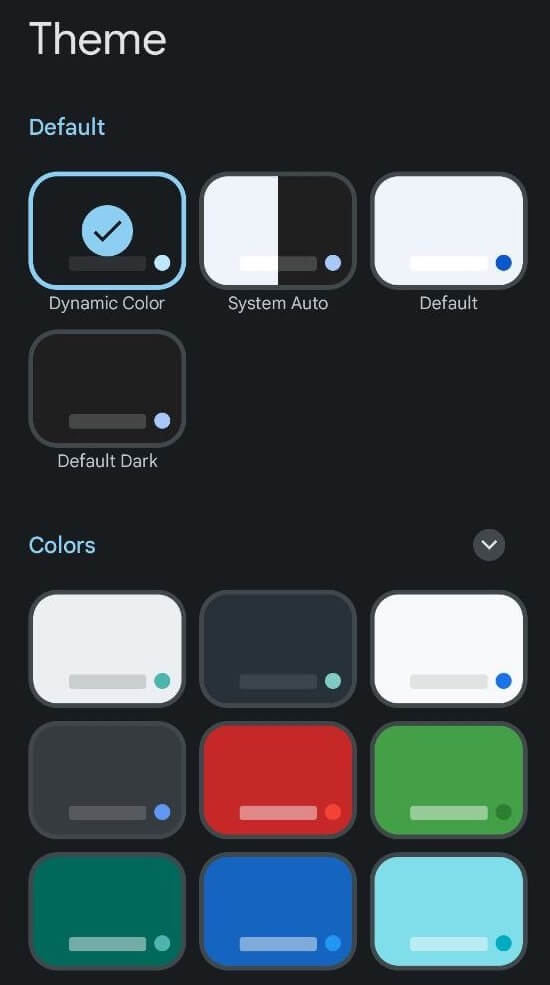
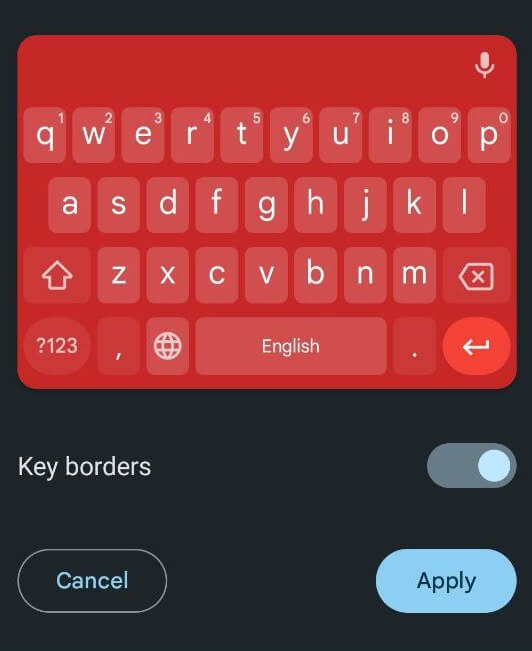
If you’re ready to change the color of your keyboard, here’s how to do it on your Android device. The instructions may differ slightly depending on the phone model and Android version that you have on your device.
How to Use Your Own Photo As the Keyboard Background on Android
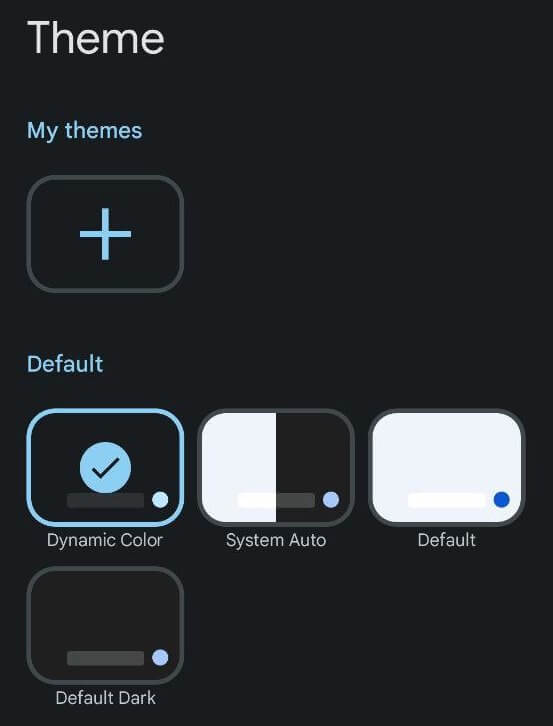
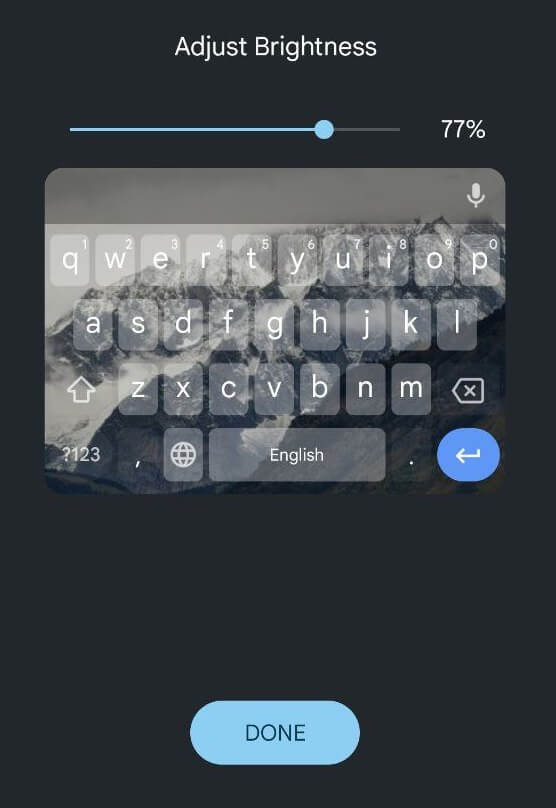
Android allows you to use any picture saved on your phone or a photo from your gallery as the keyboard background. If you want to set your photo as the keyboard color theme, follow the steps below.
How to Change Keyboard Color on Samsung
Samsung phones are a little different than other smartphones, and you need special instructions in order to change the keyboard theme on a Samsung Galaxy phone.
If you simply want to change it from light to dark,the easiest way is to change your Samsung phone’s theme. In that case, the keyboard will automatically turn black. To enable dark mode on a Samsung Galaxy phone, follow the path Settings > Display > Dark.
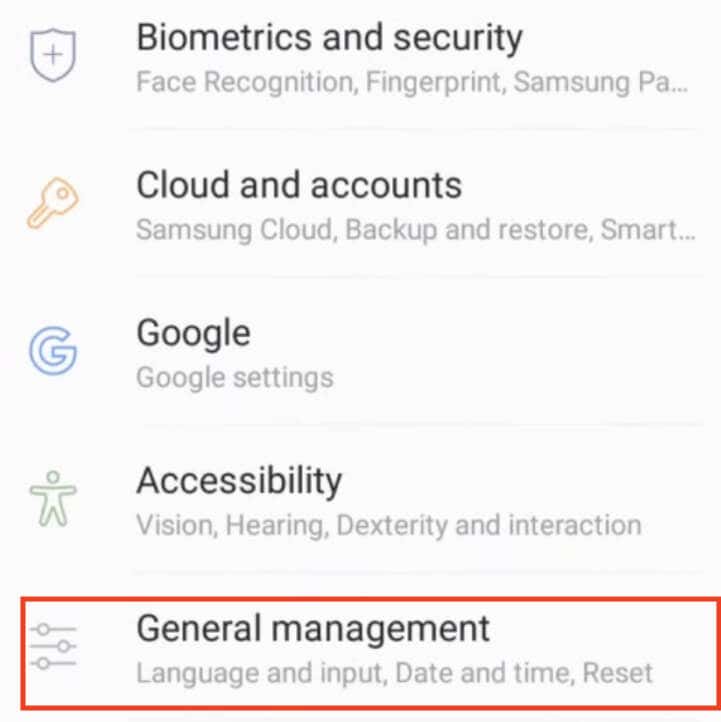
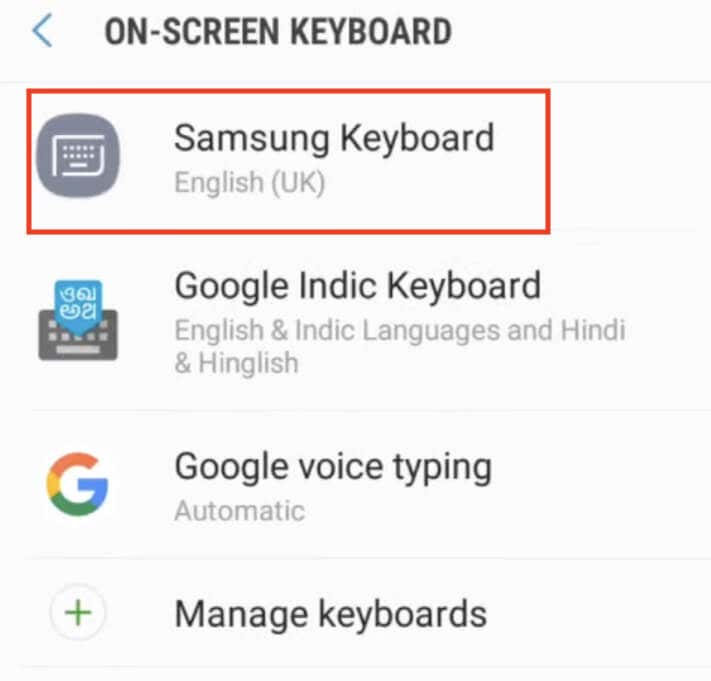
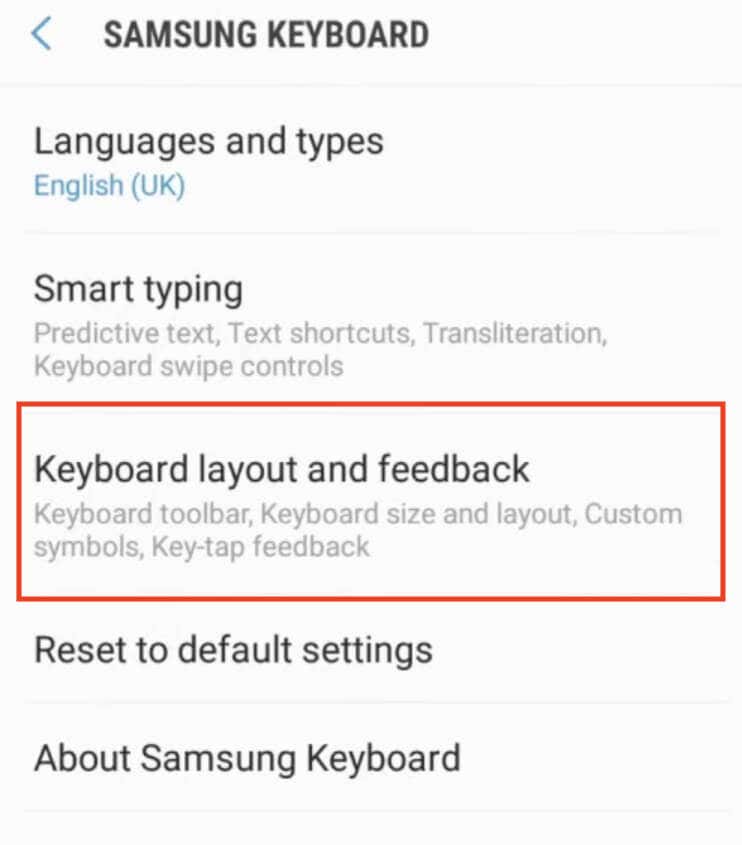
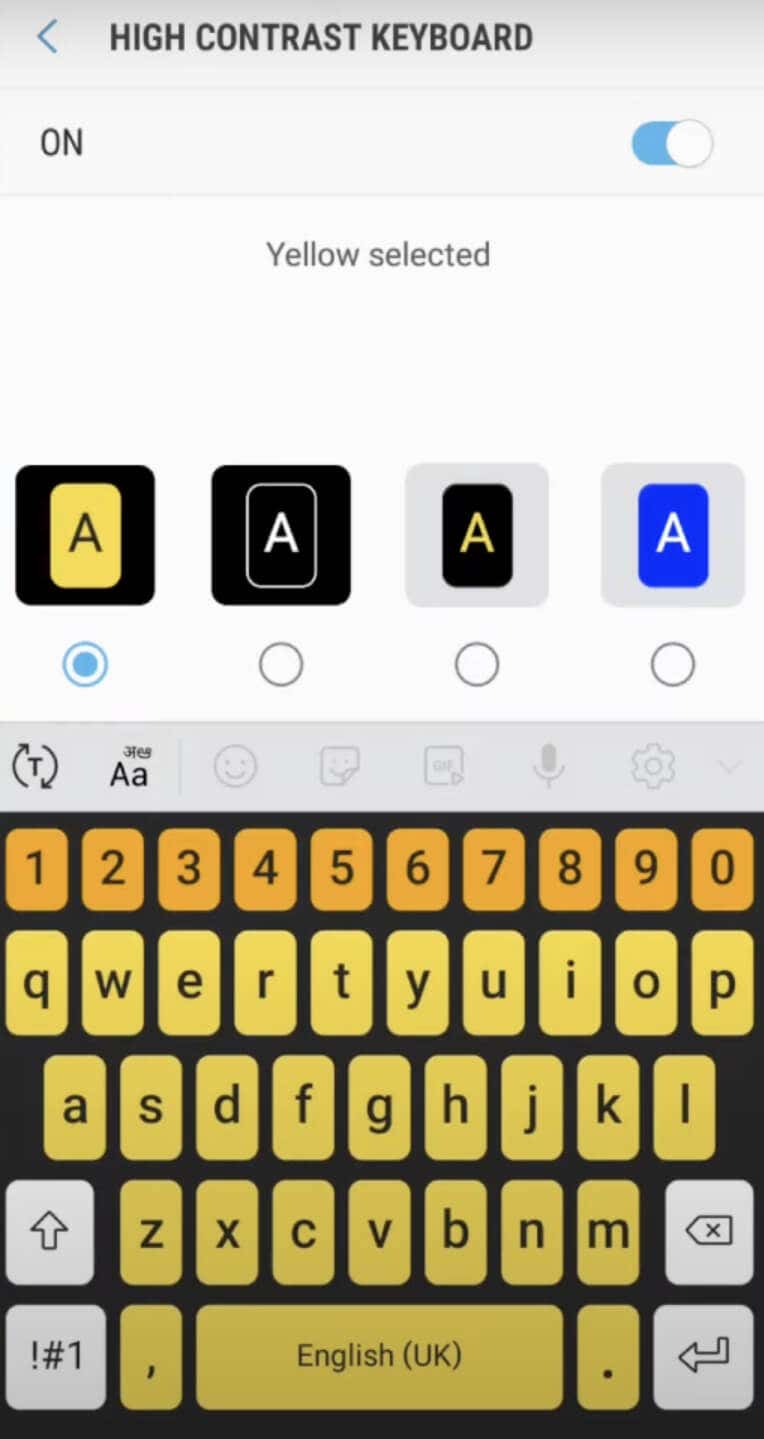
If that method isn’t enough for you, you can use the built-in high-contrast themes that the Samsung keyboard offers. They allow you to choose between Yellow, Black 1, Black 2, and Blue themes. To change the Samsung keyboard theme, follow the steps below.
Use a Third-Party app to Change Keyboard Theme on Your Android
If your device’s default keyboard doesn’t provide the color-changing option, you can turn to third-party keyboard apps that do. Here’s how you can go about it. Another alternative is to use a third-party keyboard theme app, which enables you to access a variety of pre-designed keyboard themes with unique colors and styles. To do that, follow the steps below. These third-party solutions offer plenty of creative options for changing your keyboard’s appearance on your Android device.
Other Ways to Customize Your Keyboard
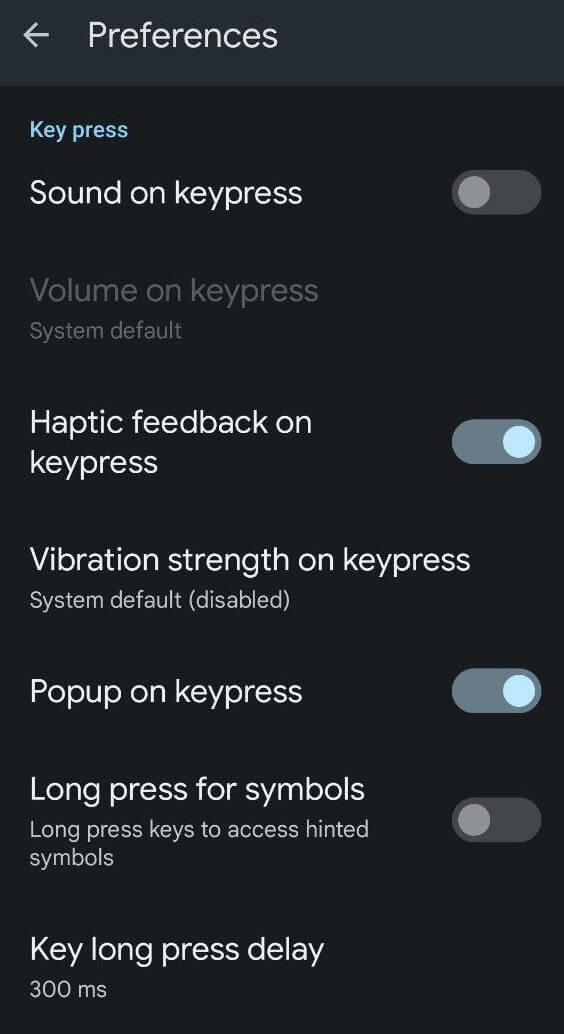
Aside from changing your keyboard’s color, Android devices allow you to further customize your keyboard by changing how your keyboard sounds and vibrates.
Here’s how you can change whether your keyboard makes sounds or vibrations, and how loud and strong they are.
How to Change Keyboard Color on iPhone
Unlike Android, iPhone doesn’t have an option to change the keyboard color or theme. The only built-in way on iOS is to enable the dark mode on your iPhone or iPad and change the keyboard from white to black.
If you need more customization options, you’ll have to install a third-party app such as Gboard to change your keyboard color.