In this article, we’ll explain how to cancel your SHOWTIME subscription, regardless of which device or provider you purchased it through.
How to Cancel Your SHOWTIME Subscription
Canceling SHOWTIME is easy, but you have to do so via the provider or device that you purchased SHOWTIME through in the first place. For example, if you purchased via SHOWTIME.com on your PC, you’ll have to cancel in the same way. However, if you purchased your SHOWTIME subscription from any of the following sources, you can only cancel your subscription through the official SHOWTIME website:
Optimum Online LG, Samsung Smart TV, or Apple TV Xbox One or Xbox Series X|S PlayStation 4 or 5 Xfinity Flex Cox Contour Stream Player Sam’s Club membership Paramount+ or a Paramount bundle subscription
If you don’t remember how you purchased your SHOWTIME subscription, you can find your billing provider as follows: Below, we’ll cover every possible way to cancel your subscription.
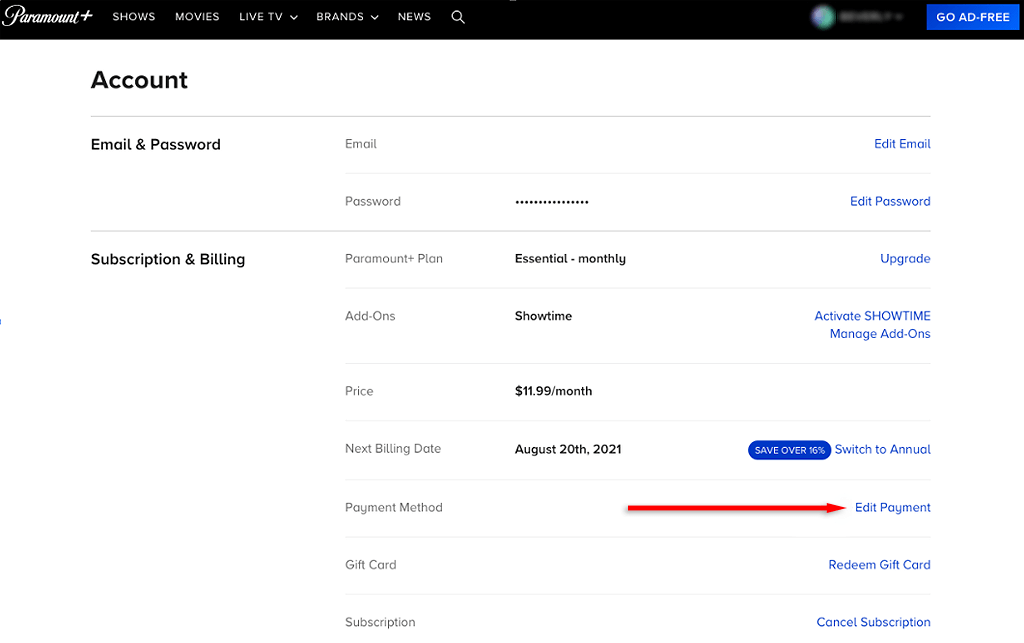
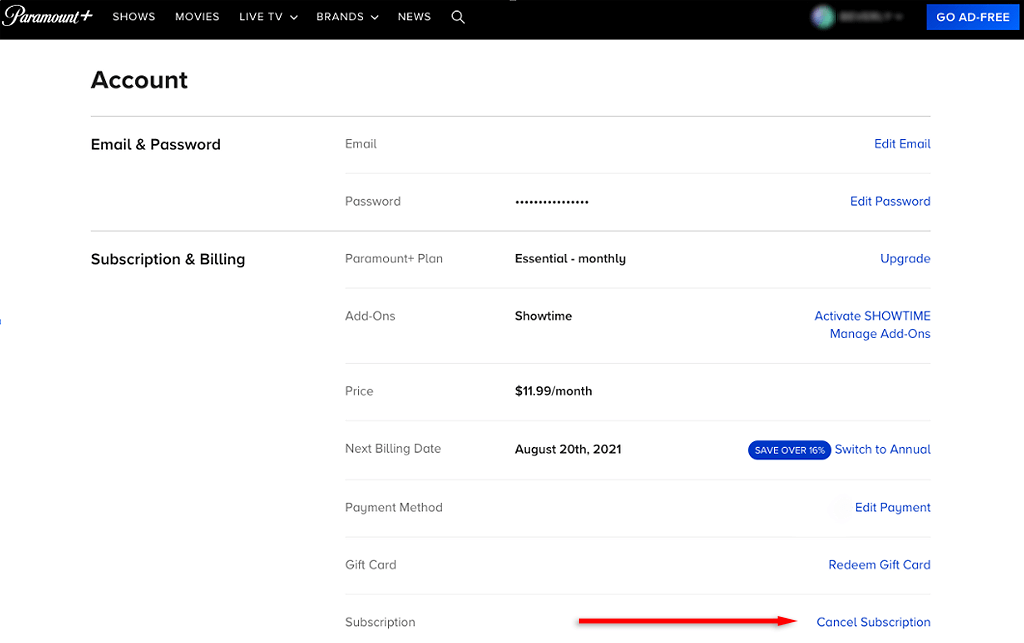
1. How to Cancel SHOWTIME Through Your Web Browser
To cancel SHOWTIME on your PC:
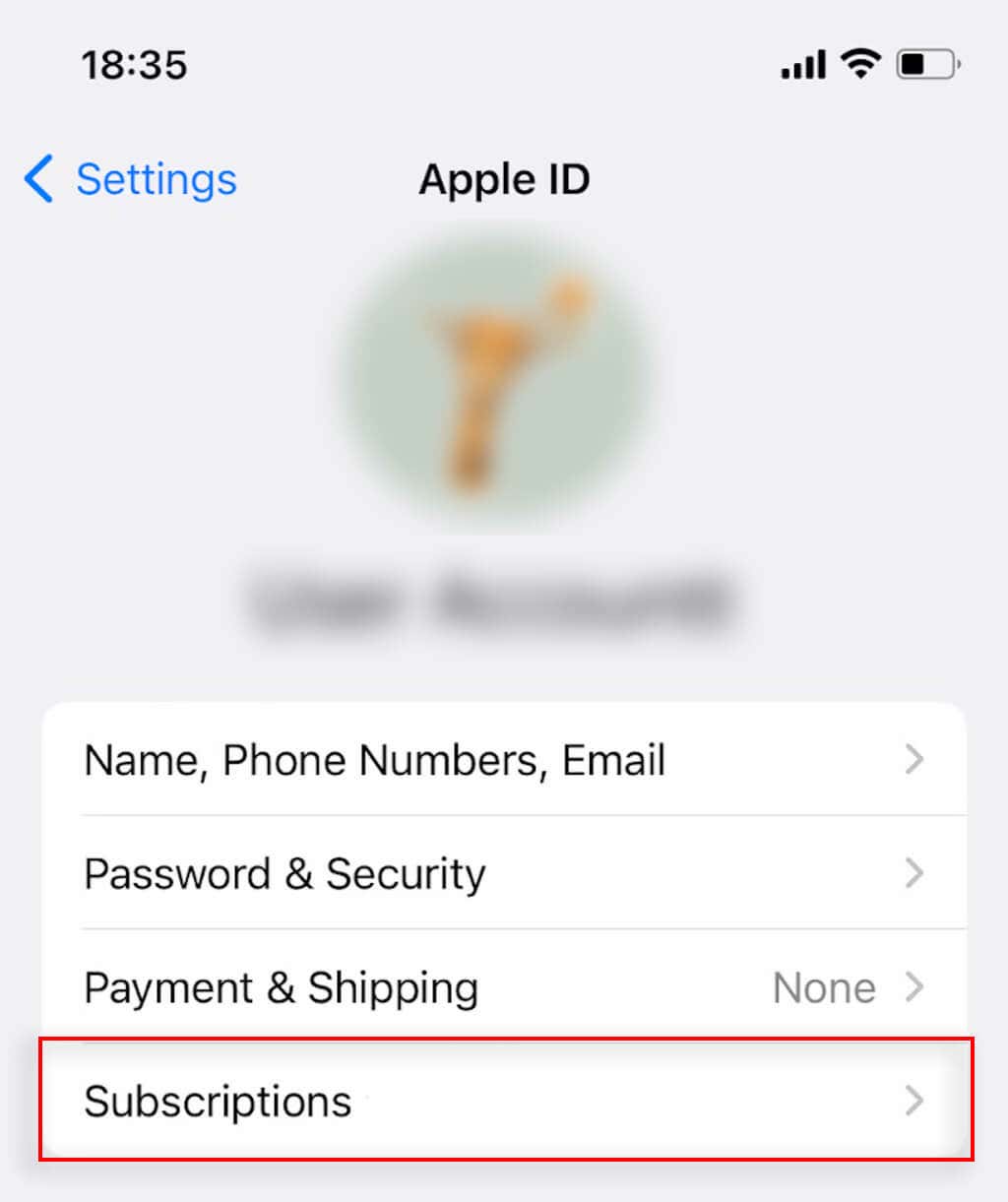
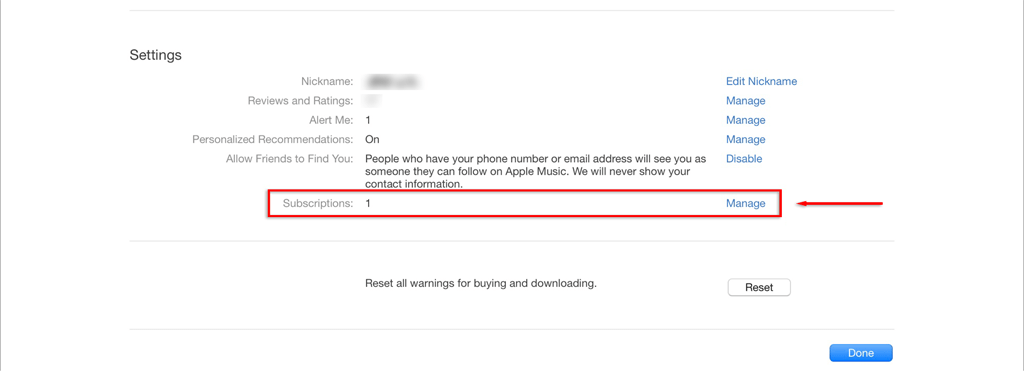
2. How to Cancel SHOWTIME Via an Apple Device
To cancel your SHOWTIME app subscription via an iPhone, iPad, or iPod Touch: To cancel via your Mac computer:
3. How to Cancel SHOWTIME Via an Android Device
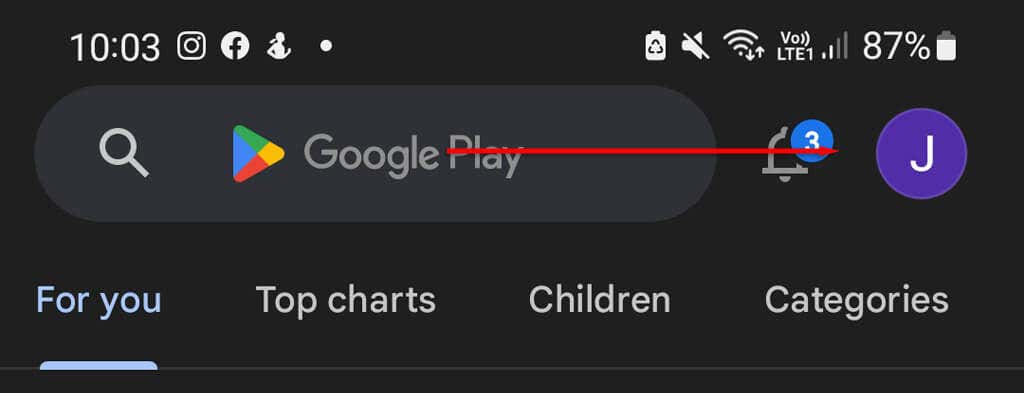
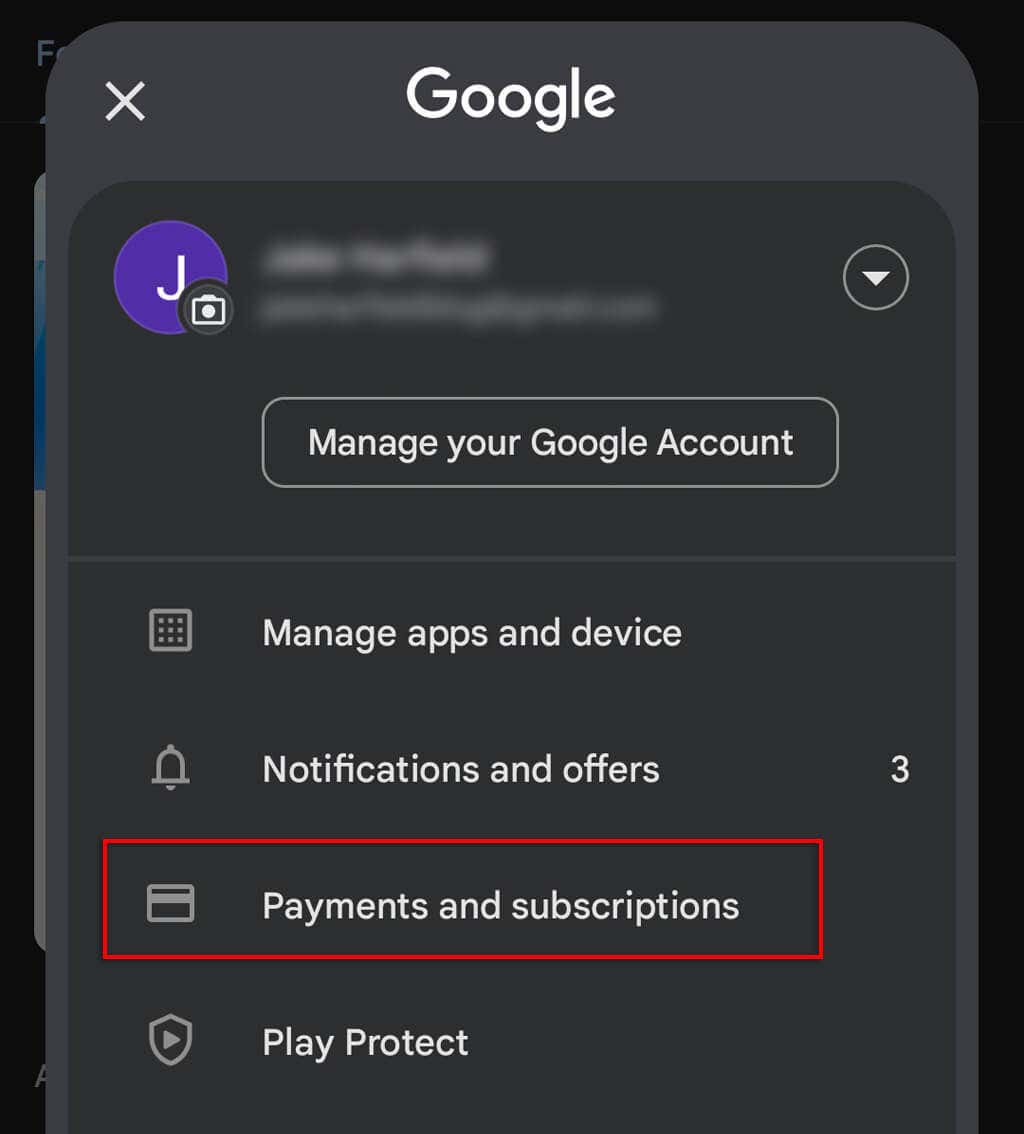
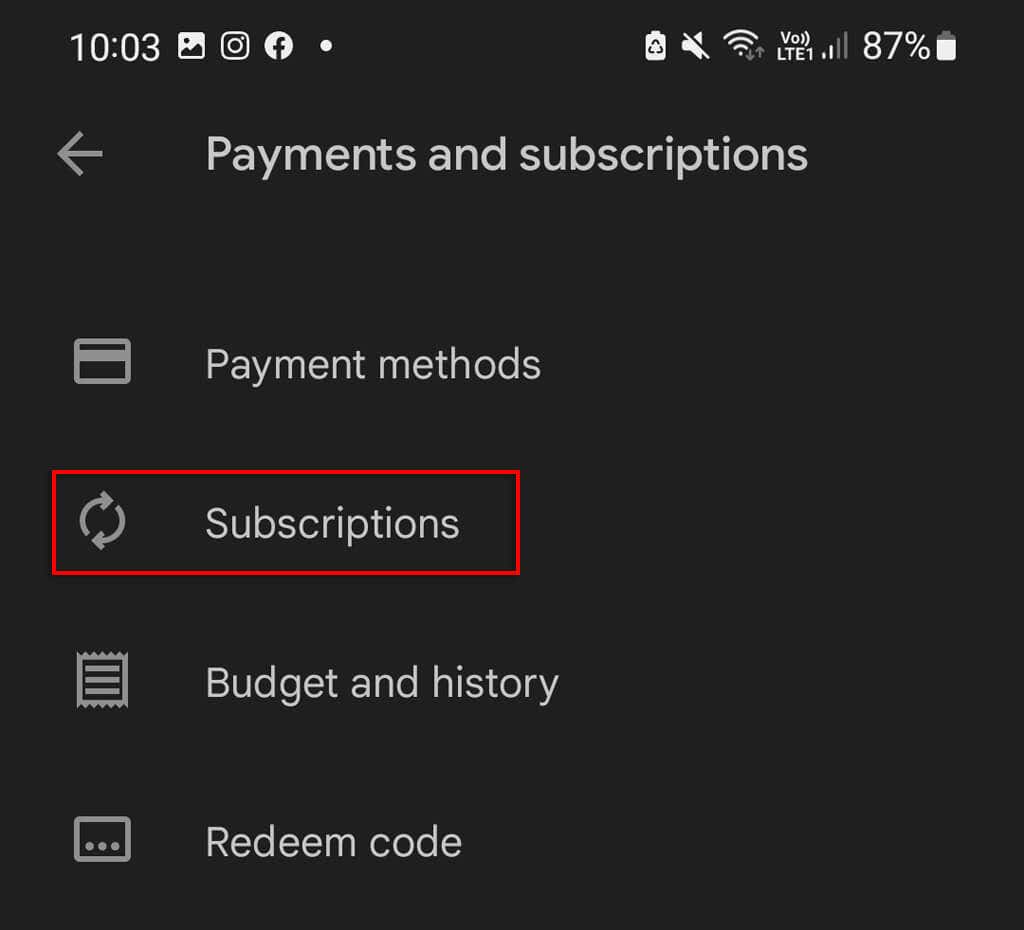
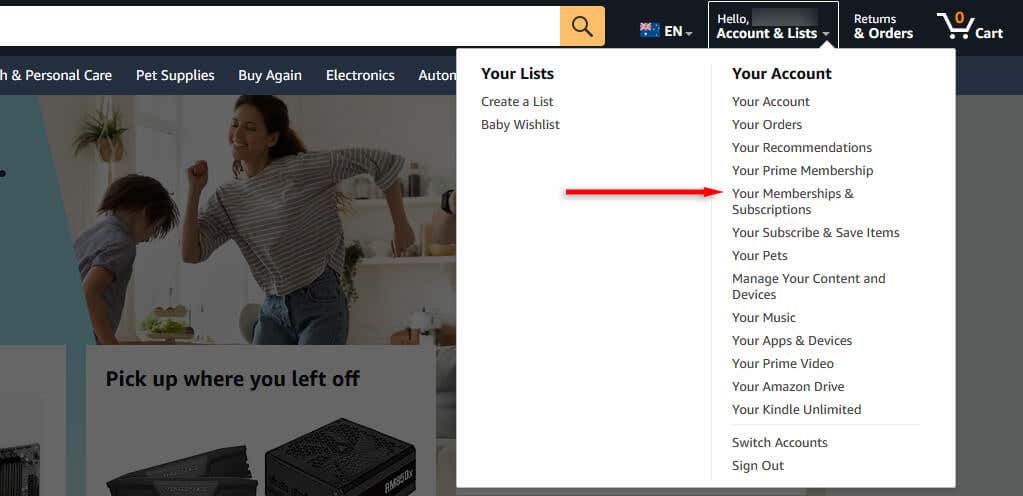
To unsubscribe from SHOWTIME via an Android mobile device: To cancel via your Fire Tablet:
5. How to Cancel SHOWTIME Via a Roku Device
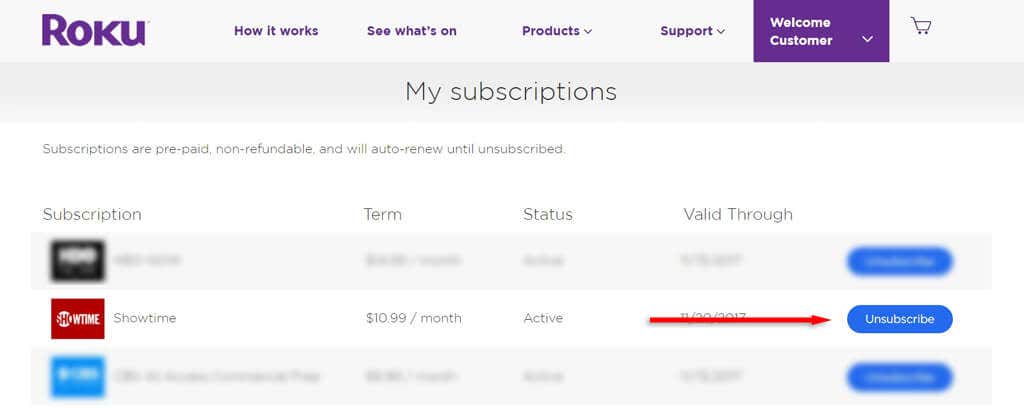
You can cancel your SHOWTIME subscription via the Roku website, or from your Roku TV device. To cancel your subscription via the website: To cancel from your Roku:
6. How to Cancel SHOWTIME via Hulu
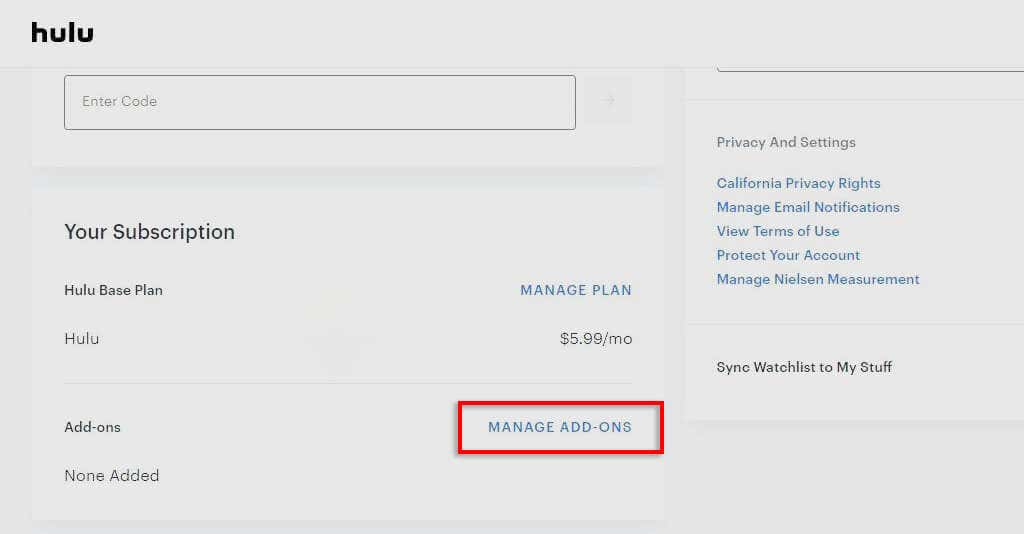
To cancel your SHOWTIME subscription through Hulu:
Stream Your Favorite Movies Elsewhere
These days, there are dozens of streaming services to keep track of. If you find you no longer need one, the best way to save money is to cancel your subscription and stream movies elsewhere. If you still can’t cancel your SHOWTIME streaming service subscription, try contacting SHOWTIME’s customer support.