Below, we’ll explain how to cancel Disney Plus from your web browser, mobile device, or via a third-party application.
How to Cancel Disney Plus in a Web Browser
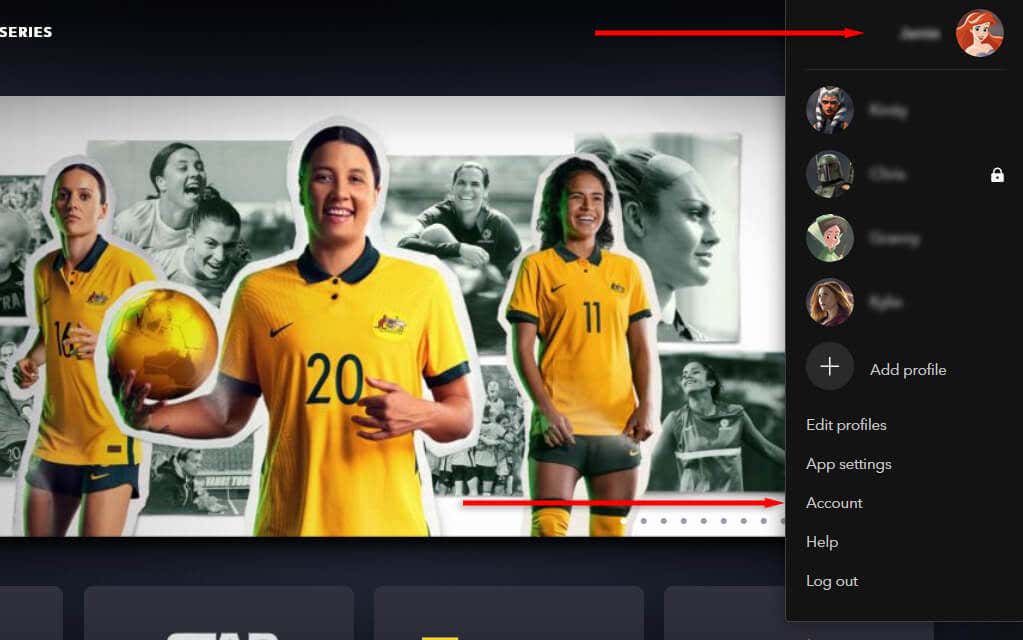
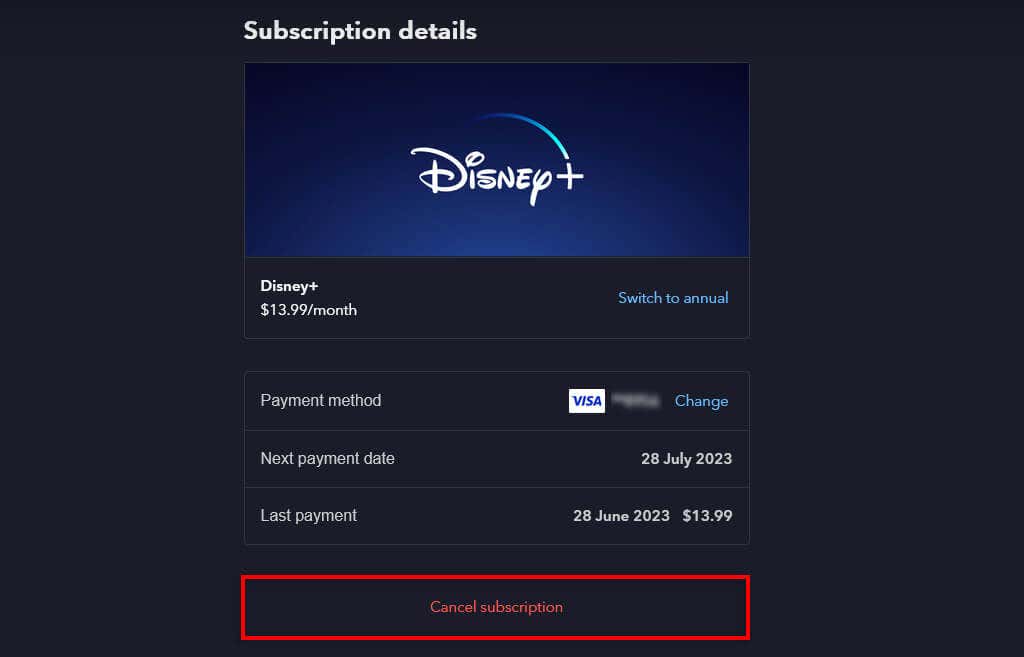
Here’s how to cancel your Disney Plus subscription via your web browser. Remember, this will only work if you subscribed directly through a Disney Plus subscription plan, rather than through a third party. If you subscribed via a third party, we explain how to unsubscribe below. Note: You will continue to have access to Disney Plus content until the end of your current billing cycle. At your next billing date, you’ll lose access to Disney Plus, and you won’t be charged again.
How to Cancel Disney Plus From a Third-Party Subscription
If you signed up to Disney Plus through another app or streaming service, you must navigate their website to cancel. These subscription partners include Digicel, Apple, and Google. To cancel your Disney Plus subscription through Digicel, visit their website.
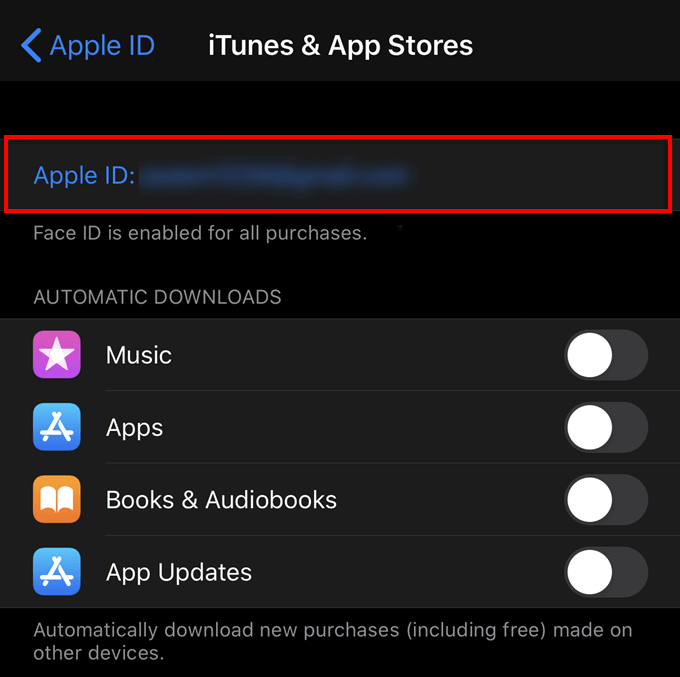
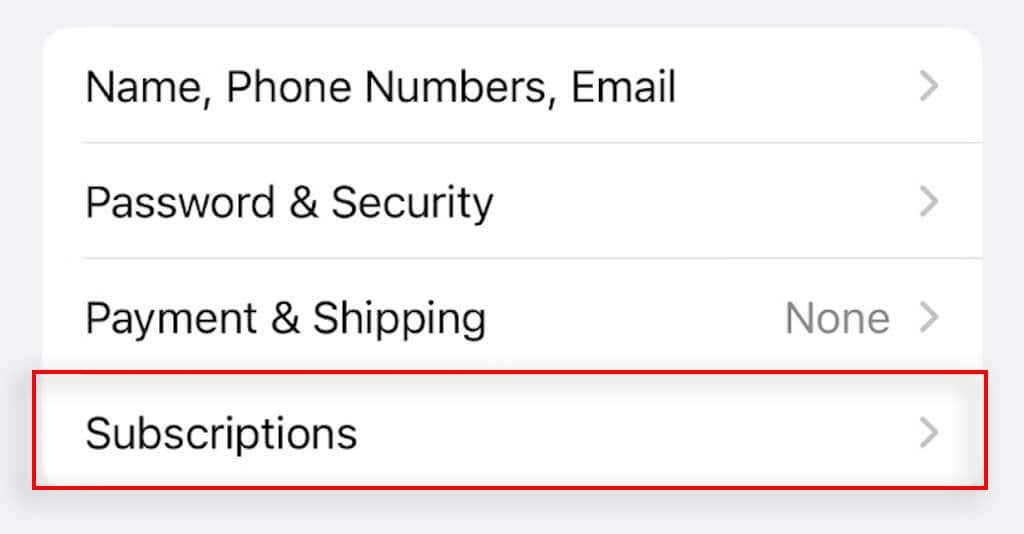
How to Cancel Disney Plus on an iPhone
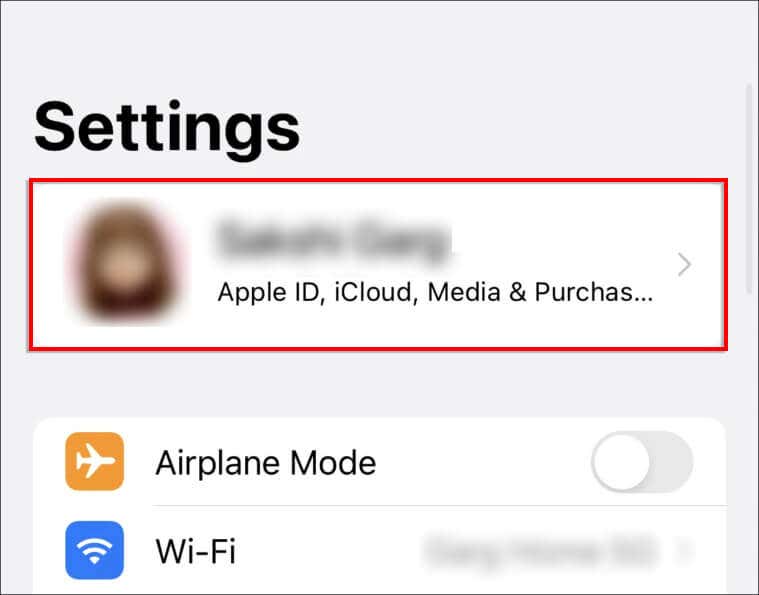
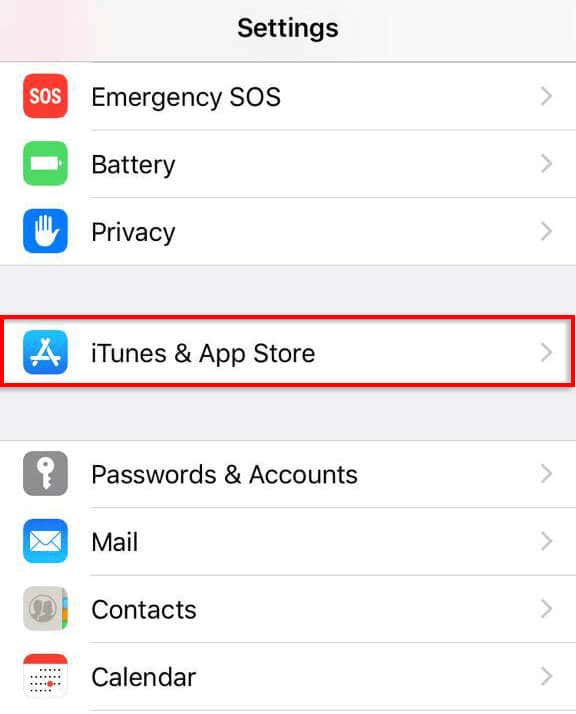
You can manage your subscriptions directly via your iOS device’s settings menu. To do so:
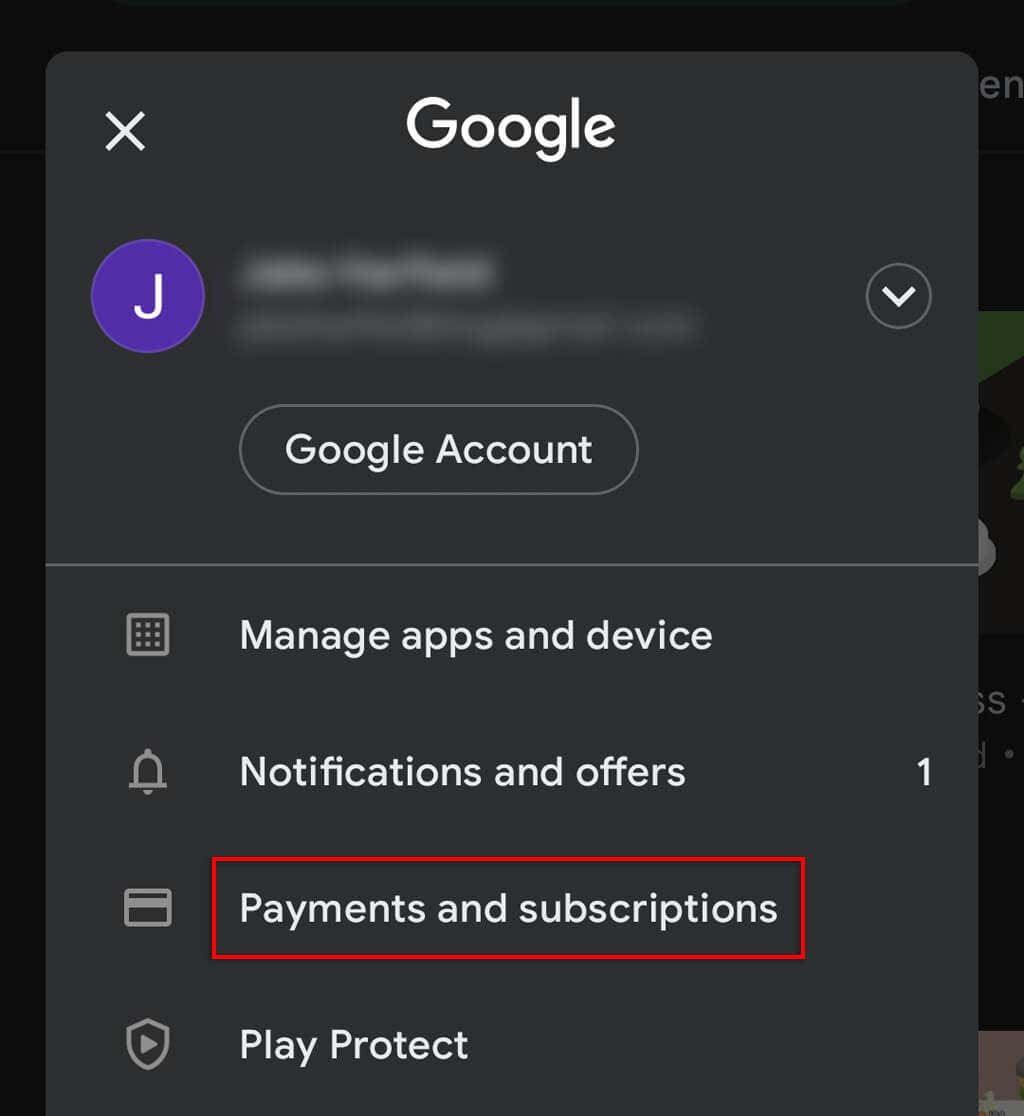
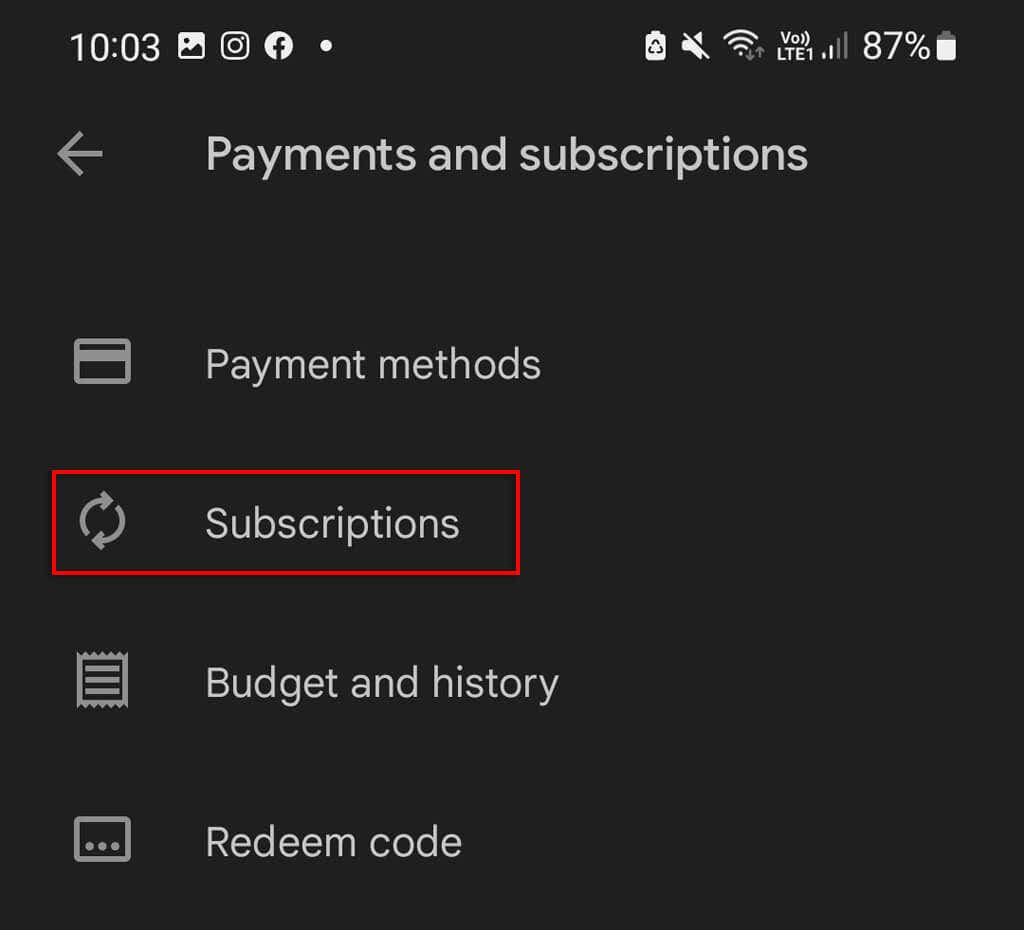
How to Cancel Disney Plus on an Android Device
You can manage your Android subscriptions through the Google Play Store. To do so:
Changed Your Mind?
If you cancel Disney Plus, then change your mind, don’t worry — it’s easy to sign back up again. Return to the Disney Plus website, select your profile, and choose Restart Subscription. You may have to add your billing details once again. Otherwise, don’t forget that Disney Plus offers a seven-day free trial!
Streaming Has Never Been Easier
However, if Disney’s TV shows, including the Marvel and Star Wars franchises, aren’t suitable, you’re better off canceling using the above methods.