So you might want to try some of these tools and cancel your Adobe subscription. We’re here to help you through this process and give you some information on getting a refund if you’re eligible. If you want to cancel your Adobe Acrobat Pro or Photoshop subscription, you’ll also have to give up other elements of Adobe Creative Cloud, such as Adobe Stock and Indesign.
What to Consider Before Canceling an Adobe Subscription
Canceling your Adobe subscriptions can have consequences you’ll need to consider. Weigh your options and think if this is the right moment to cancel that subscription, as there’s no such thing as freezing your account and going back to it whenever you want. Instead, you’ll have to go through the account reactivation process, which can be tedious.
Another thing to consider is when you last paid for the subscription. If you want to cancel your Adobe Creative Cloud more than 14 days after the last payment, you won’t be eligible for a refund.
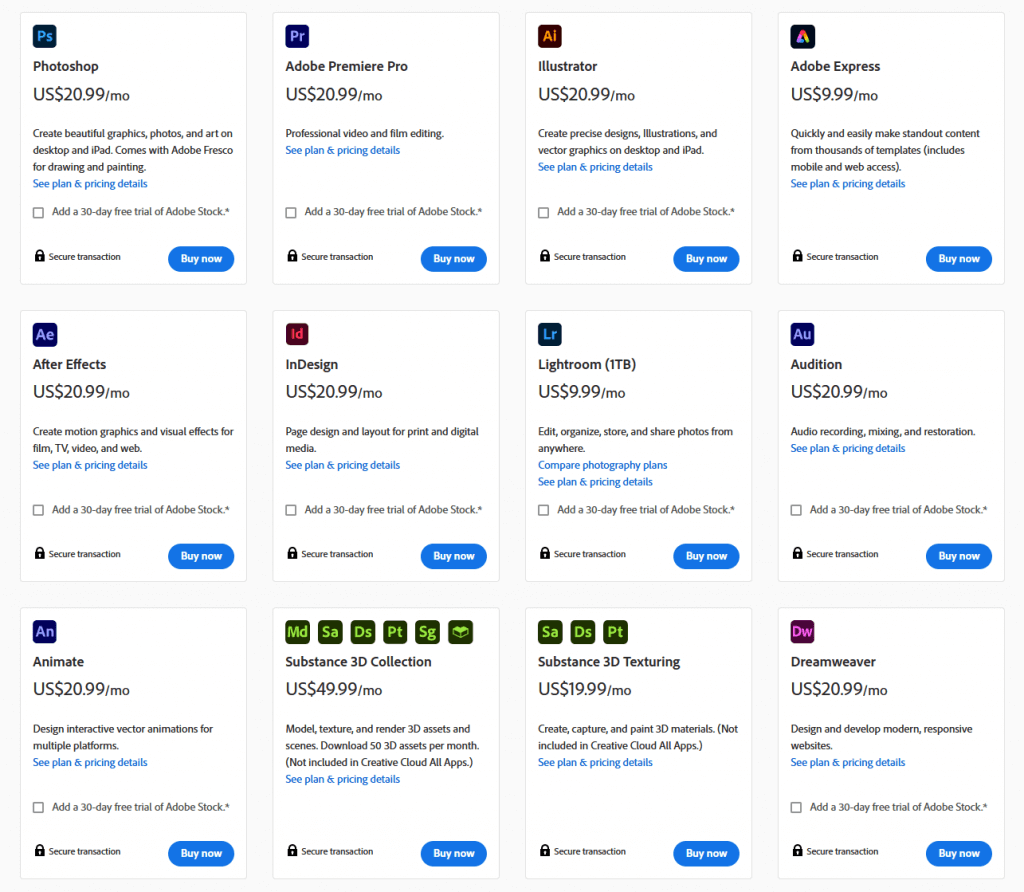
If you want to keep some of the Adobe perks, such as extensive cloud storage, but you don’t need Photoshop anymore, perhaps consider changing the subscription plan instead of canceling the subscription. This way, you get to choose what plan suits you better and keep the perks that you still find useful.
Remember that canceling your Adobe subscription won’t delete your Adobe account. All your data will still be there. If you need to delete the account permanently, contact Adobe Customer Support.
How to Cancel Your Adobe Subscription
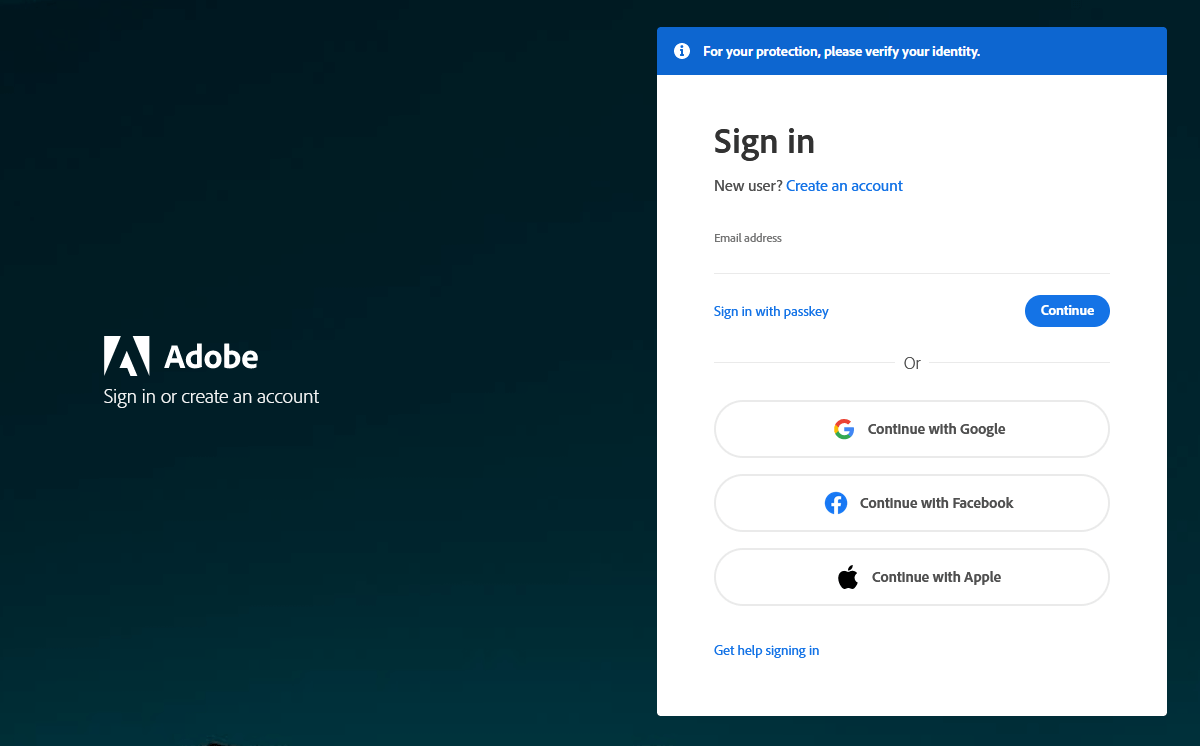
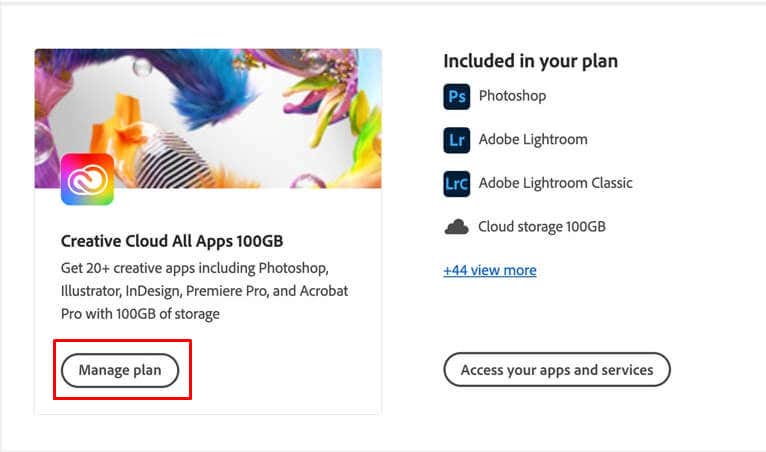
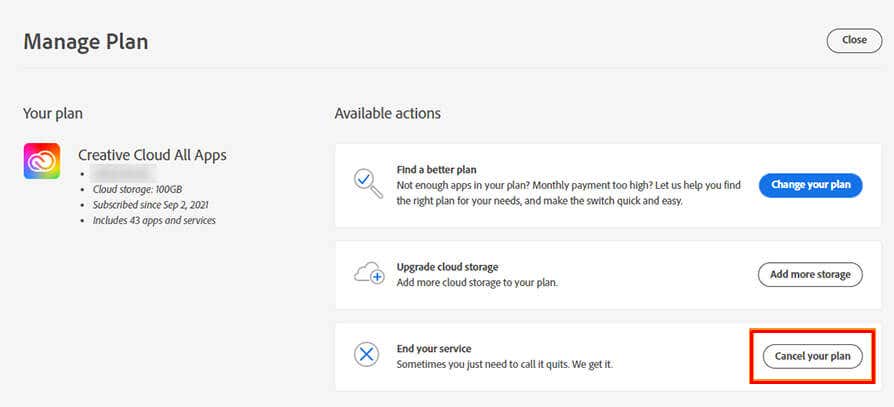
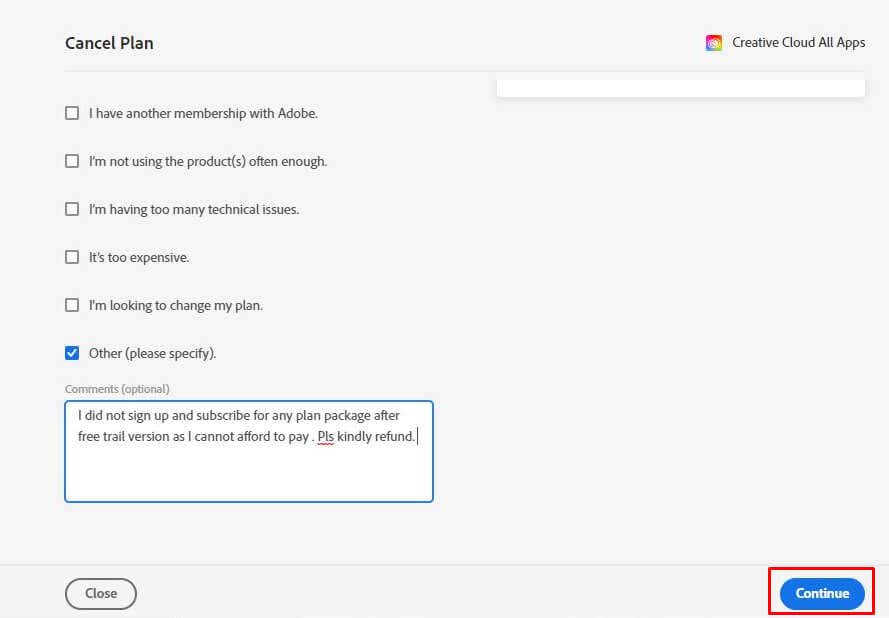
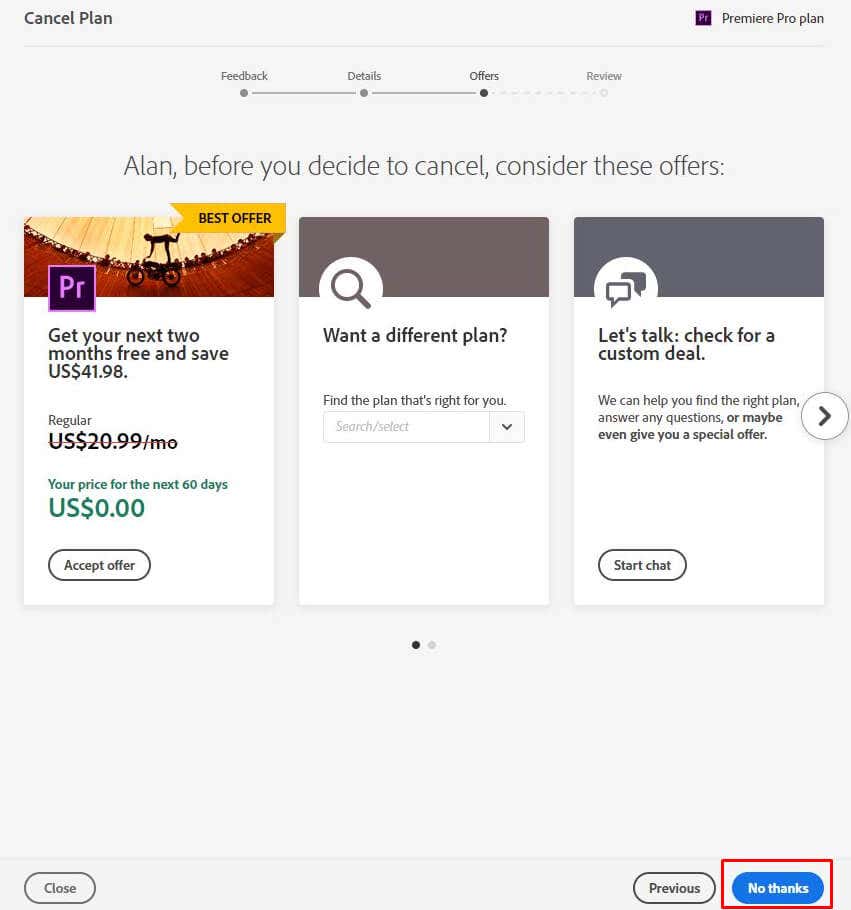
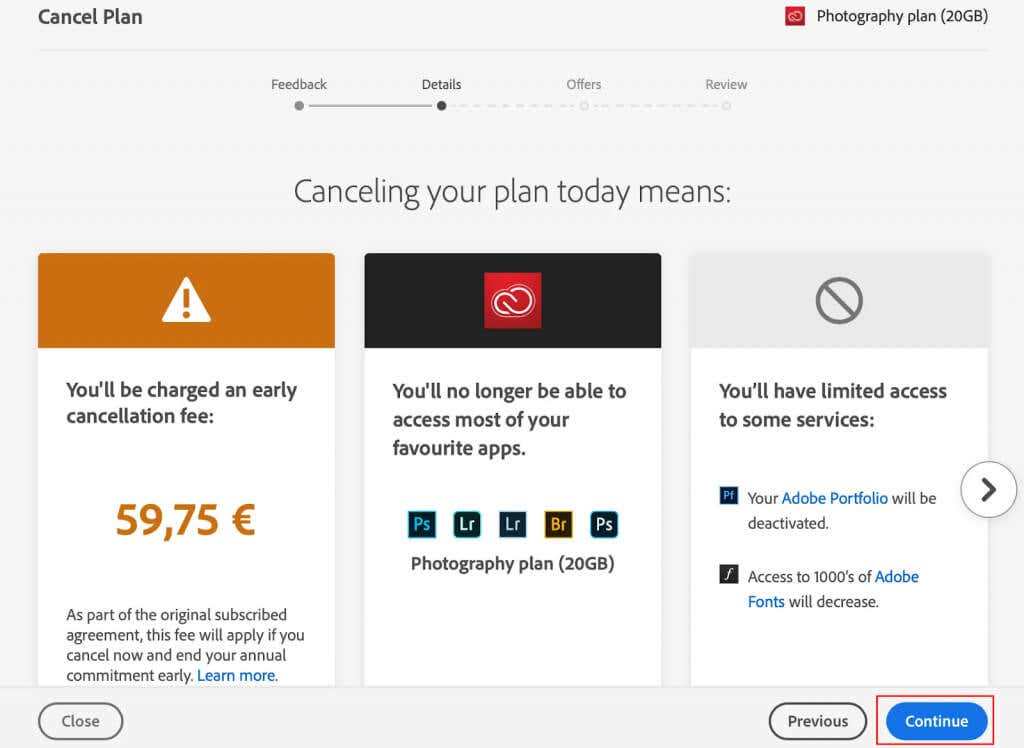
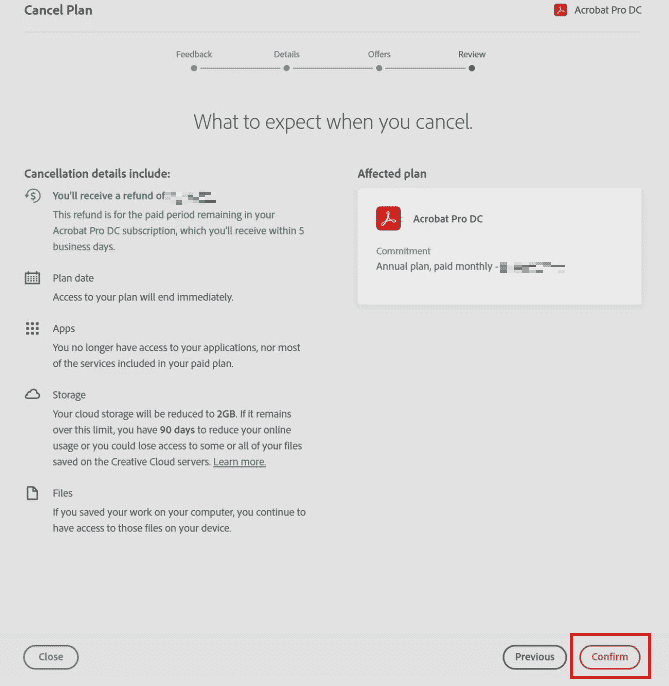
Here is a detailed, step-by-step guide on how to cancel your Adobe subscription: Once you complete all these steps, you can expect a cancelation confirmation email to arrive in your inbox. That’s when you’ll know your Adobe subscription cancelation was successful. You don’t need to reply to this email or take any other action.
Canceling Your Adobe Trial
You can try out Adobe products without having to pay for them. When you sign up for the trial period, you must add your billing details. After the trial period, Adobe will automatically start charging you for their services. You can cancel your trial subscription before that happens.
The steps for canceling a trial plan are the same as the one described above. If you want to cancel your trial, follow the directions described in the “How to Cancel Your Adobe Subscription” section. Ensure you do it before the trial period expires to avoid getting charged.
Cancellation Fees and Adobe Refund Policy
If you cancel your Adobe subscription within 14 days from the last payment, you’ll be eligible for a full refund. But if you cancel it after those 14 days, you can use the subscription until the end of that billing cycle. This is valid if you have a monthly subscription. If your subscription is annual, Adobe will let you cancel it within a month from the subscription renewal. That’s why you should mark the subscription renewal date in your calendar. All Adobe subscription plans renew automatically. That means once you input your debit or credit card details, you don’t have to go through the payment procedure every month. The subscription renews itself without you having to do anything. So if you want to cancel your subscription and not get charged for the next subscription period, you’ll have to do it before the end of your contract term.
What Happens When You Cancel Your Adobe Subscription
Your account won’t be deleted once you cancel your Adobe subscription plan. Instead, it’ll be transferred to the free plan. You’ll lose access to all apps and tools, but you can continue using your Creative Cloud storage. Adobe will also downgrade your storage to 2GB. If you use more than these free 2GB of cloud storage, you’ll have 30 days from the subscription cancelation to reduce the number of your files; otherwise, you’ll lose some of them. Lightroom images will stay online and be accessible for up to 12 months after subscription cancelation. You can still import and organize them, but your access to the Develop and Map modules in Lightroom will be restricted. That said, canceling your Adobe subscription is a relatively painless process. Depending on how you initially signed up for the subscription, it may take just a few clicks or involve some more involved steps. No matter what, taking this vital step to manage your finances and ensure you’re not automatically paying for services you no longer need will save you time, hassle, and money over the long run. Remember always to double-check your account details to ensure your subscription has been successfully canceled.