Fortunately, the PS5’s system software allows for a seamless backup process and offers the flexibility to choose the types of data you want to secure. Restoring your game data is just as convenient. This tutorial will show you how to back up and restore the data on a PS5 console.
What Can You Back Up On Your PS5?
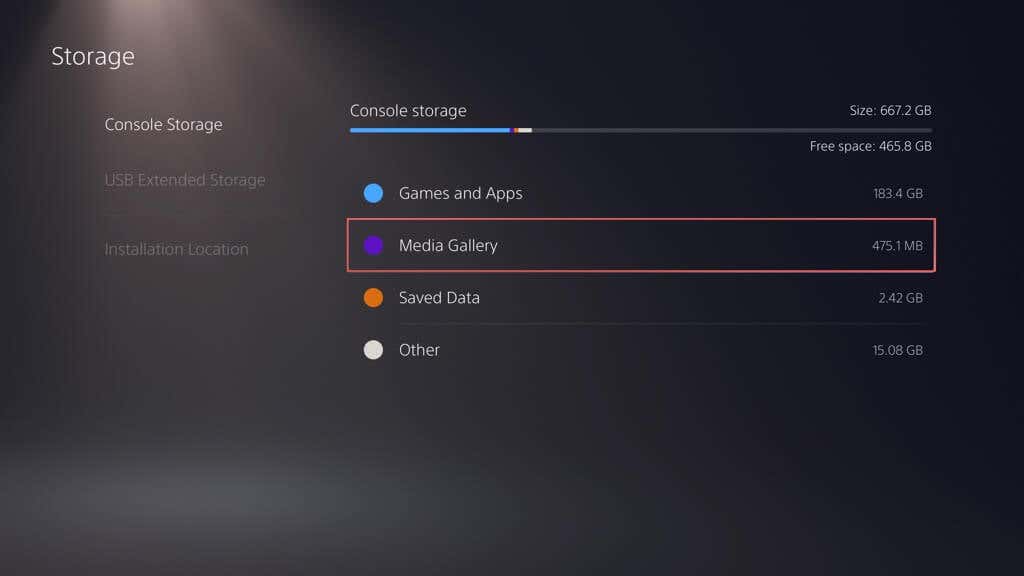
Backing up your PS5 involves creating a copy of your data and settings that you can restore later. The internal storage drive consists of the following data types:
Downloaded apps and video games. Save files. The media gallery—video clips and screenshots. Your system settings.
The good news—you can back up all the above data on your game console to an external hard drive or SSD. If you have a PlayStation Plus subscription, you also have the option to upload your game saves—arguably the most vital data—to the PSN servers.
Additionally, you can copy individual save files—limited to PS4 games only—and media gallery items to a standard USB flash stick.
Back-Up Data to External USB Storage
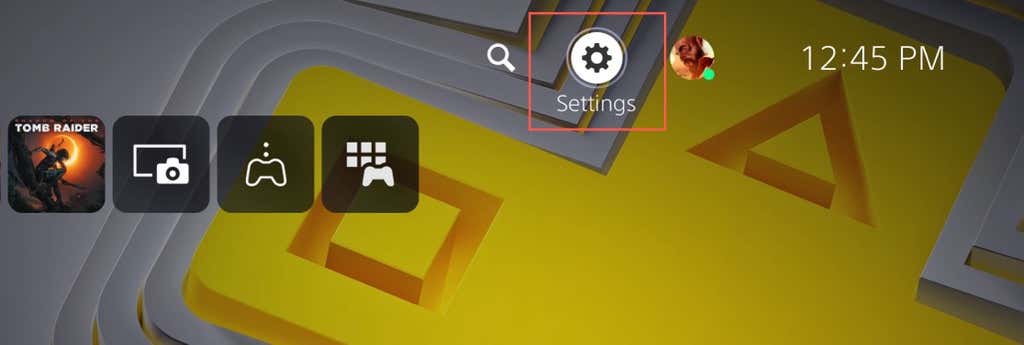
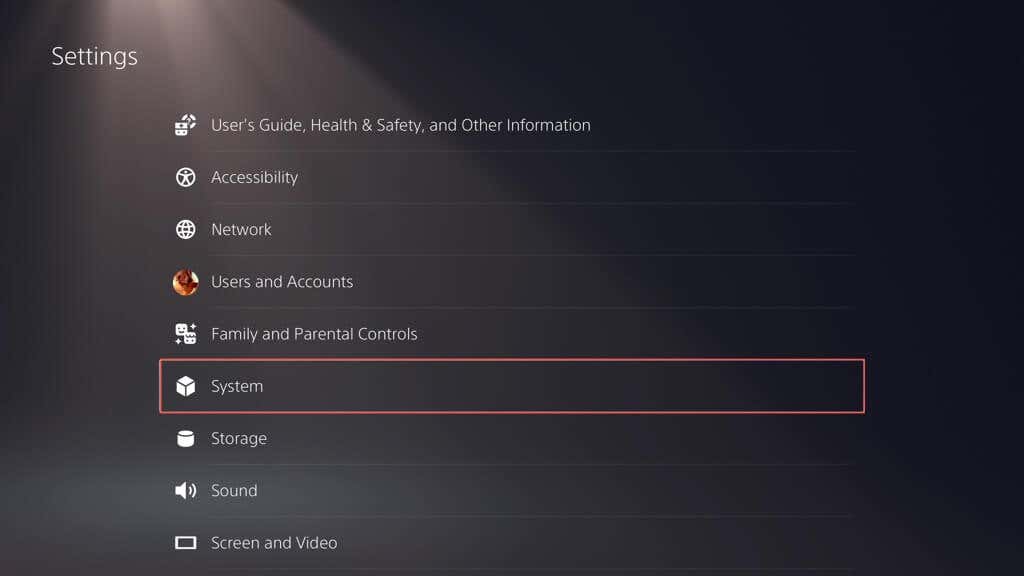
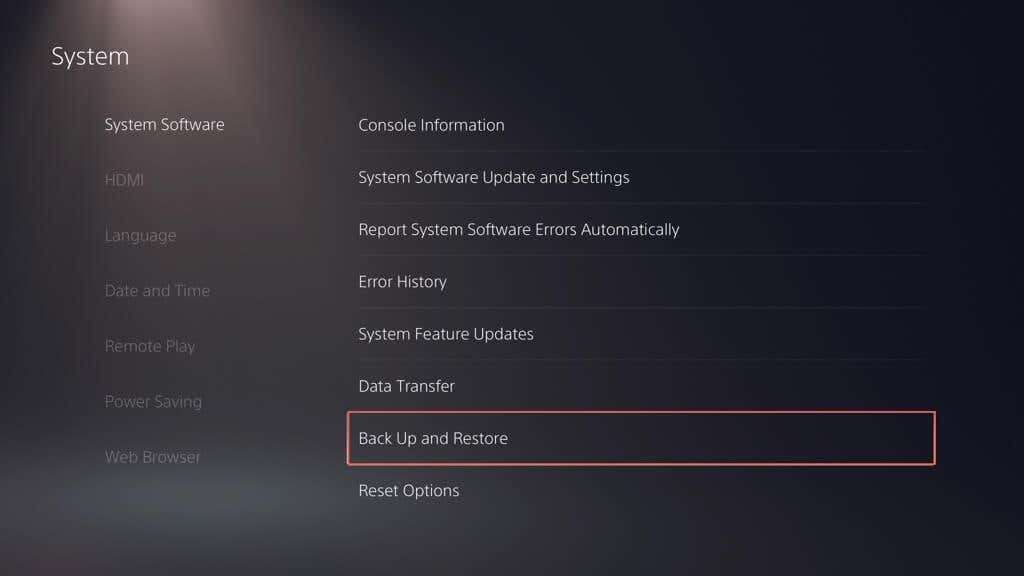
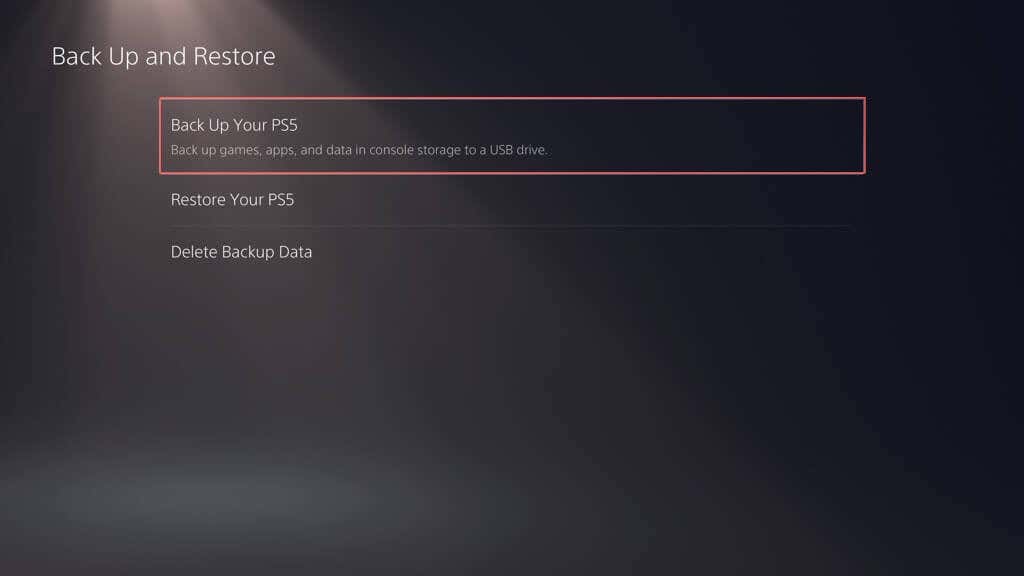
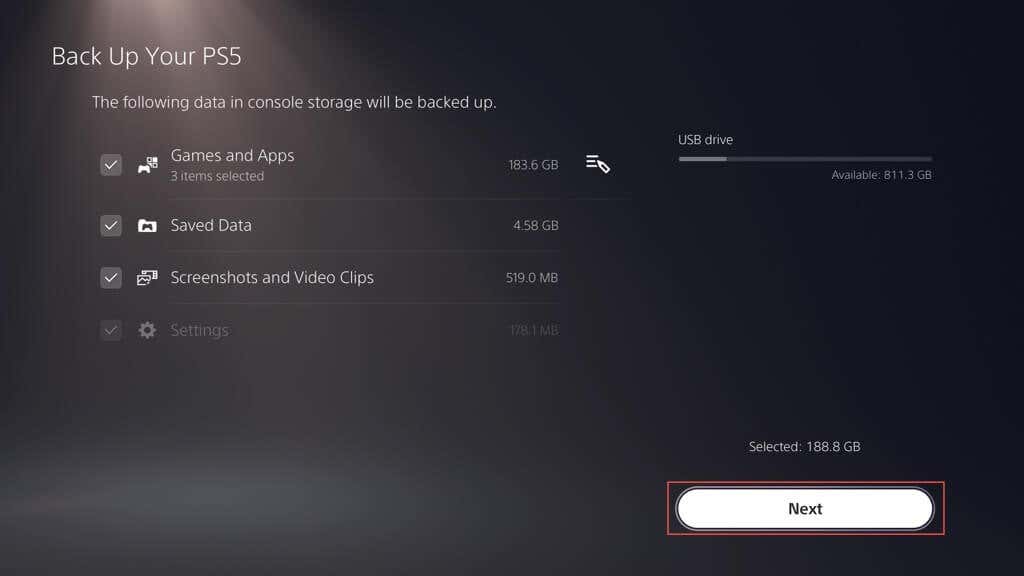
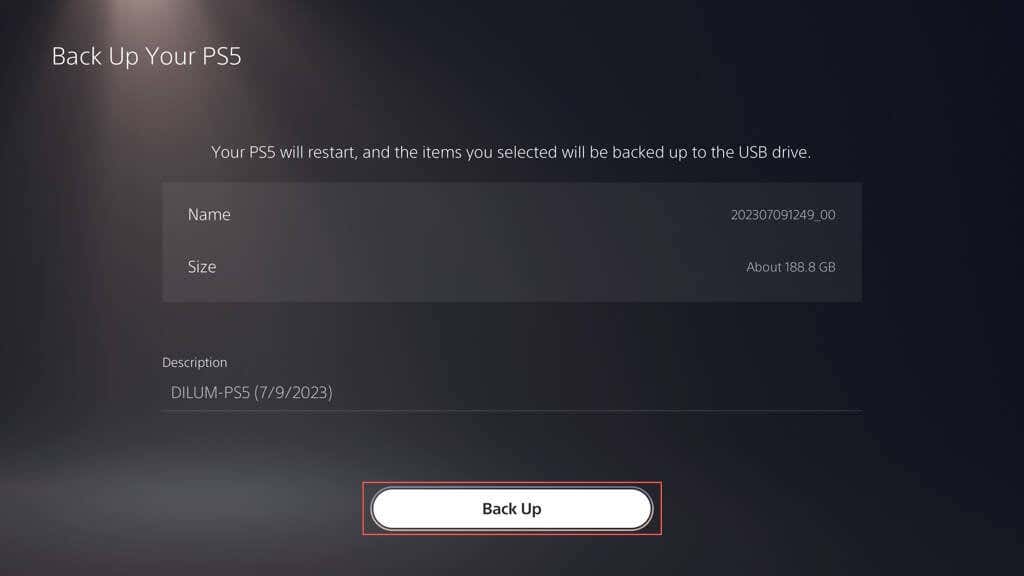
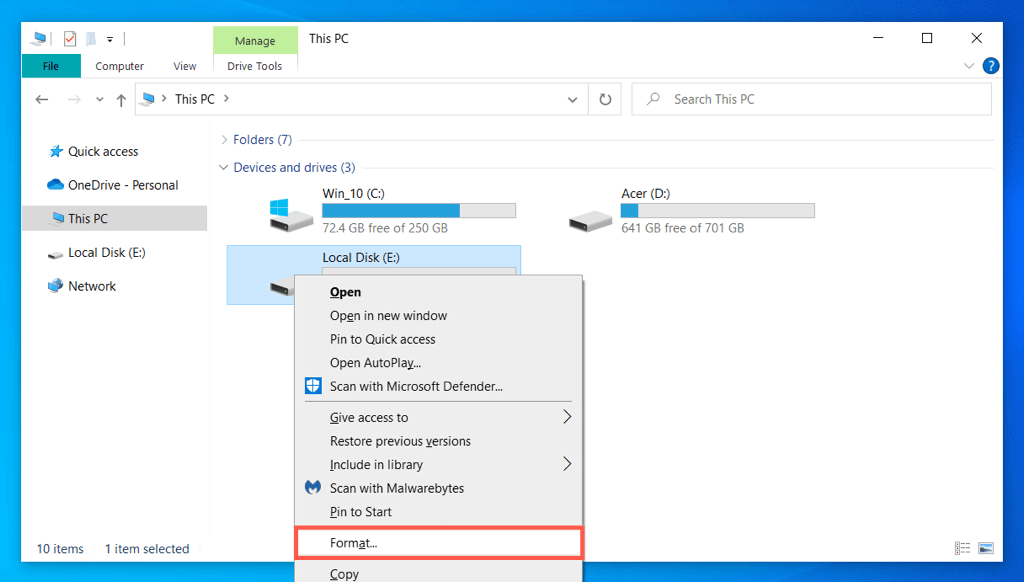
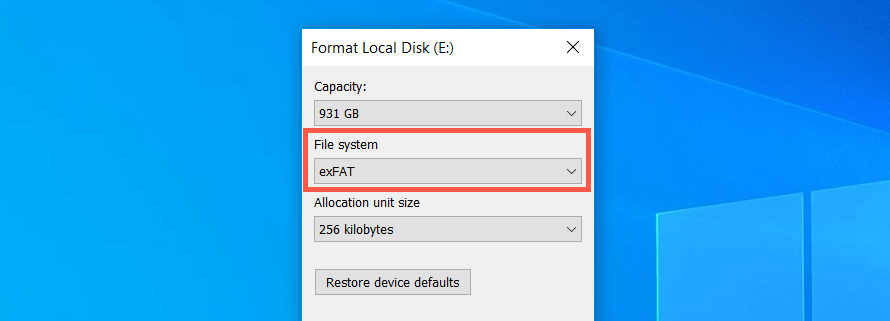
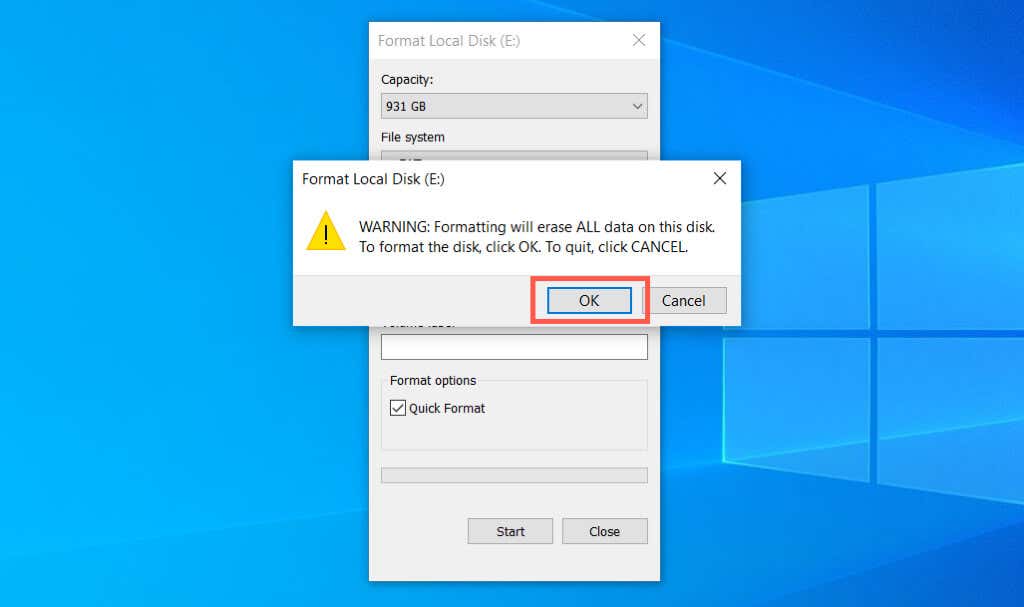
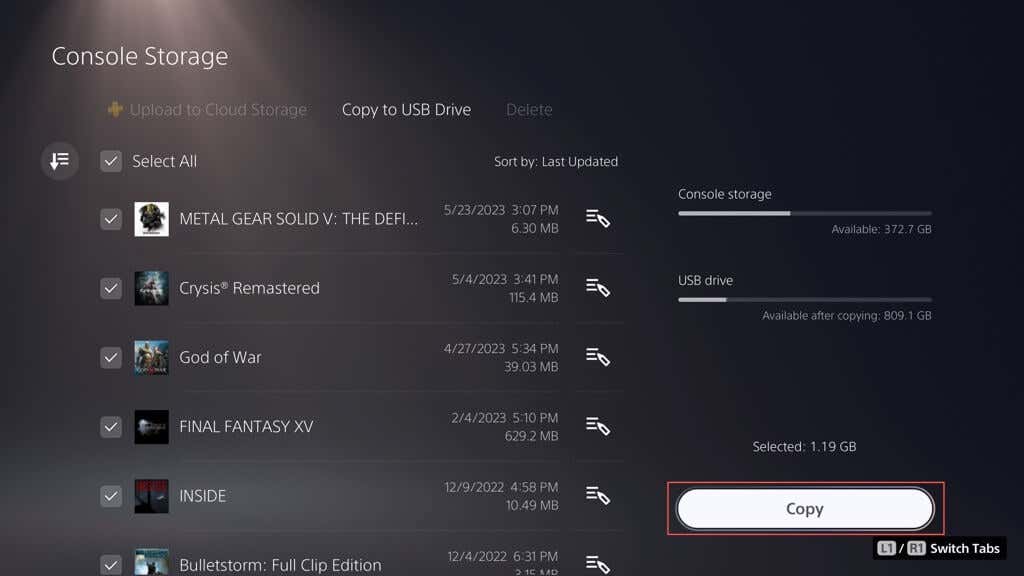
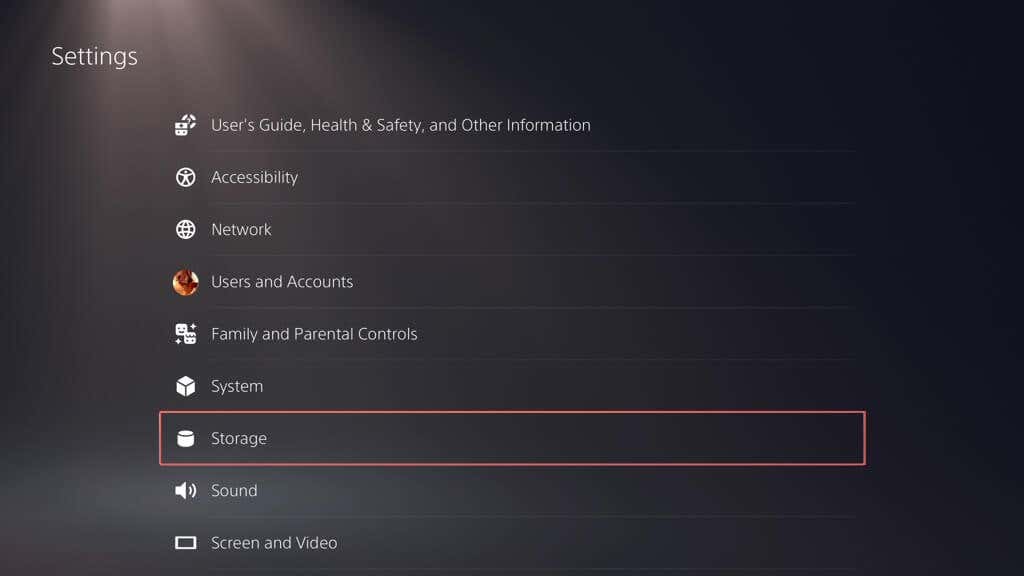
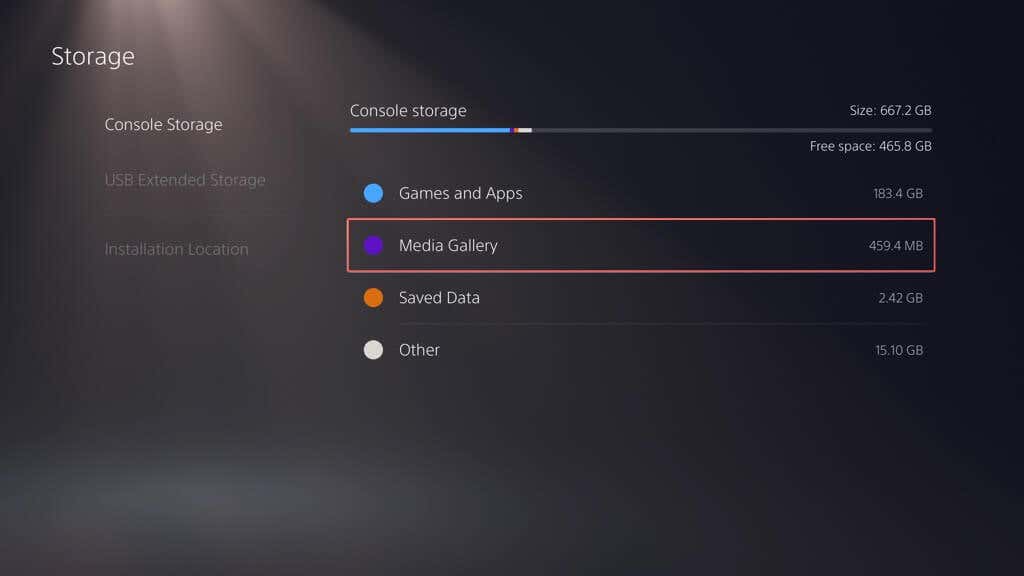
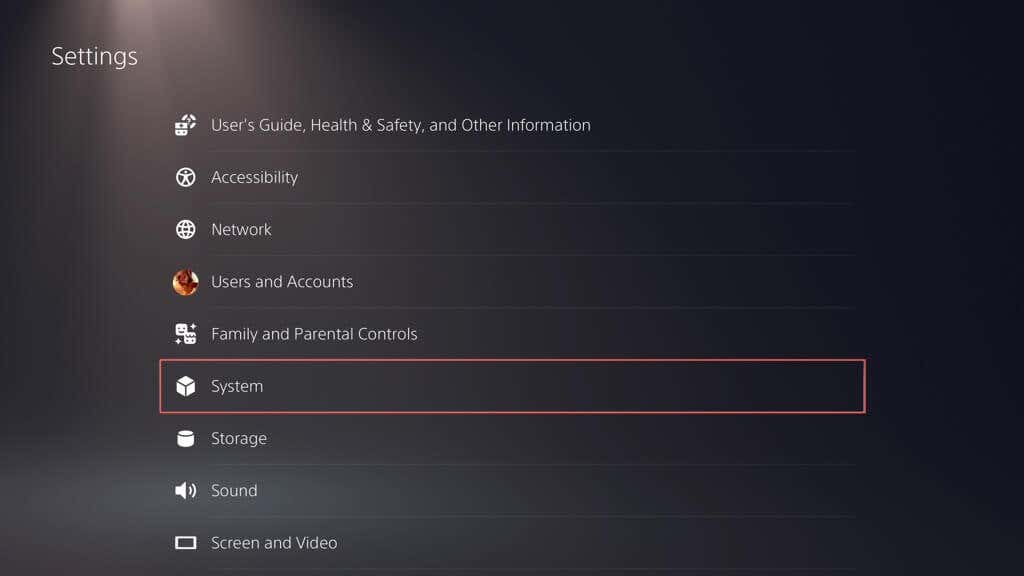
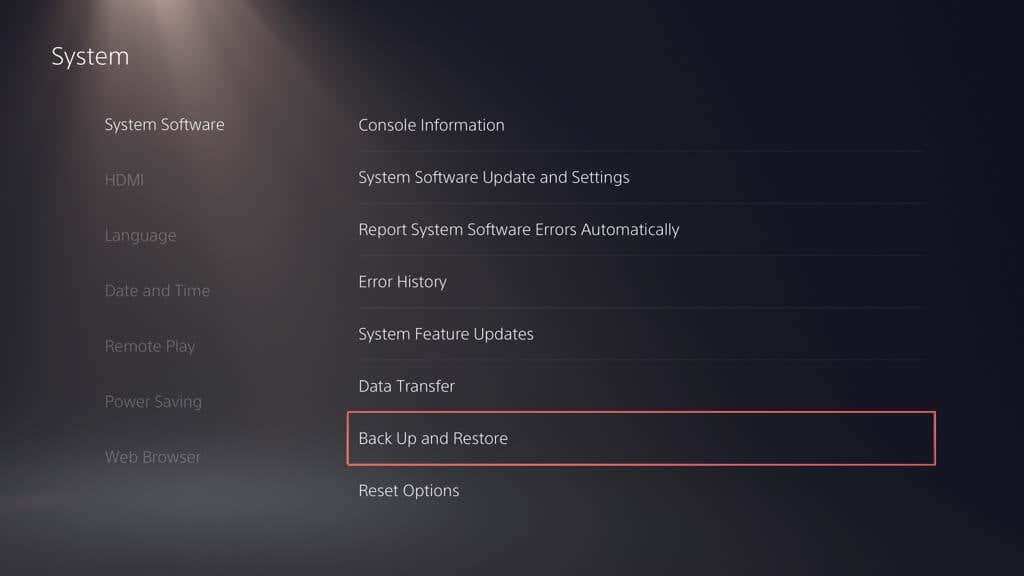
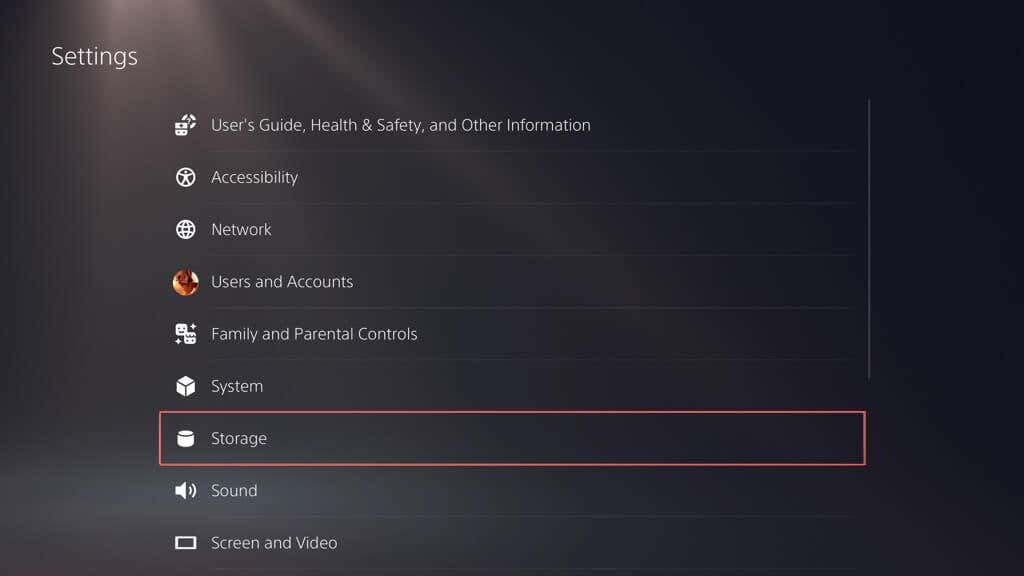
An external HDD or SSD is a simple and effective way to back up your PS5 data. With this method, you create a tangible duplicate of your data that you can quickly restore at any time. This method is ideal if you favor direct control over your backup data or don’t have a PlayStation Plus subscription for cloud-based game save backups. The external drive must have adequate space for your backup. Since the PS5 comes with an 825GB internal storage drive, a 1TB USB drive is more than enough. However, a larger drive might be necessary if you have an NVMe M.2 SSD in the expansion bay. Interestingly, the PS5 supports selective backups, where you can focus on specific data categories, allowing you to use a smaller drive for backup purposes. For instance, if your only concern is saved data and the media gallery and you’re willing to re-download games, a USB flash stick with 8-16GB capacity should cut it. To back up the data on a PS5 to an external storage device, connect the drive to your PS5, and then: Note: The indicator on the top left projects the amount of used and free space on the external drive if you copy the selected data. If your PS5 indicates the connected drive is unsupported, use a PC or Mac to format it in the FAT32 or exFAT file system and retry. If you use a Windows PC: If you use an Apple Mac:
Back-Up Data to PS Plus Cloud Storage
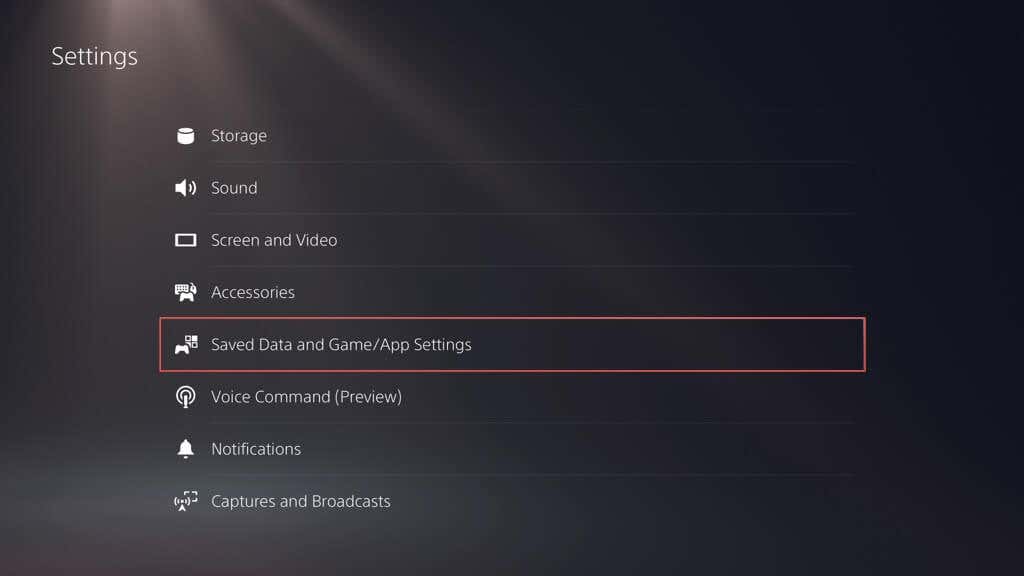
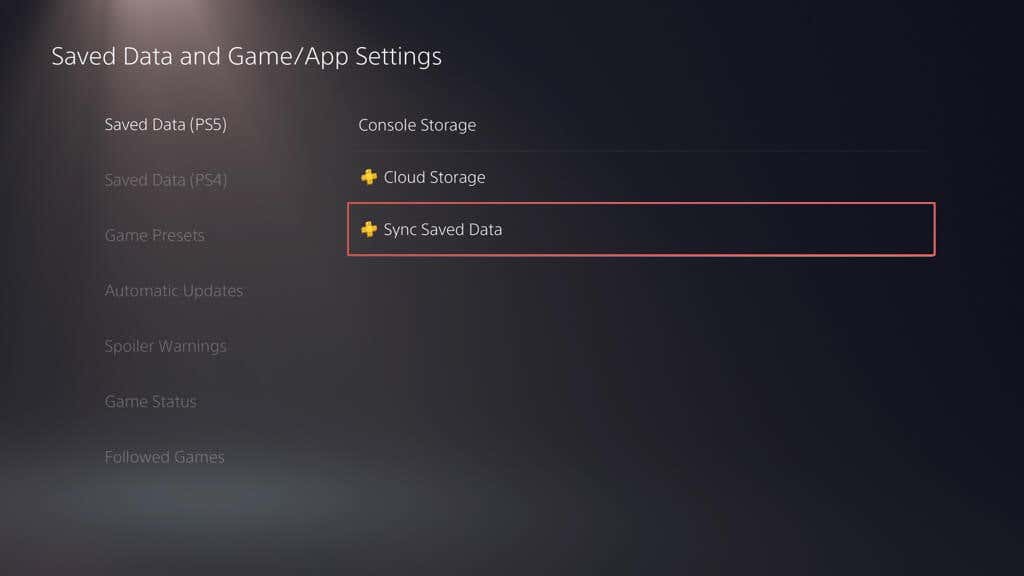
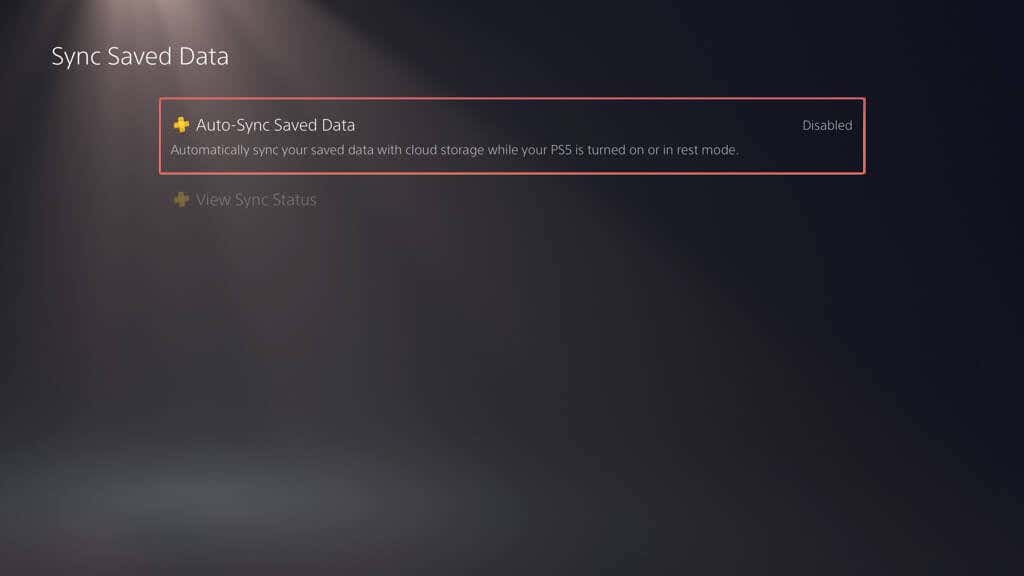
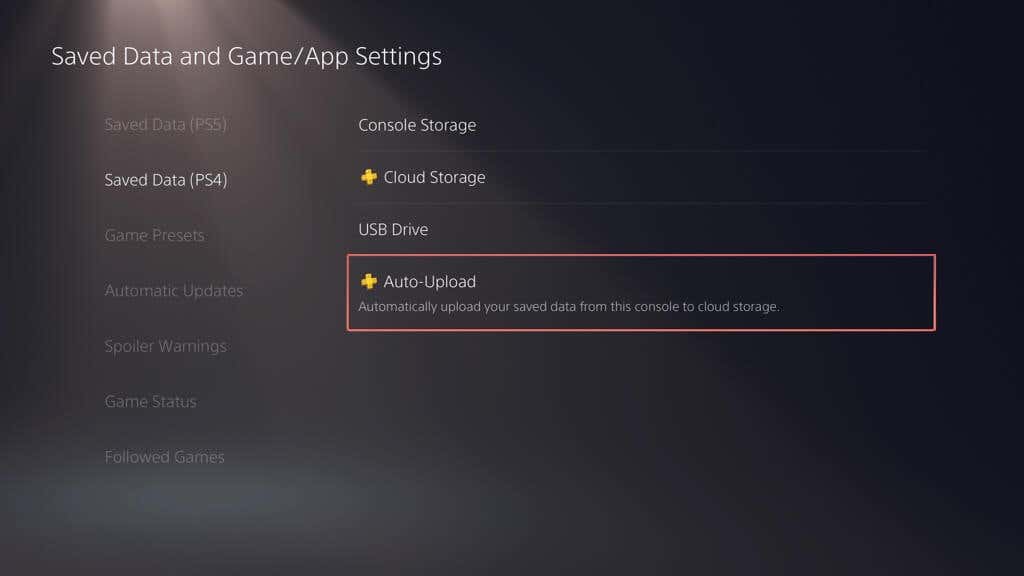
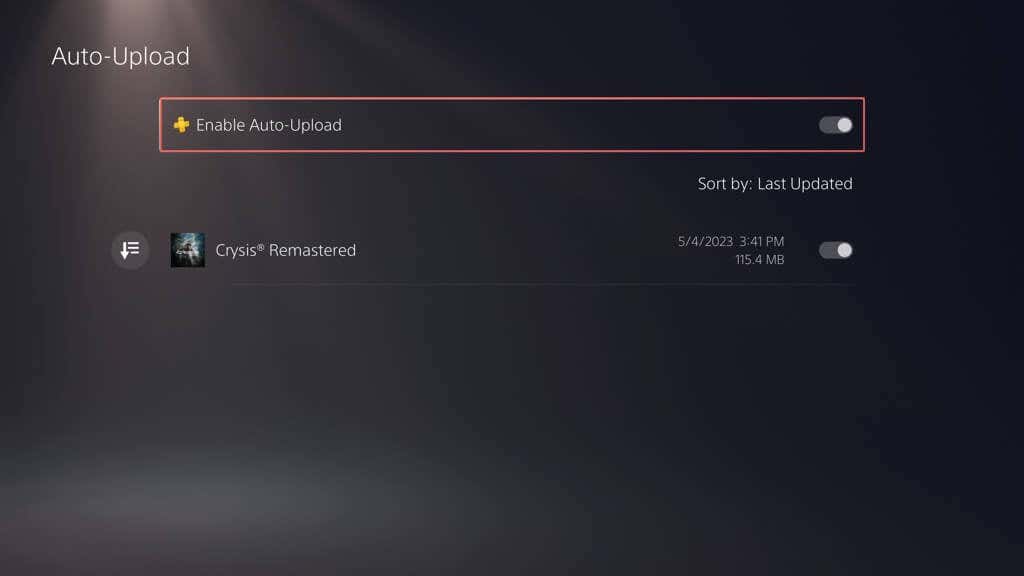
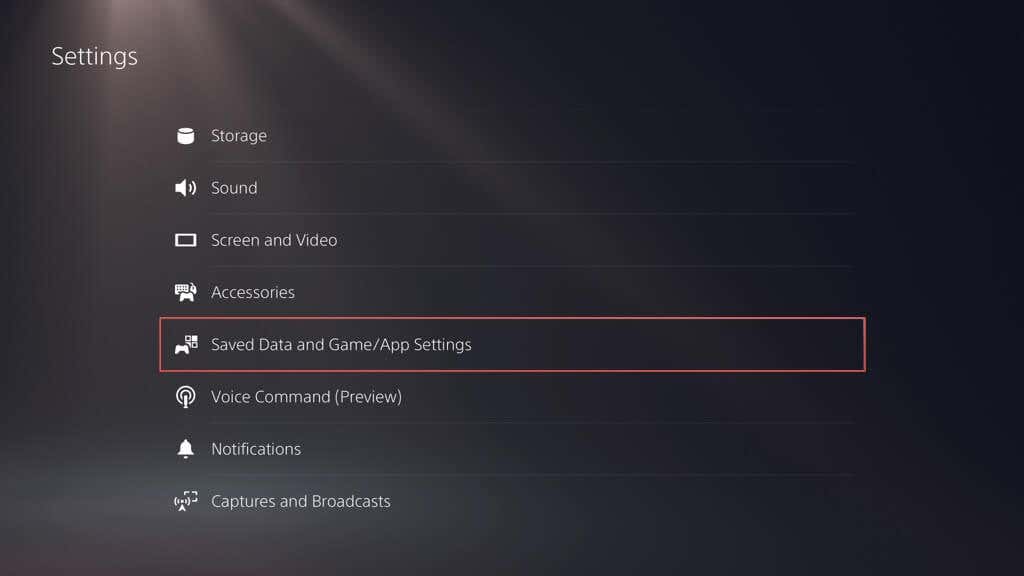
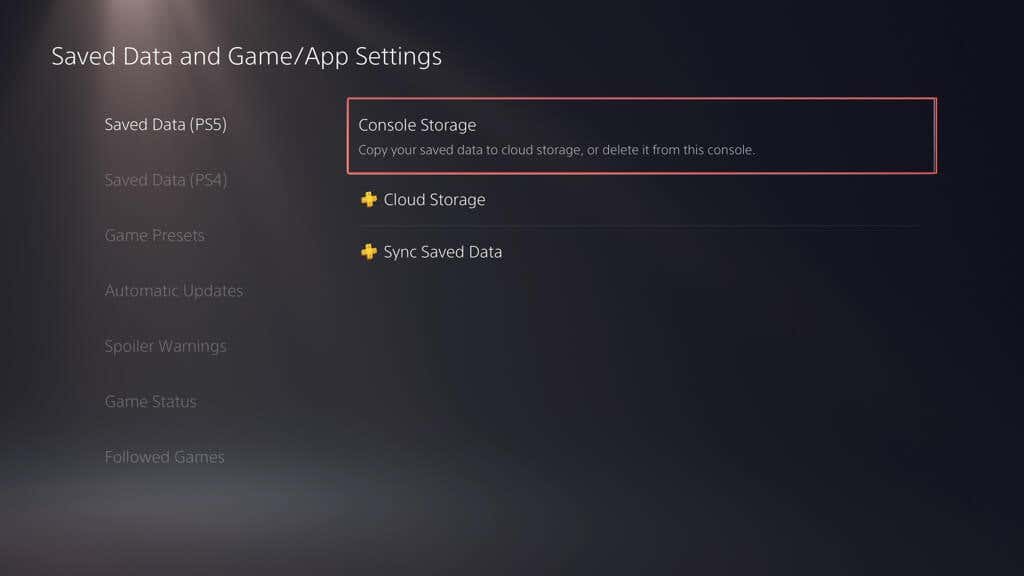
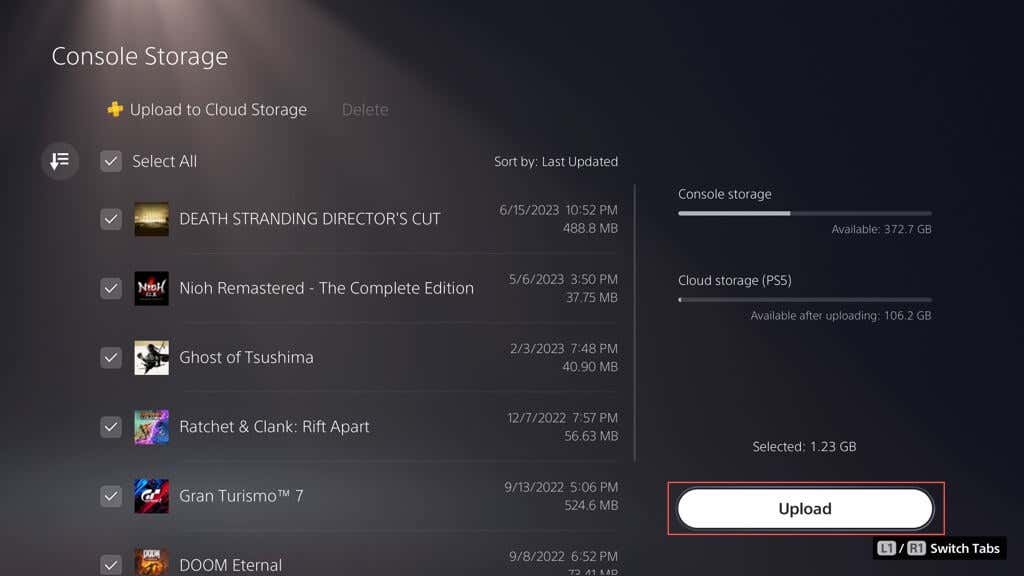
You can upload up to 100 GB of PS5 save data and 100 GB of PS4 save data to the PSN servers if you’re a PlayStation Plus subscriber. By default, automatic PS Plus uploads are enabled for PS5 and PS4 games, so you don’t have to do anything. If not, here’s how to turn it on: Alternatively, you can keep automatic updates disabled and upload saved data manually. Here’s how:
Back-Up Game Saves and Media Gallery to Flash Drive
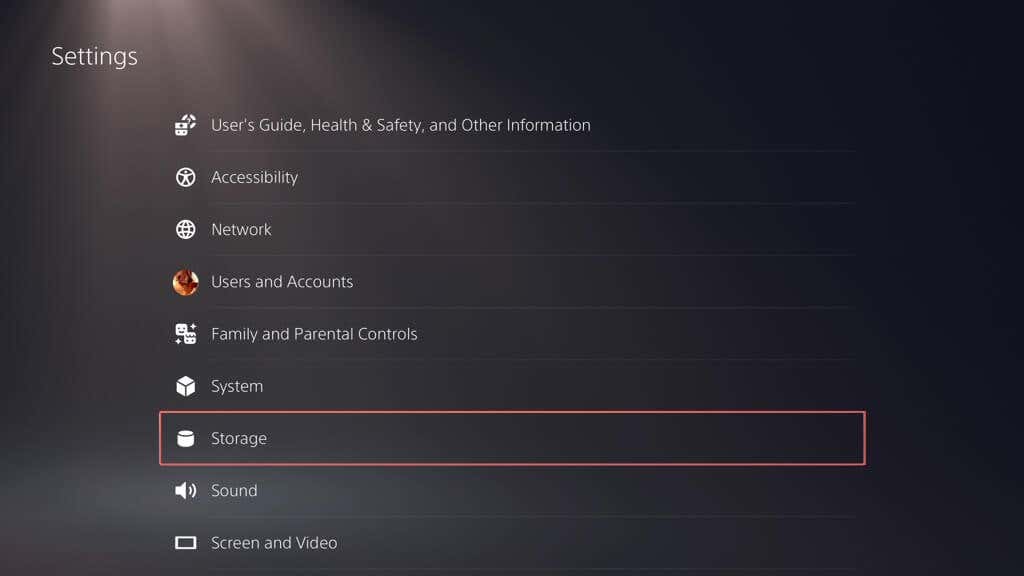
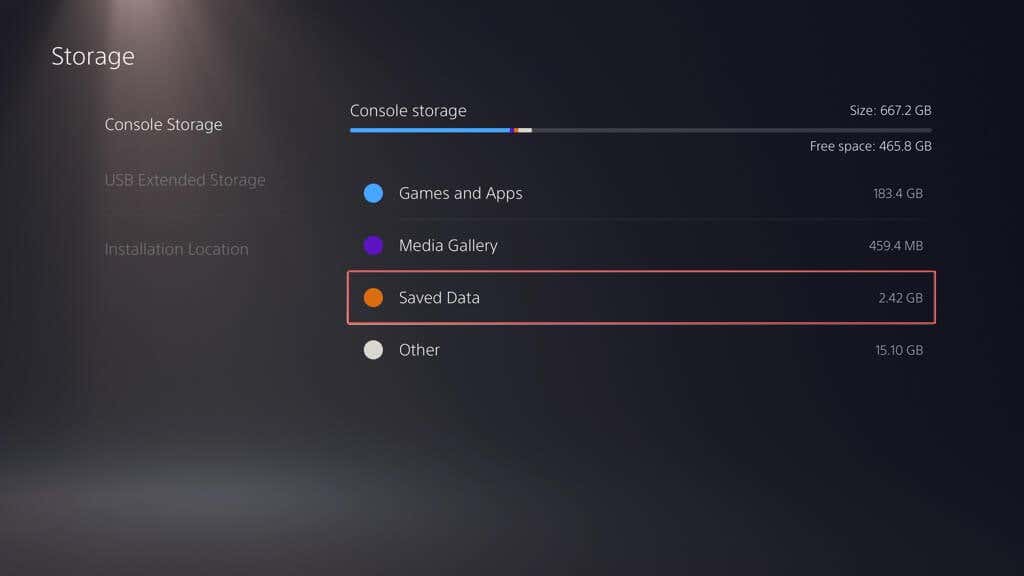
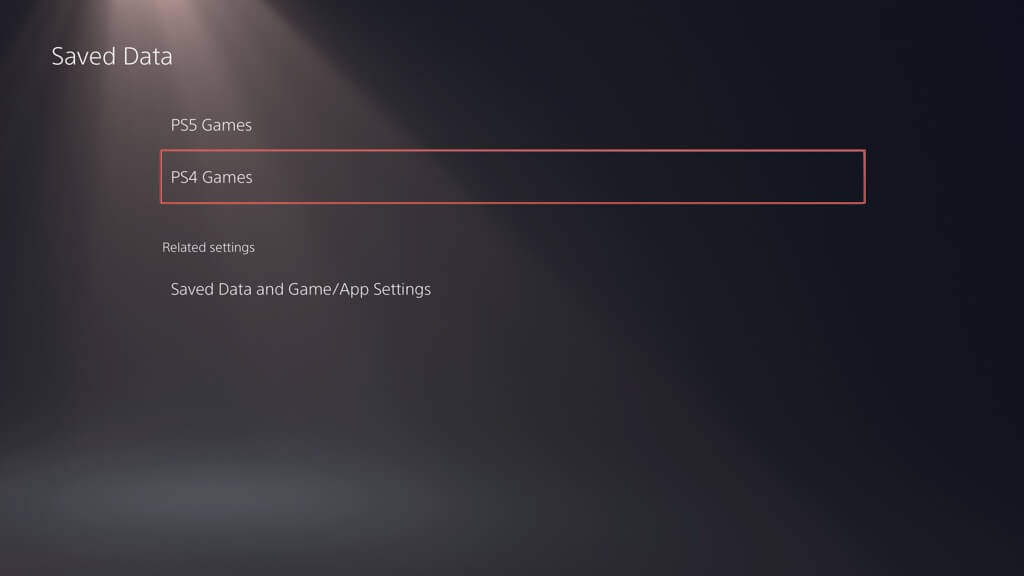
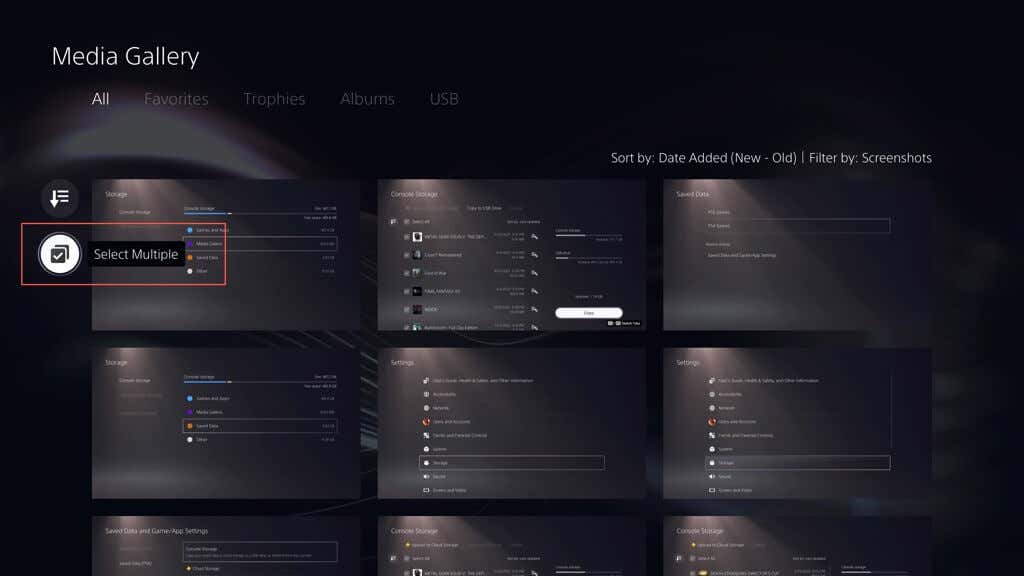
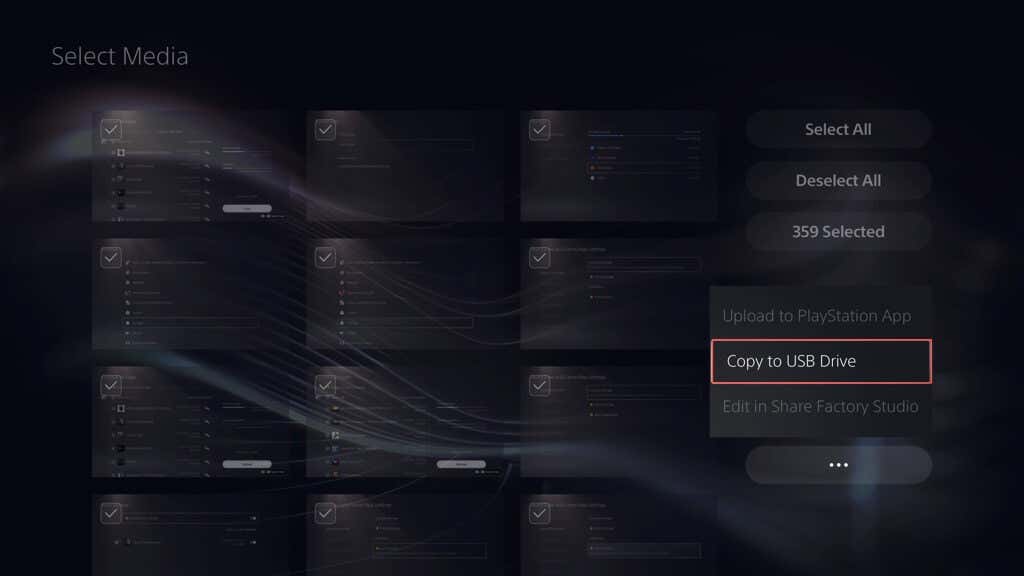
Instead of using the PS5’s external drive backup function, you can manually copy all or specific amounts of saved data from PS4 games to a USB flash stick. You can also back up media gallery items (screenshots and video clips) to it. To copy PS4 save files to a compatible flash stick, connect it to your console, and then: To copy media gallery items to the USB drive:
Restore PS5 From an External Drive Backup
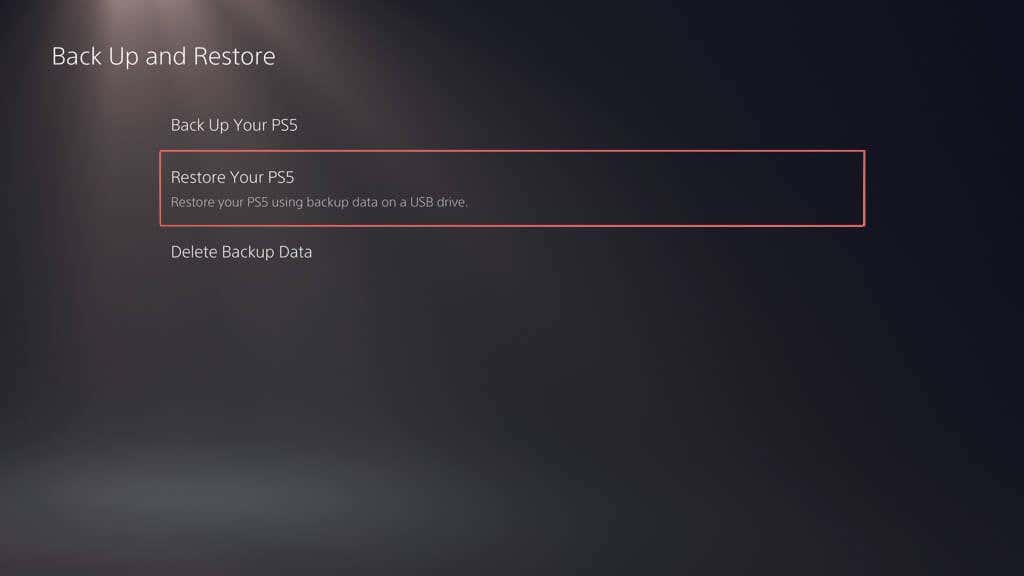
If you have to factory reset your PS5, replace its internal storage drive, or upgrade to a new console, you can choose to restore the contents of your external backup drive. Assuming you made a complete backup, the process ensures you return to your games with all your progress, settings, and profiles intact.
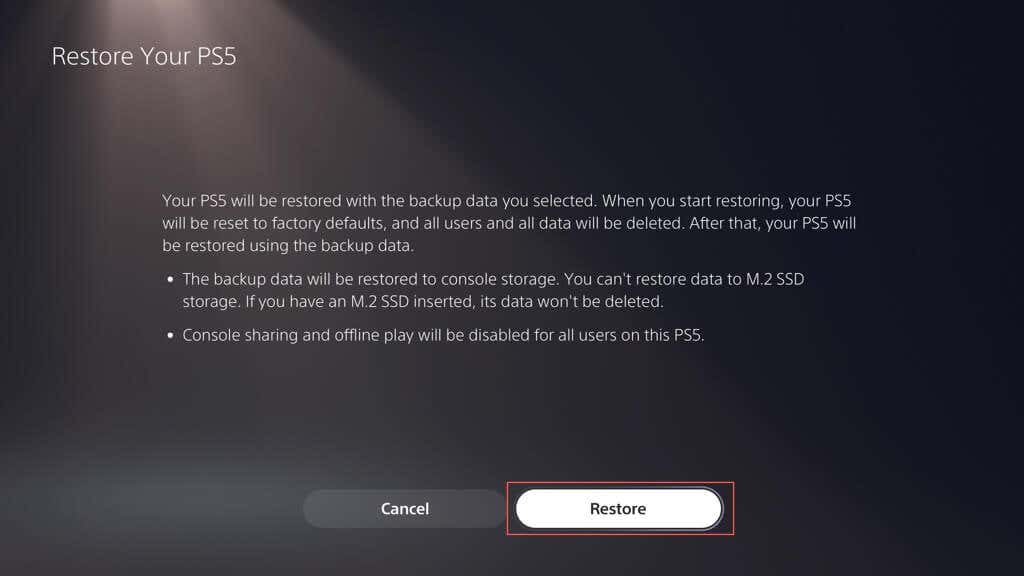
Warning: Restoring a PS5 backup will permanently wipe any existing data from the console’s internal storage.
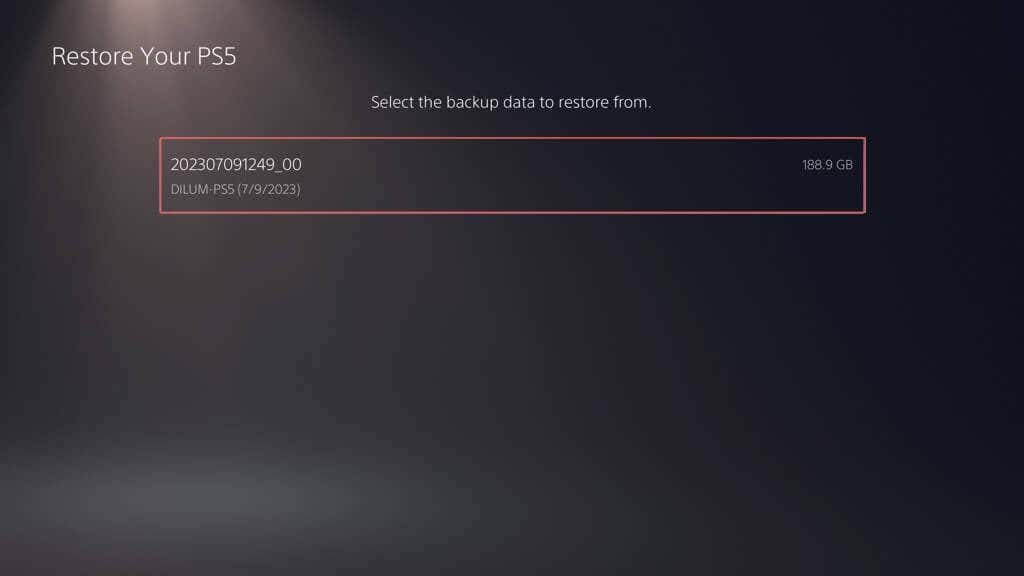
To restore PS5 data from an external drive backup, connect the storage device to your PS5, and then:
Note: If the restoration process fails, update the PS5’s system software to its latest version and try again.
Restore Cloud Saves From PS Plus
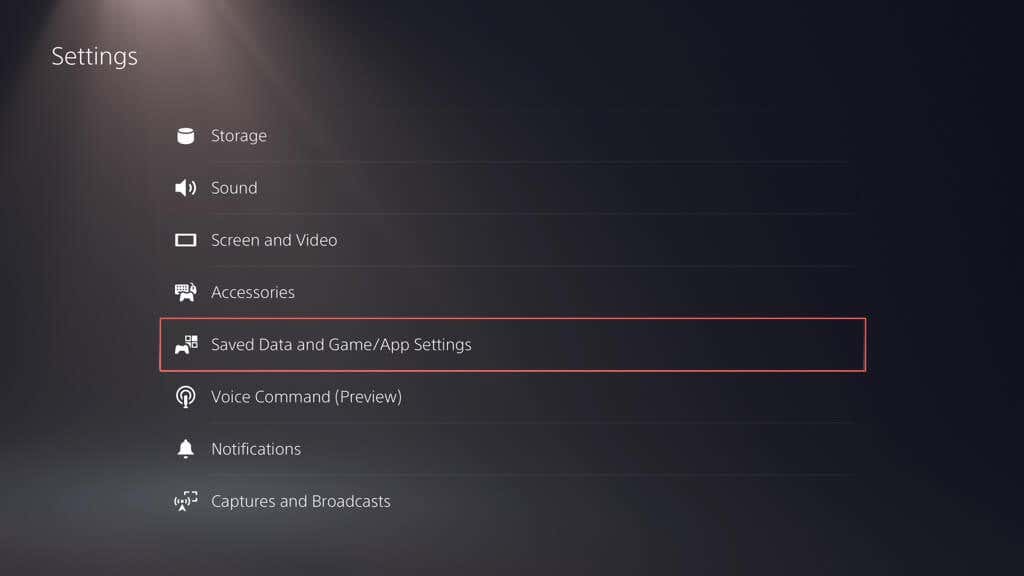
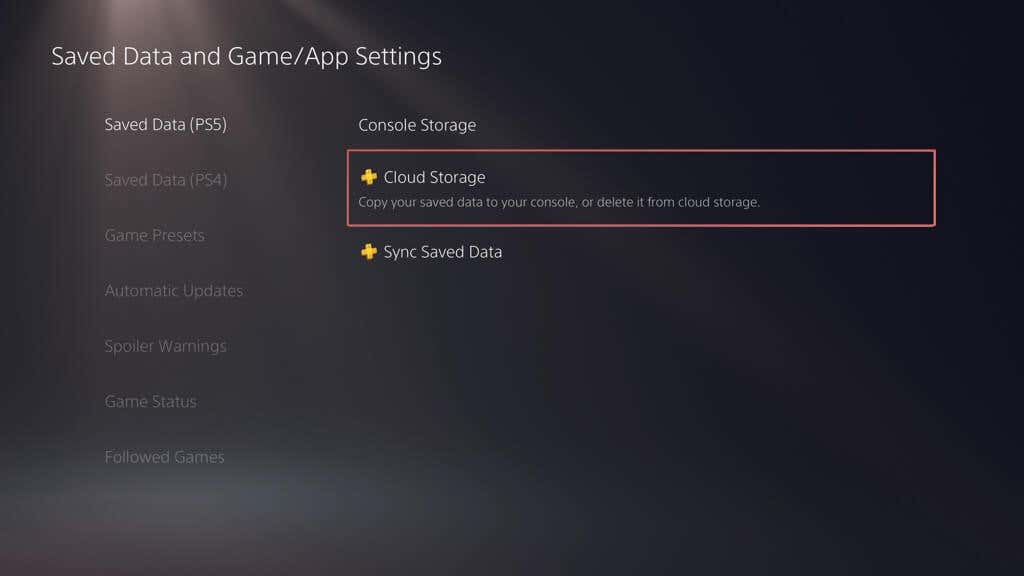
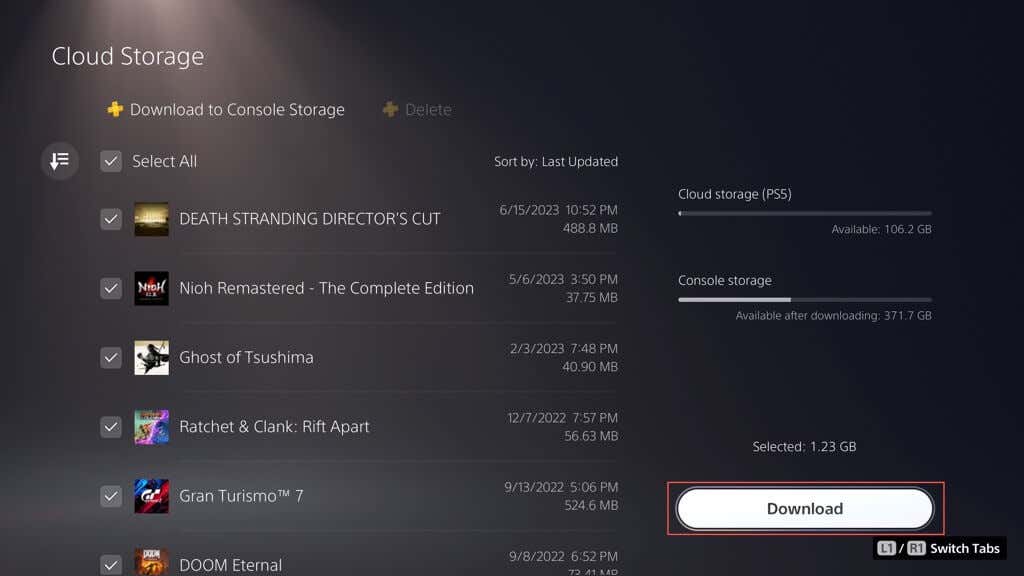
If you have saved games backed up online thanks to PS Plus, they should auto-sync with the internal storage when you sign in to a PS5 with your PSN account. If they don’t, you can restore game saves manually. Here’s how:
Restore Game Saves From Flash Drive
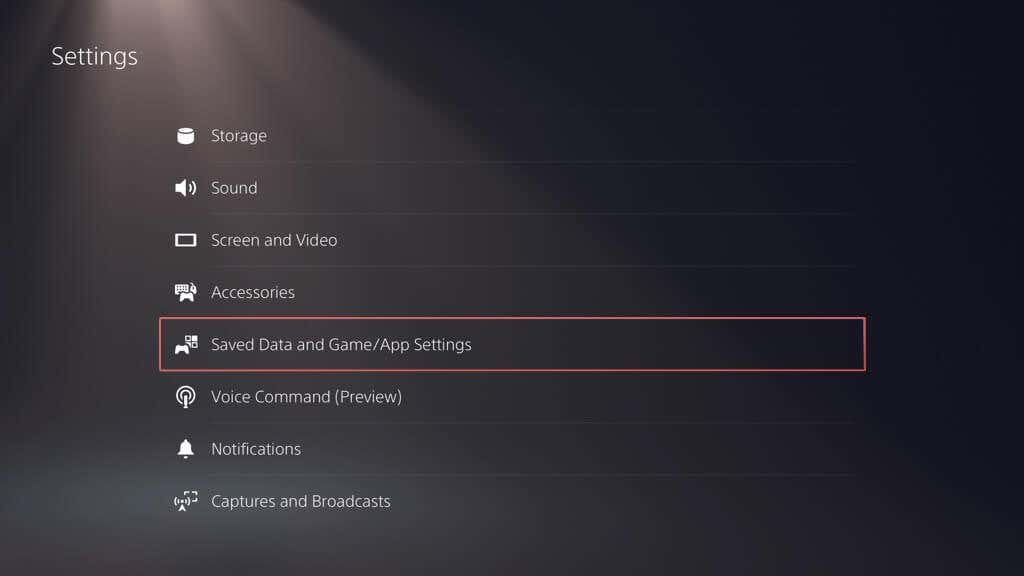
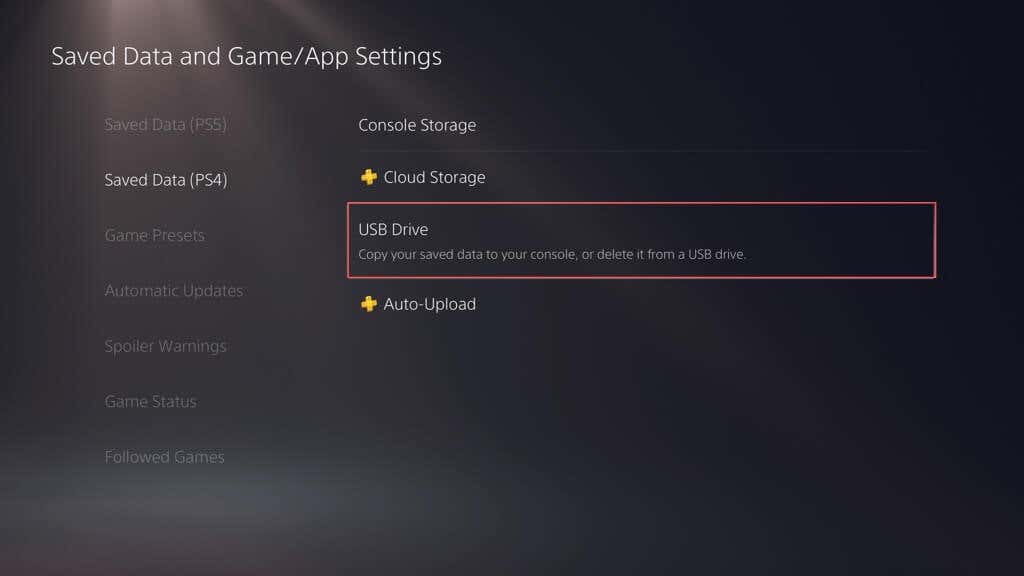
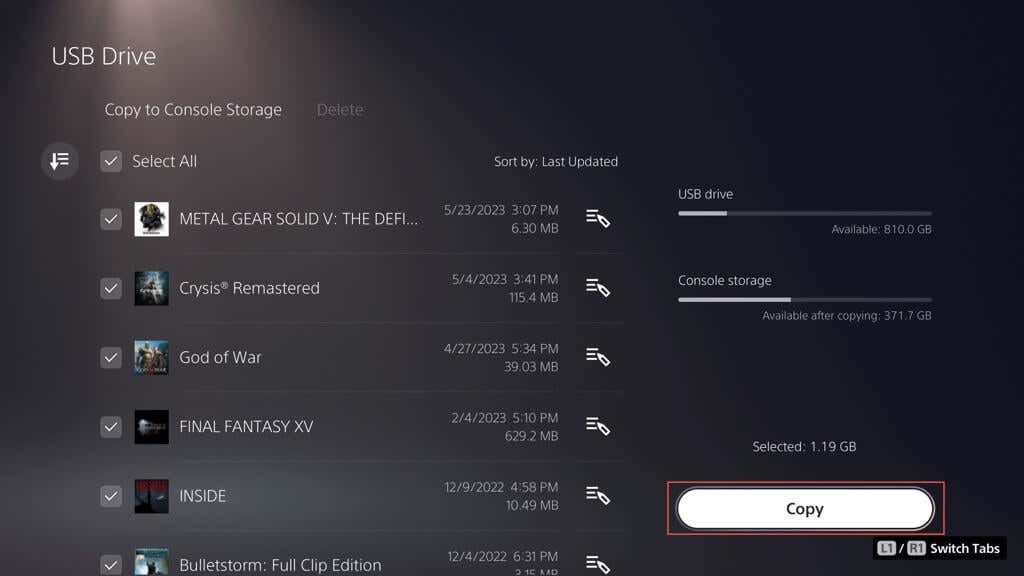
If you copied your PS4 save files to a USB flash drive, you can copy them back to the console’s internal storage. Here’s how:
View Media Gallery Items on Flash Drive
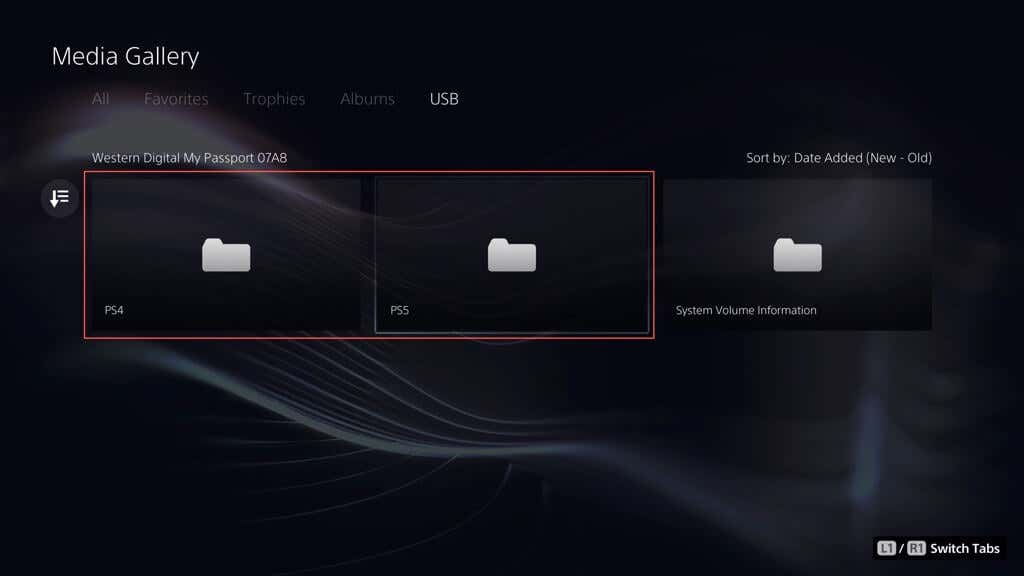
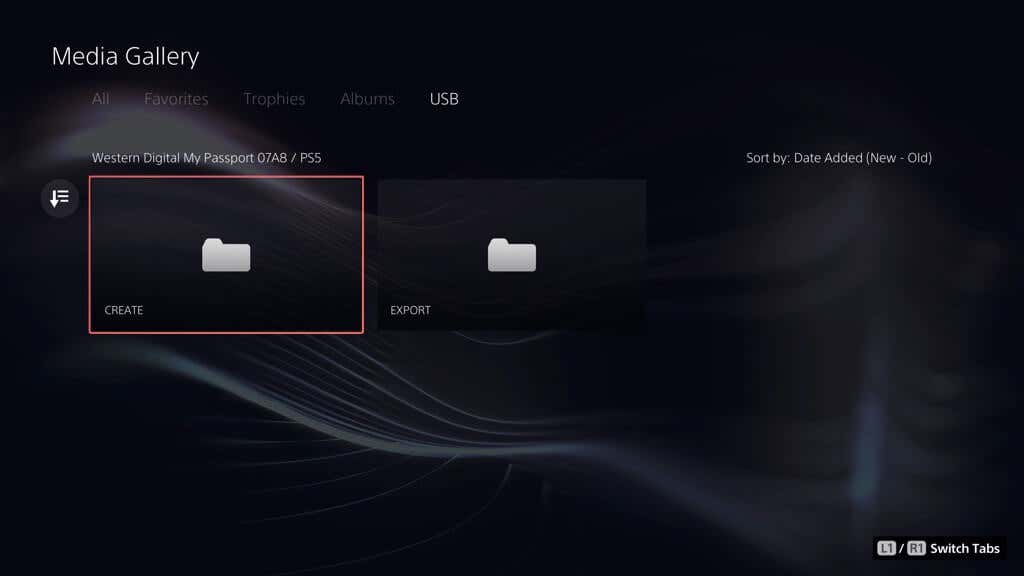
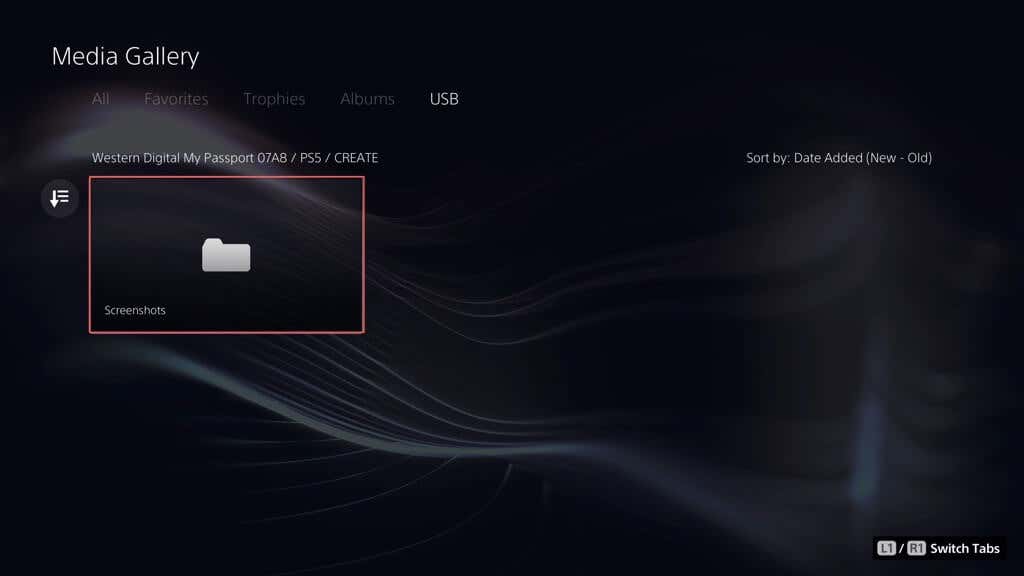
You can’t copy back any media gallery items on a flash stick, but you can access and view them. To do that, connect the drive to your console, and then:
You Now Know How to Back Up and Restore the PS5
Backing up your PS5 is crucial, and it’s not just about saving your games—it’s about safeguarding everything on your console. With this guide, you now know how to do it. Whether it’s copying everything to an external drive, uploading game saves to the cloud, or copying save files and gallery items to a flash stick, you’ve got multiple methods to protect your data. It’s always good to know all of your important data is safe and sound, and that you can restore them quickly if needed.