About Line Numbers in Google Docs
There are a few things to remember when inserting line numbers in Google Docs.
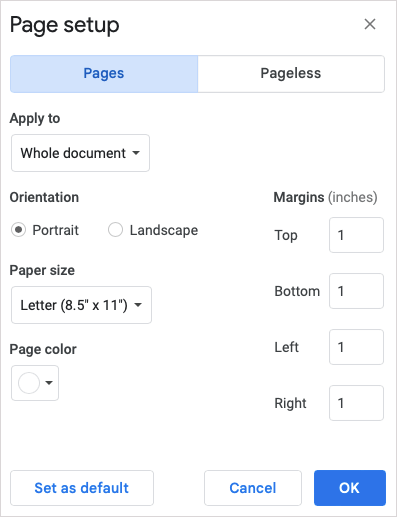
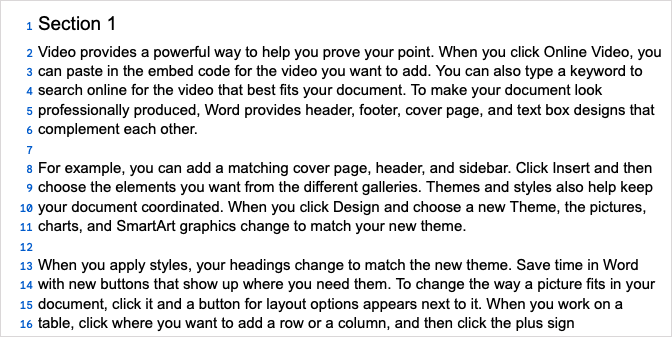
You can see the line numbers in blue on the left side of each line, including subtitles, headers, blank lines (after pressing Enter or Return), and in a table of contents or bibliography. You cannot change the style, color, or size of the line numbers as of this writing. You can use continuous numbering throughout the document, start fresh on each page, or number document sections. You can only use line numbers in the Pages format. If you use the Pageless format by default, you can switch by selecting File > Page setup > Pages.
How to Add Line Numbers in Google Docs
When you’re ready to insert line numbers, open your document in Google Docs on the web. The feature is not currently available on Android or iPhone’s Google Docs mobile app. Tip: You can add line numbers in a Microsoft Word document too.
Customize Line Numbers in Google Docs
You’ll notice different options for your line numbers in Google Docs.
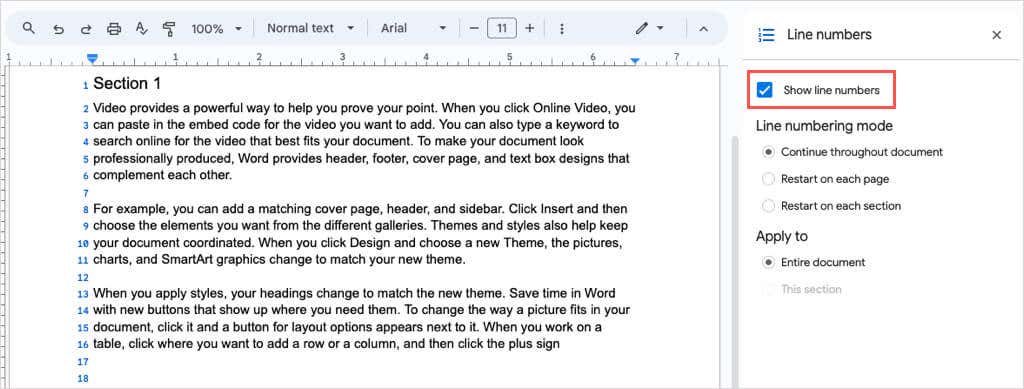
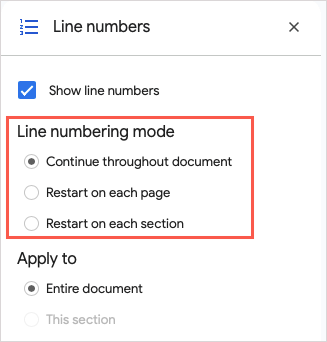
You can choose one of the Line Numbering Modes for how to number your document, including the entire document, or restarting at 1 on each page or section.
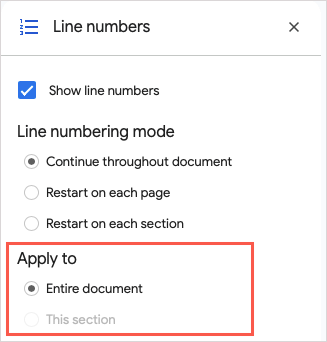
In the Apply To section, you can choose between the entire document or the section where your cursor is located.
The second option is grayed out if you don’t have designated sections in your document, which we’ll explain next.
How to Add Line Numbers to Sections
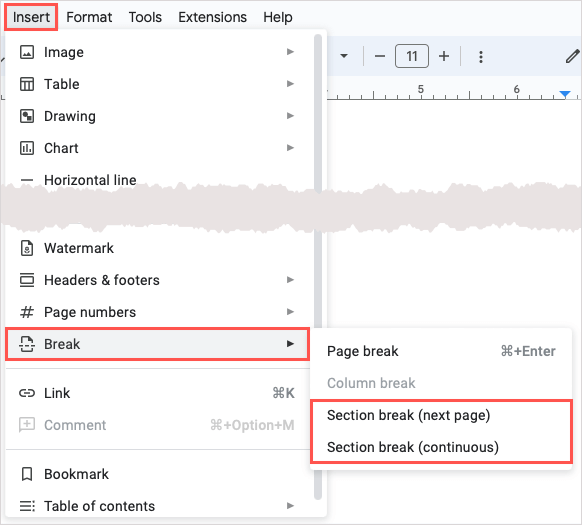
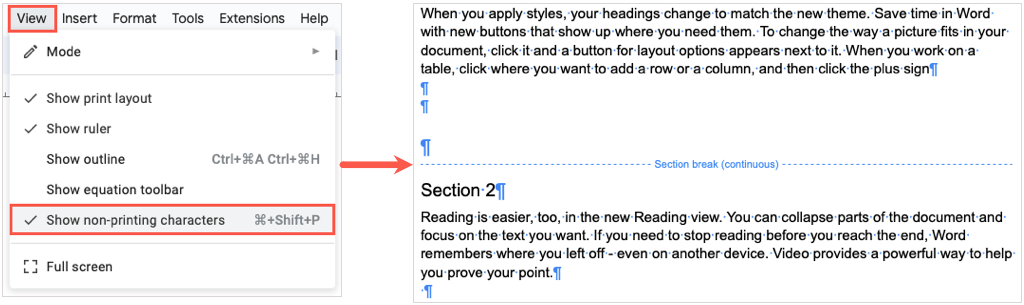
If you have a document where you only want to number lines in certain sections rather than the entire document, you’ll start by adding those sections.
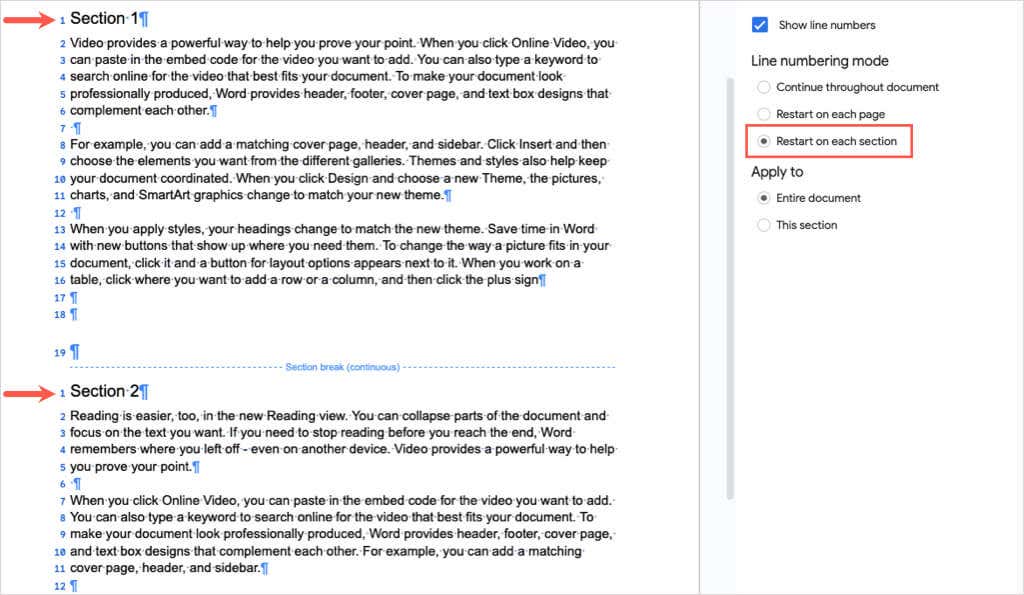
Restart in Each Section
Select Restart on each section below Line Numbering Mode to start each section at number 1.
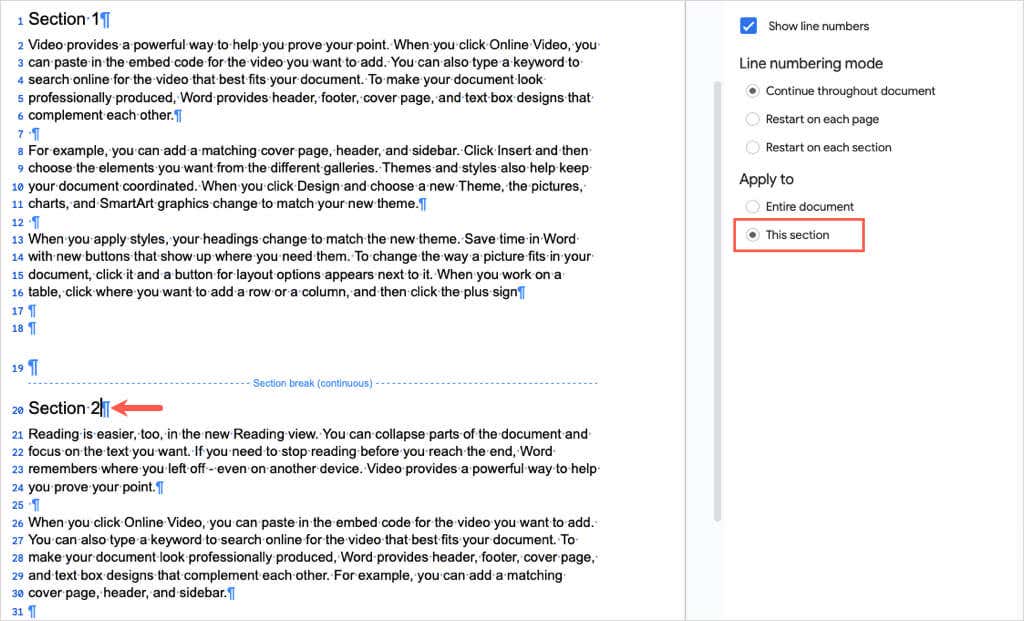
Number the Current Section
Select This section below Apply To if you only want the line numbers in the section where your cursor is placed.
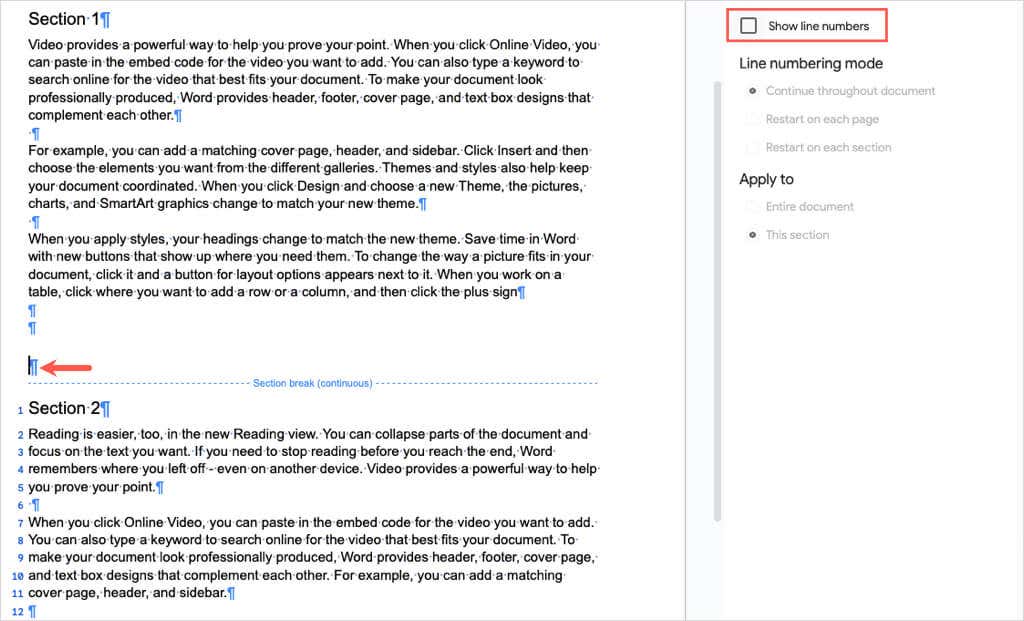
Then, place your cursor in each other section and uncheck the Show line numbers box in the sidebar.
You can follow these same steps to number other sections in your document the same way. Then, refer to the line you need by specifying the section and line number within it.
Tip: You can also add page numbers for references in your document.
Remove Line Numbers in Google Docs
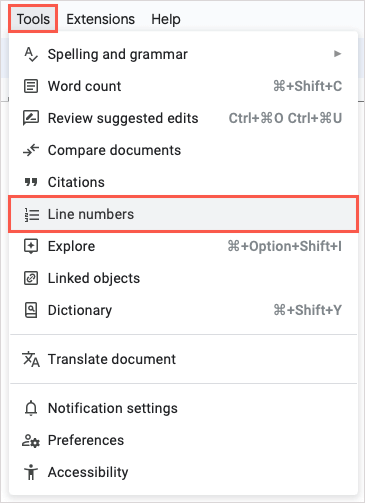
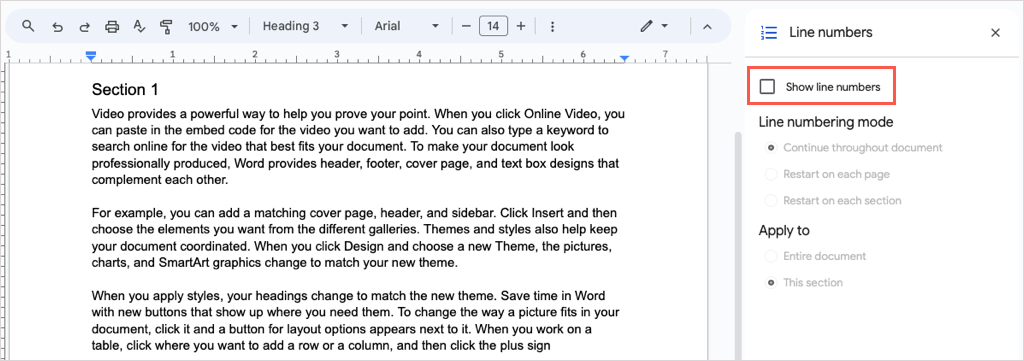
If you want to remove the line numbers in your Google Docs document later, it’s as easy as unchecking a box. Open the sidebar by selecting Tools > Line numbers. Uncheck the Show line numbers box at the top of the sidebar. If you numbered particular sections, place your cursor in the section to display the marked checkbox and uncheck it. For a simple way to reference specific lines, sentences, or paragraphs in your documents, you now know how to add line numbers in Google Docs. For related tutorials, look at how to remove section and page breaks too.