1. Use Your Phone as Virtual Remote
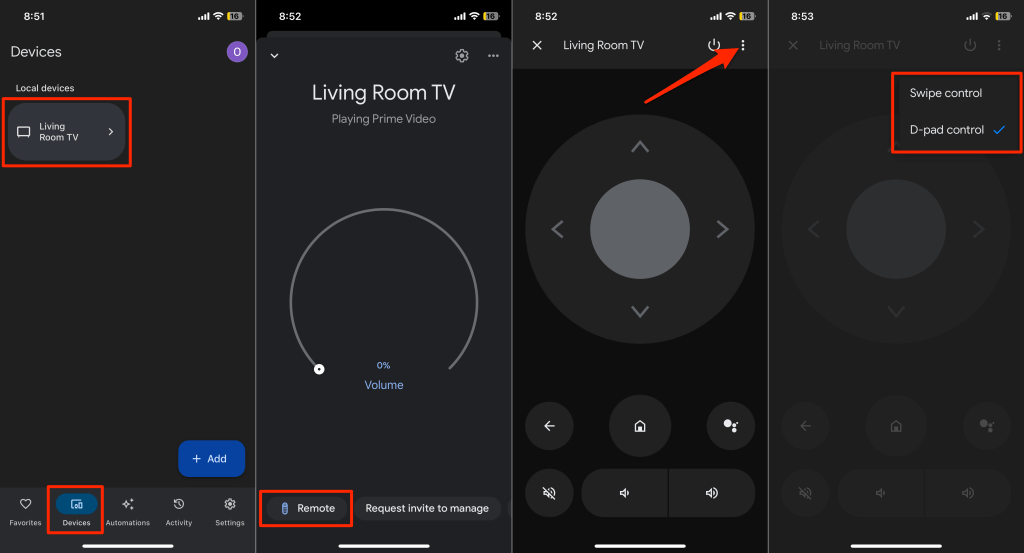
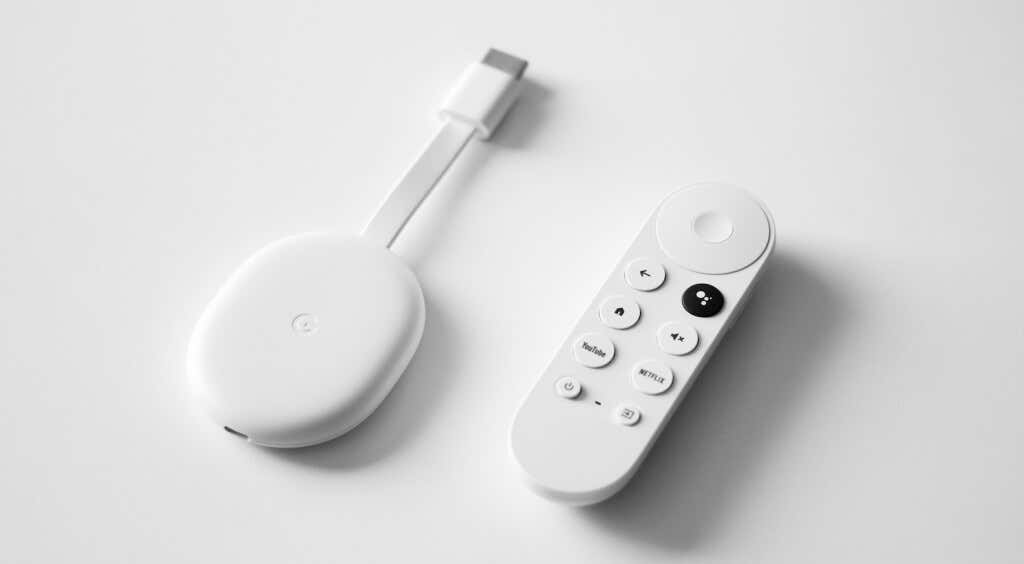
The Google Home app has a built-in virtual Chromecast remote control. Use the Google Home app to navigate your Chromecast if the physical remote isn’t working. Connect your smartphone to the same Wi-Fi network as your Chromecast and follow the steps below. Tap the Add button to manually link your Chromecast if the Google Home app doesn’t detect it automatically. The Google Home app will display the virtual remote control on your phone screen. You can customize the virtual remote to use Swipe or D-pad navigation control. Tap the three-dot menu icon in the top-right corner and select Swipe control or D-pad control.
2. Check Battery Status or Replace Batteries
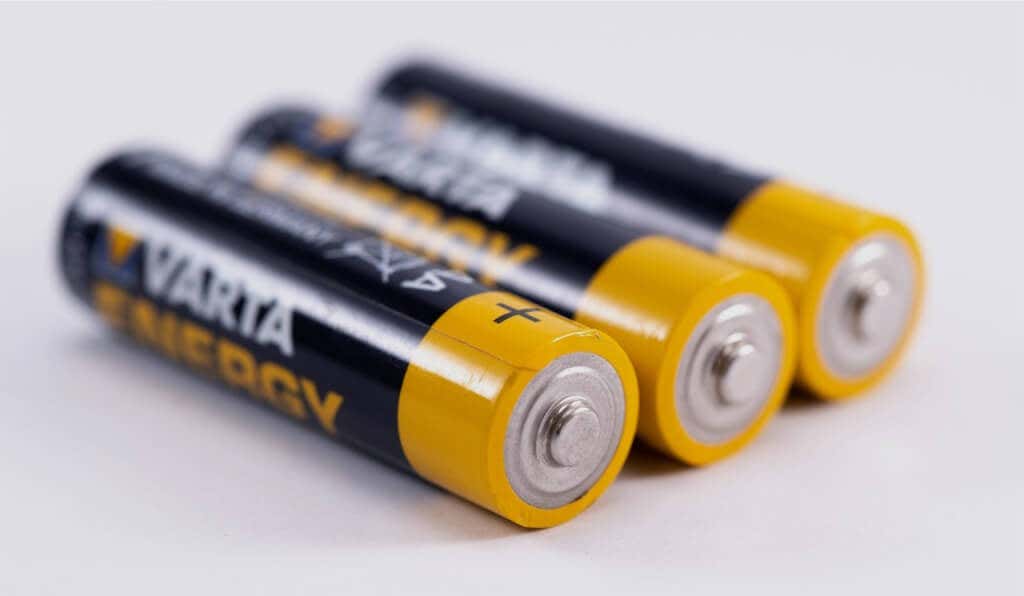
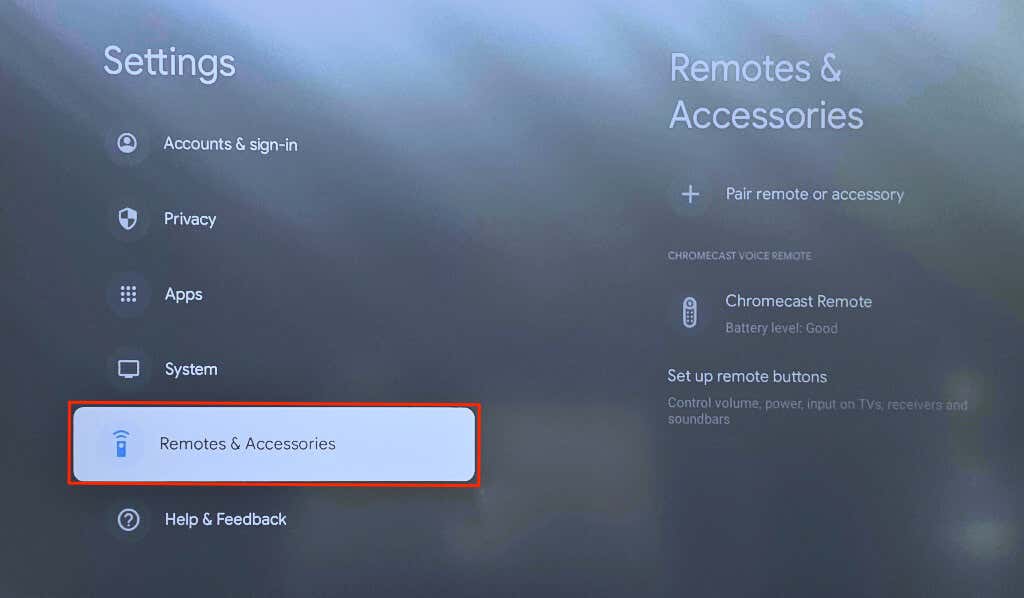
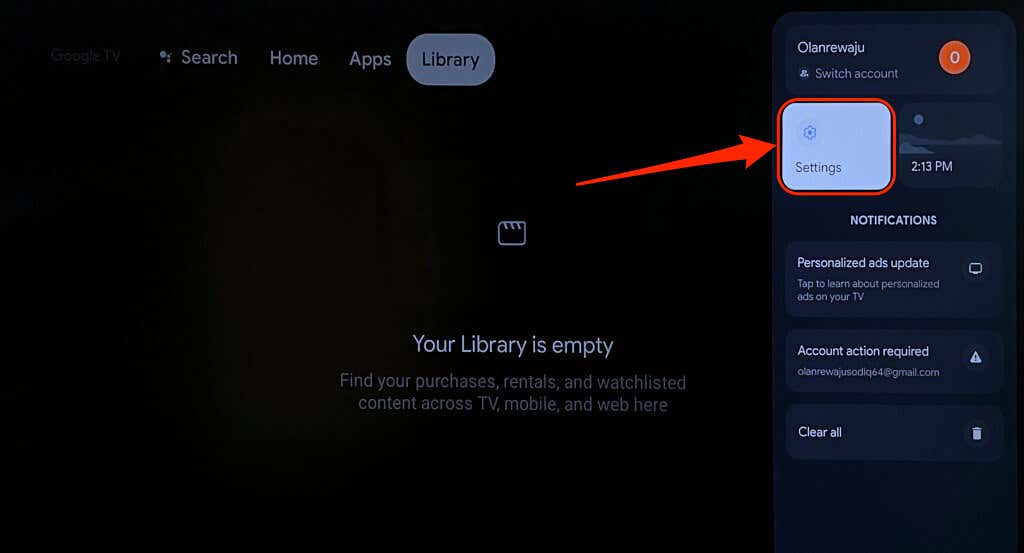
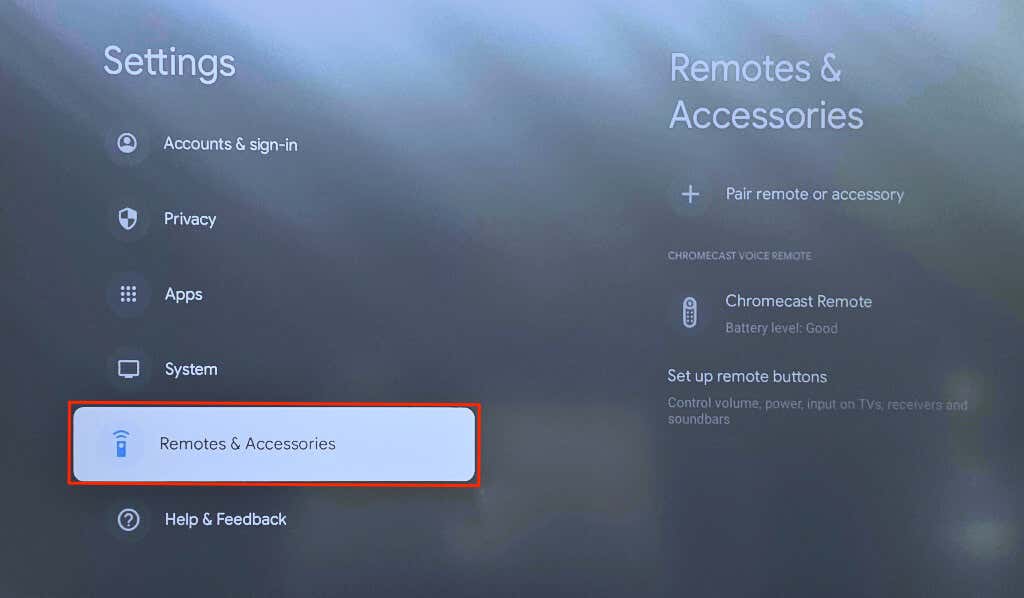
Your Chromecast remote won’t work if its batteries are dead or inserted incorrectly. Check the battery level of your Voice Remote in the settings menu. Open the virtual Chromecast remote in the Google Home app and follow the steps below. Open your Voice Remote’s back cover and check that the batteries are secure and fitted correctly. Align the battery polarities—positive(+) and negative(-) sides—in line with the inscription in the battery compartment. The LED light on the Chromecast Voice Remote should pulse twice when you reinsert the batteries. Insert two new 1.5 Volts AAA alkaline batteries in your Voice Remote if the LED light doesn’t flash. Ensure you replace both batteries, not one—the issue might persist if you mix old and new batteries.
3. Update Your Chromecast Remote
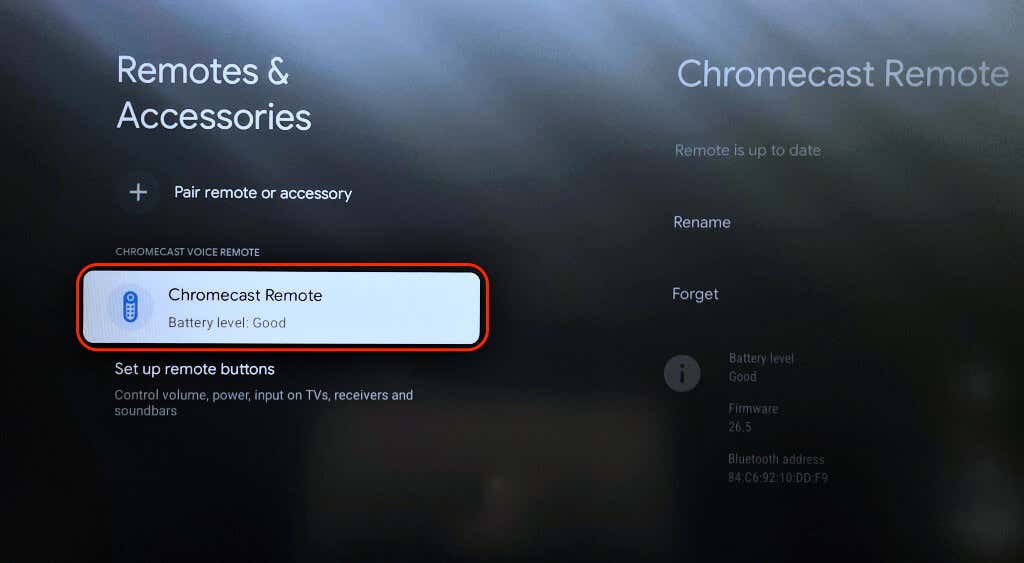
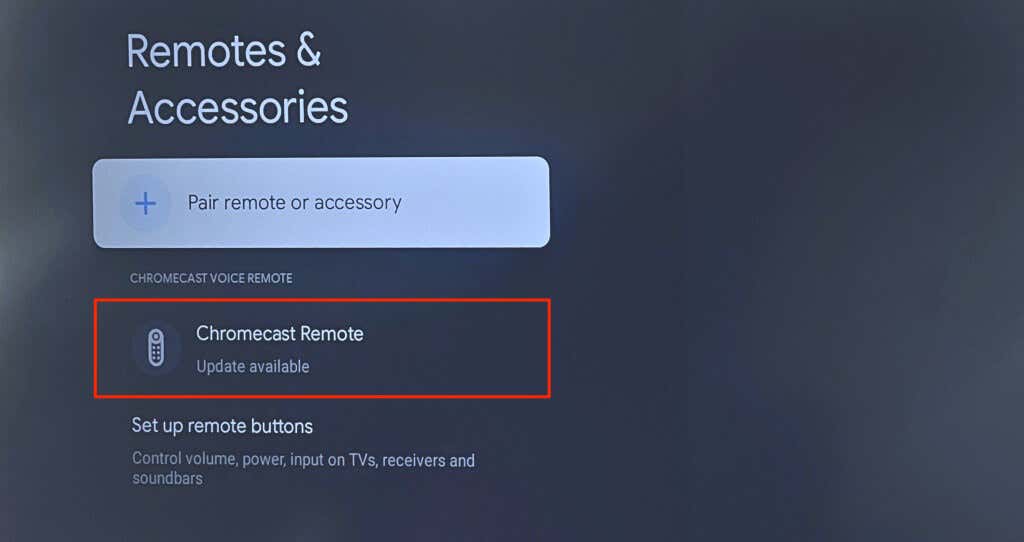
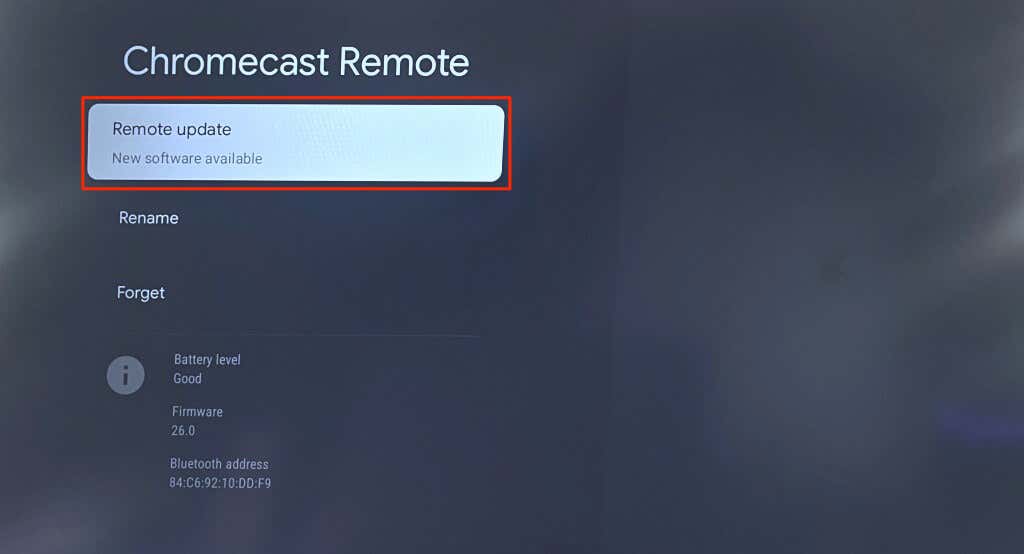
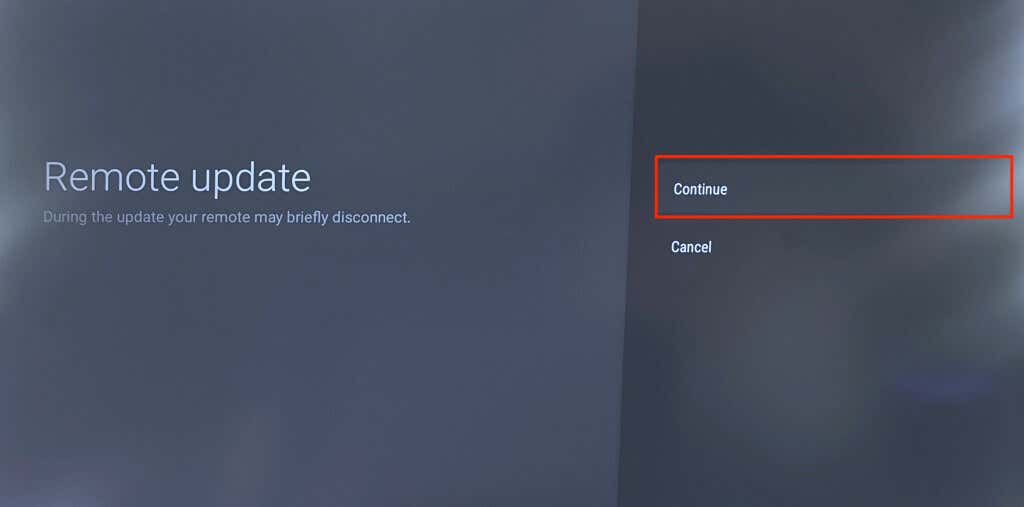
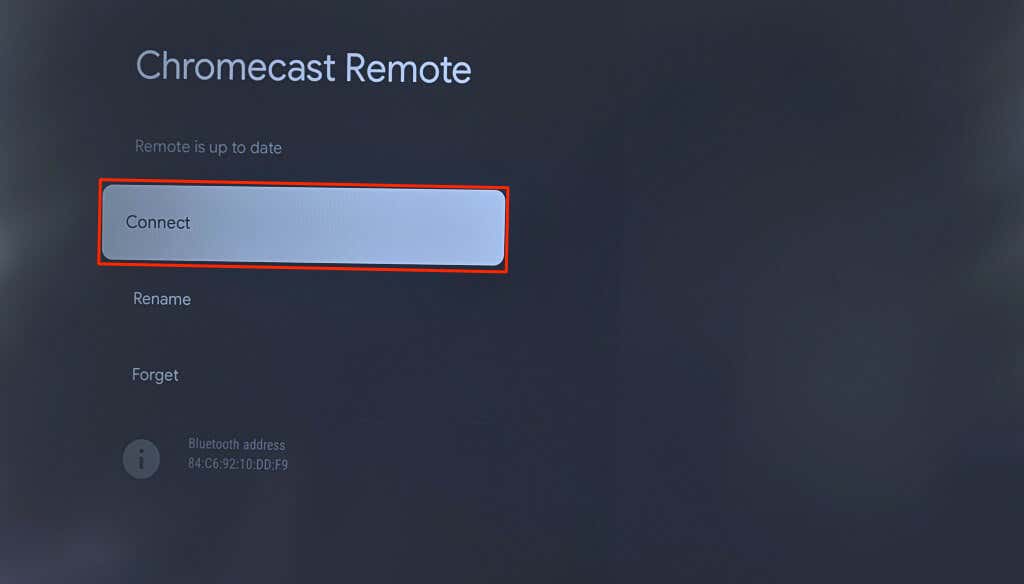
The Chromecast Voice Remote might malfunction if its firmware needs to be updated. Use the Google Home app virtual remote to check if there’s an update available for your remote.
4. Reset or Re-Pair Your Chromecast Remote
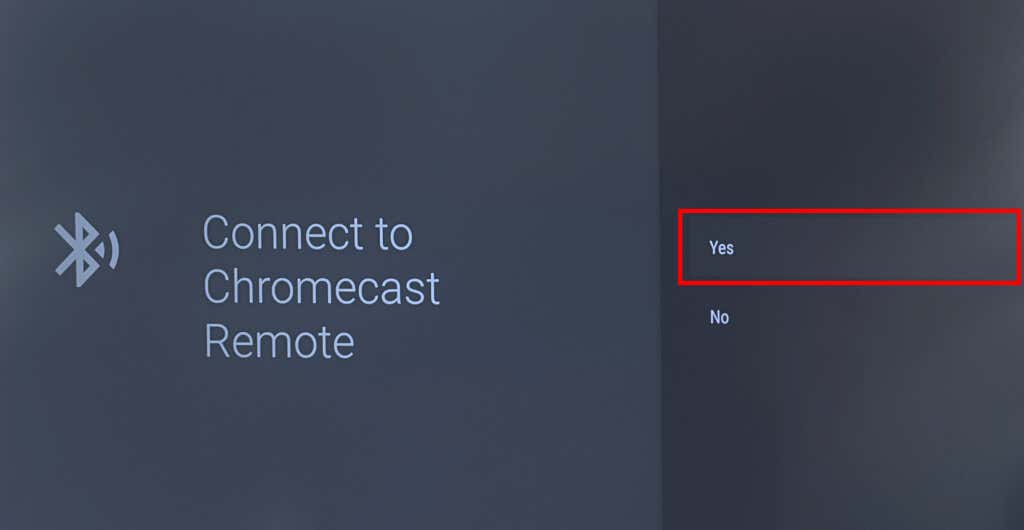
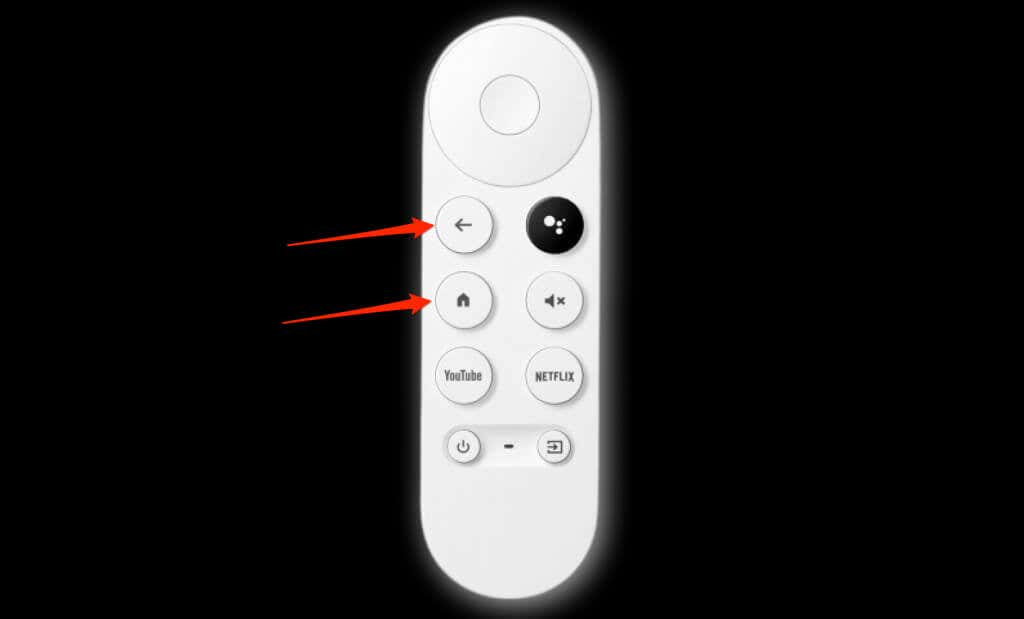
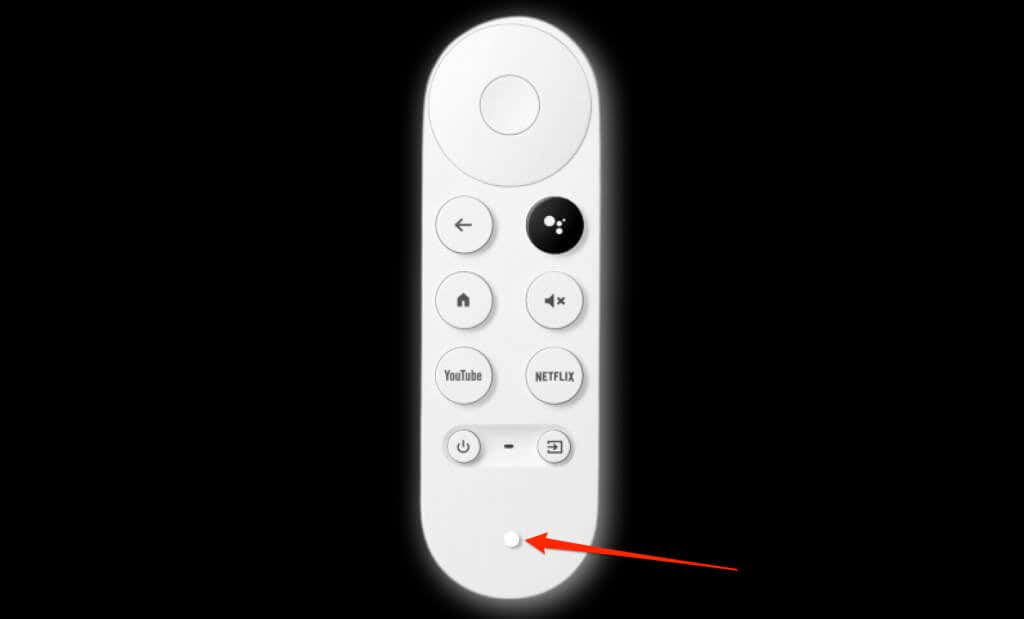
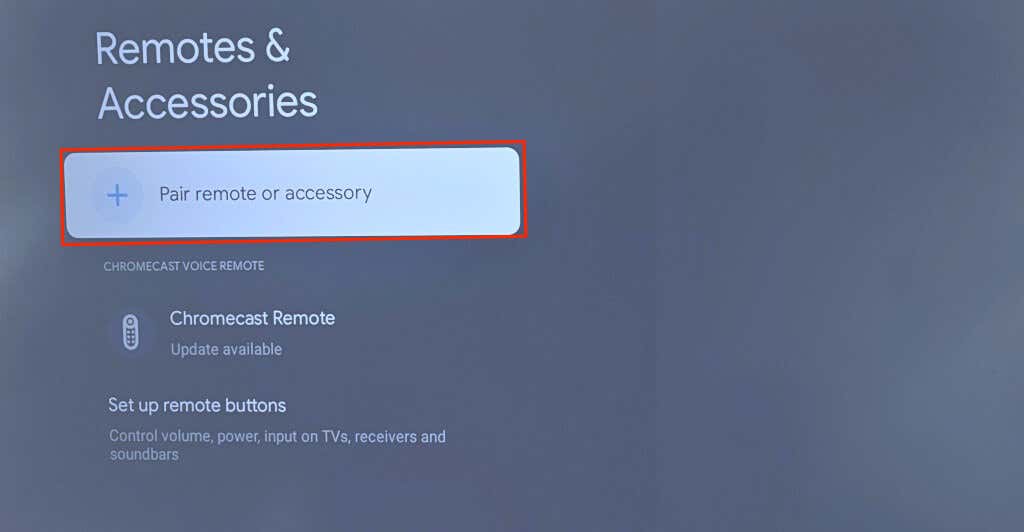
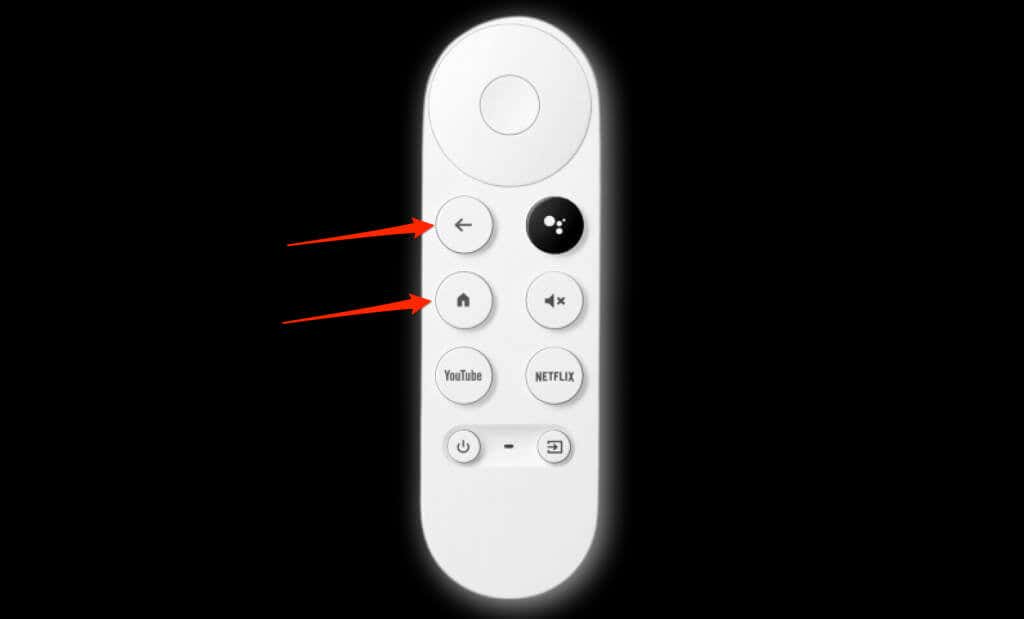
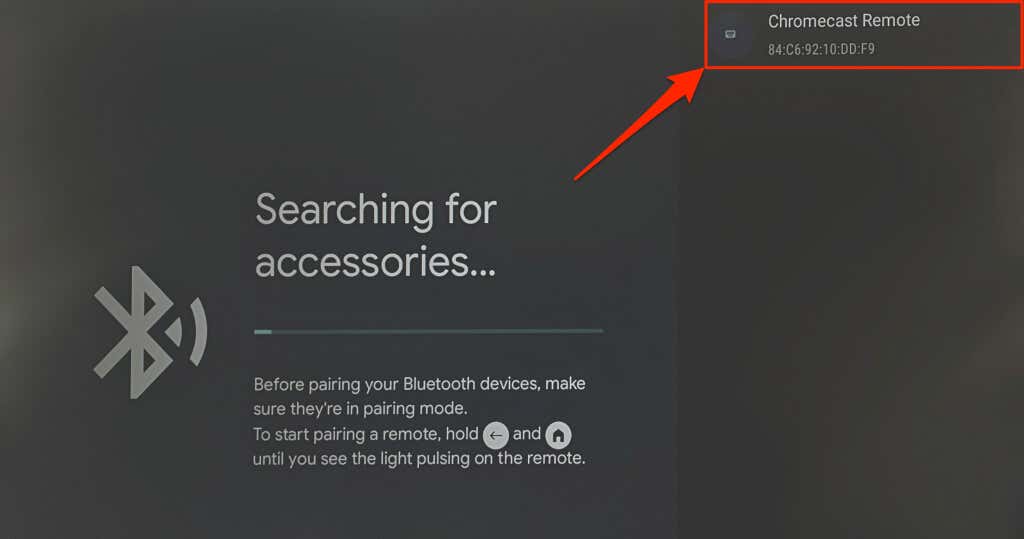
Resetting your Chromecast’s remote can get it working correctly again. Follow the steps below to reset a Chromecast Voice Remote to factory default. The remorse should automatically pair with your Chromecast after the reset. If it doesn’t, or the LED light keeps flashing, pair the remote manually using the virtual remote in the Google Home app.
5. Reboot Your Chromecast
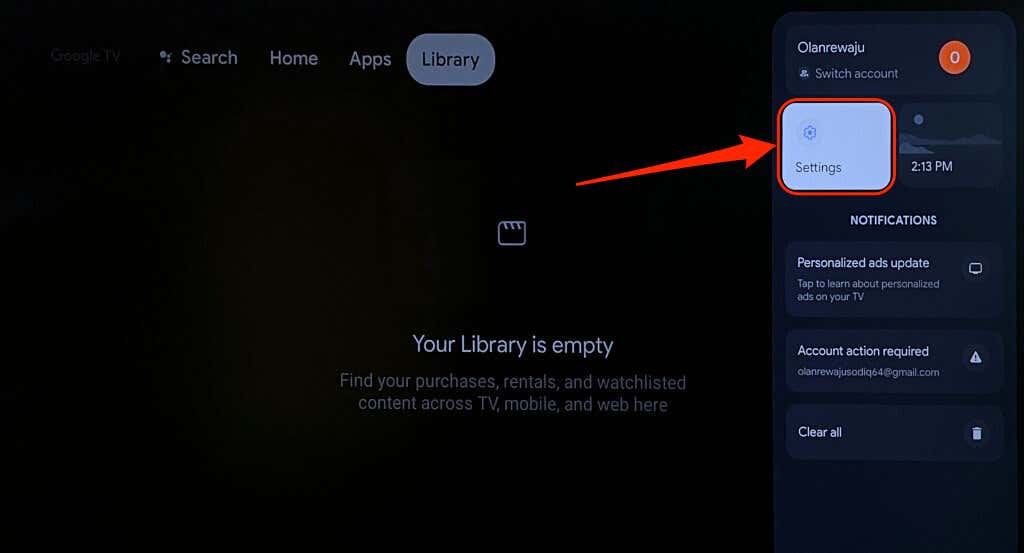
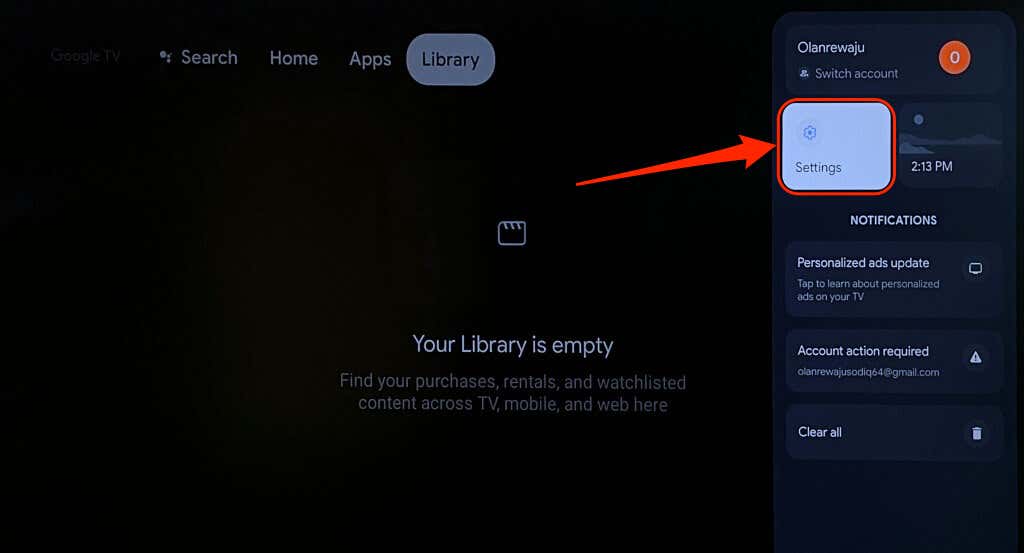
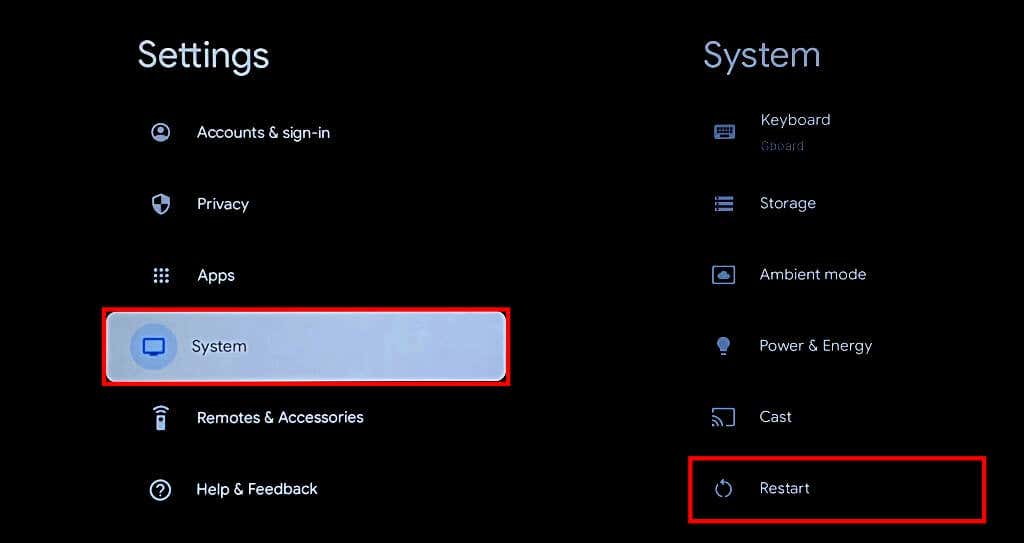
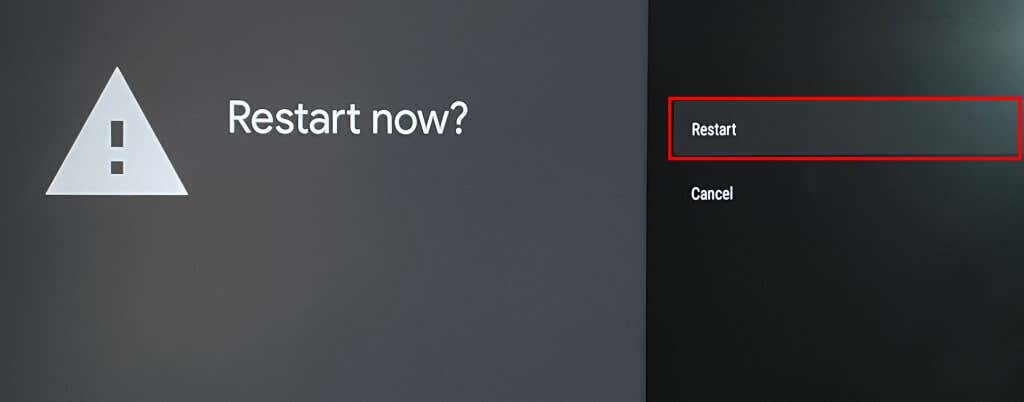
Performing a system reboot can fix glitches with your Chromecast and Chromecast Voice Remote. You can reboot your Chromecast from the Google TV settings or by reconnecting the streaming device to its power source.
Reboot Chromecast from the Settings Menu
Perform a Hard Reboot
Unplug your Chromecast from its power source, wait 1-2 minutes, and reconnect the power cable. Update your Chromecast’s software if the remote still malfunctions after the reboot.
6. Update Your Chromecast
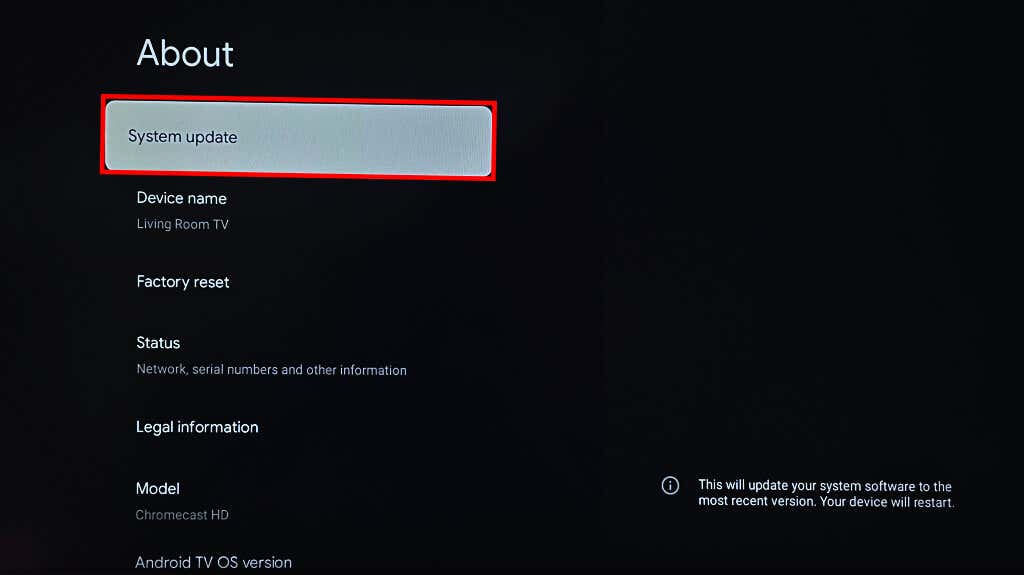
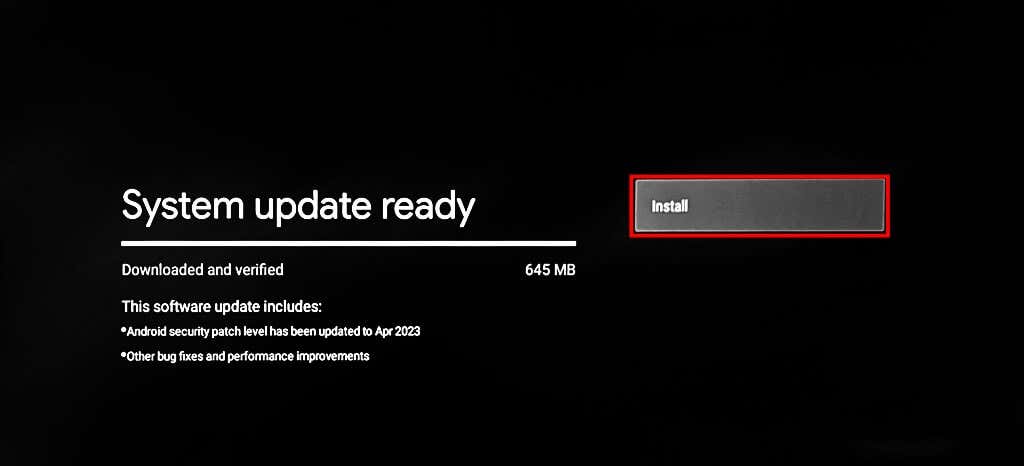
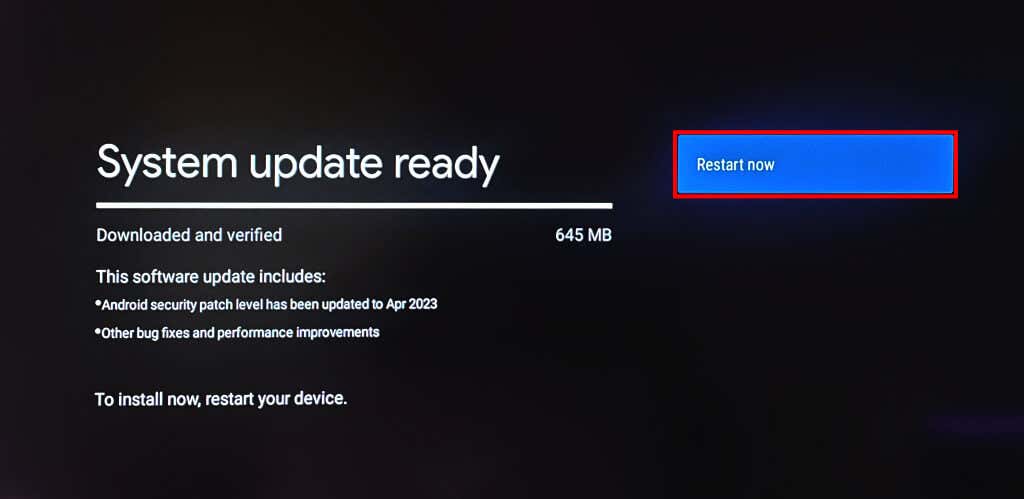
Google recommends installing updates to your Chromecast to enjoy the latest features and troubleshoot system glitches. Use the virtual remote in the Google Home app to update your Chromecast software to the latest version. Perform a factory reset if the remote still doesn’t work after updating your Chromecast’s software.
7. Reset Your Chromecast
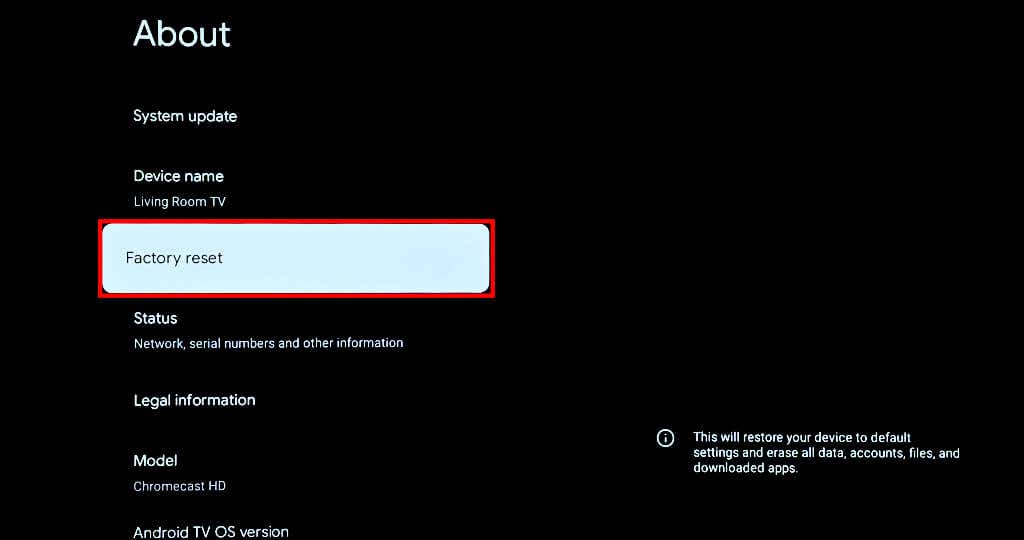
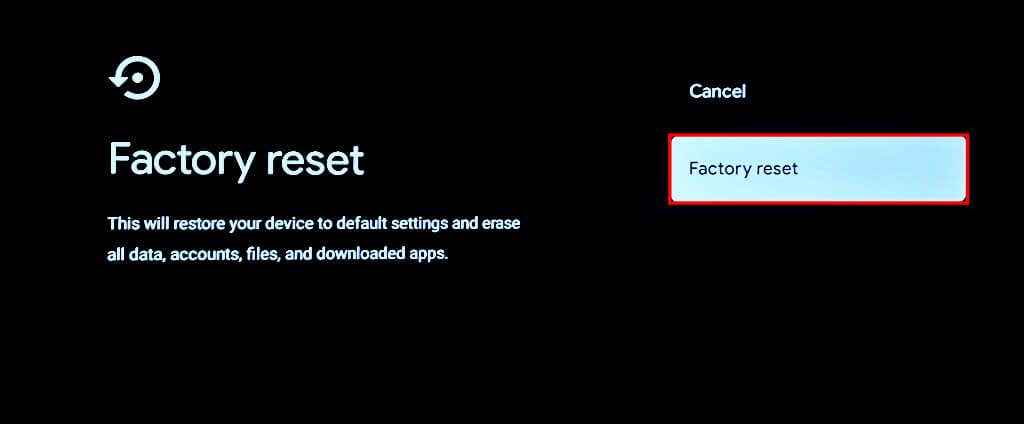
Factory resetting your Chromecast deletes downloaded apps, files, settings, and accounts. We recommend resetting your Chromecast only when the troubleshooting fixes above fail to fix the remote malfunction. You can reset your Chromecast from the Google Home app or with the physical button on the streaming device.
Factory Reset Chromecast Using Virtual Remote
Open the virtual Chromecast remote in the Google Home app and follow the step below.
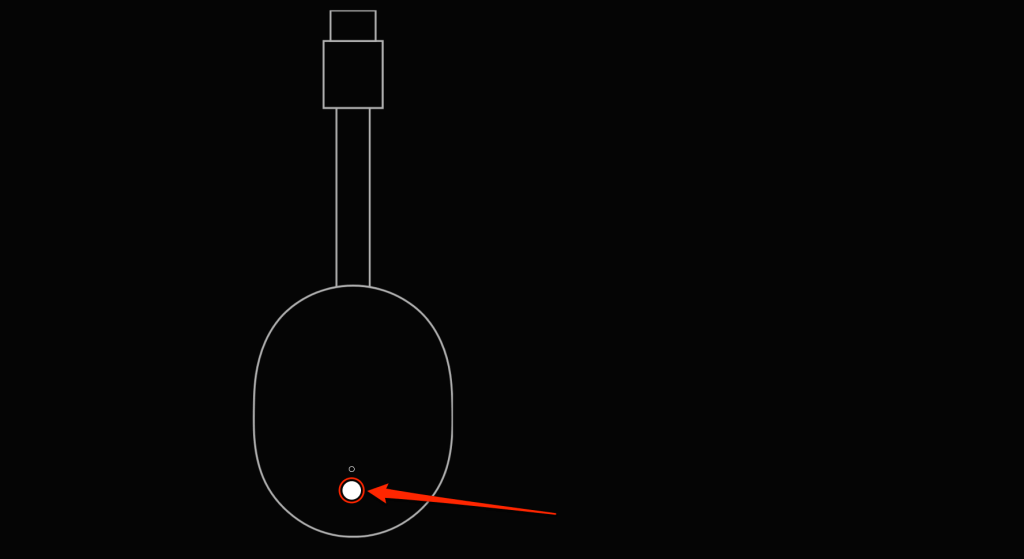
Factory Reset Chromecast Using Physical Button
Keep your Chromecast plugged into its power source and turned on. Hold down the physical button at the back of the streaming device. Release the button when the LED blinks yellow and then turns solid white. Your Chromecast should restart and automatically pair with the remote after the factory reset.
Fix Google Chromecast Remote