If you’re currently staring at a stubborn Gmail attachment that refuses to save to local storage or Google Drive, don’t worry. This troubleshooting tutorial will walk you through multiple solutions to the problem. Note: The instructions below are from a Google Pixel running Android 13. Steps may differ slightly depending on your device’s model and system software version.
1. Quit and Relaunch Gmail
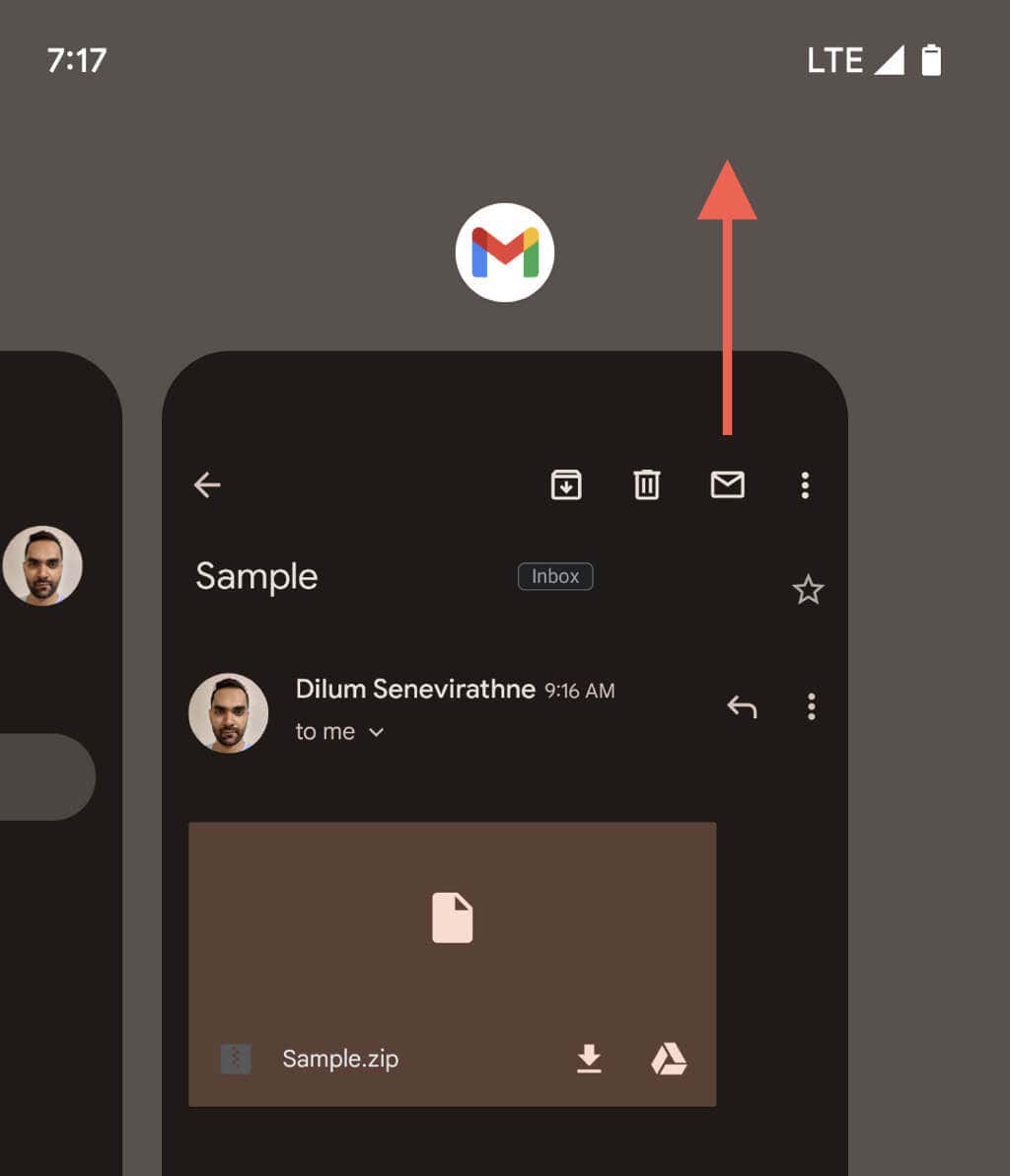
It’s best to kick things off by closing and re-opening Gmail. This action helps refresh the app and quickly fix unexpected issues preventing you from downloading attachments.
2. Restart Your Android Phone
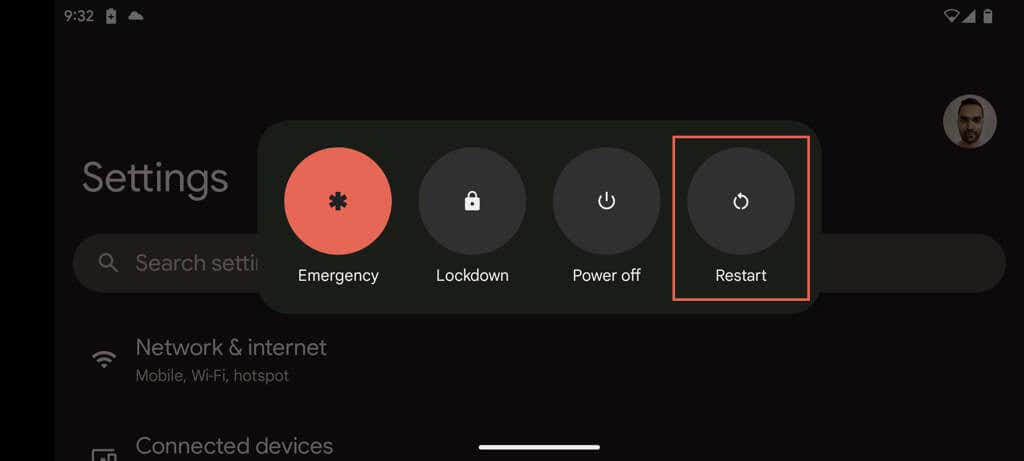
Another relatively simple fix involves restarting your Android phone. It resolves random system-related problems, causing apps like Gmail to malfunction. Just hold the Power and Volume Up buttons simultaneously and tap Restart.
3. Check Your Internet Connection
Before diving into more advanced solutions, it’s a good idea to ensure there’s nothing wrong with the internet. You can test this by browsing a website or checking another app.
If there are connectivity issues, you may need to restart your router, switch between Wi-Fi and mobile data, or get closer to the Wi-Fi source. Learn more about fixing a slow Wi-Fi or mobile data connection on Android.
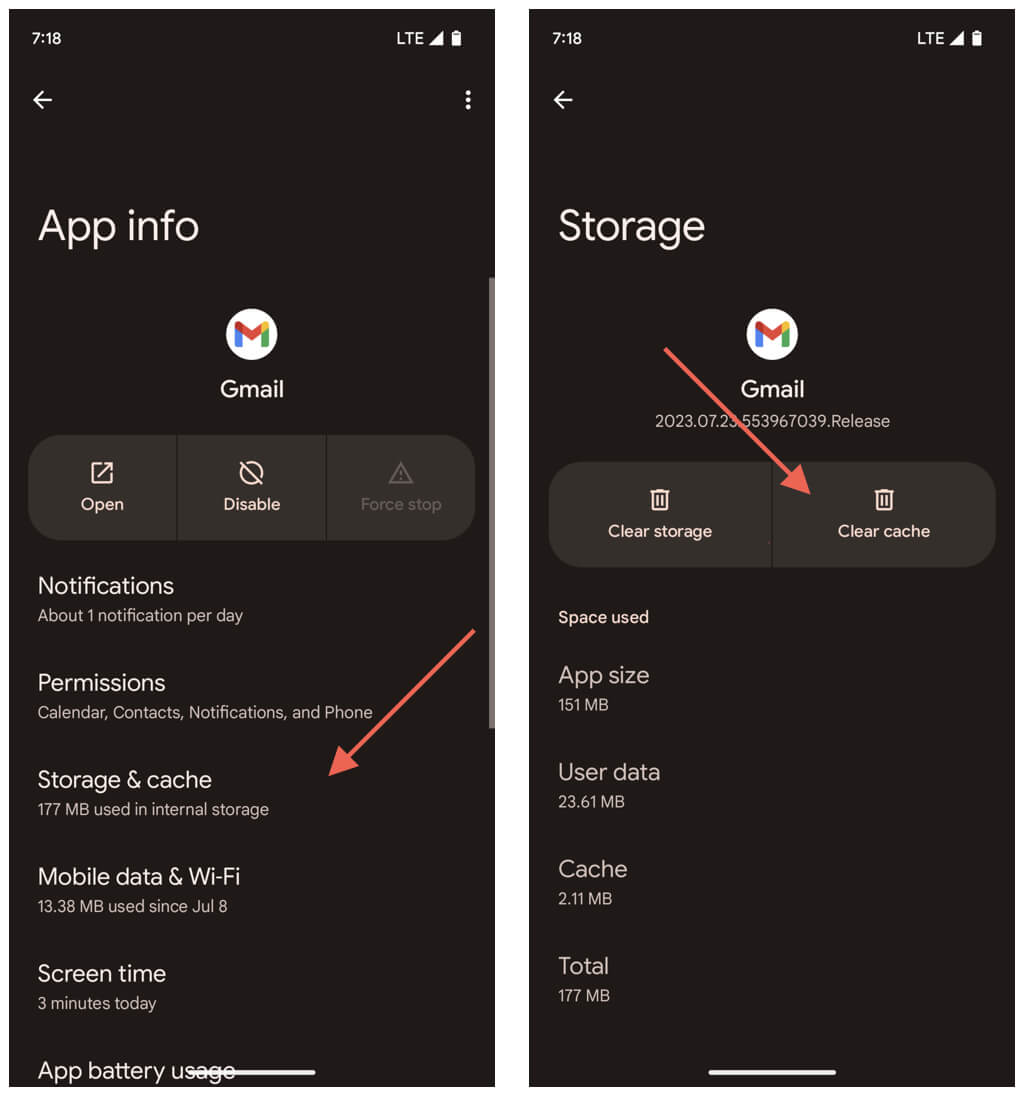
4. Clear Data in the Gmail Cache
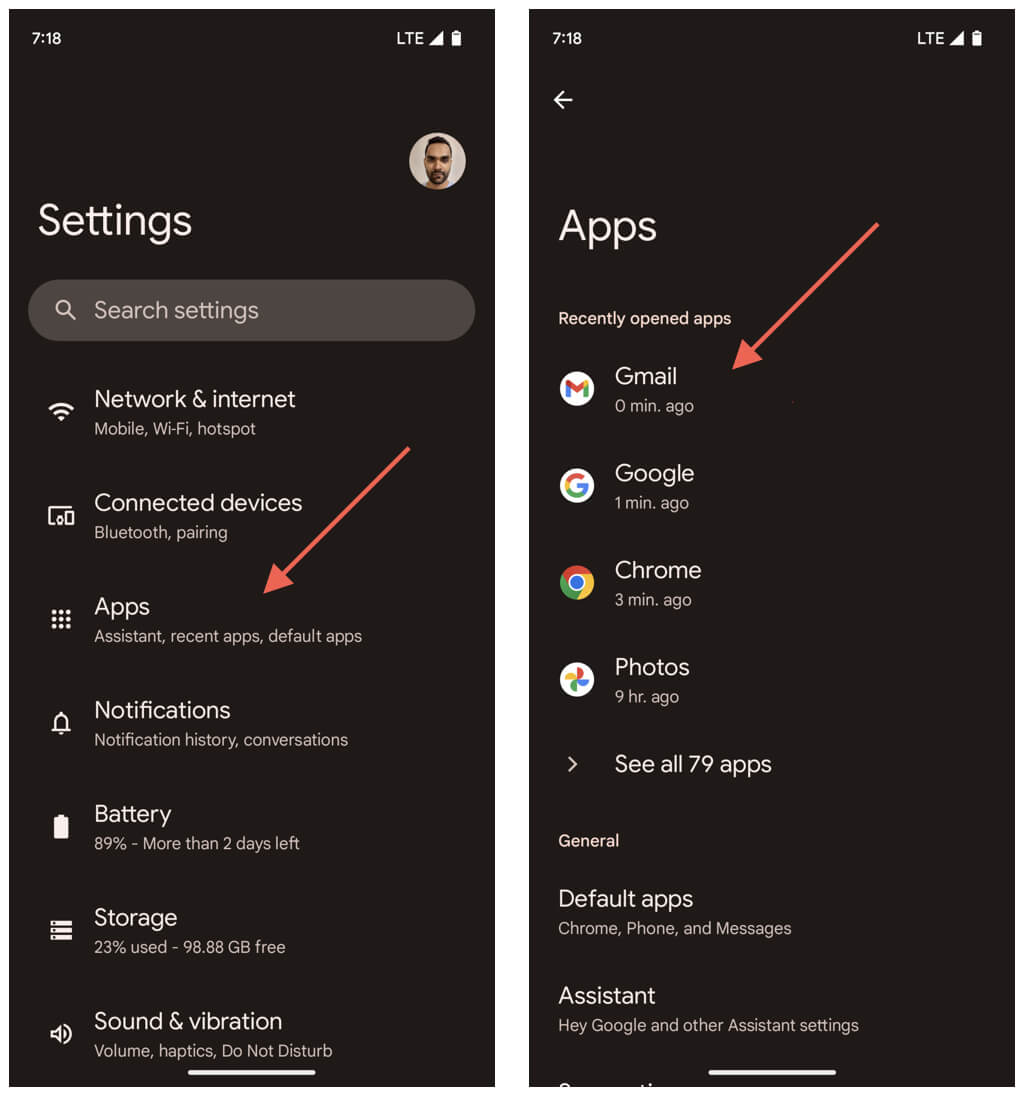
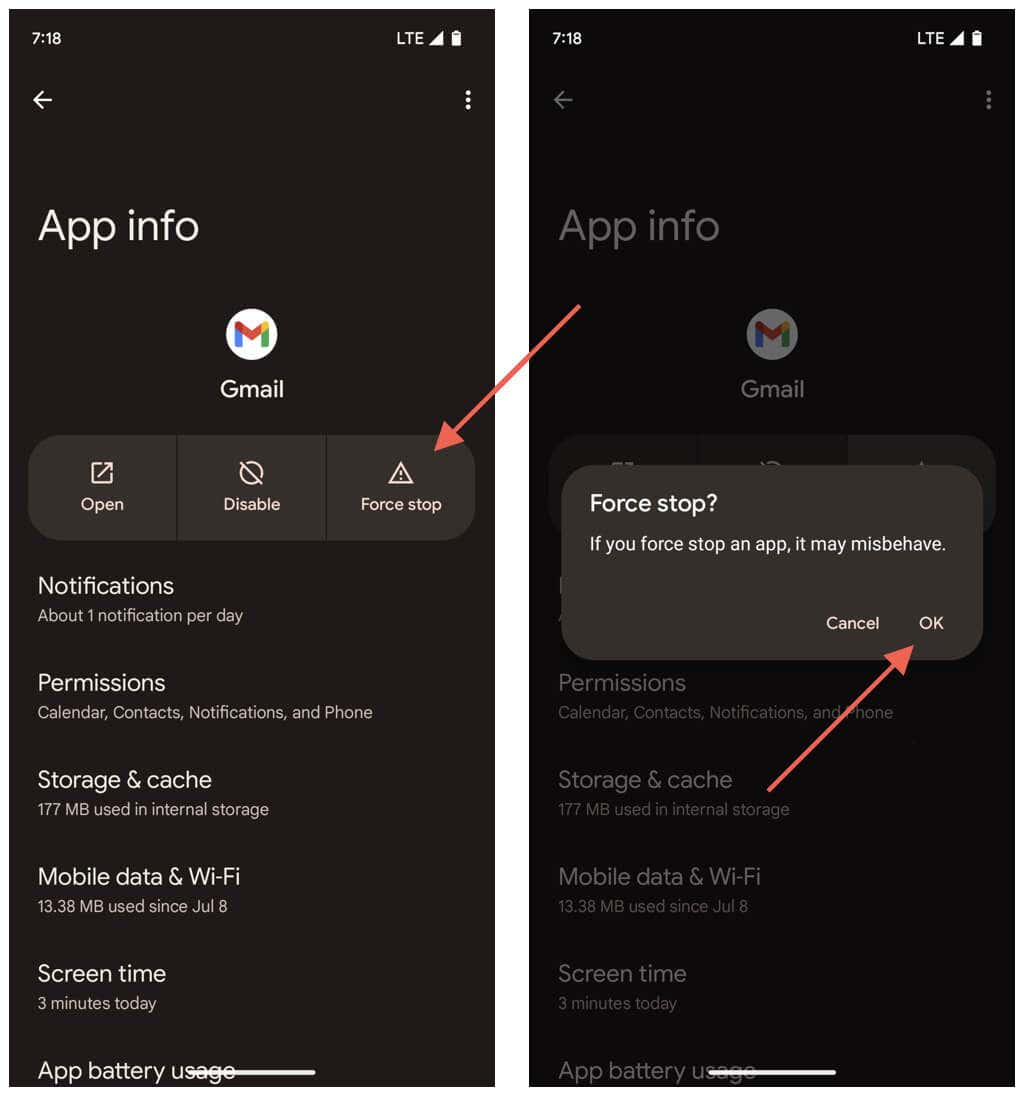
When you attempt to preview a supported attachment type, like a PDF file, Gmail begins caching its contents locally. Rarely, however, this process can fail, and the partial download continually blocks access to the attachment. Clearing Gmail’s app cache is a feasible way to resolve the issue, including many others that stem from cache corruption. Here’s how:
5. Check the Gmail Servers
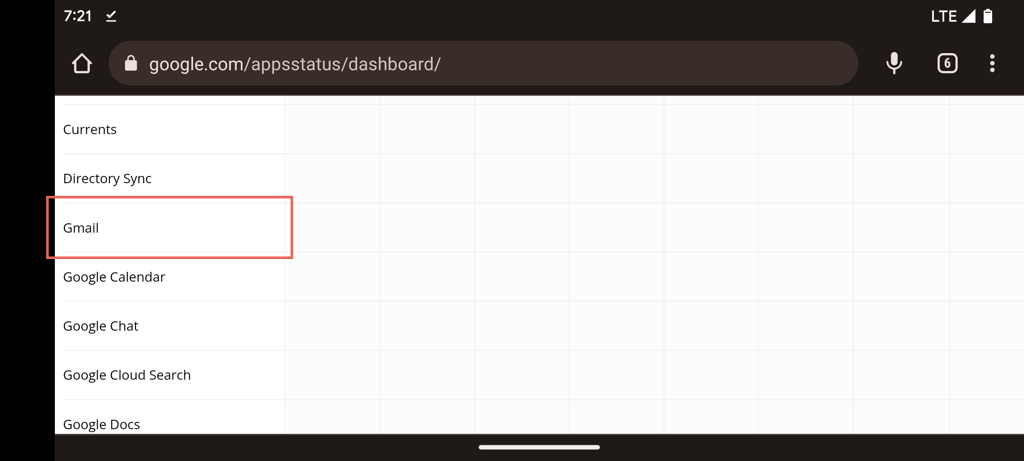
Gmail attachment download issues could also crop up because of complications on Google’s end. To confirm, open Google Chrome or any other browser on your Android phone and visit the Google Workspace Status Dashboard. If any ongoing issues are listed next to Gmail, wait until Google resolves them.
6. Ask the Sender to Resend the Attachment
An incorrectly attached file is another reason that prevents Gmail from consistently failing to download it. If the issue is isolated to a single item, try asking the person who sent it to you to re-send it.
Password-protected files might also lead to download issues. If that’s the case, request a copy without a password.
7. Update the Gmail App to Its Latest Version
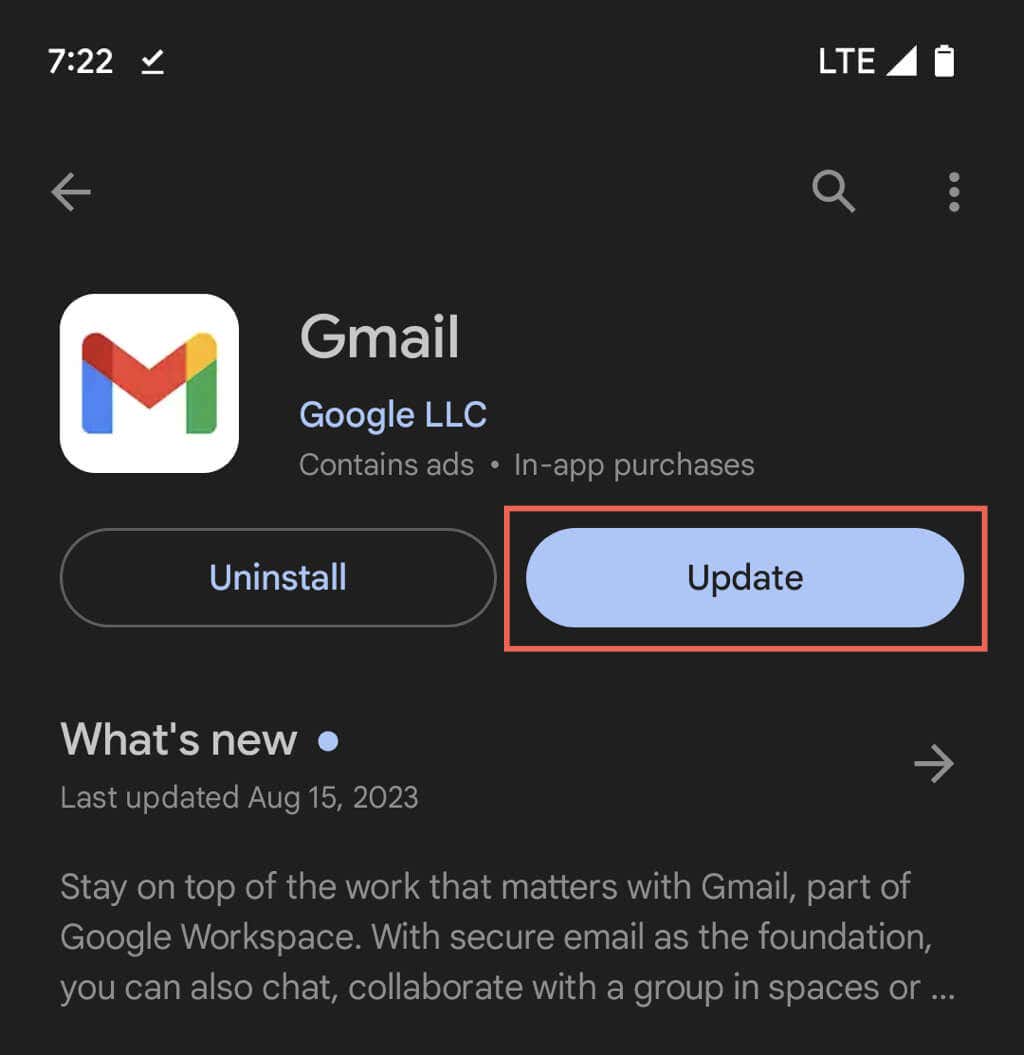
If the download problem persists with multiple attachments, it’s likely due to a fault with the Gmail app. Check the Google Play Store for updates since these often contain bug fixes and performance improvements. Here’s how: If Gmail is up-to-date, try reapplying any recent updates to ensure everything is correctly installed. Just tap the Uninstall button on Gmail’s store page—this does not uninstall the app—and Update afterward.
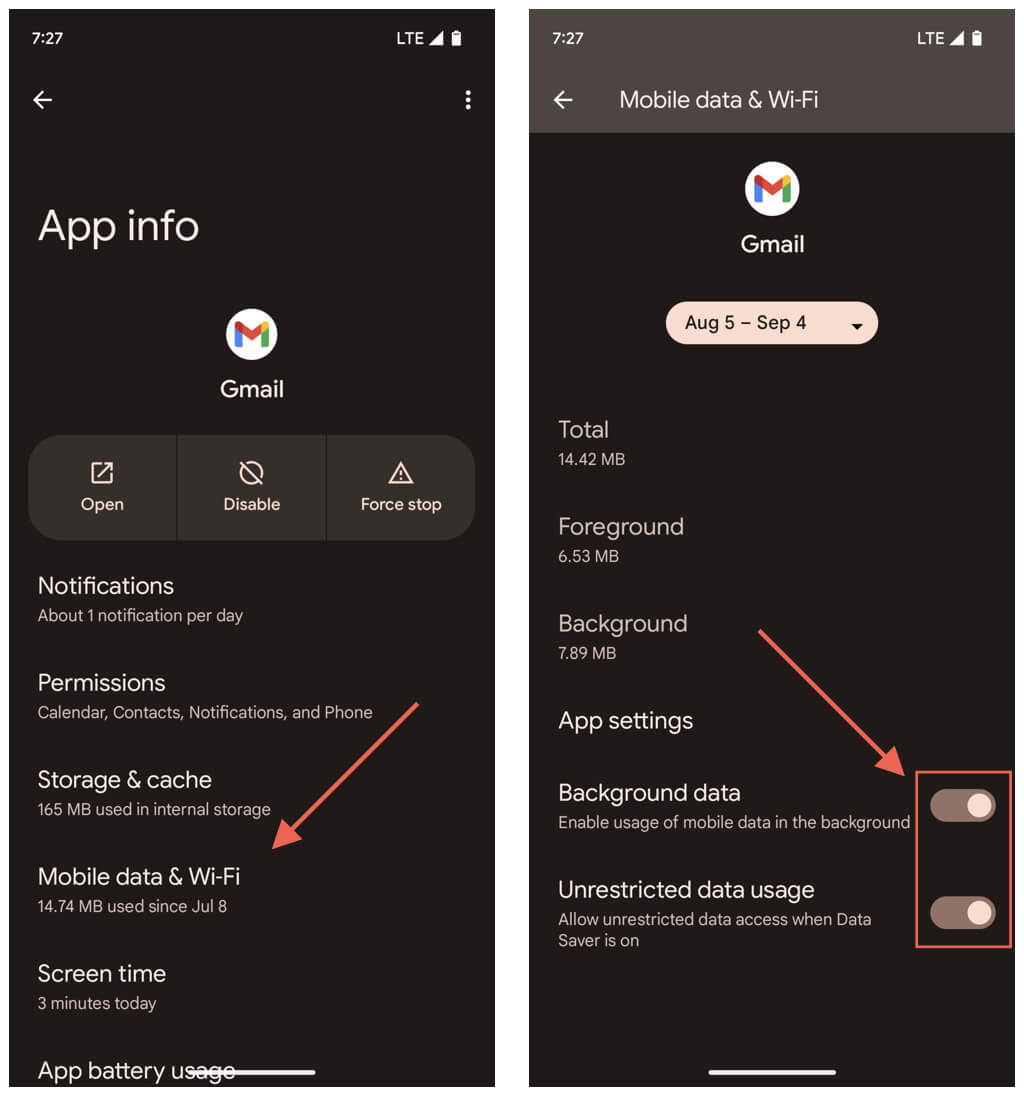
8. Allow Unrestricted Access to the Internet
The following fix involves ensuring Gmail has adequate permissions to use mobile data and Wi-Fi, even when Android’s data-saving features are active. If not, you might be restricted to reading emails only. To do that:
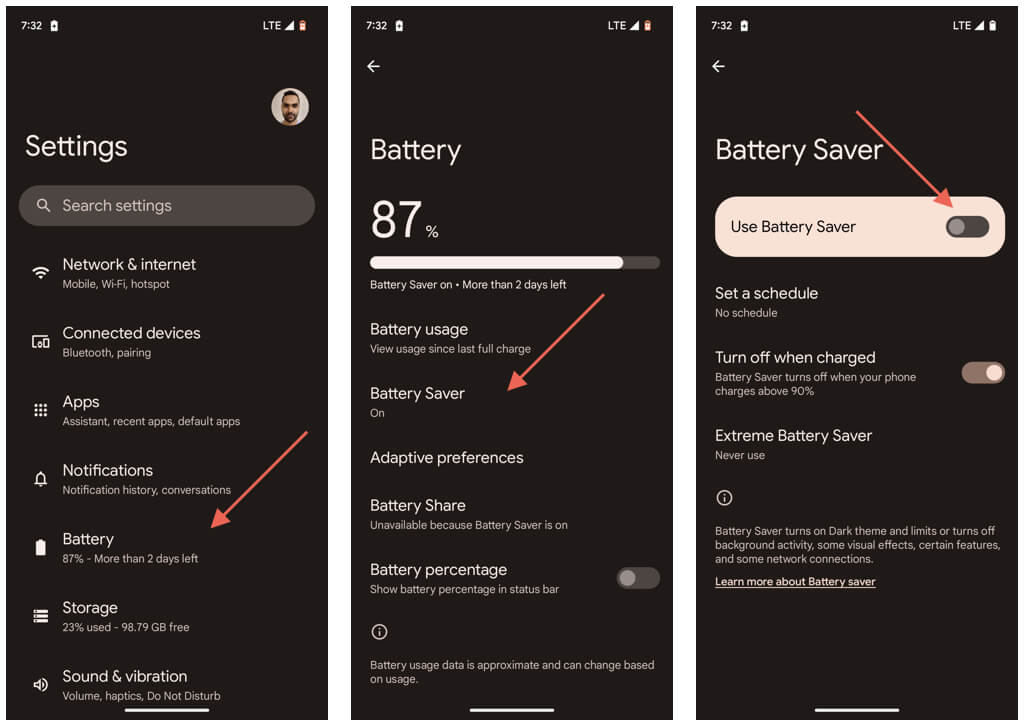
9. Disable Battery Saver
The Battery Saver mode on Android curtails app functionality to conserve power, so briefly disable it and check if that fixes Gmail’s attachment downloading issues. Here’s how:
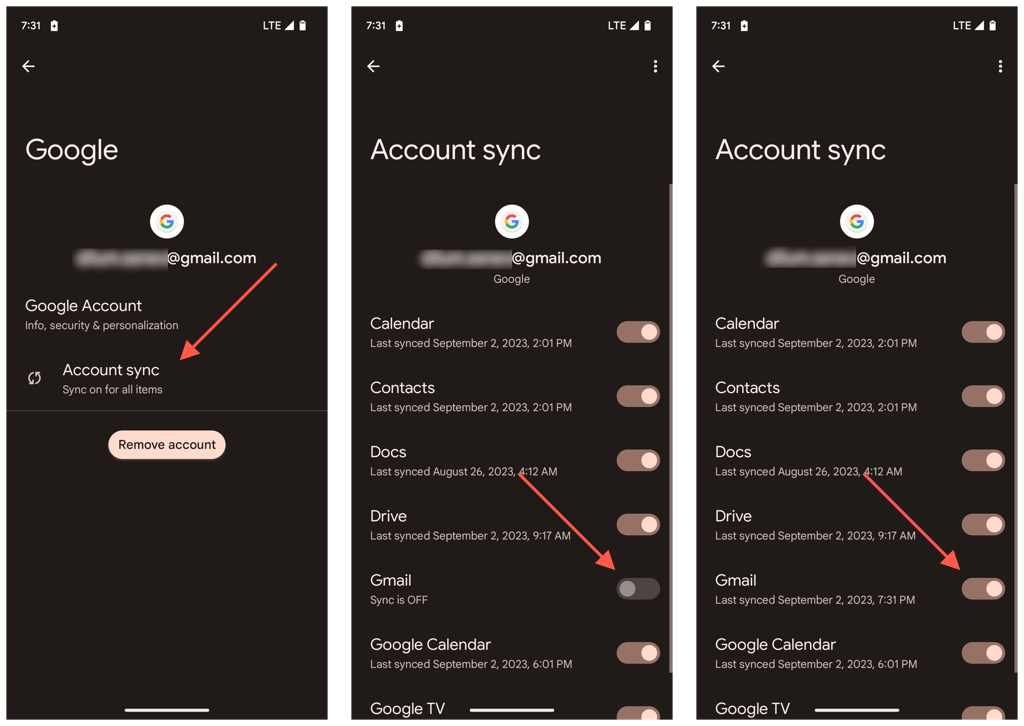
10. Resync Google Account With Gmail
Gmail may not work correctly if it’s not in sync with your Google Account, so the following fix involves refreshing the connection between the app and the account. To do that:
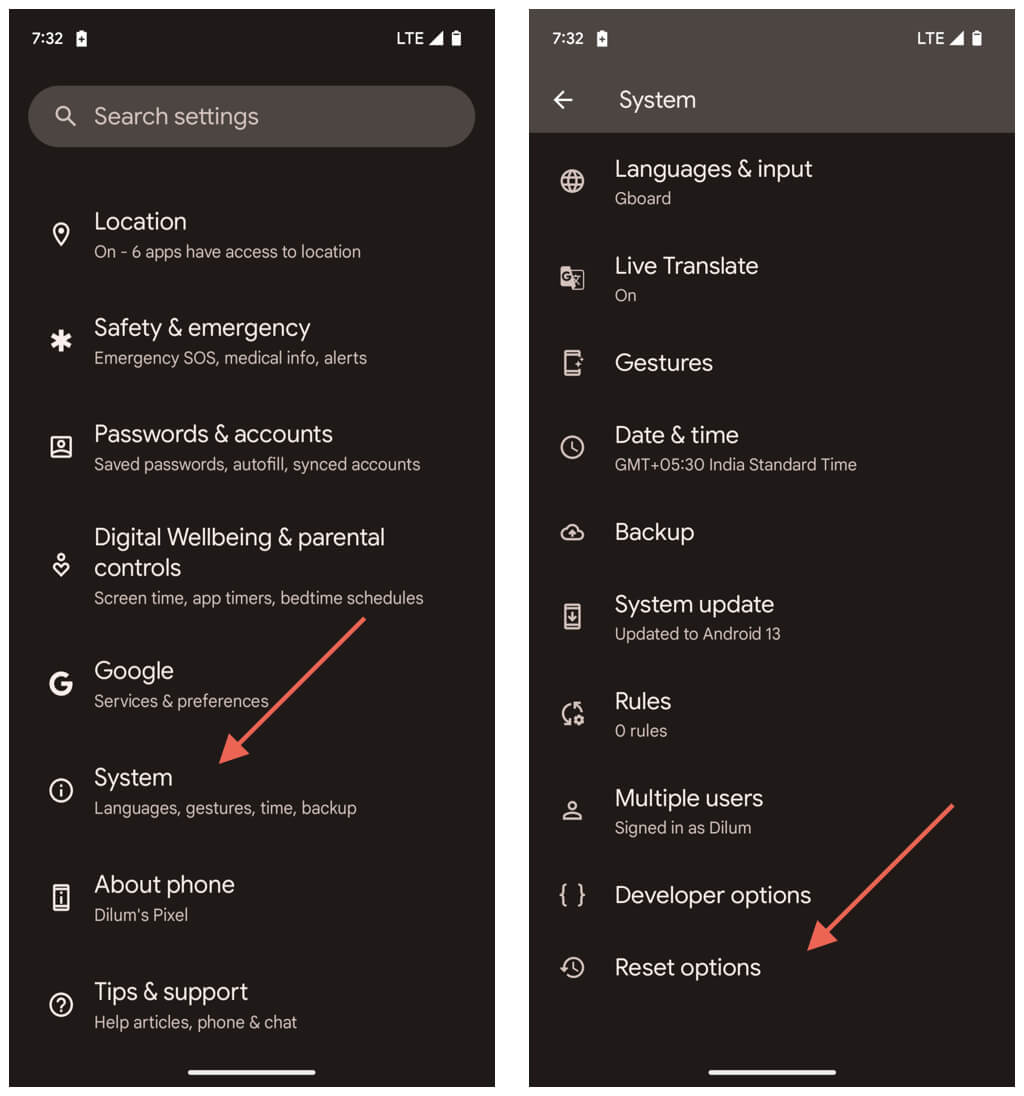
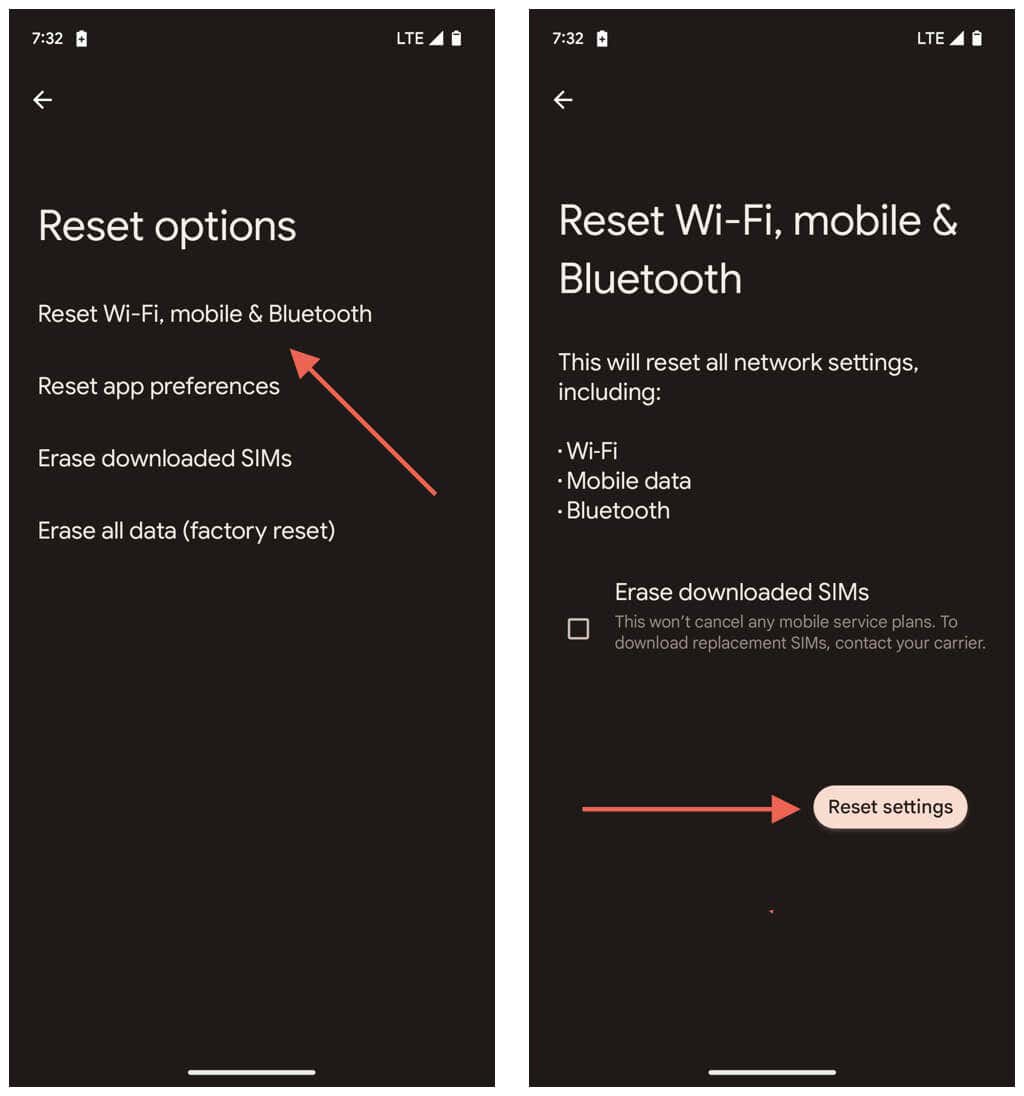
11. Reset Android’s Network Settings
Persistent Gmail attachment download issues can originate from a corrupt Android network configuration, so another way to fix the problem is to factory reset your Wi-Fi and mobile data settings. Here’s how: After the network reset, your phone won’t auto-join previously remembered Wi-Fi networks—you must re-enter their passwords and connect to them from scratch. On the other hand, your cellular settings should update automatically—if they don’t, contact your wireless carrier for assistance.
Get Those Gmail Attachments Downloading Again
When you encounter issues downloading attachments in Gmail on your Android device, there’s a structured approach you can follow. Begin with basic solutions like restarting the app and checking your internet. If these don’t yield results, delve into app-specific fixes or consider external factors like server outages. For persistent problems, tweaking specific device settings that conflict with Gmail or restoring Android’s network preferences to factory defaults can make a difference. With persistence, you should be able to download attachments normally again.