Some reasons Gmail fails to send emails are that your internet connection is faulty, the entered recipient email address is invalid, your web browser cache is corrupted, the Gmail app on your phone is problematic, and more.
On Both Desktop and Mobile
Whether on a desktop computer or a mobile phone, follow the following tips to resolve the Gmail email issue.
Check Your Internet Connection
When Gmail doesn’t send emails, ensure your internet connection is active and stable. An inactive connection prevents Gmail from establishing a connection with the company’s email servers, failing to send outgoing emails. You can check your internet connection by opening a web browser on your device and loading a site. If the site loads, your internet connection is working. In this case, use the following troubleshooting tips. If the web browser fails to load the site, your connection is the culprit. In this case, restart your router, give your device a reboot, fix the network adapter problems, or contact your internet service provider (ISP).
Check if Gmail Is Down
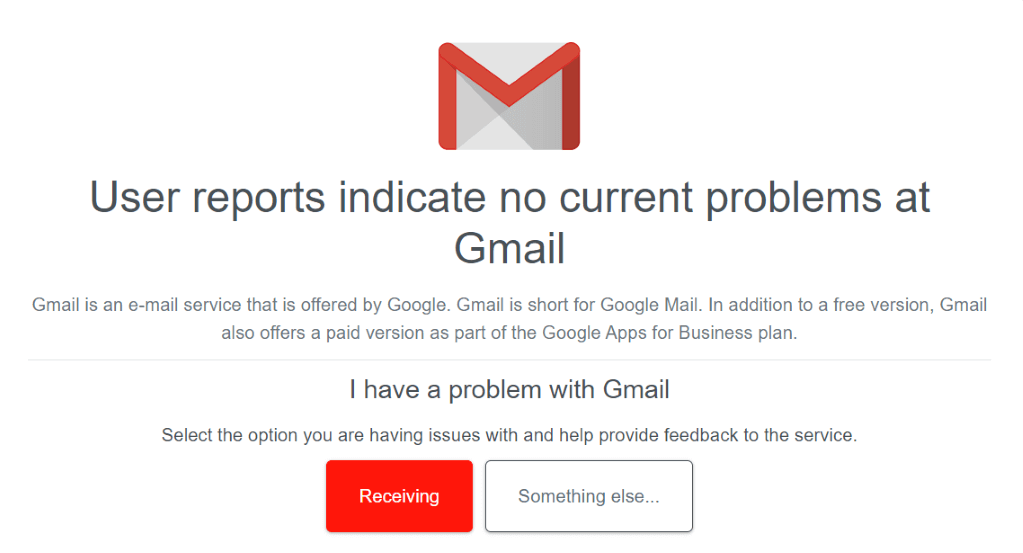
After ensuring your internet connection is working, check if Gmail’s servers are down. This might be why you can’t send emails. You can check if the servers are down by visiting Gmail’s page on the Downdetector site. This site tells you if an online service is experiencing problems If the site says Gmail is down, wait until Google brings the servers back up.
Check Recipient’s Email Address
Gmail (like all other email providers) requires a valid email address to send emails to. Check the email address you’ve typed in the To field and ensure it’s valid and correct. If needed, fix the email address before pressing the send button. If you’re sending an email to someone who has given you their email address using another medium, ask them to re-check the email address and ensure it’s correct. An invalid or incorrectly typed email address might be why you can’t send emails.
On Desktop
If you’re on a Windows, Mac, Linux, or Chromebook computer, the following troubleshooting tips will help fix your Gmail issue.
Clear Your Web Browser’s Cache
Your web browser’s cache might be corrupted, causing the Gmail site not to load as expected. As a result, this prevents you from sending emails. In this case, clear your web browser’s cache files, and your issue will be resolved. We have a guide on how to clear the cache in various web browsers, like Chrome, Firefox, Edge, and Safari, so check that out to learn how to perform the process.
Log Out and Back Into Your Gmail Account
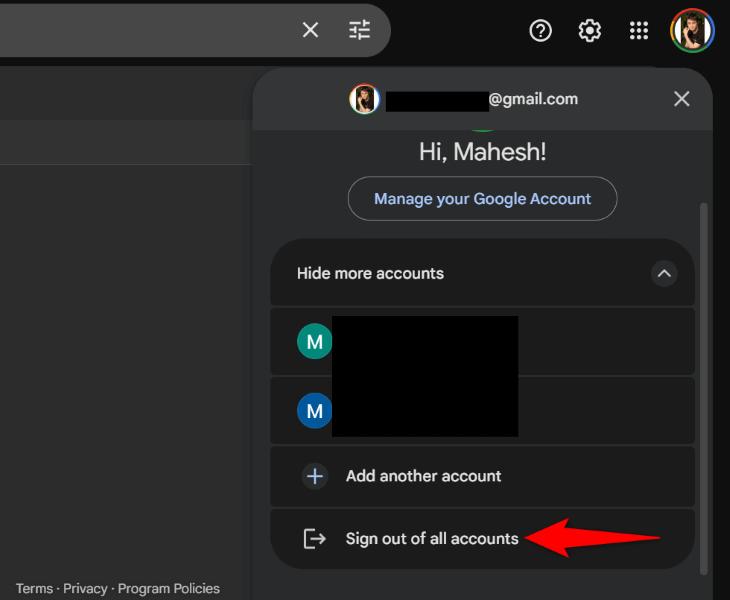
It’s possible a minor login session problem is causing Gmail not to send emails. In this case, sign out and back into your Gmail account to possibly fix the issue. Keep your Gmail login details handy, as you’ll need these details to log back in.
Use Another Web Browser
If the problem persists, use another web browser and see if you can send Gmail emails. This helps you verify if your current web browser has issues. If you’re with Chrome, for example, open Firefox and see if you can send emails with Gmail. If you can, your previous web browser was likely faulty. If you still can’t send emails, your newly launched web browser might have problems. In either case, clear your web browser’s saved data and see if the issue is fixed. You can also reset your web browser to the default settings to fix the problem.
On iPhone and Android
If you’re on an iPhone or Android phone, the following solutions will help fix the Gmail not sending email issue.
Use the Official Gmail App
If you’re using Gmail in a third-party email client like Outlook, switch to the official Gmail app for iPhone or Android and see if you can send emails. Your third-party email client might be experiencing issues, preventing you from sending emails.
Update the Gmail App
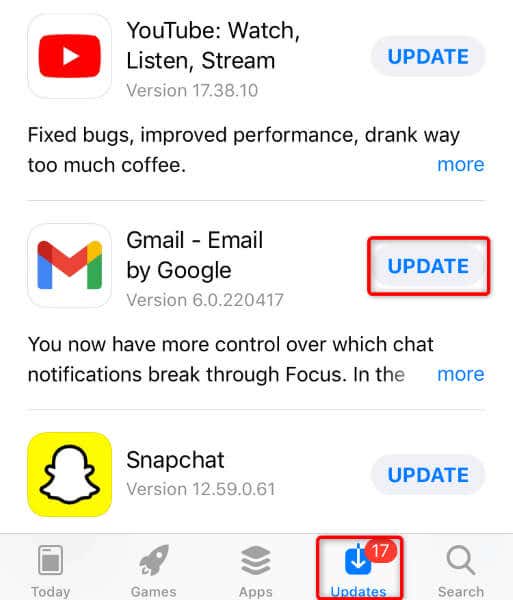
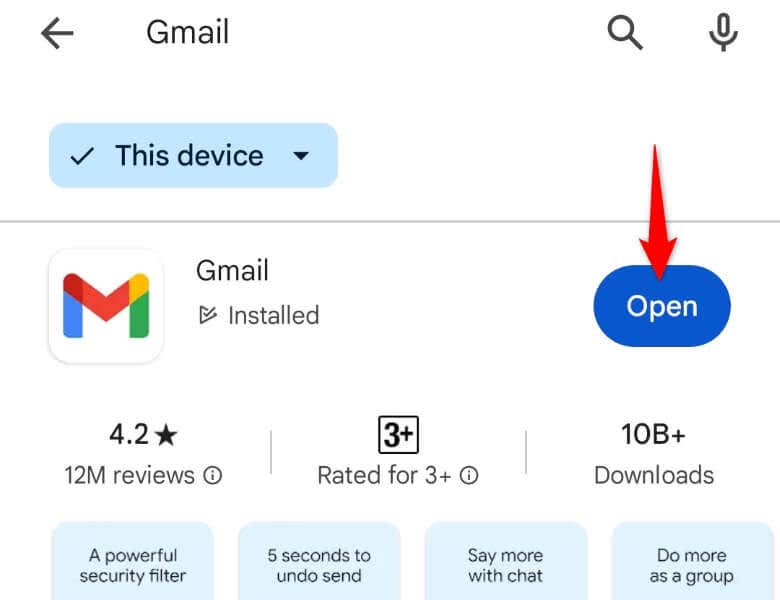
If you’re using the official Gmail app, ensure the app is up to date. Your phone might have an older app version, likely having bugs. In this case, simply update the app, and your issue will be resolved. On iPhone On Android
Clear Gmail’s Cache on Android
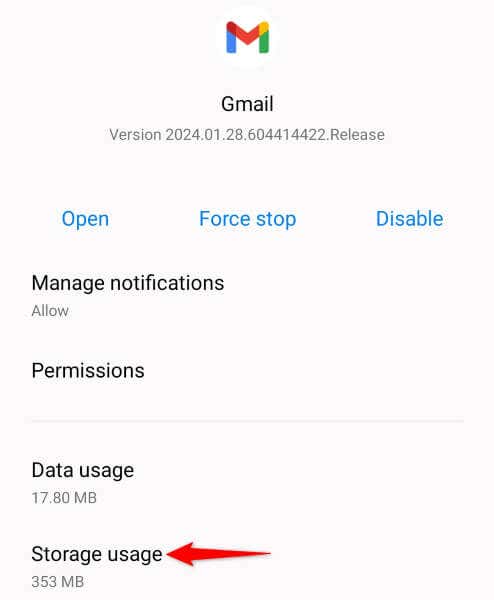
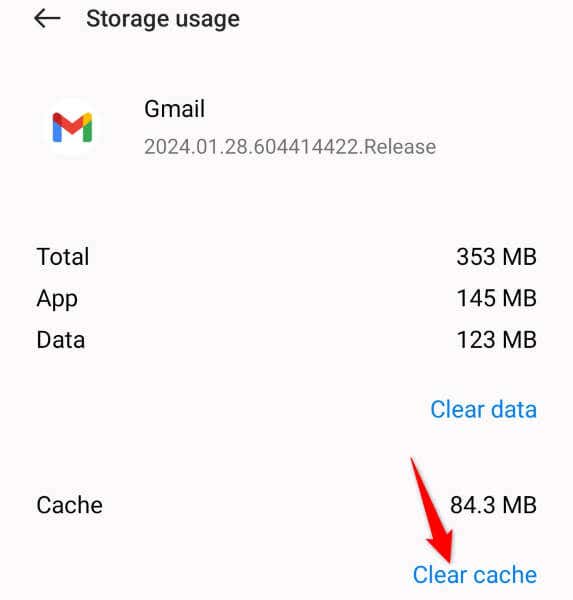
If the issue persists, clear the Gmail app’s cache files on your Android phone. This deletes the app’s temporary files, which sometimes helps fix many app problems. Note that you can only perform this procedure on an Android phone.
Uninstall and Reinstall Gmail
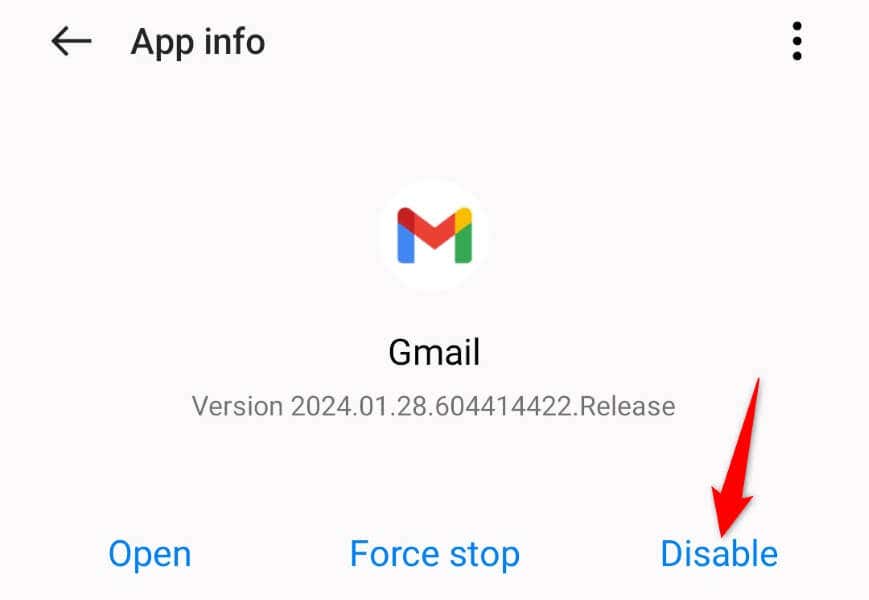
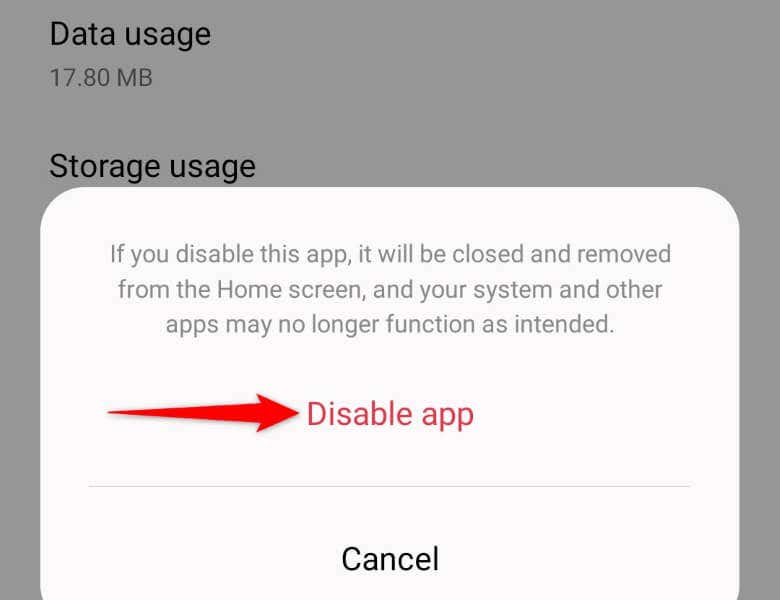
If nothing works, your last resort is to remove and reinstall the Gmail app on your phone. This deletes all the existing app files, some of which might be faulty. You don’t lose your email data when you delete the app, as the app can resync your emails when you sign back in. Note that Gmail is a stock app on most Android phones, so it’s very likely your phone won’t let you remove the app. In this case, simply disable and re-enable the app to fix the issue. On iPhone On Android
Get Gmail to Send Your Emails Without Any Issues
Gmail’s email issues are rare, but if you’re experiencing one, the methods above will help you fix the problem. More often than not, it’s a simple tweak that resolves the problem and lets you start exchanging emails with your favorite email provider. Good luck!