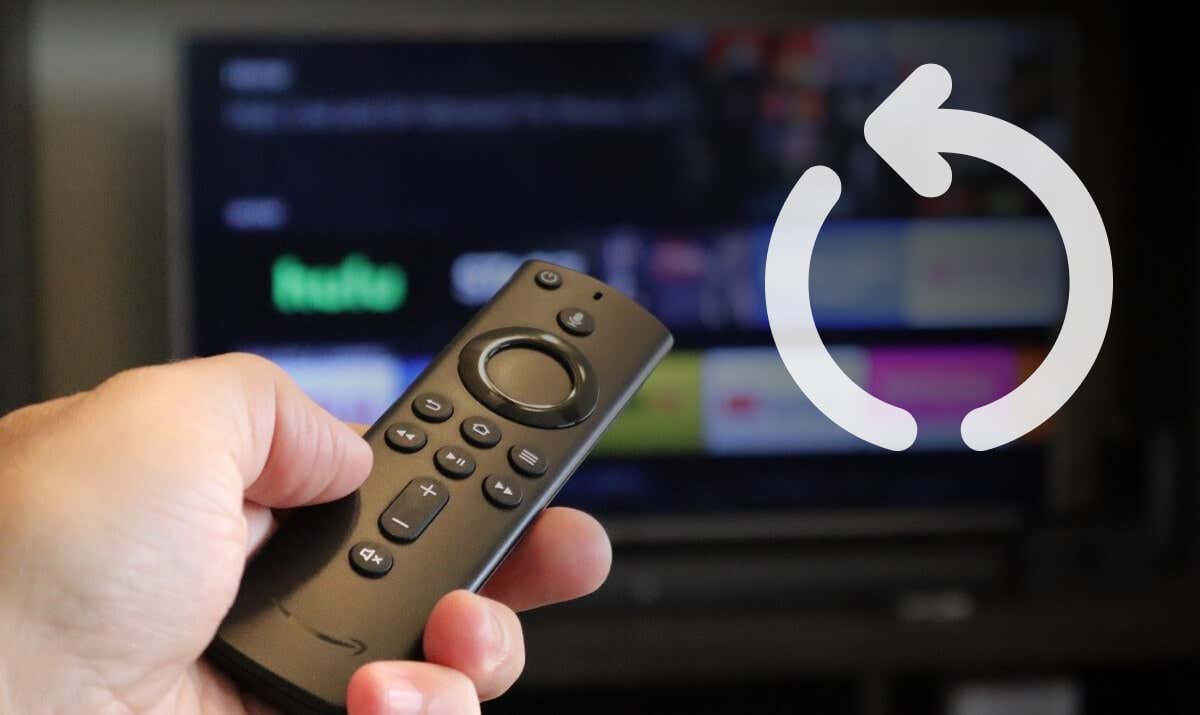
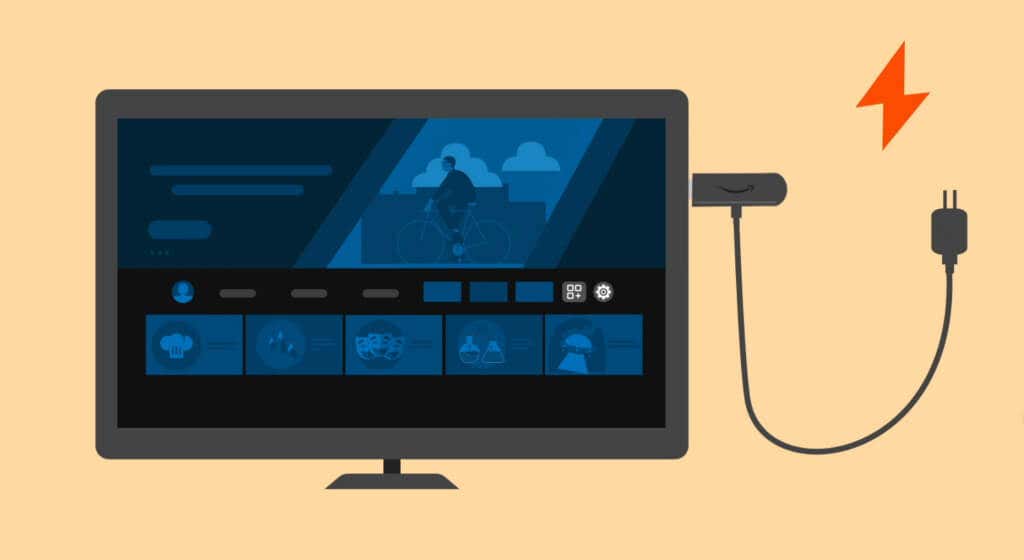
1. Power Cycle or Hard Restart Your Fire TV
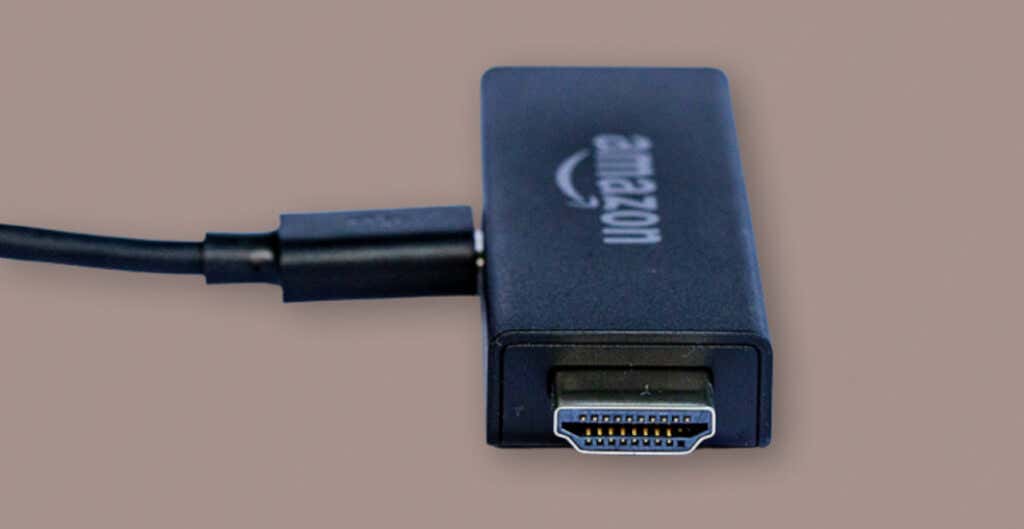
Hard rebooting Fire TV devices can fix power issues and keep the streaming device running correctly. Performing a hard reboot entails physically reconnecting your Fire TV to its power source. Unplug your Fire TV’s power adapter from the wall outlet or remove the USB cable from the Fire TV. Wait 30 seconds, reconnect the USB cable or power adapter, and turn on the power source.
2. Try a Different Power Source
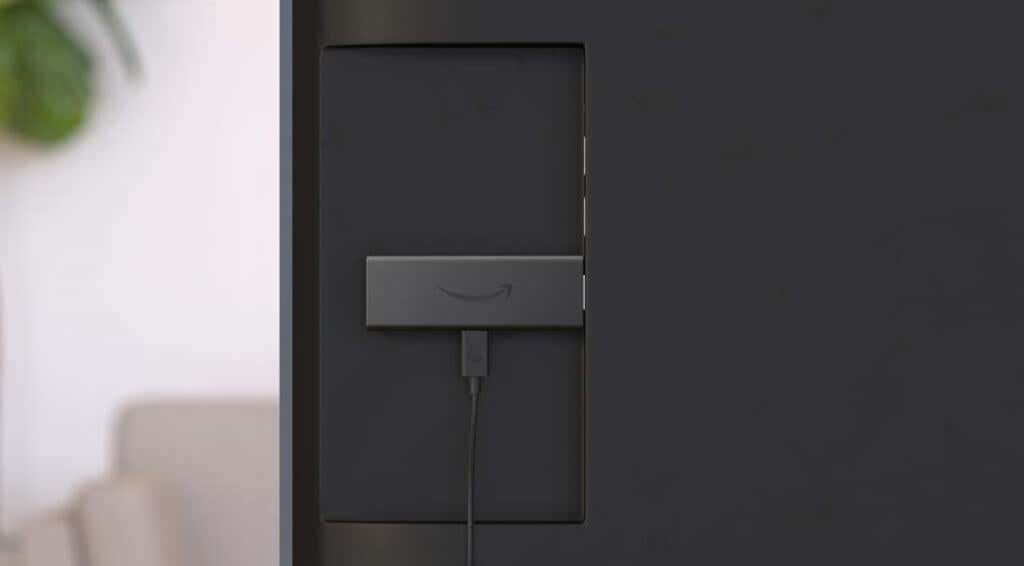
Faulty power outlets can cause your Fire TV to keep restarting. Try powering the streaming device from a different wall outlet or power strip and check if it stays on. Push your Fire TV’s power adapter into the power source and ensure the connection is snug and secure. Your power adapter or charging cable is likely faulty if the streaming device keeps restarting.
3. Use Authentic Power Accessories
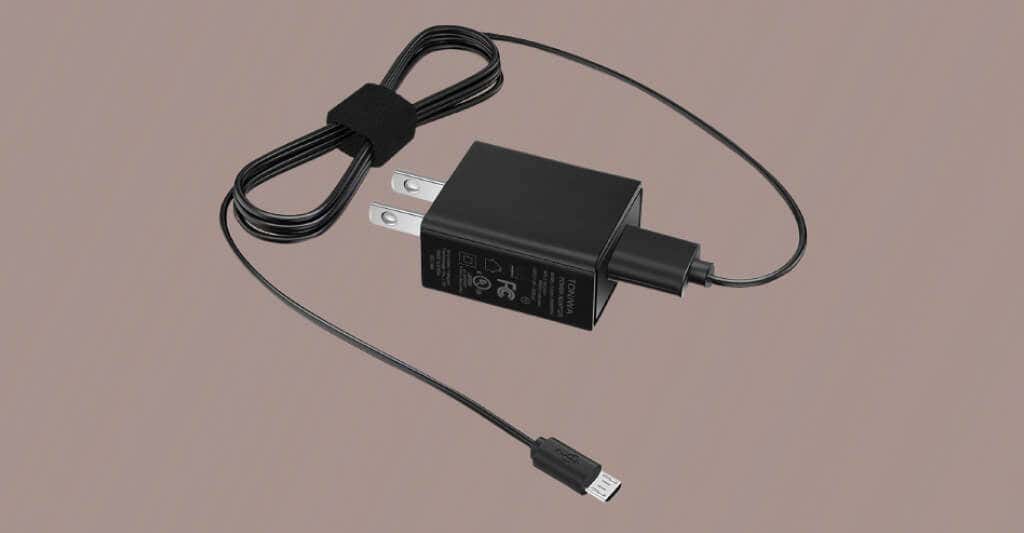
Knockoff cables or power adapters might not power your Fire TV device. Unsupported power accessories could even do permanent damage to the streaming device. Does your Fire TV keep restarting when using a third-party power adapter or cable? Switch to the power adapter and cable included with your Fire TV device out-of-the-box. Additionally, power your Fire TV directly from a wall outlet or power strip, not your TV. That’s because the USB ports on most TVs don’t supply enough power to keep Fire TV devices powered on. Loose cable connections can also cause your Fire TV to restart when turned on or during usage. Ensure the power adapter and Fire TV’s USB connection is secure and fastened. Adapters with power output ratings below the recommendation (5V/1A) above won’t power your Fire TV correctly.
4. Disconnect Other HDMI Devices from Your TV
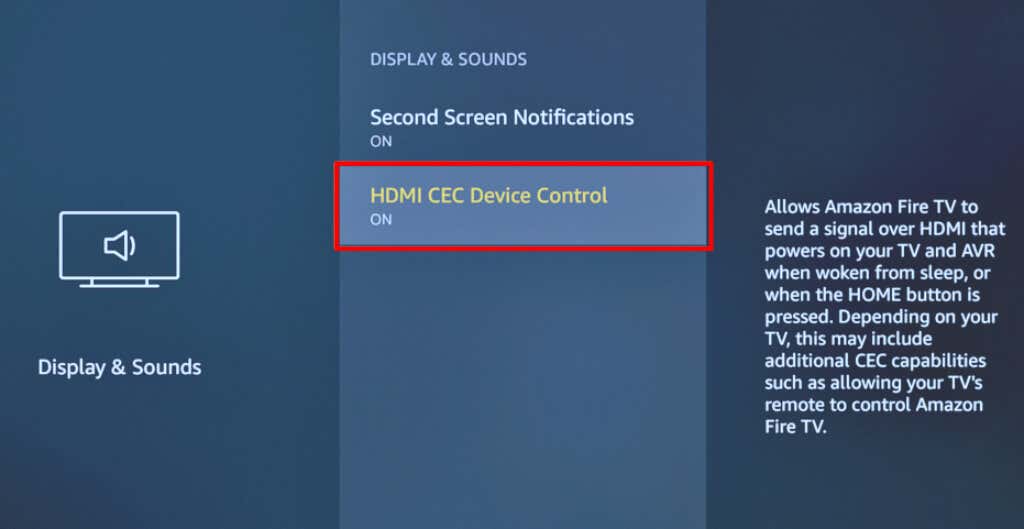
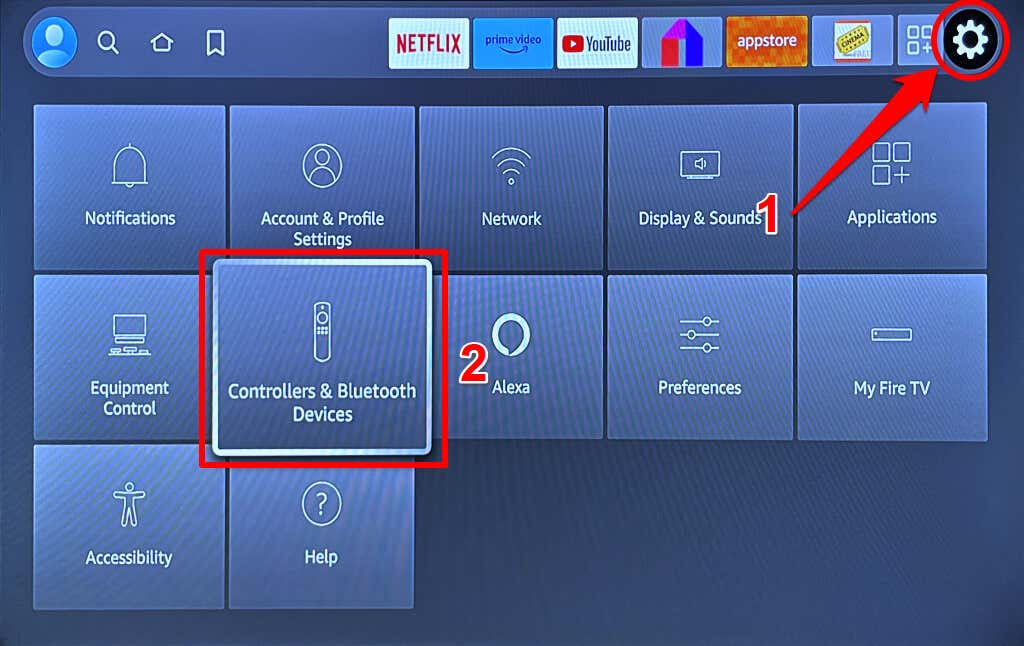
The HDMI CEC (Consumer Electronics Control) feature allows compatible HDMI devices in your entertainment system to control one another. Does your Fire TV randomly restart when you enable the HDMI CEC feature? There’s a chance that other HDMI devices connected to your TV are causing interference with your Fire TV. Disabling HDMI CEC in your TV or Fire TV settings menu should fix the issue. Unplug your Fire TV from its power outlet and disconnect all HDMI devices connected to your TV—including your Fire TV. Reconnect your Fire TV to its power source and connect the streaming device to your TV’s HDMI port. Connect your Fire TV to a different HDMI port if it keeps restarting. Open your Fire TV Settings, select Display & Sounds, and set “HDMI CEC Device Control” to OFF.
5. Remove Your Fire TV Remote Batteries
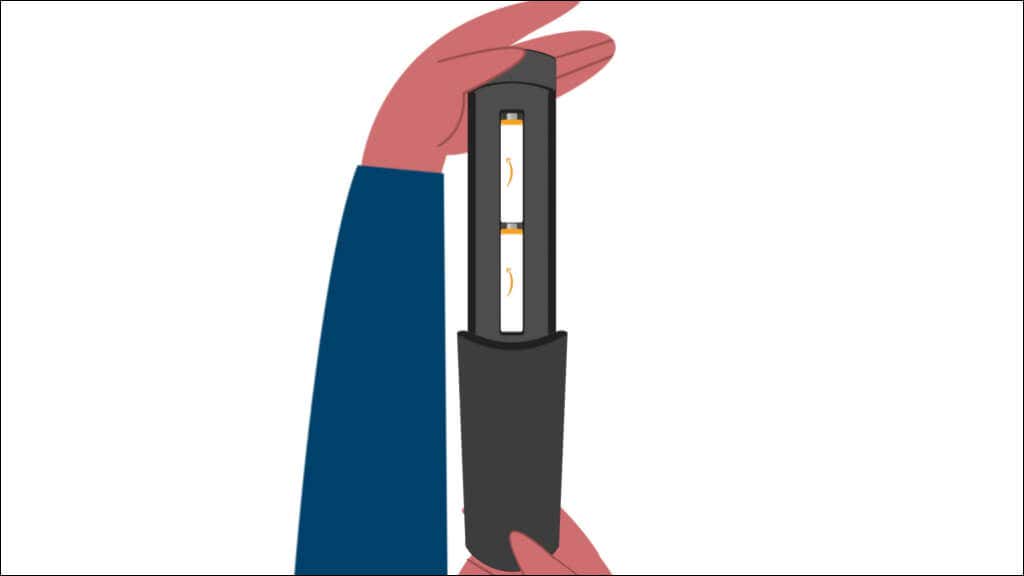
A malfunctioning remote controller might restart your Fire TV at random intervals. Take out the batteries in your Fire TV Remote if it’s faulty or some buttons malfunction. That’ll disconnect the remote from your Fire TV.
6. Update Your Fire TV Device
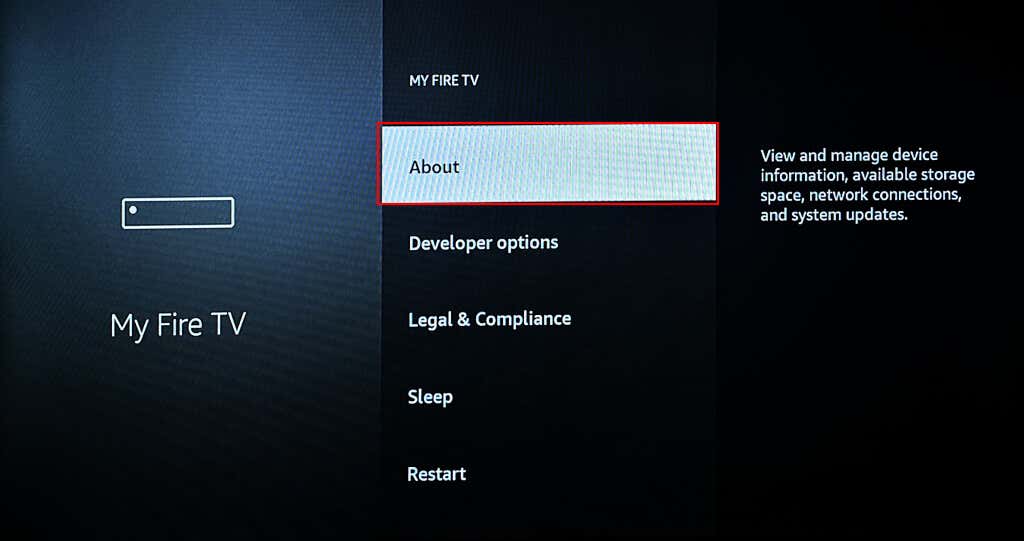
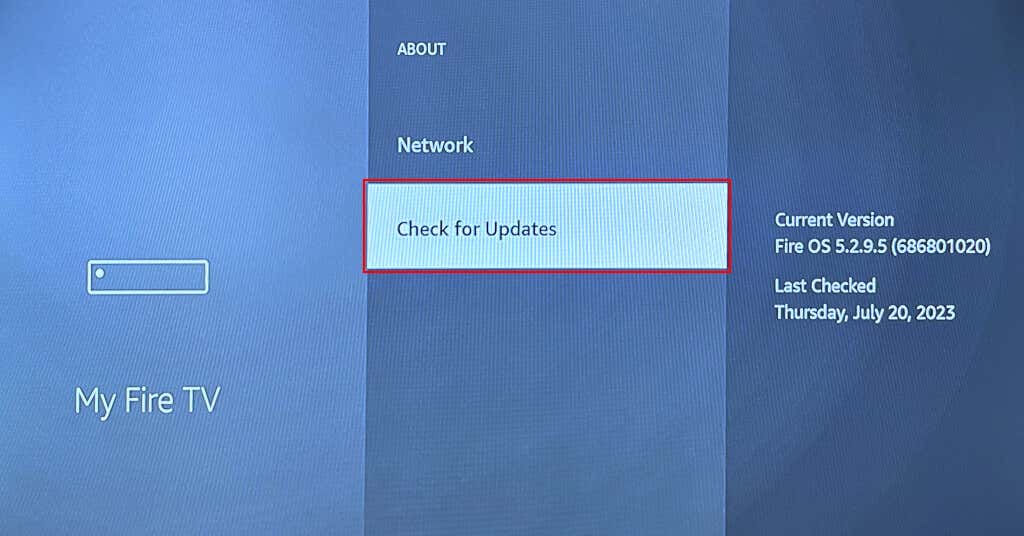
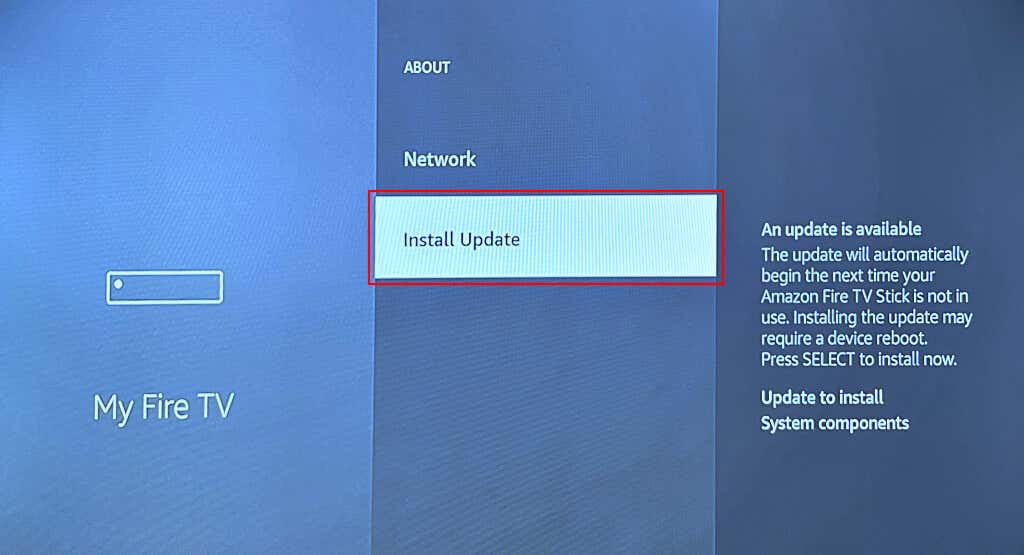
Does your Fire TV stay on for some minutes before restarting automatically? Updating the streaming device’s software might resolve the issue. Connect your Fire TV to the internet when it comes back on, and follow the steps below to update its software. Select Install Update to install a pre-downloaded software update. Keep your Fire TV connected to its power source during the software update. The installation could take up to 20-30 minutes, depending on your internet speed and Fire TV model.
7. Try a Different TV
HDCP was introduced for HDMI connectors and devices in June 2003. The majority of TVs released in June 2003 or later are HDCP-compatible. Your Fire TV might keep restarting or fail to turn on if connected to TVs released before June 2003. Check your TV’s instruction manual or contact the manufacturer to verify its HDCP-compliance status. Connect your Fire TV to a compatible TV if yours doesn’t support the HDCP digital copyright protection standard. Rebooting your TV and updating its software/firmware could also fix issues causing your Fire TV to malfunction.
8. Factory Reset Your Fire TV
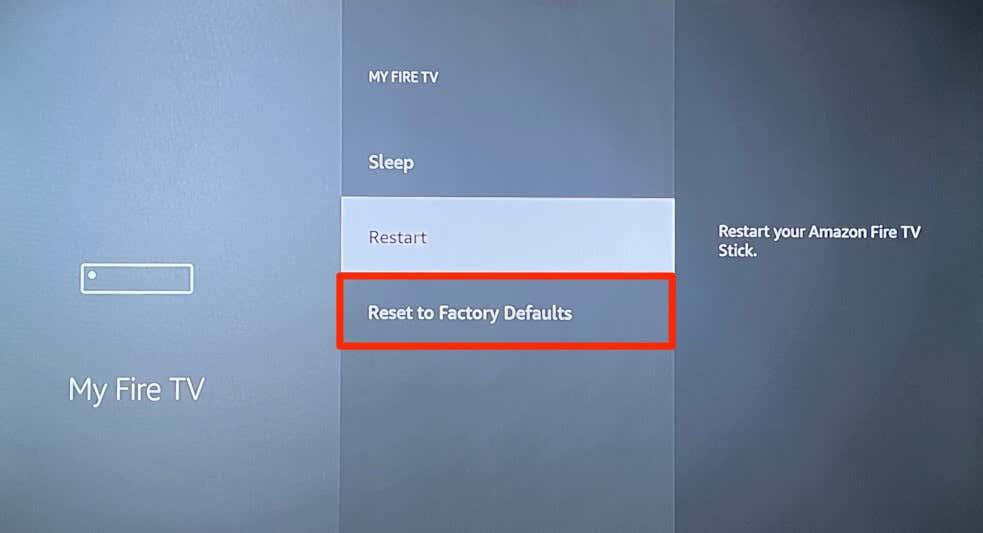
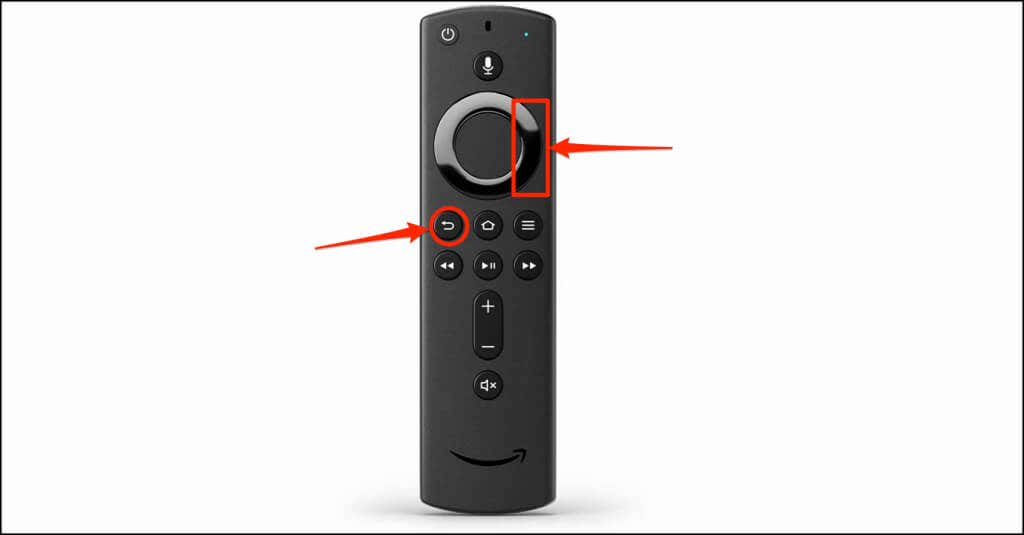
Resetting your Fire TV to factory default can fix performance and software issues. The factory-reset operation wipes your Fire TV and deletes all files, account data, and settings on the streaming device. If your Fire TV stays on briefly before entering the restart loop, reset it to factory default as quickly as possible. Go to Settings > My Fire TV > Reset to Factory Defaults and select Reset on the confirmation screen. Release both buttons when a “Reset to Factory Defaults” screen pops up and select OK to start the factory reset.