Some reasons Messenger notifications linger around are that you have unread messages in your Message requests or Archive folder, your app’s cache is corrupted, your login session has a problem, your app is outdated, and more.
1. Read or Mark Your Messages as Read in Messenger
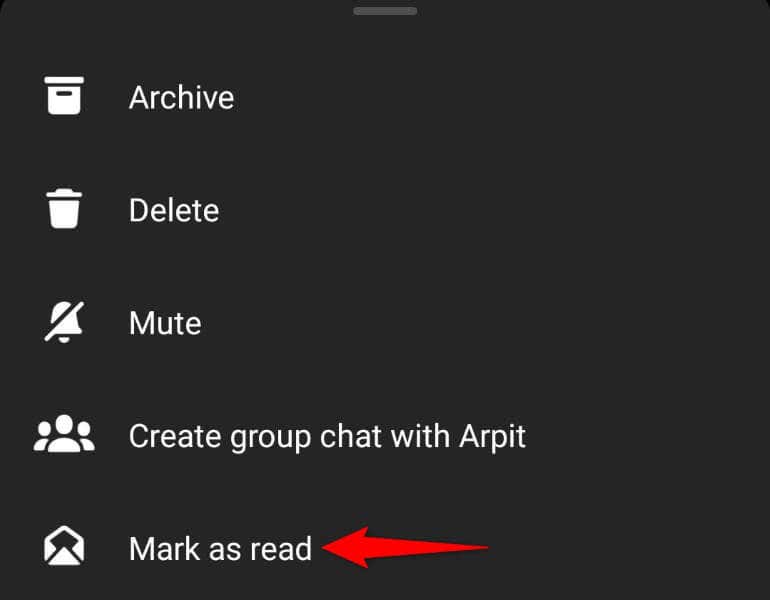
The first action to take when you find Messenger’s notifications lingering around is to check your message folder and ensure you’ve read all the new messages there. It’s worth double-checking this folder to read or mark your unread messages as read.
Once you’ve read or marked your messages as read, your Messenger notifications will disappear.
2. Check Message Requests in Messenger
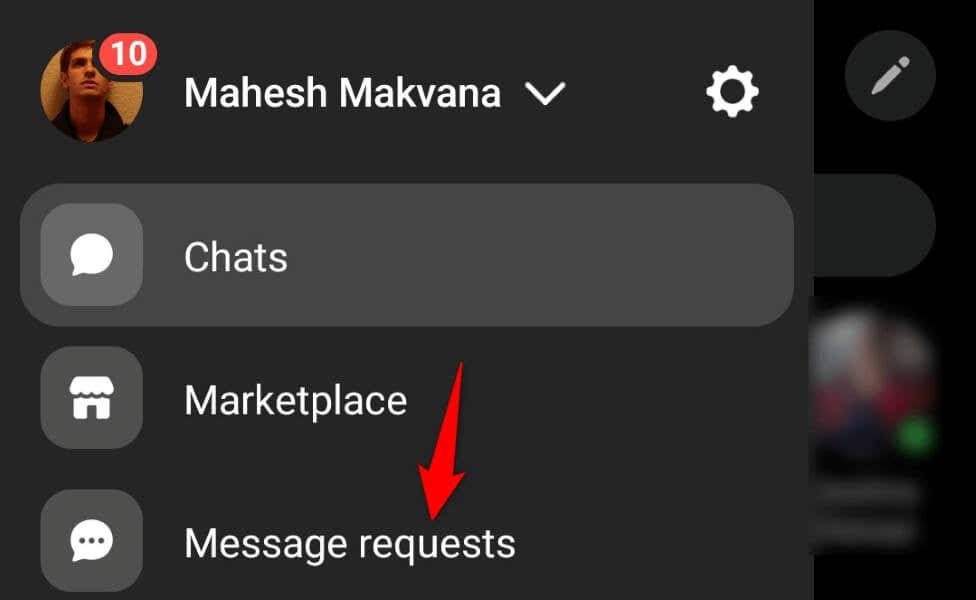
Another reason you get notifications from Messenger is that you have unread messages in your Message requests folder. This folder has incoming messages from users who aren’t your friends on Facebook. Take a moment, go through your chats in this folder, and either read or mark them all as read.
3. Mark Archived Messages as Read in Messenger
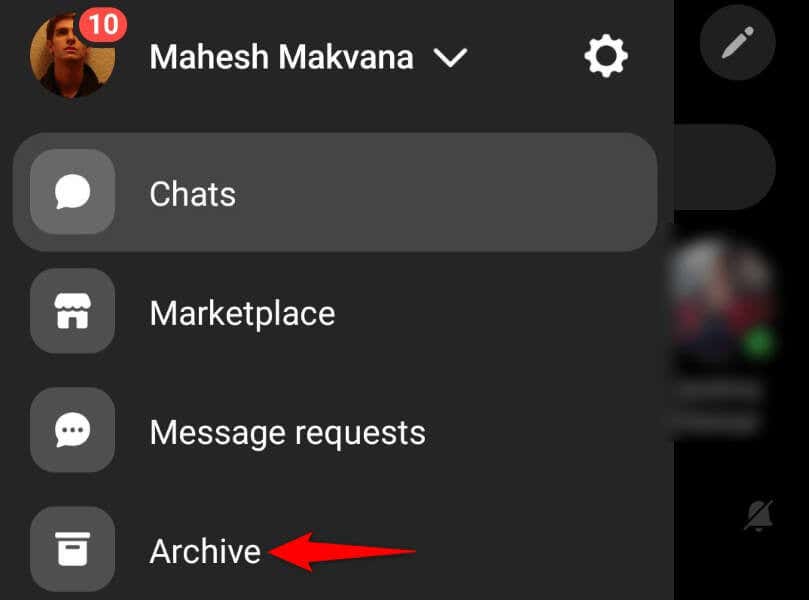
When your Messenger notifications keep triggering, open your message Archive folder and ensure all your messages are read there. Having unread messages in this folder can trigger the app to send you notifications.
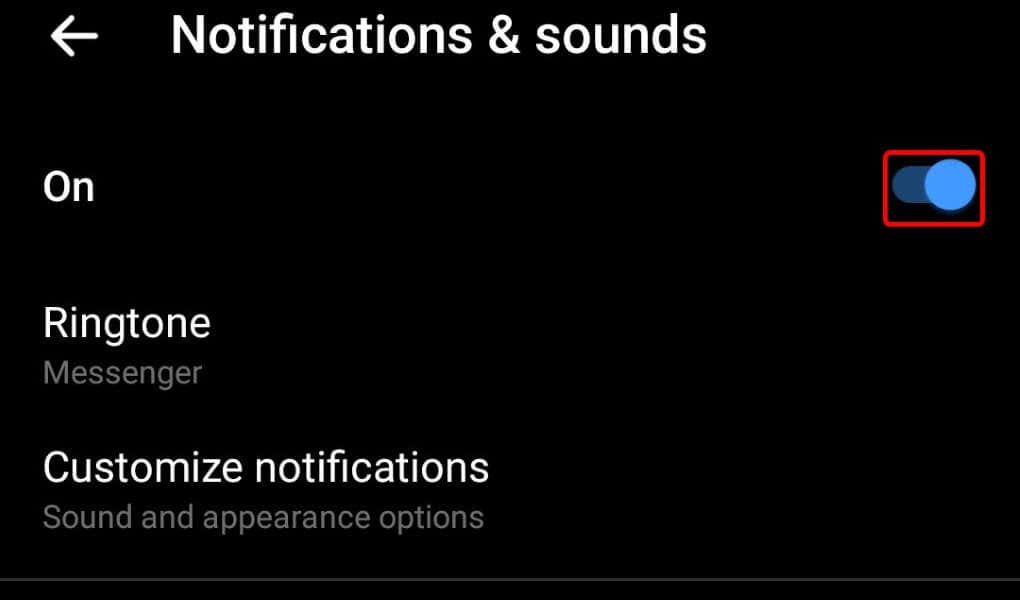
4. Toggle Off and Back On Your Facebook Messenger Notifications
Facebook Messenger’s minor glitches can cause the app to keep sending you notifications, even if you don’t have any unread messages. In this case, you can possibly fix the issue by turning off and back on your app notifications.
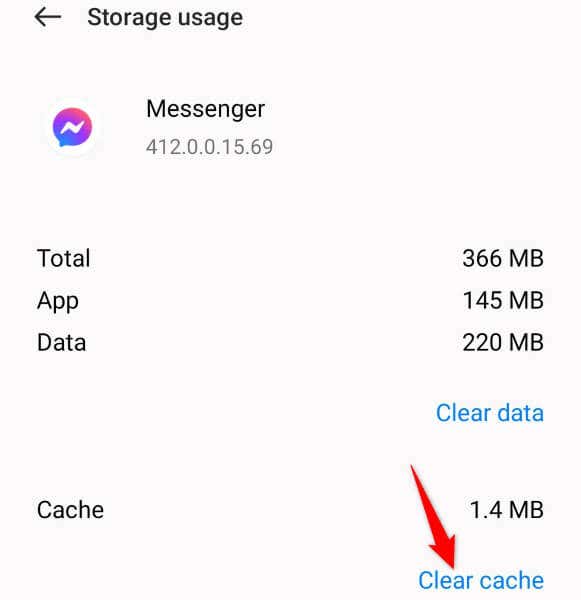
5. Clear Messenger’s App Cache on Your Phone
Like most other apps, the Facebook Messenger app stores cache files on your phone to enhance your app usage experience. If these files have gone corrupt, that may be why you keep getting alerts from your message app. In this case, you can clear your app’s faulty cache to resolve your problem. Doing so doesn’t delete your chats or any other files saved in your account. Note that you can only clear an app’s cache on Android. You’ll have to remove and reinstall the app on an iPhone to delete the app’s cache files.
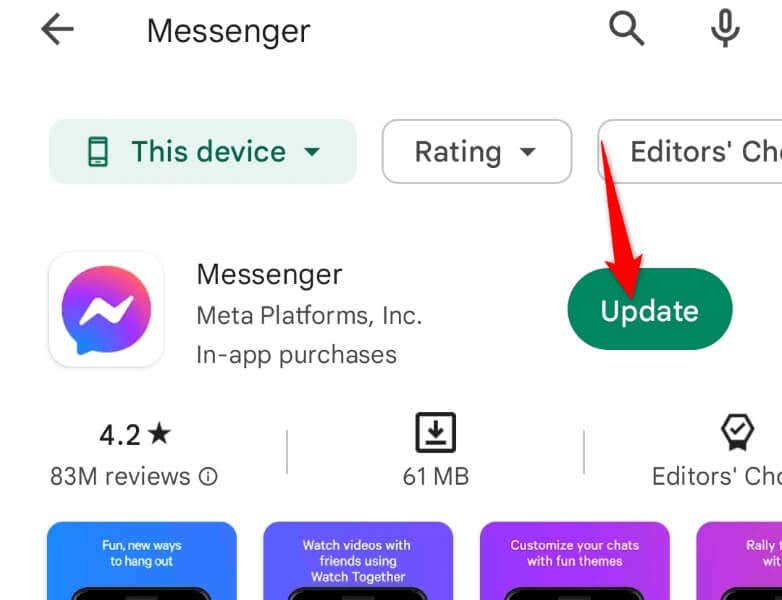
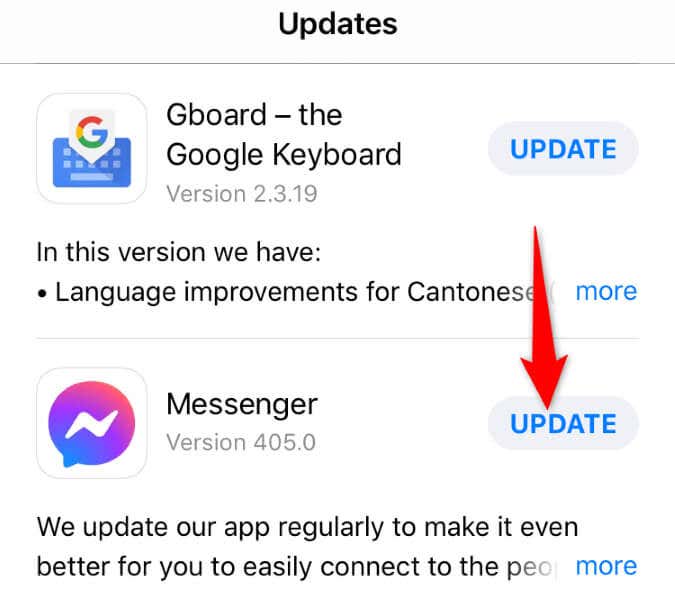
6. Update Facebook Messenger on Your Phone
If your Messenger notification issue still isn’t fixed, you may be using an outdated app version on your phone. Old app versions are known to have issues, and you can possibly resolve those issues by updating your app to the latest version. Updating Messenger brings various bug fixes and possibly new features.
On Android
On Apple iPhone
7. Log Out and Back Into Your Facebook Account in Messenger
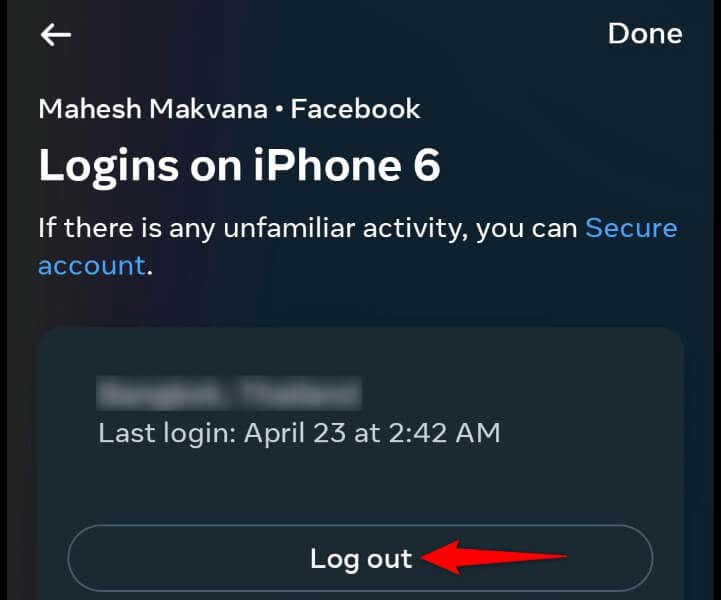
Sometimes, your login session issues cause the app to malfunction, leading to various errors. Your app notifications issue may be the result of a login session problem. In this case, log out of your account and then log back into your account in the app. This should likely fix your issue.
8. Uninstall and Reinstall Messenger on Your Phone
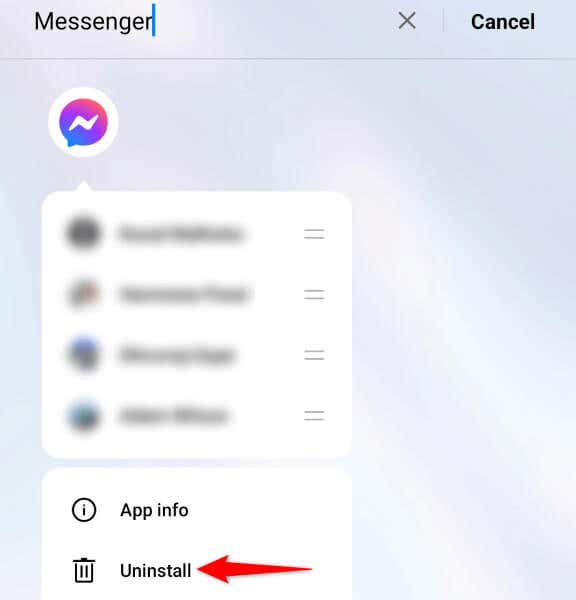
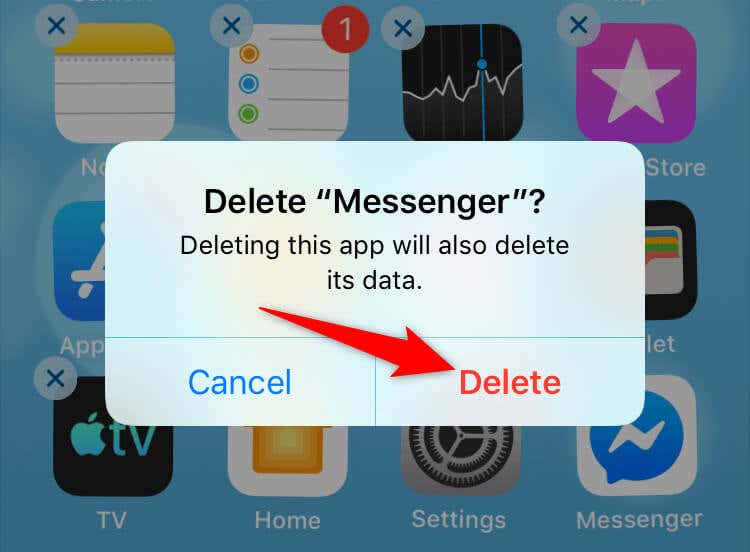
If your Messenger app continues to malfunction, your app’s system files might be faulty. Such files can lead your app to cause various issues. In this case, you can remove and reinstall the app on your phone to fix your issue. Removing the app from your phone doesn’t delete your chat or any other account files. Messenger will re-sync your conversations when you reinstall the app and log back into your account.
On Android
On Apple iPhone
Resolve Buggy Notifications in FB Messenger on iPhone and Android
Messenger’s faulty notifications keep alerting you that you’ve got unread messages, whereas that’s not the case. This error occurs for various reasons, and our guide above should help you deal with the problem. When you’ve followed the methods outlined above, your notification issue should be resolved, and you’ll only get a notification when you actually have unread messages in your inbox. Happy chatting!