1. Check Your Internet Connection
Your connection speed has a direct impact on Disney+ streaming quality and performance. Unstable, slow, or inconsistent internet connection can cause video buffering, audio lag, and other streaming issues. Connectivity issues can also trigger several Disney+ error codes, preventing you from streaming movies or shows. Disney+ recommends a 5.0 Mbps download speed for High Definition (HD) content and 25.0 Mbps for 4K content. Visit fast.com or speetest.net on your Fire TV web browser or any device connected to your network. Restart or reset your Wi-Fi router if your download speed falls below Disney+ recommendation for the content quality you’re streaming. Switch to a lower video quality or contact your internet service provider if your connection speed still doesn’t meet the recommendation. Switch to a different Wi-Fi network with a faster download speed that meets Disney+ recommendations.
2. Check for Server Downtime
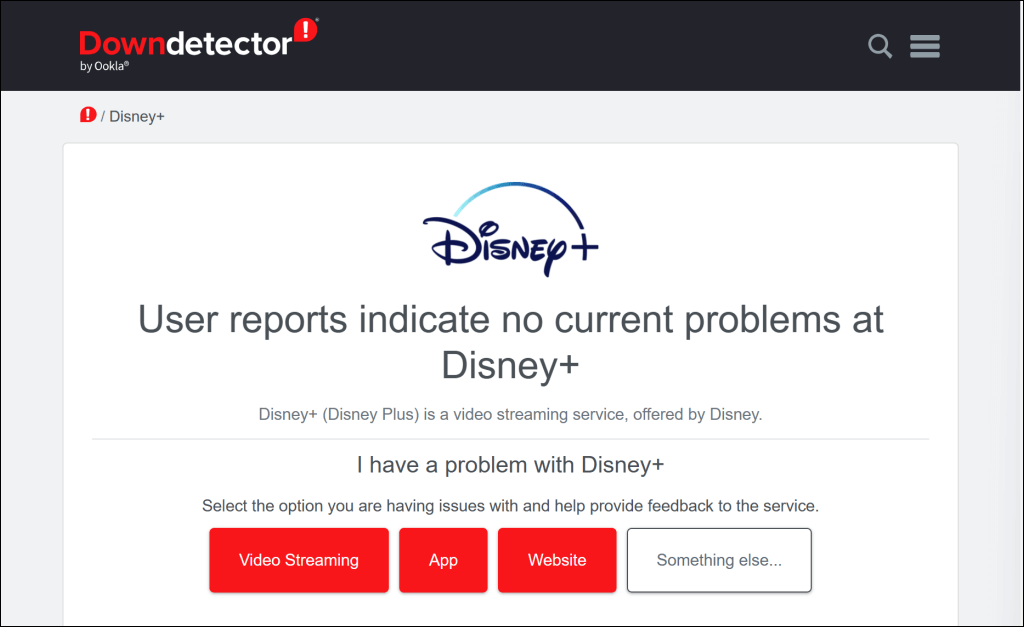
There’s likely an issue with Disney Plus servers if the streaming app doesn’t work on your Fire TV and other supported devices. Check the Disney+ status page on Downdetector for possible server downtime or outage. Server downtimes are often resolved quickly, so Disney+ should be back working on your Fire TV in no time. Contact Disney+ Help Center if the server downtime persists for hours. Disney+ can also temporarily restrict access to the streaming service if it detects suspicious activities (e.g., repeated failed login attempts) from your IP address. Likewise, the streaming service sometimes displays specific error codes if it receives unusually high traffic from your IP address or to a specific movie title. Restart your Fire TV and your router if you keep getting any of the following error messages:
Due to a high number of requests, we have temporarily throttled traffic from your IP address. Please try again later (Error Code 91). Due to a high number of requests, we have temporarily throttled traffic from your IP address. Please try again later (Error Code 92). We’re sorry, but we cannot play the video you requested. Please try again. If the problem persists, contact Disney+ Support (Error Code 41).
3. Force Close and Relaunch Disney Plus
Force closing a malfunctioning app can get it working correctly again. Force close Disney+ if the app occasionally or constantly freezes or crashes on your Fire TV.
4. Restart Your Fire TV
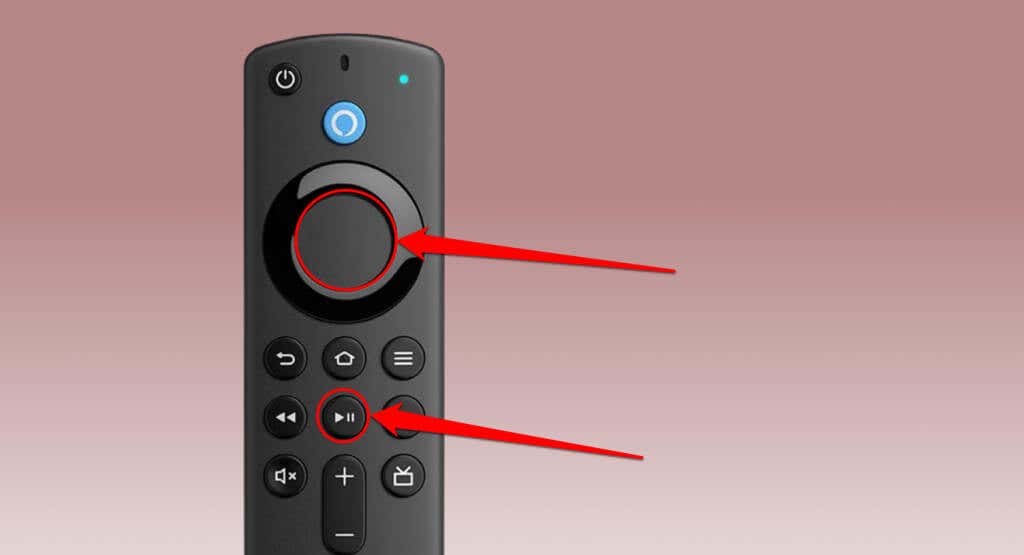
Rebooting your Fire TV can resolve temporary system glitches and app malfunctions. Performing a device reboot also frees up memory for applications to run smoothly without issues. Head to Settings > My Fire TV > Restart and select Restart on the confirmation screen. You can also initiate a system reboot using a remote shortcut. Press and hold the Select and Play/Pause buttons on your Fire TV Remote for 3-5 seconds. Perform a hard reboot if you can’t find your Fire TV Remote or if you have a faulty remote. Unplug your Fire TV device from its power source and wait 10-30 seconds. Reconnect the streaming device to its power source, wait for it to boot, and check if Disney+ works without issues.
5. Clear Disney+ Cache and Data
Disney+ app might malfunction if its cache files get corrupted. Force-close Disney+, clear its cache file, and restart the app. If the malfunction persists, delete the Disney+ data, and relaunch the application.
Note: Deleting Disney+ data removes the application’s settings, files, and account info from your Fire TV.
Reopen Disney Plus and try streaming a movie or show. Clear the app’s data (see step #3) if the issue persists.
Reopen Disney+, sign in to your Disney Plus account, and check if the app works without issue.
6. Update the Disney+ App
You might encounter issues streaming Disney+ if you have an outdated app version. Follow the steps below to update Disney Plus to the latest version in the Fire TV App Store. We recommend enabling “Automatic Updates” on your Fire TV so it automatically updates Disney+ and any outdated app. Head to Settings > Applications > App Store and set Automatic Updates to “ON.”
7. Update Your Fire TV
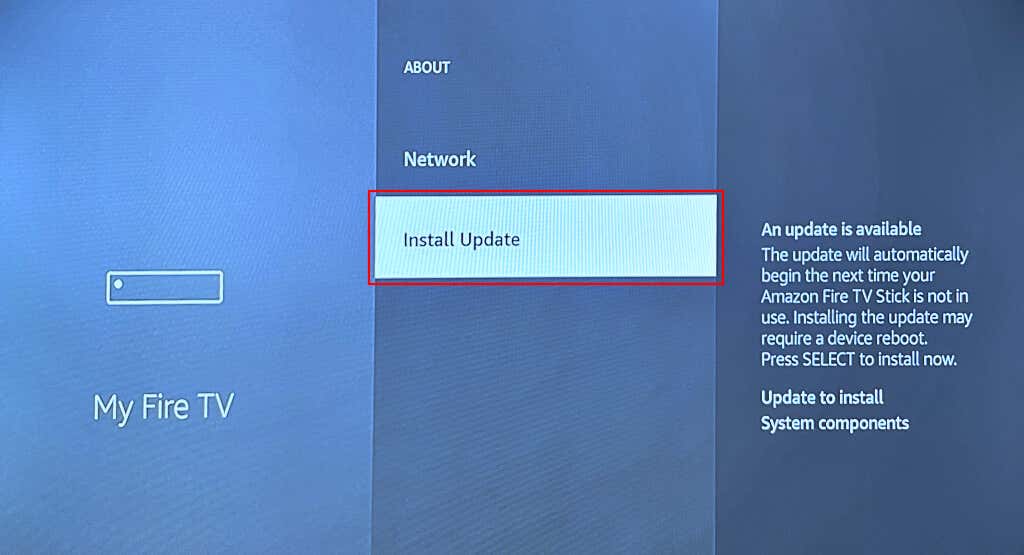
Connect your Fire TV to the internet and go to Settings > My Fire TV > About. Select Check for Updates and wait while your Fire TV downloads any available update. If your Fire TV downloaded an update in the background, select Install Update to start the update. The software update could take up to 30 minutes, depending on the update size, Fire TV model, and internet speed. Open Disney+ after the update and check if updating your Fire TV resolved the issue. Are you having trouble updating the software on your Fire TV devices? Check out the troubleshooting recommendations in this article—Top 7 Fixes to Try If Your Fire TV Isn’t Updating.
8. Reinstall Disney Plus
Remove Disney+ from your Fire TV and reinstall the application if the app malfunctions after trying the fixes above. Head to Settings > Applications > Manage Installed Applications > Disney+ and select Uninstall. Select Confirm on the confirmation screen to uninstall the app.
Get Disney+ Working Again
You should also consider factory resetting your Fire TV if Disney+ (and other streaming apps) doesn’t work after trying the troubleshooting steps above. Go to Settings > My Fire TV > Reset to Factory Defaults and select Reset on the confirmation screen.