Understanding Why Discord User Volume Keeps Resetting
When you join a Discord voice channel, you’ll have access to your audio level setting, independent of other users. This setting is known as Discord user volume. It’s crucial that everyone can set the voice chat volume as they see fit in order to keep effective communication. This is especially true for gaming, where it’s important for all gamers to communicate the gameplay strategies. Sudden changes in audio levels can be really frustrating, especially during gaming sessions. If you are wondering why your Discord user volume keeps resetting, you should know there could be many different reasons. Some of them are:
Corrupt User Settings when your Discord audio settings reset due to power surges, malware, or device failures. Hardware issues with your headset or microphone. Buggy Discord app. Voice Activity Detection setting. Discord updates. Sometimes, the latest update might interfere with your personal settings. Corrupt files in Discord’s dispatch cache. Interference by third-party software.
The solution to the Discord user volume resetting issue will depend on what’s causing it. That means you’ll have to do some troubleshooting to find out the root of the problem so you know how to deal with it. However, if you’re not sure what’s behind the constant resetting of your volume settings, it won’t hurt to try these fixes in order until one of them resolves the issue.
1. Clear Discord Cache
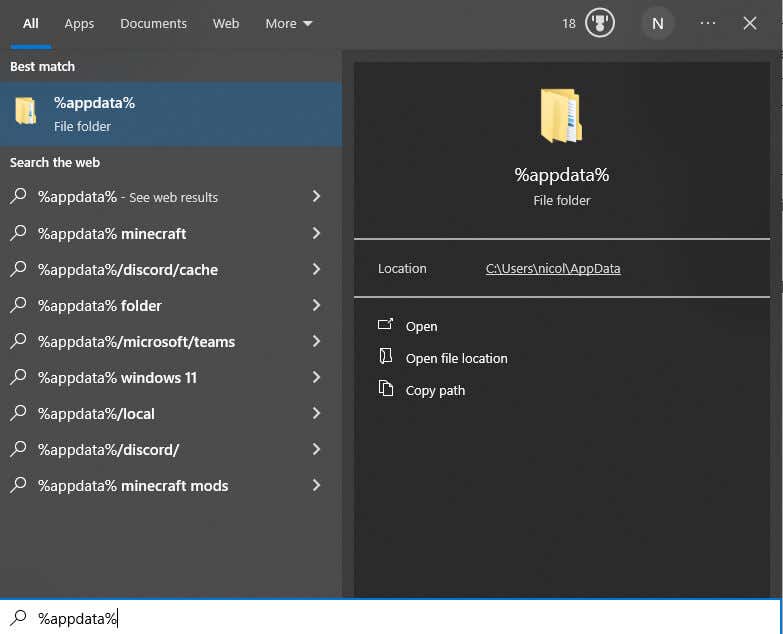
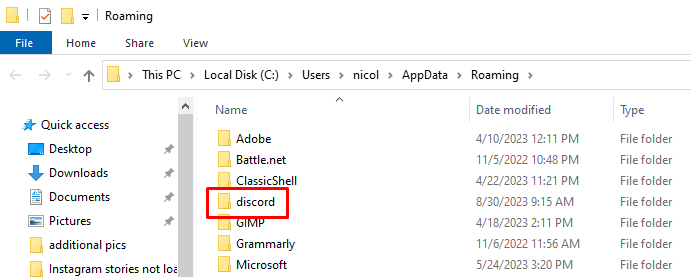
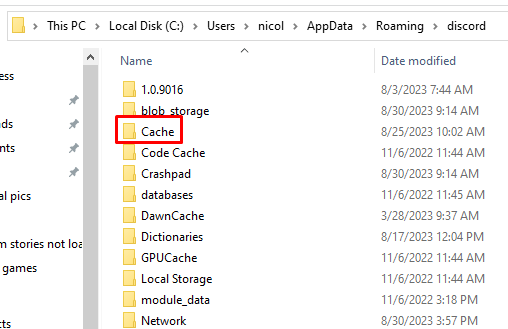
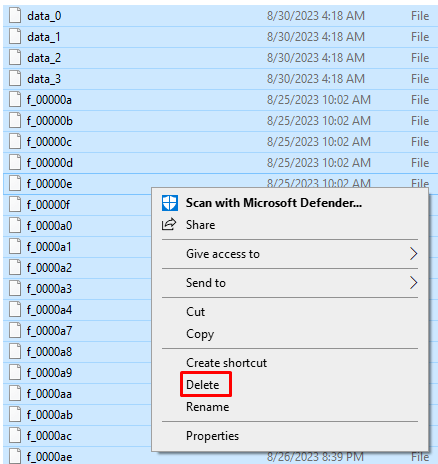
The Cache folder contains temporary data that improves Discord’s performance. However, over time, these files can get corrupted, and they can cause the user volume to keep resetting. In fact, they can cause many different bugs that keep your app from working properly. That’s why it’s smart to clear your Discord cache occasionally. Here’s how to do it on your Windows 11 or 10 PC.
Note: Clearing Discord cache files won’t change your personal Discord settings. However, it might help the app perform better.
2. Disable Automatic Gain Control
If your Discord user volume settings keep resetting, you’ll have to make sure that the Automatic Gain Control is disabled. It’s this setting that may initiate the volume reset. Automatic Gain Control is an automatic volume adjustment setting. It’ll increase or decrease the volume during audio calls. Automatic Gain Control is set in place to keep the audio experience on Discord of high quality. But many users complain it doesn’t work properly, and it’s the reason behind their user volume setting resetting.
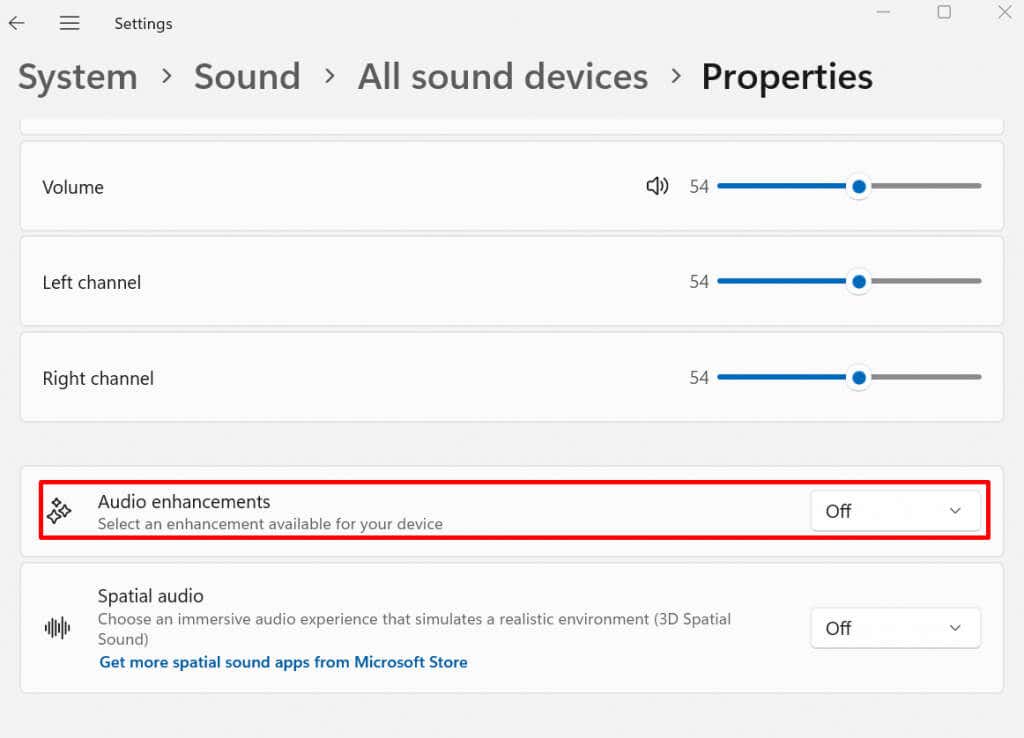
3. Disable Audio Enhancements in Sound Settings
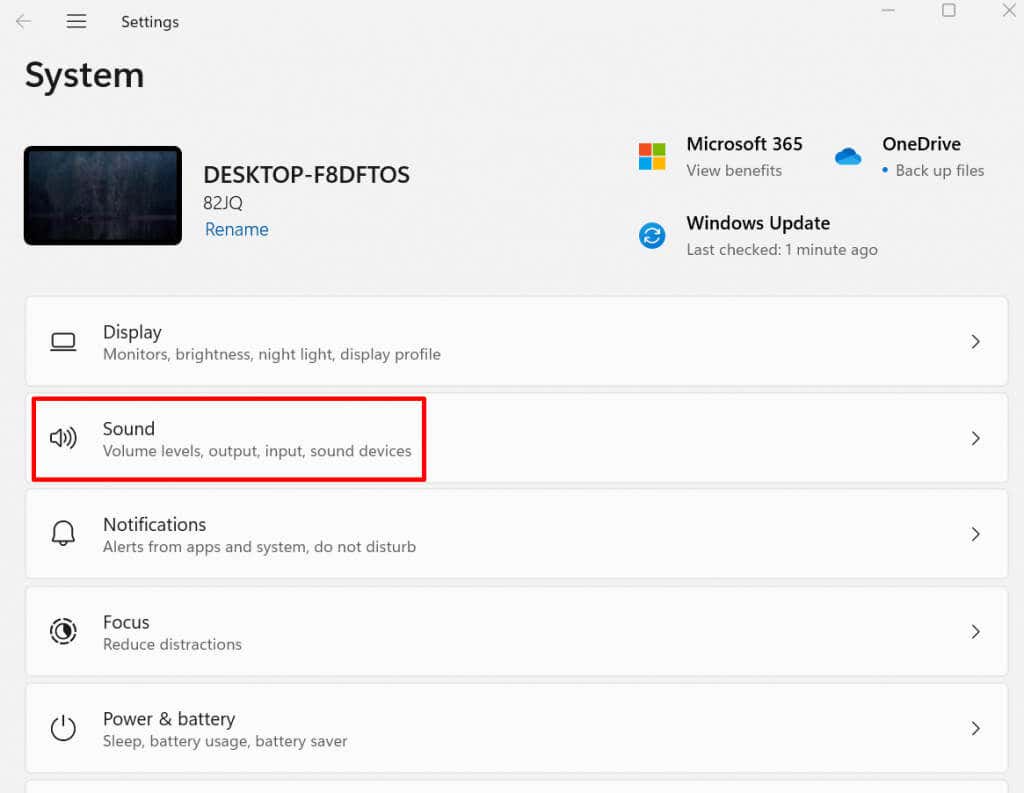
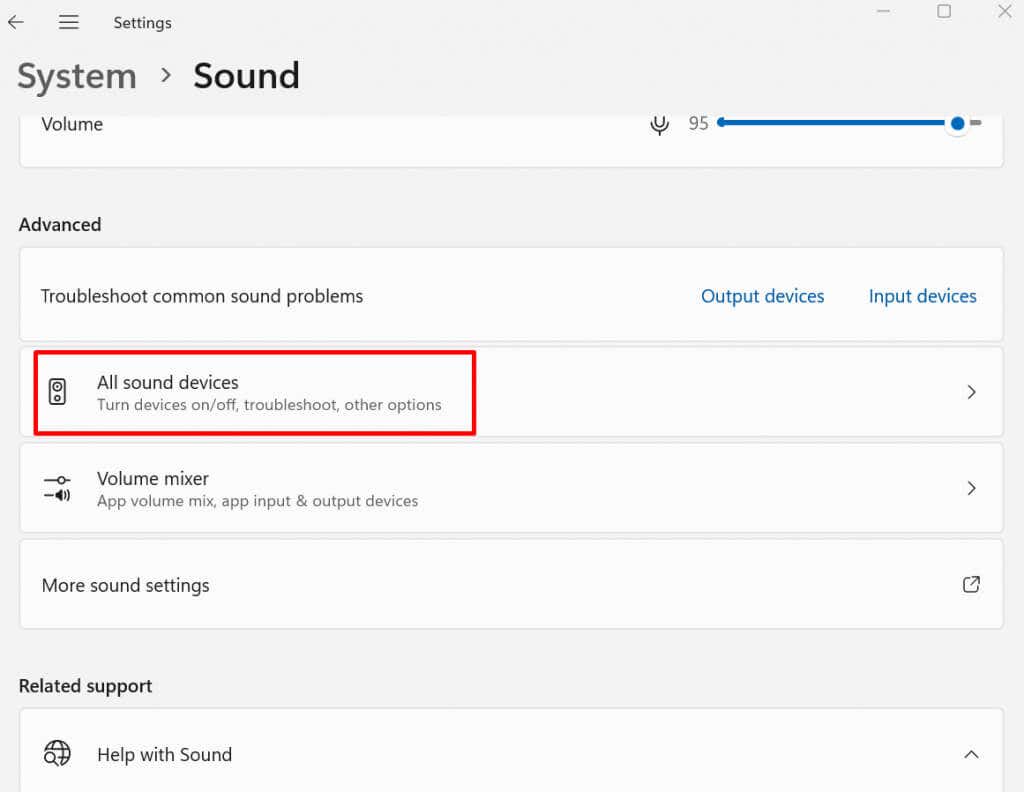
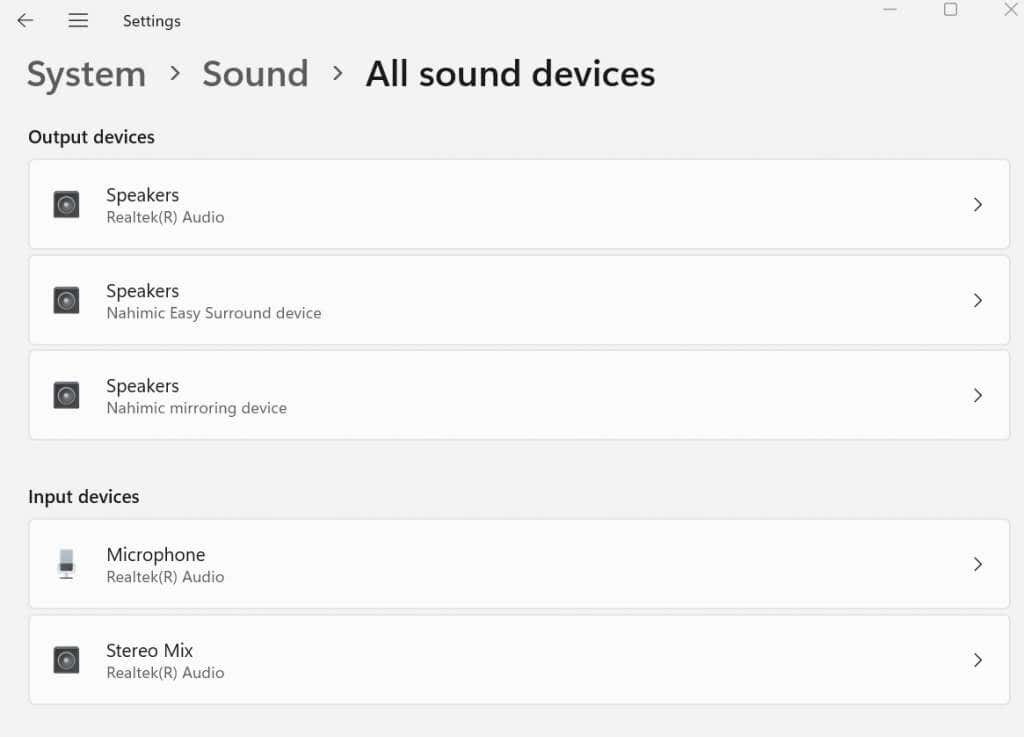
Windows audio enhancements can sometimes interfere with how Discord works. If you want to ensure a stable and consistent Discord audio experience, you should consider turning these enhancements off. Follow these steps to disable Windows audio enhancements: Once you’re done, close the Settings app, head to Discord, and make a voice call to see if this resolved the issue.
4. Reset Voice Settings to Default
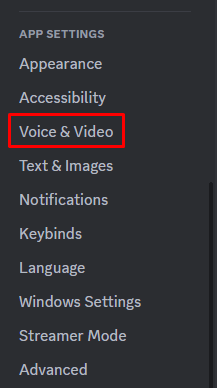
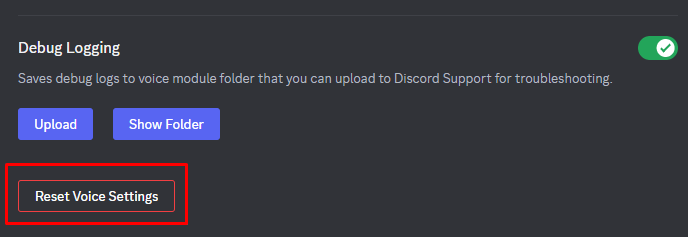
Resetting any Discord voice settings you altered might help with the issues you have with user volume. Any faulty configuration affecting the volume could be eradicated, and your Discord might work properly. To reset voice settings:
5. Adjust VAD Settings
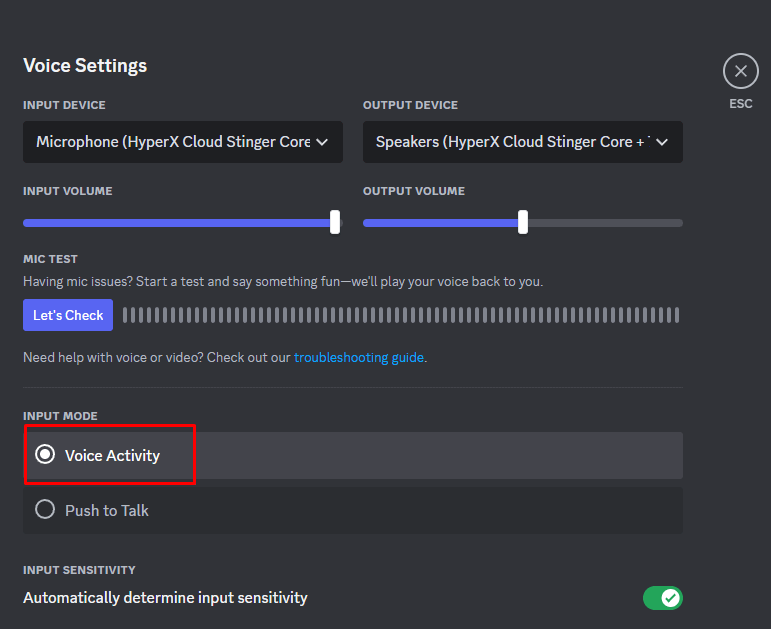
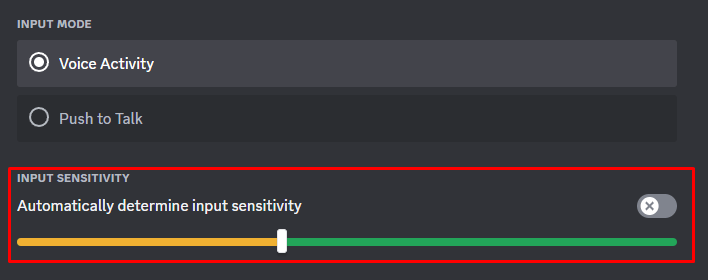
VAD stands for Voice Activity Detection. The Discord client will start the audio transmission from your end as soon as it detects you are actively speaking. This can help with the reduction of ambient noise, and it’ll enhance the quality of your voice.
However, there is no guarantee that VAD will help with the Discord user volume resetting issue. You’ll have to play with the settings and see what works best for you and your friends. Perhaps the better solution would be to use the push-to-talk option instead of VAD. On the other hand, just changing the VAD’s sensitivity settings can improve your audio experience.
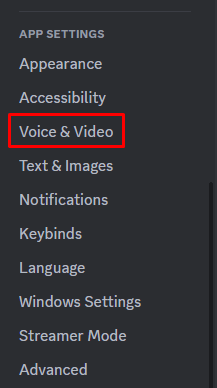
Test various settings during the voice call and see which one ensures that your volume levels are consistent. To find the Voice Activity Detection:
6. Uninstall and Reinstall Discord
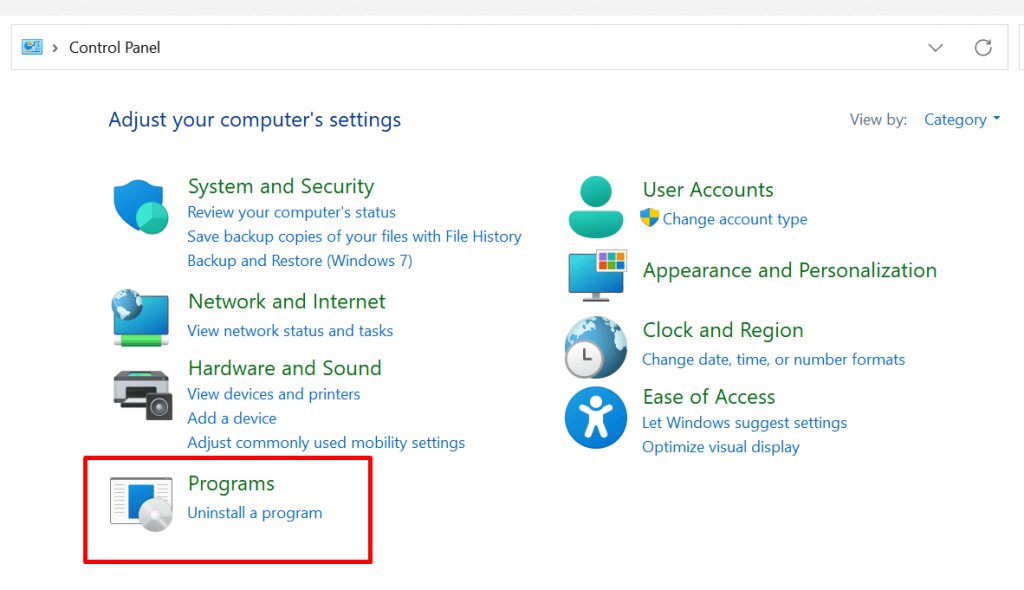
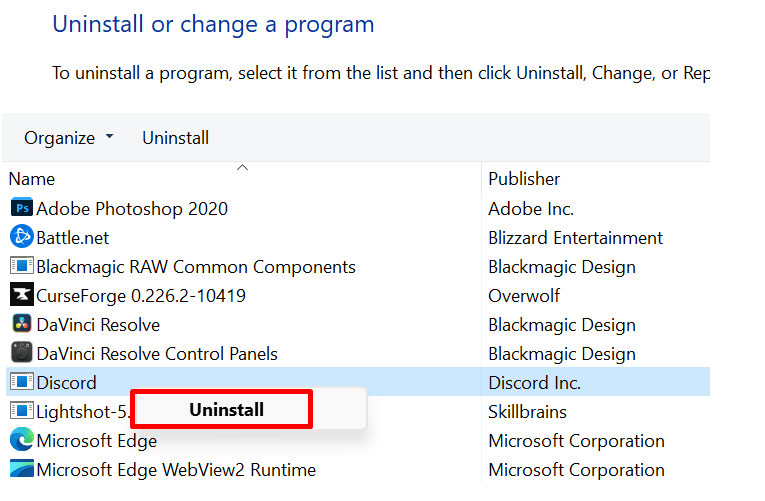
If you tried all of the previously described fixes and nothing worked, try uninstalling and reinstalling your Discord app. Uninstalling Discord is the same as uninstalling any other app: To reinstall Discord, head to their official website and download the latest version. Follow the on-screen instructions to install it.
7. Update Your Operating System
Keeping the Operating System up to date is essential if you want all your apps to work properly, Discord included. It’s possible that the interaction between your outdated OS and the DIscord app is causing the user volume to keep resetting.
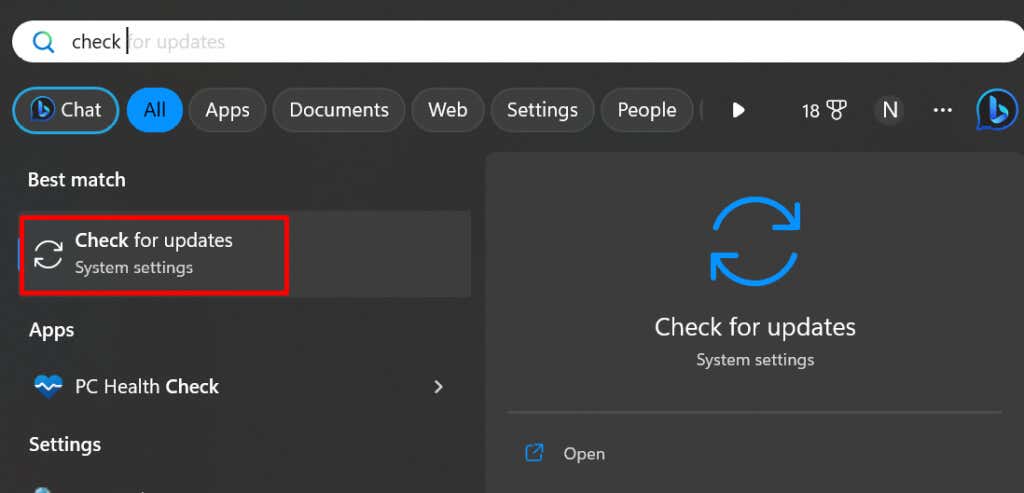
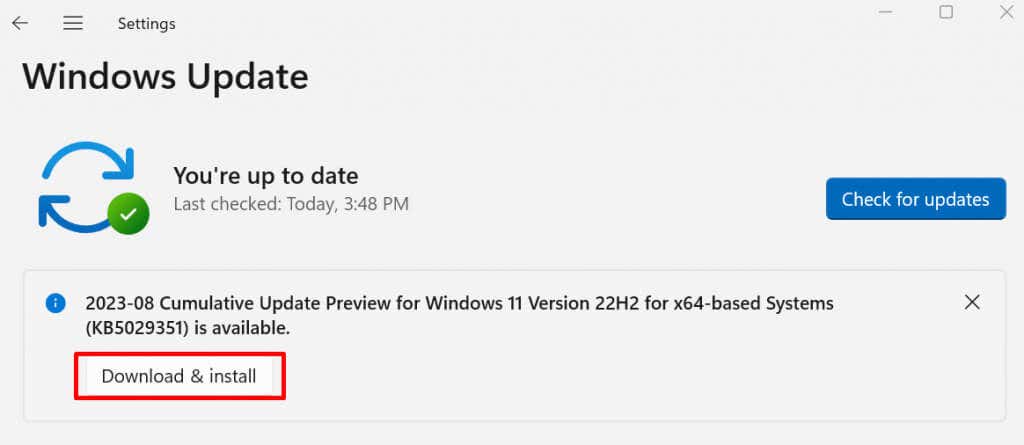
Check for available updates and install them if necessary. For Windows OS, it’s enough to go to the start menu and type “Check for Updates” in the search bar.
If any are available, they’ll be displayed. Don’t hesitate to hit that Download & Install button.
By taking the time to troubleshoot and resolve the Discord user volume resetting problem, you’ll not only enhance your own communication experience but also contribute to an enjoyable environment for your fellow users. Remember, the solution may vary depending on the root cause of the issue, so it’s essential to follow these steps systematically until you find the one that works for you.