Some reasons Discord behaves in the above weird way are that you haven’t fully opened your incoming messages, your app has a minor glitch, your app’s cached files are corrupted, you’re using an outdated app version and more.
Check and Read All Your Discord Messages
Before applying any fixes, ensure you’ve read all the unread messages in your Discord account. It’s possible you have one or more unread messages lying down somewhere in your message list, causing your app to display an unread message badge. You can fix that by opening all the unread messages in your Discord app.
On Desktop
On Mobile
Check Discord’s Nitro Subscription Promotion
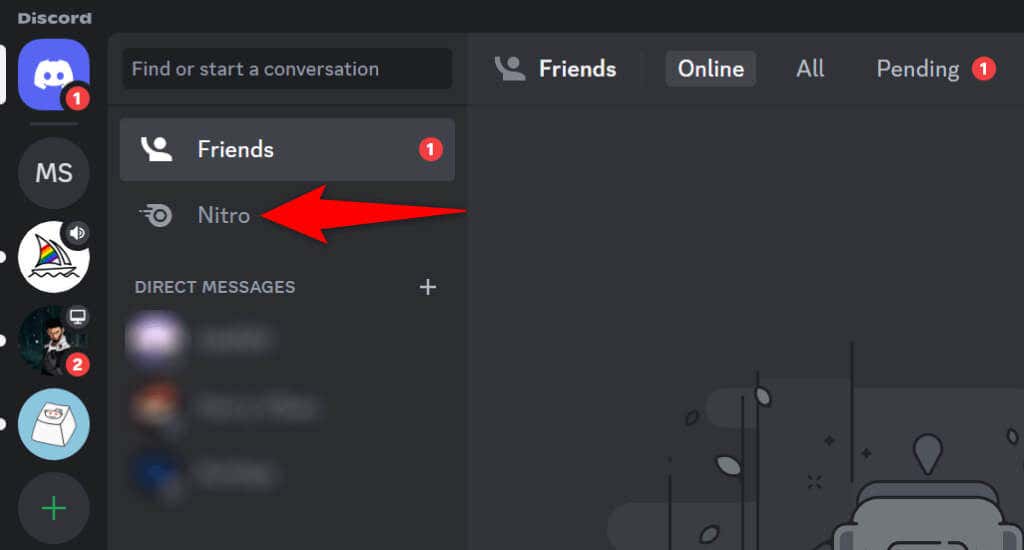
If you’ve opened all your unread Discord messages, but you’re still seeing the notification alert, you may have yet to access Discord’s Nitro promotion message. Discord has sent this message to all its users, and you’ll continue to see a notification badge until you open and read this message. You can do that by opening Discord on your desktop or mobile phone and choosing Nitro. Once you’ve accessed this message, your message alert should be gone.
Fully Close and Relaunch Discord on Your Device
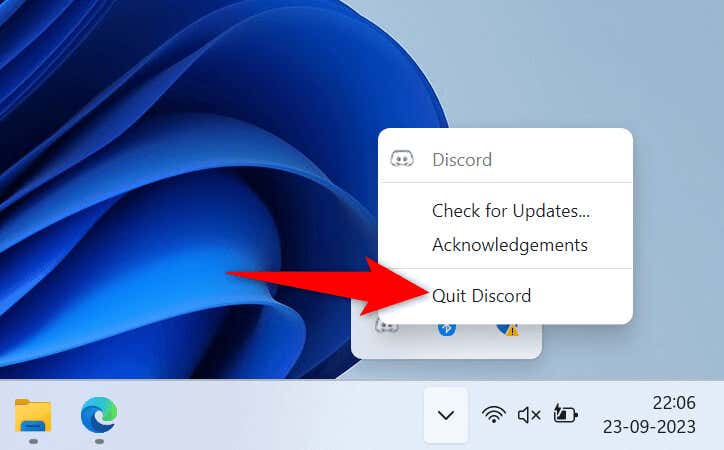
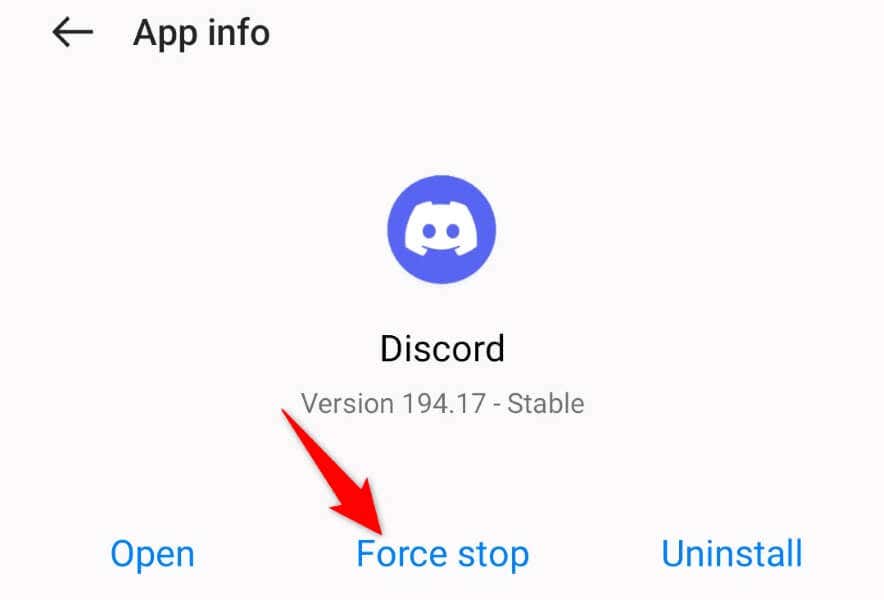
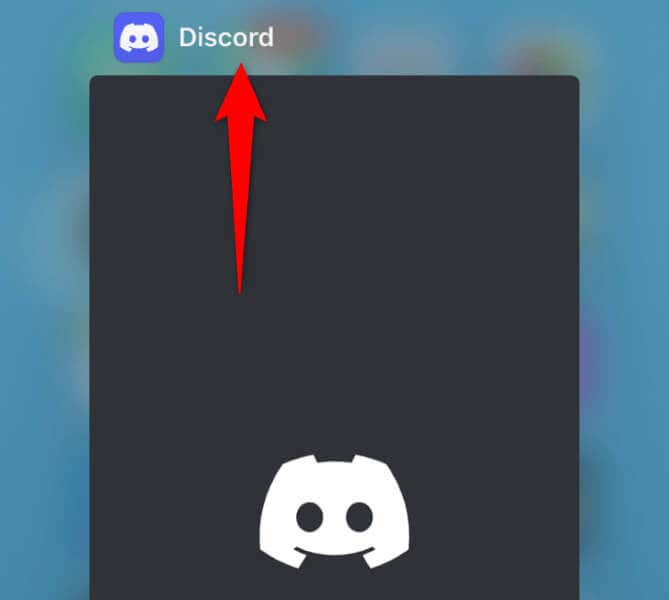
If your message notification without an actual message remains, your Discord desktop or mobile app may be experiencing an issue. Such app glitches can cause many random issues, including displaying message alerts when you have no messages to read. You can resolve those minor app problems by quitting and relaunching your Discord app.
On Windows 11 and 10
On macOS
On Android
On iPhone
Check Your Discord Notification Settings
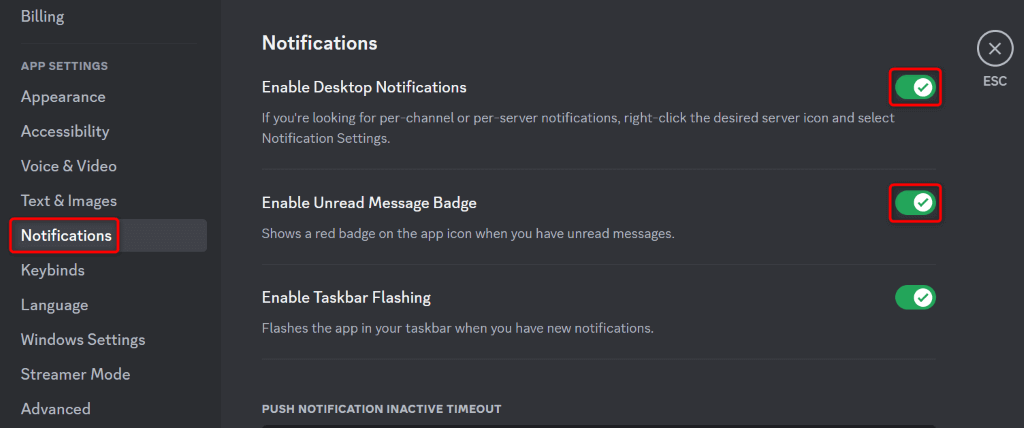
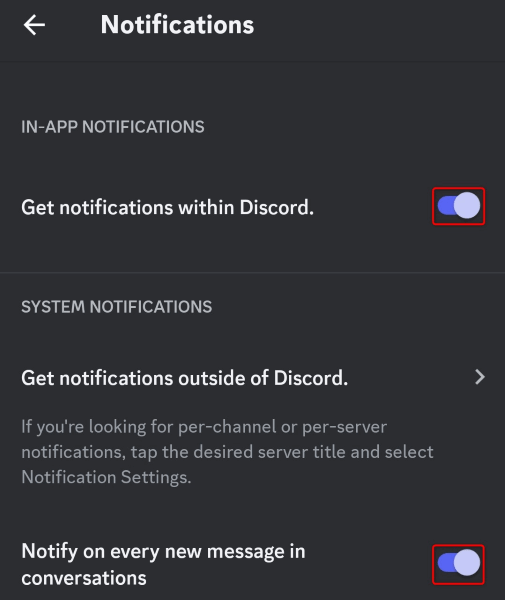
When you have issues with Discord notifications, it’s worth reviewing your app’s alert settings to ensure you haven’t specified anything incorrectly. You can toggle off and back on your app alerts to potentially resolve your issue.
On Desktop
On Mobile
Clear Discord’s Cache Files
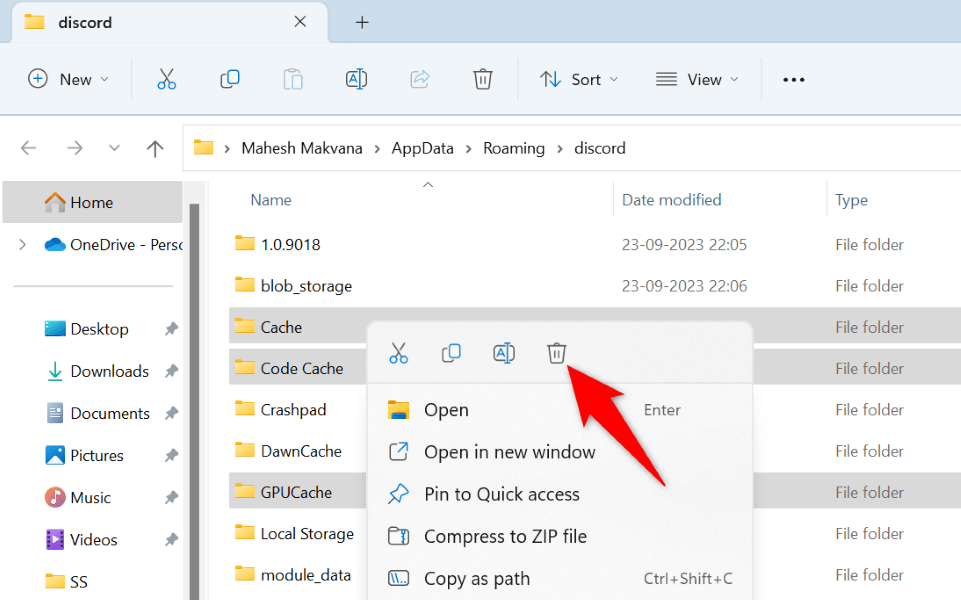
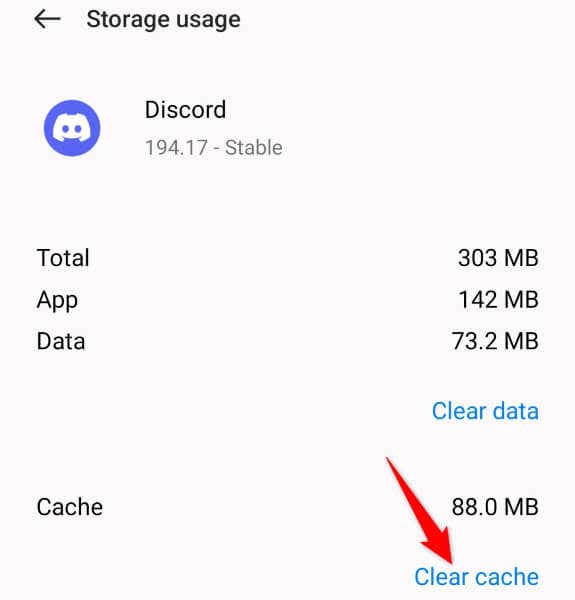
Discord caches various content to enhance your app experience. When you face issues with app’s message notifications, it’s worth clearing your app’s cached content to resolve your error. This is because your cached files might be corrupted, causing the app to display a notification badge even when there are no messages to read. Note that you don’t lose your chats, servers, or other data when you clear your Discord app cache. Also, you can’t clear an app’s cache files on an iPhone; you must delete the app to remove the app’s cached content.
On Windows 11 and 10
On macOS
On Android
Update Your Discord App
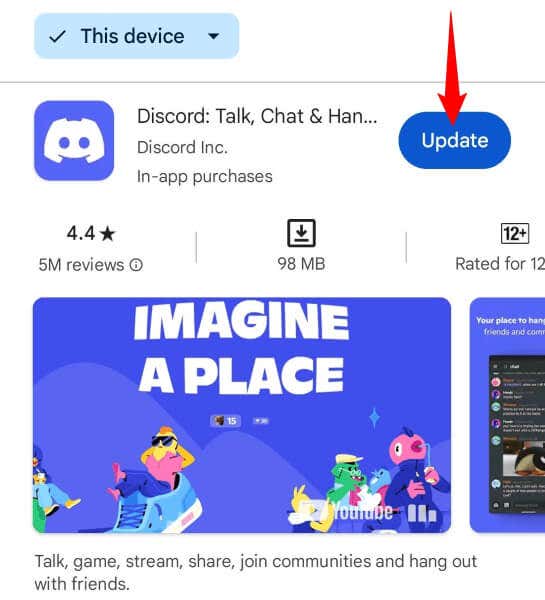
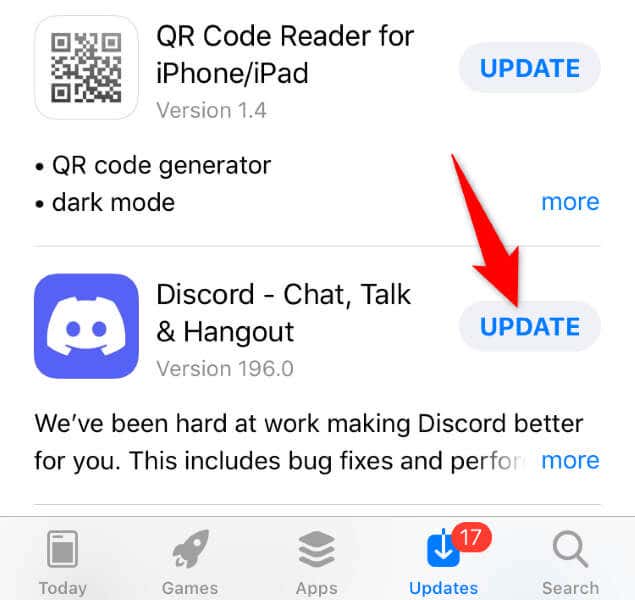
If you haven’t updated Discord in a long time, your outdated app version might be why you have the message notification issue. You can fix that by updating your app to the latest version.
On Desktop
On Android
On iPhone
Remove and Reinstall Discord on Your Device
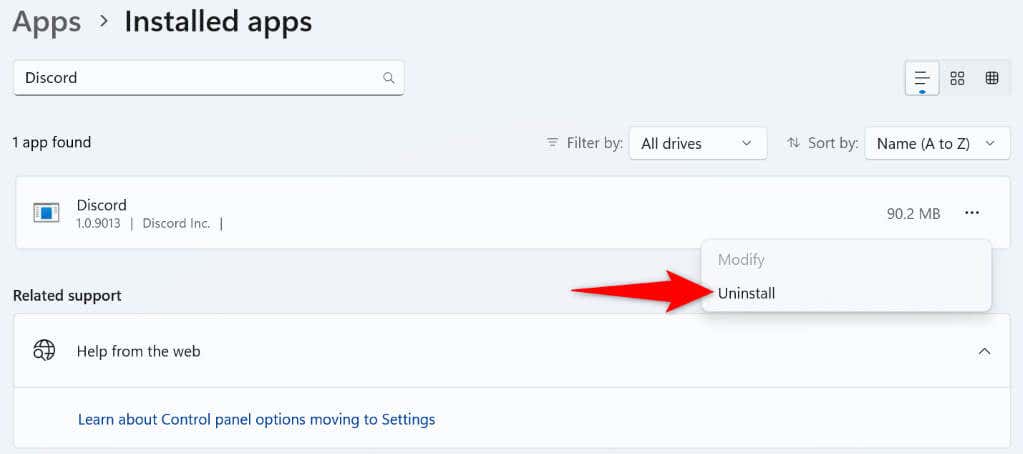
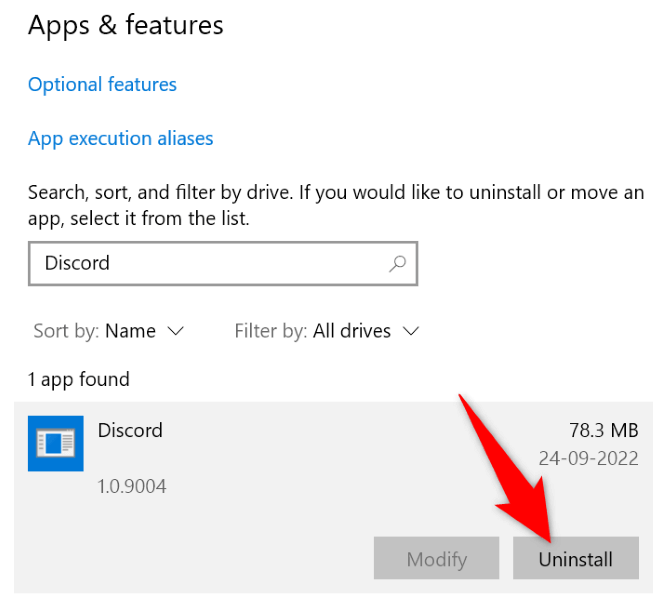
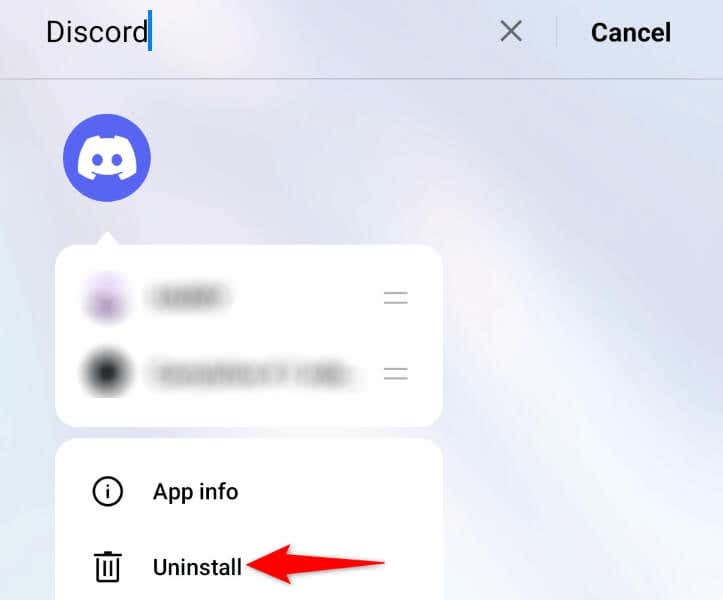
If you continue to see an unwanted message notification despite not having any unread messages in Discord, your app itself might be faulty. Such core-level corruption can cause many problems with your app. In this case, you can uninstall and reinstall the app on your device to fix your issue. Doing so doesn’t delete your chats, servers, or other data. You can sync these items by logging back into your account in the app.
On Windows 11
On Windows 10
On macOS
After removing Discord from your Windows or Mac computer, access the Discord website, download the app, and install the app on your machine.
On Android
On iPhone
Get Rid of Discord’s Faulty Message Notification Alert on Your Desktop and Mobile
The faulty notification alert makes you think you have an unread message, even though there’s nothing unread in your account. You can fix this Discord error using the methods described in the above guide. Once you’ve done that, your app will stop displaying the random notification badge, resolving your issue.