In this article, we’ll cover the 10 most effective ways to get your Android’s back camera working again, depending on the issue.
Why Is the Rear Camera Not Working?
There are several reasons for your Android camera to stop working, including corrupt system files, temporary bugs, incorrect app permissions, and physical camera damage. Unfortunately, if it’s only the rear camera that stops working (and the front camera is fine), it’s likely physical damage that’s causing the problem. Try to use multiple apps to access your rear camera. If none of your apps can access your camera (and you’ve enabled camera access), you may have hardware issues. If it’s only one of them that isn’t working, it’s probably a software issue – try the fixes below to resolve the problem. Note: If your camera is working, but it’s very blurry, you might have a different problem. Check out our troubleshooting tips for fixing a blurry Android camera.
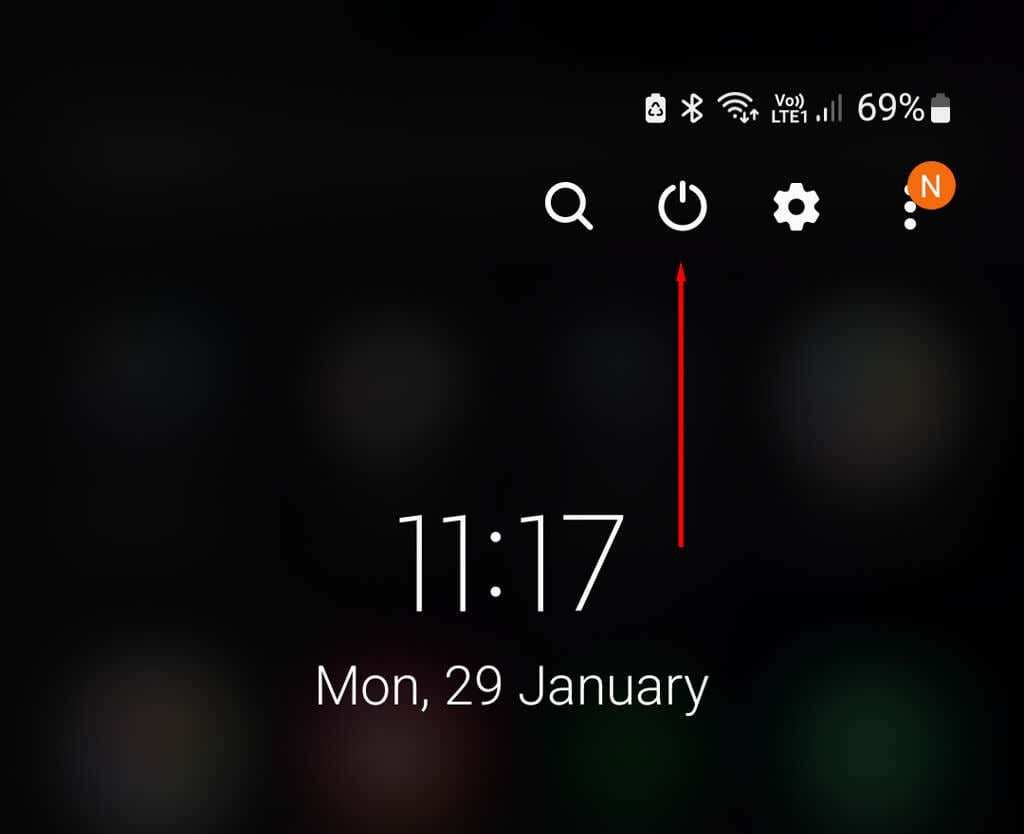
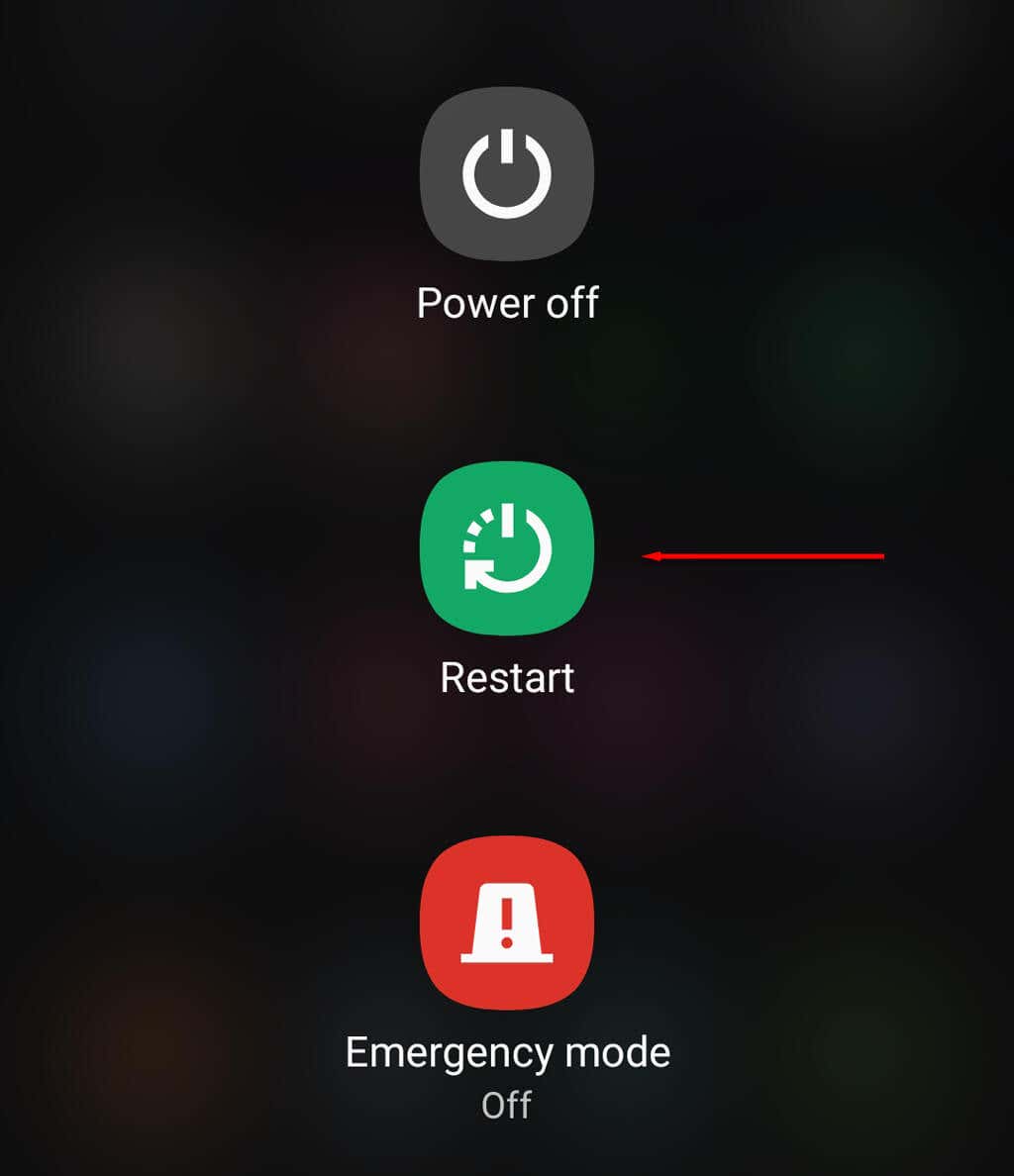
1. Restart Your Device
Often, a simple reboot is all it takes to fix Android camera problems.
2. Clear Up Space
If your phone’s memory is full, you won’t be able to save any more photos. This may be the cause of your back camera woes – especially if everything seems to work, but no photos are being saved to your device. You can clear up space by transferring old photos to your PC and deleting unused apps.
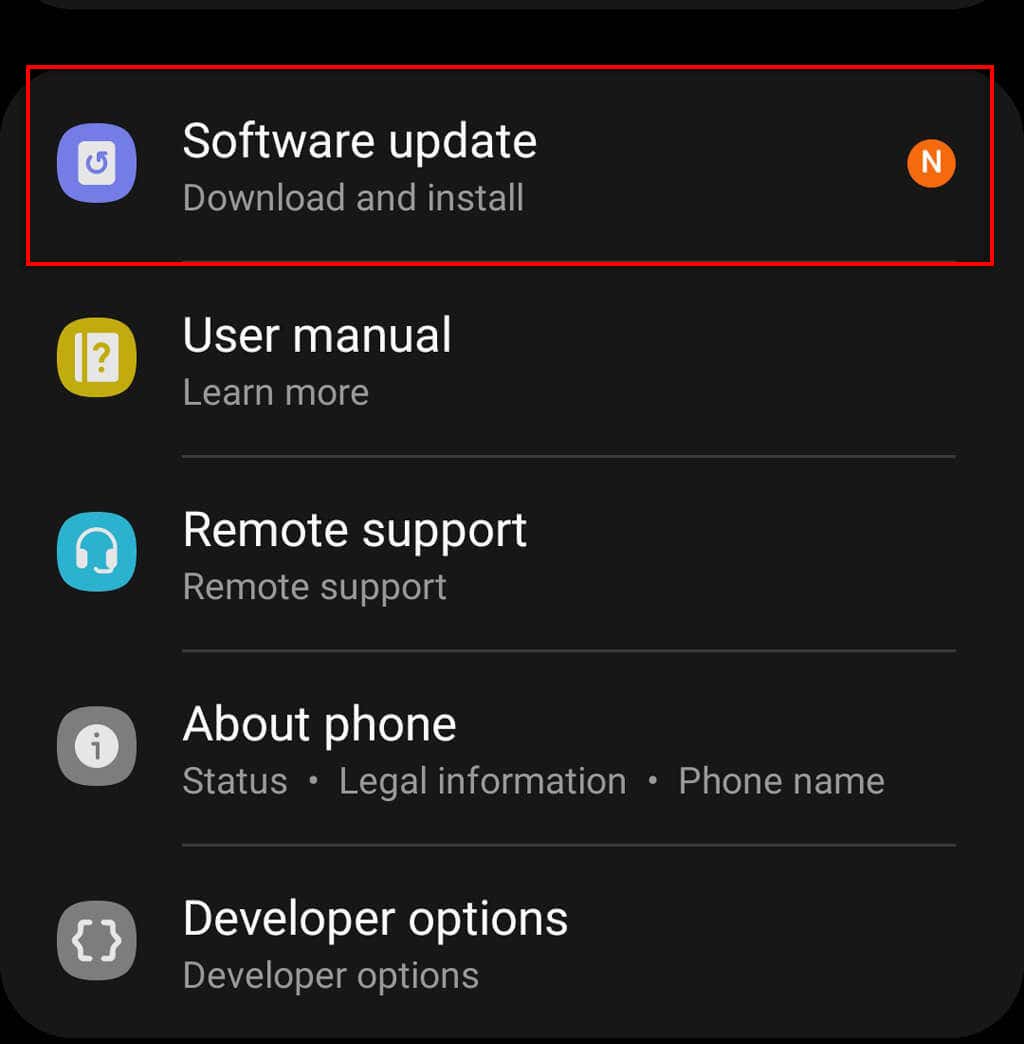
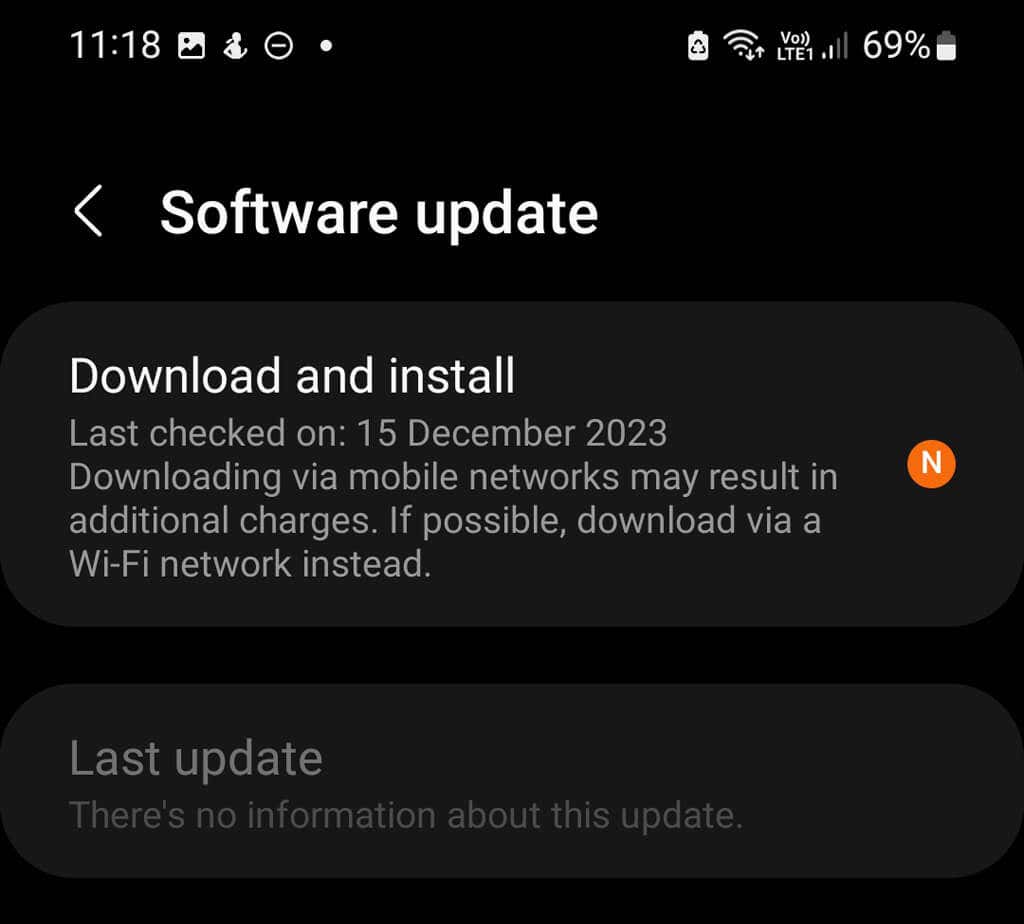
3. Update Your Device
Updating your Android phone may resolve any problems you’re having with the cameras. To do so:
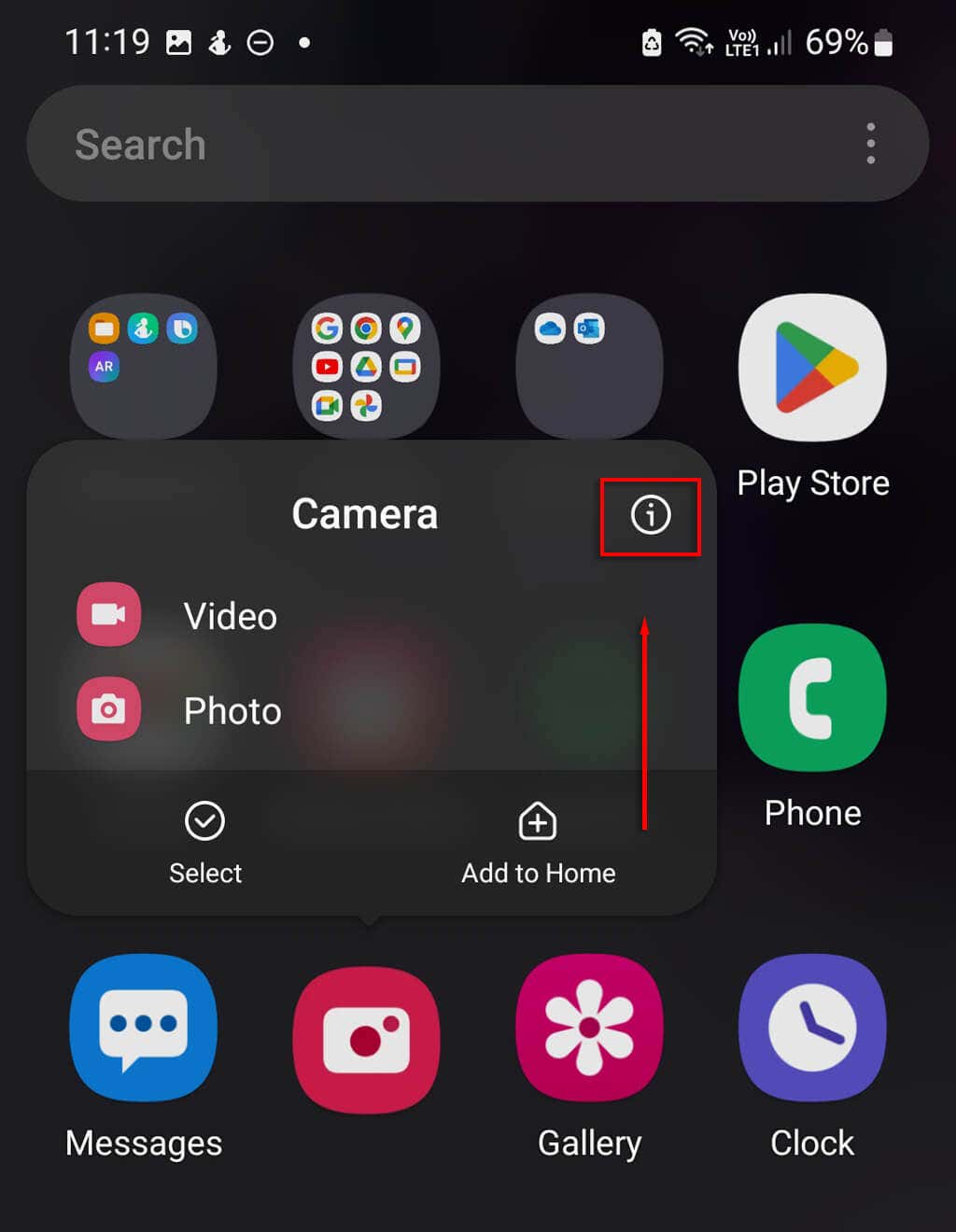
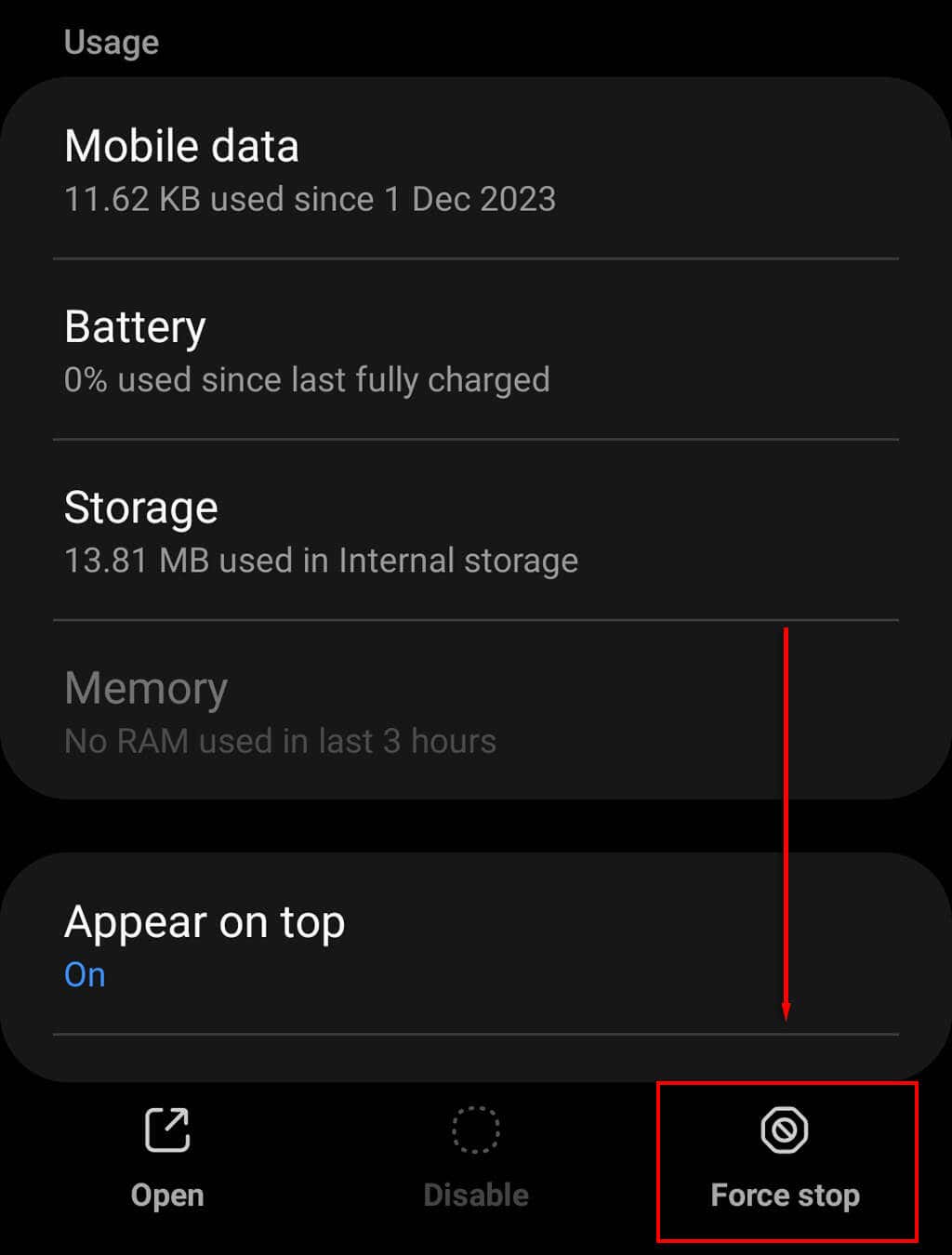
4. Force Close the Camera App (or Other App)
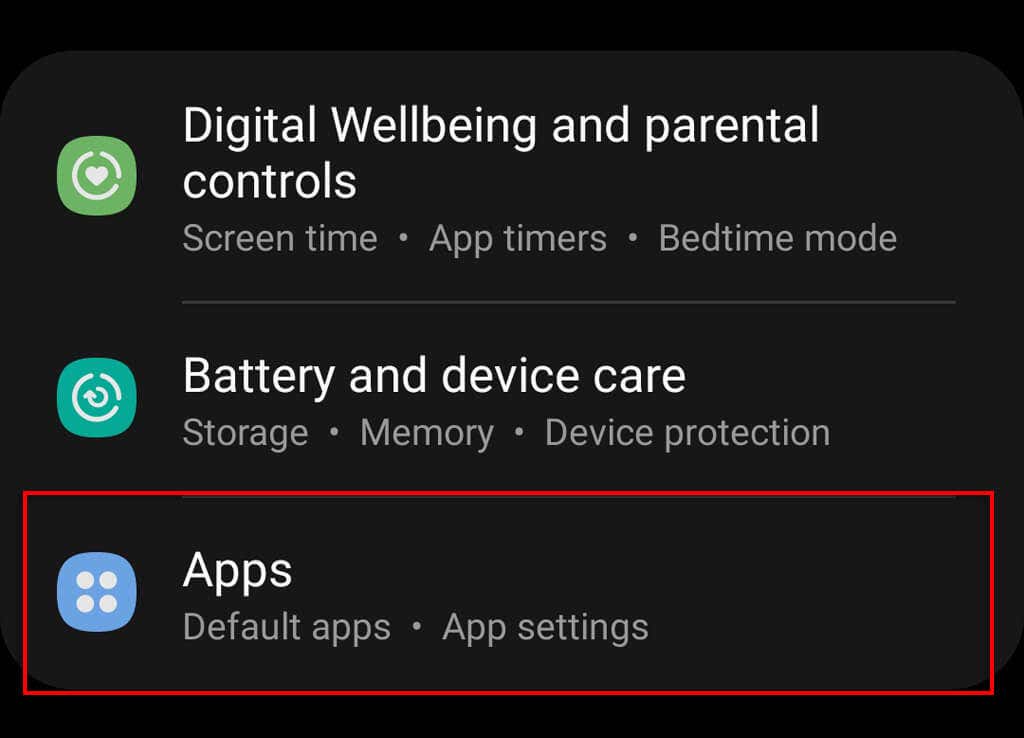
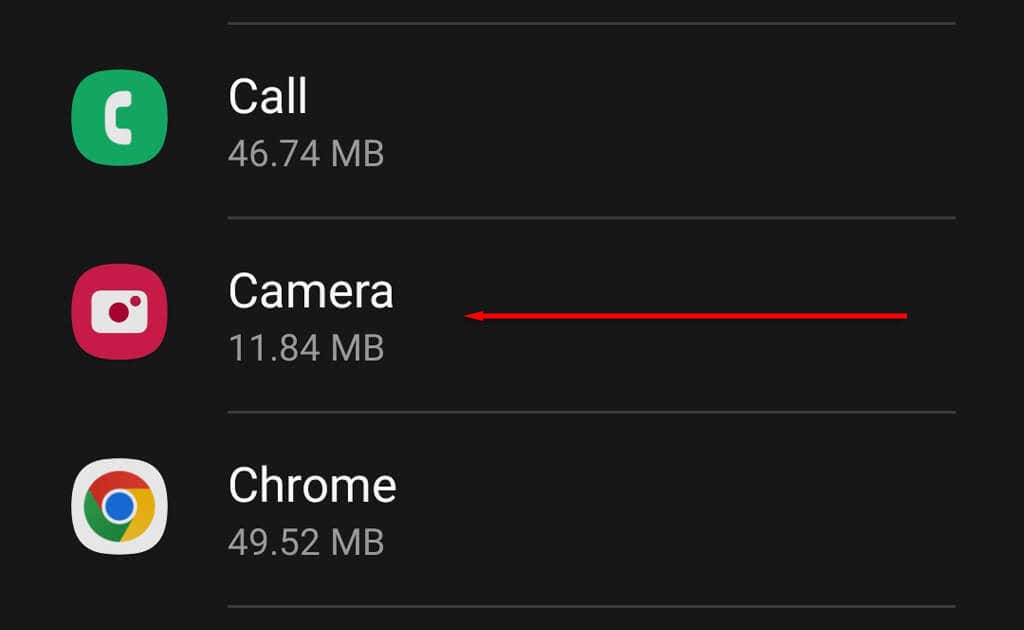
If you’re having problems with a specific app like the camera app, force closing it will shut it down completely. This can help resolve temporary bugs with the app or your Android operating system. To force close an app: If this doesn’t work, you can force close an app via the Settings menu:
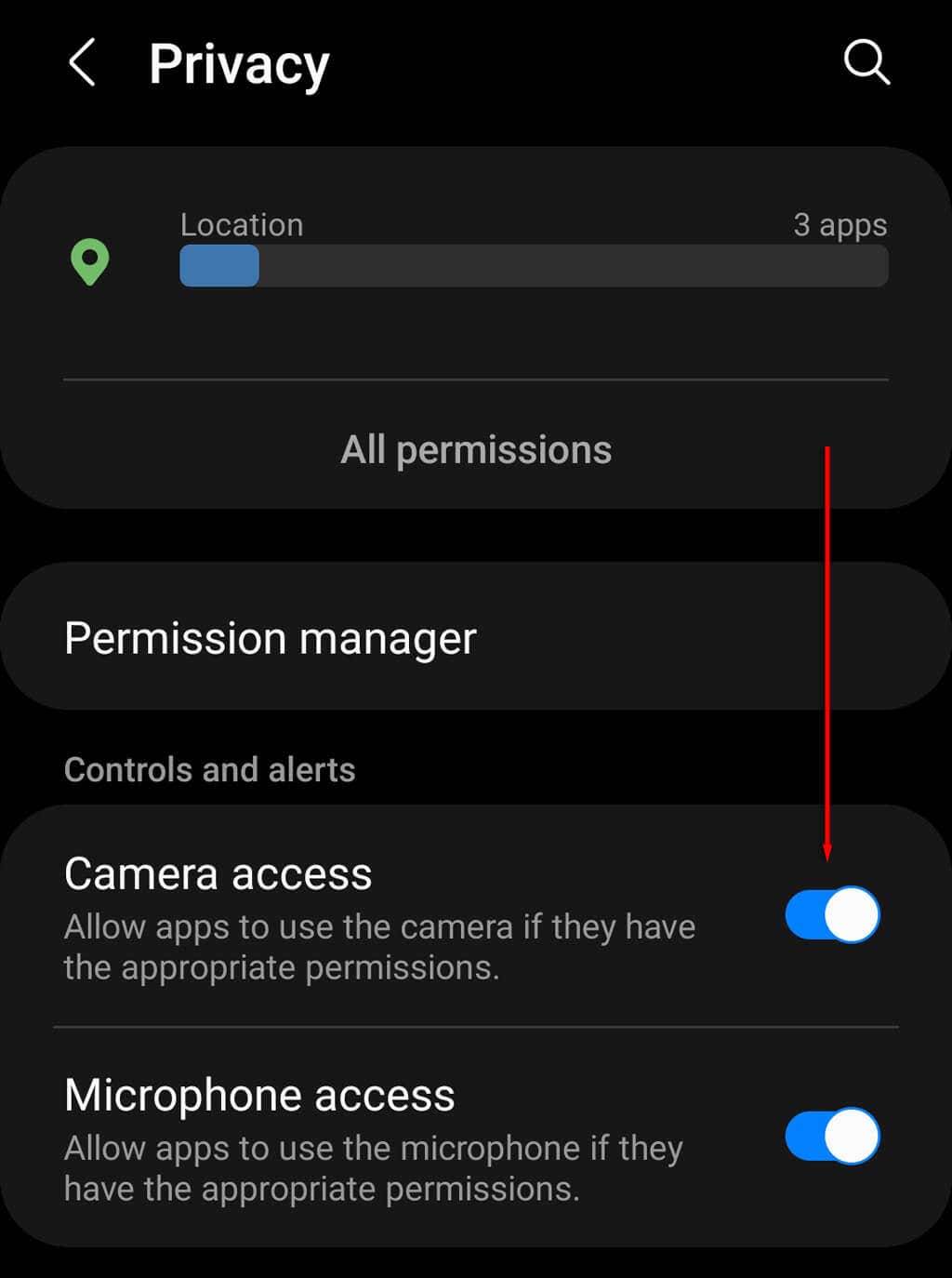
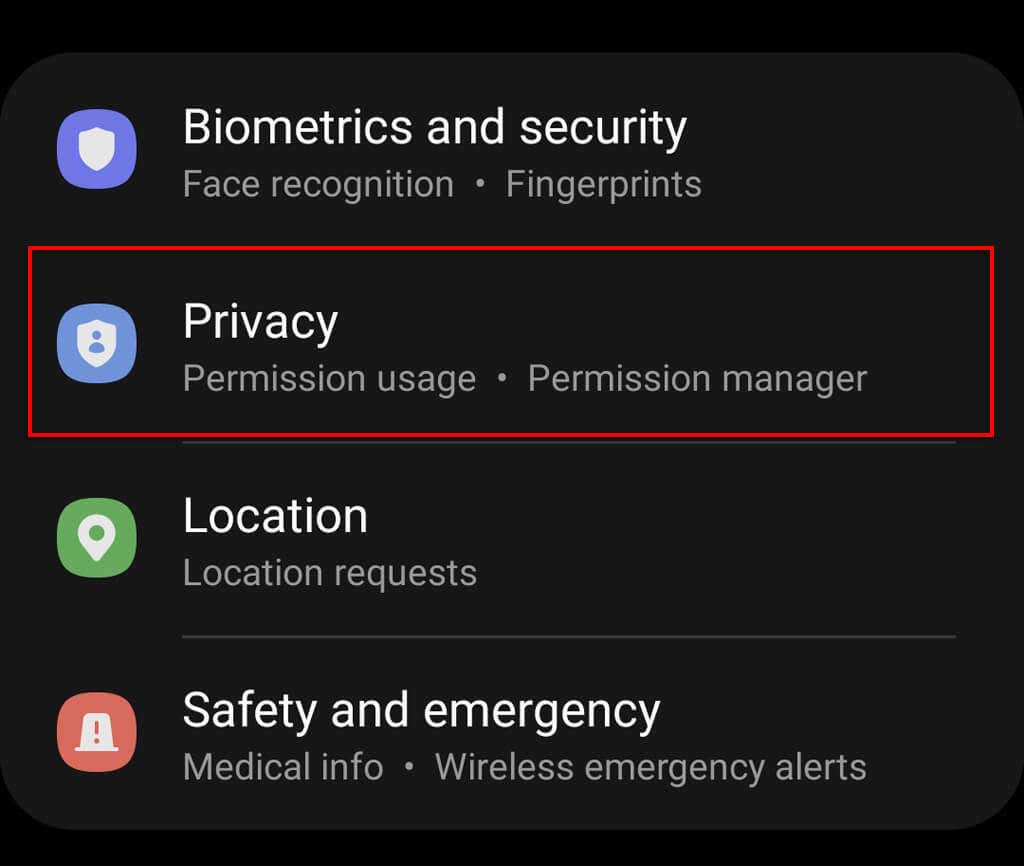
If camera access is turned off, any app that attempts to use the camera will display a black screen instead. To turn camera access on, open Settings > Privacy and toggle on Camera access.
6. Let Your Phone Cool Down
If your phone is overheating, the camera might be switched off to prevent excessive heat. Turn your phone off and stop using it until it cools down, then try to use your camera once again.
7. Close Other Apps
If your phone freezes or your camera app crashes when you try to take a photo, you might not have enough processing power to run the app. Try closing any resource-intensive apps to improve your Android’s performance, then try to use the camera again.
8. Clear the App’s Cache
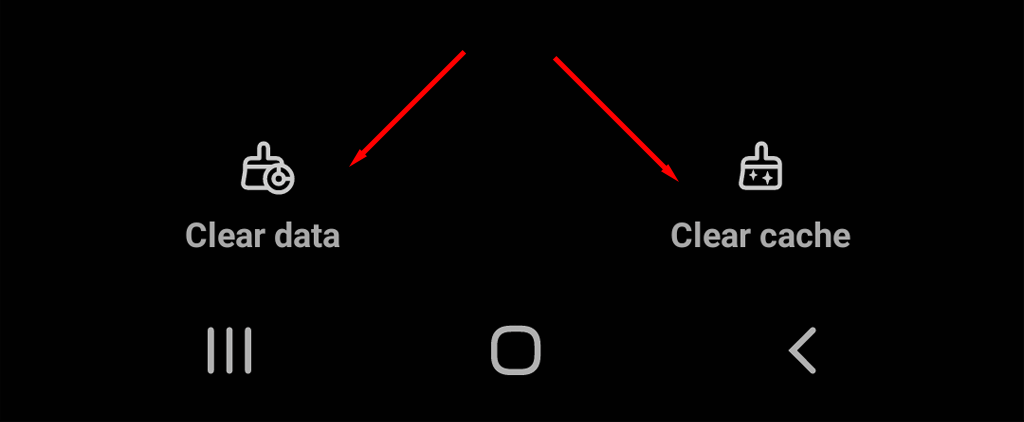
Corrupted cache files often result in problems for certain apps and may be the cause of your back camera not working. To clear the app cache:
9. Check App Permissions
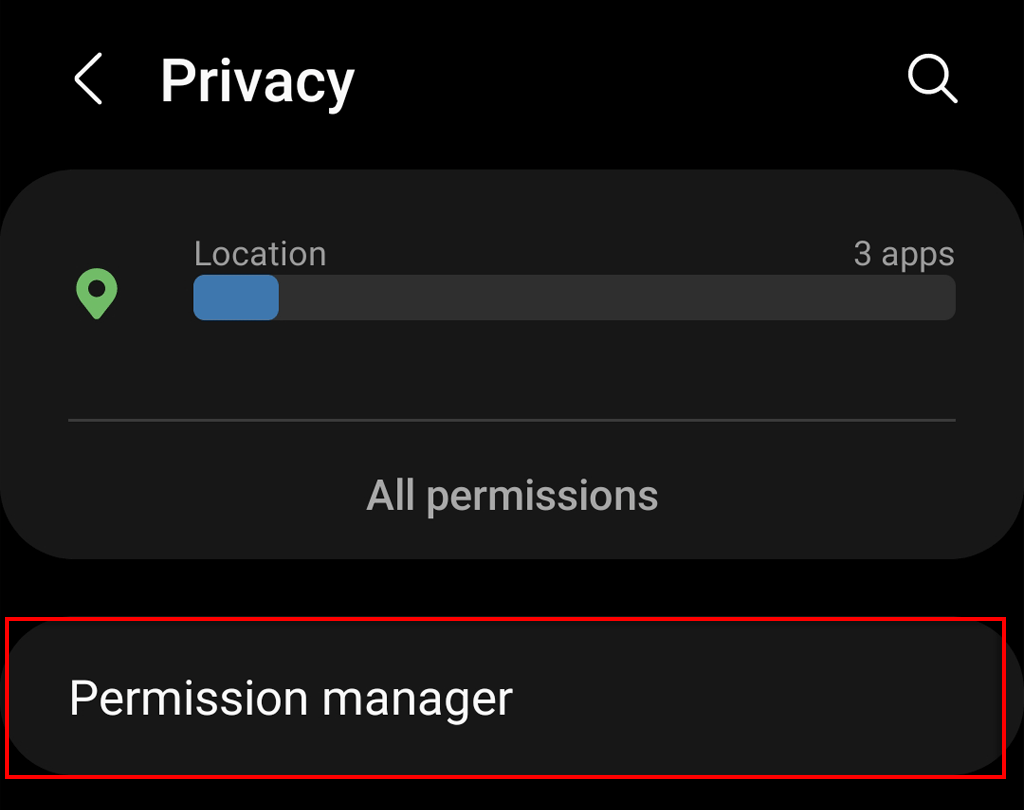
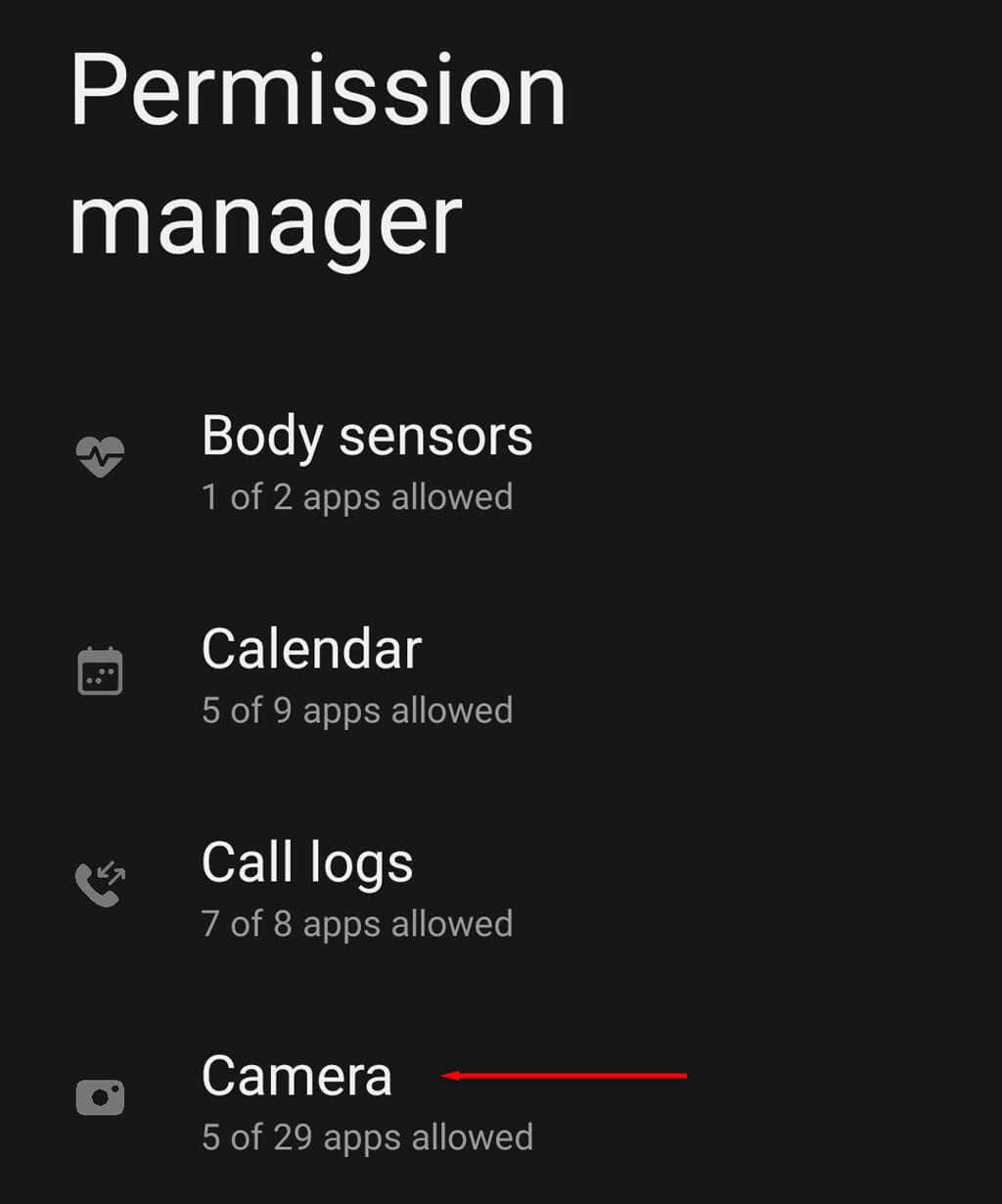
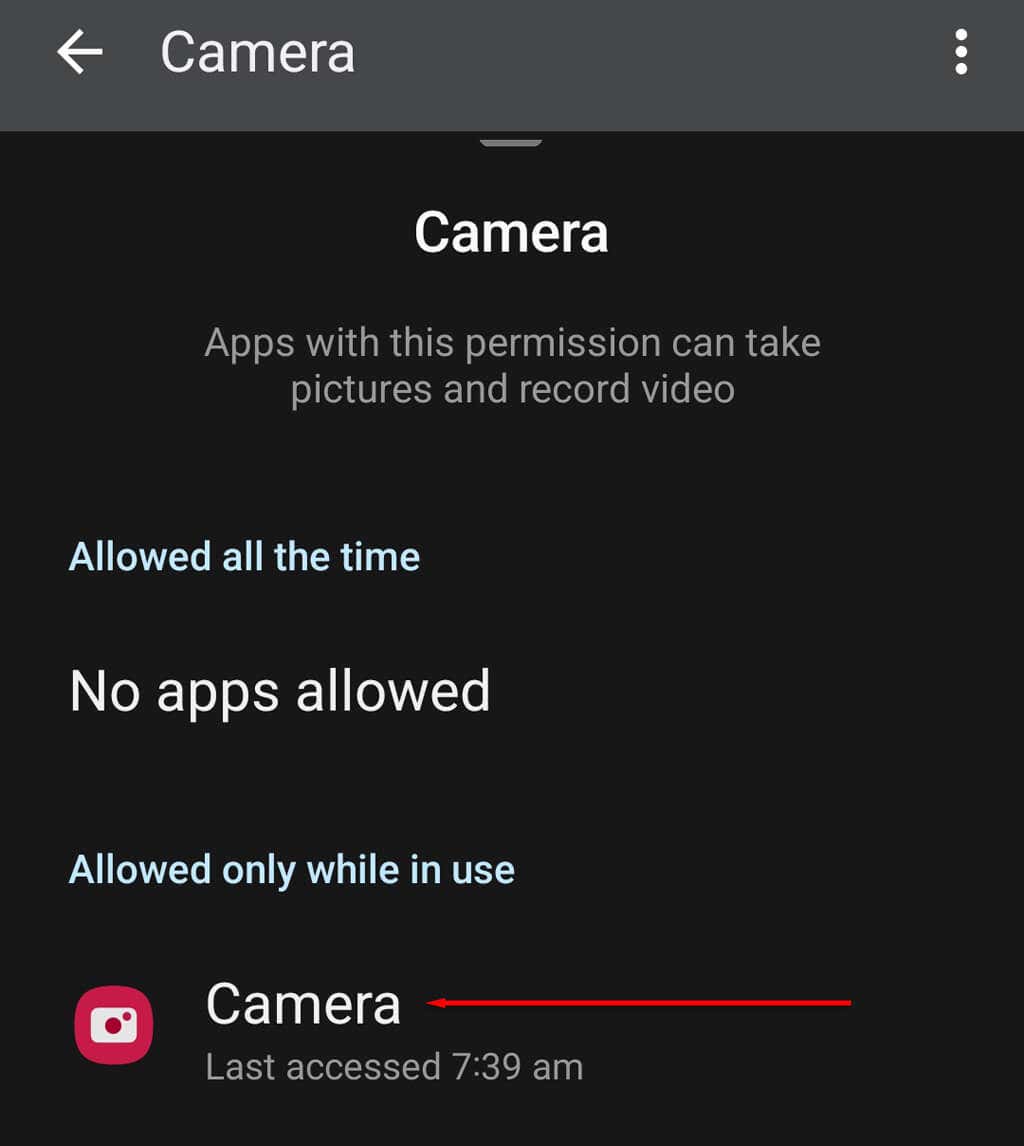
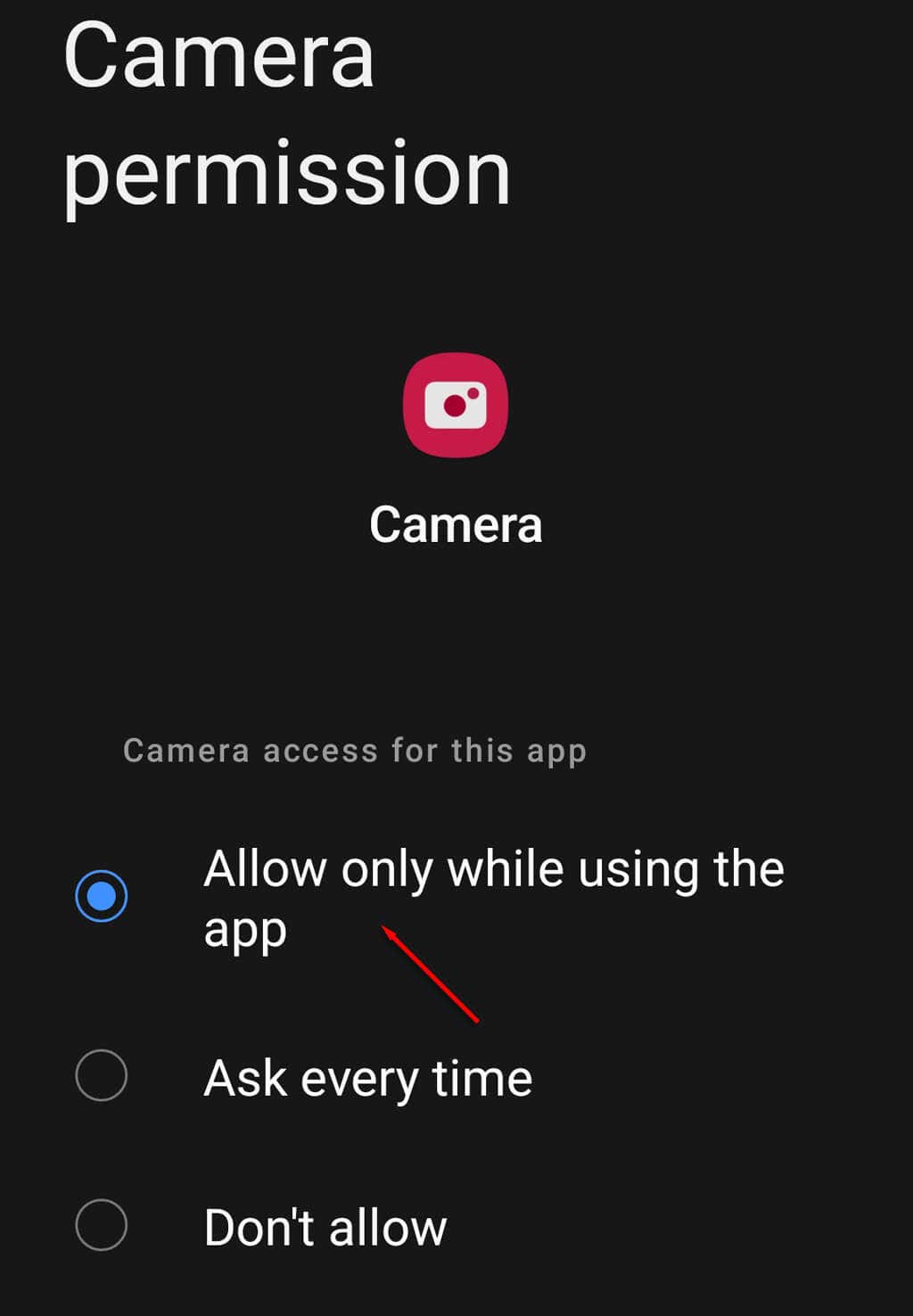
If it’s a certain app that is having problems with your Android camera, it might not have access to the camera. To grant it the correct permissions:
10. Perform a Factory Reset
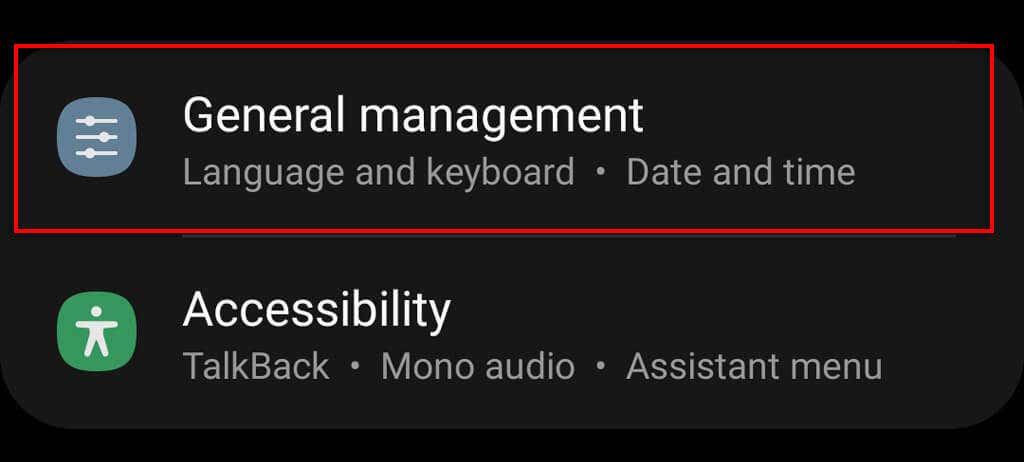
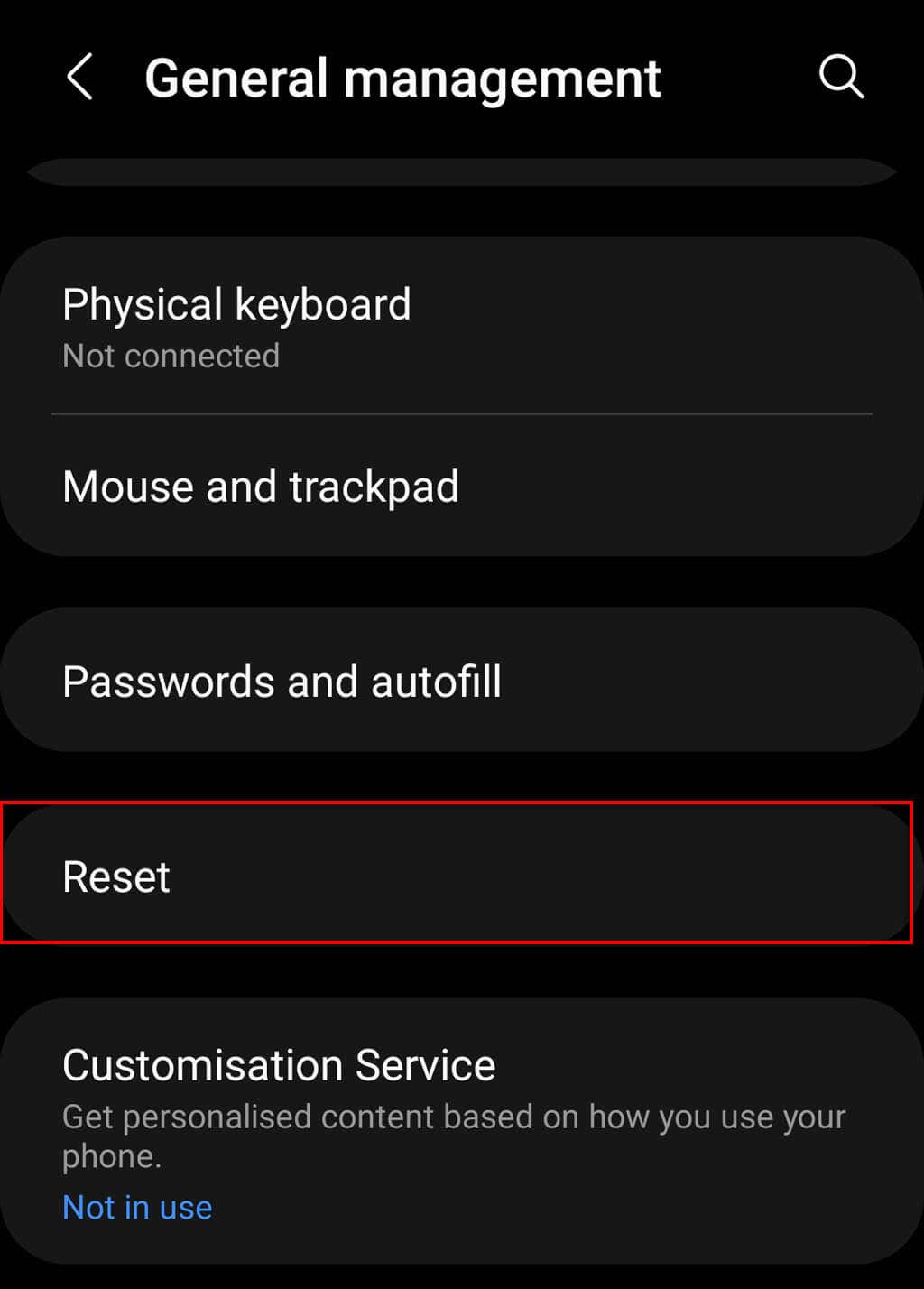
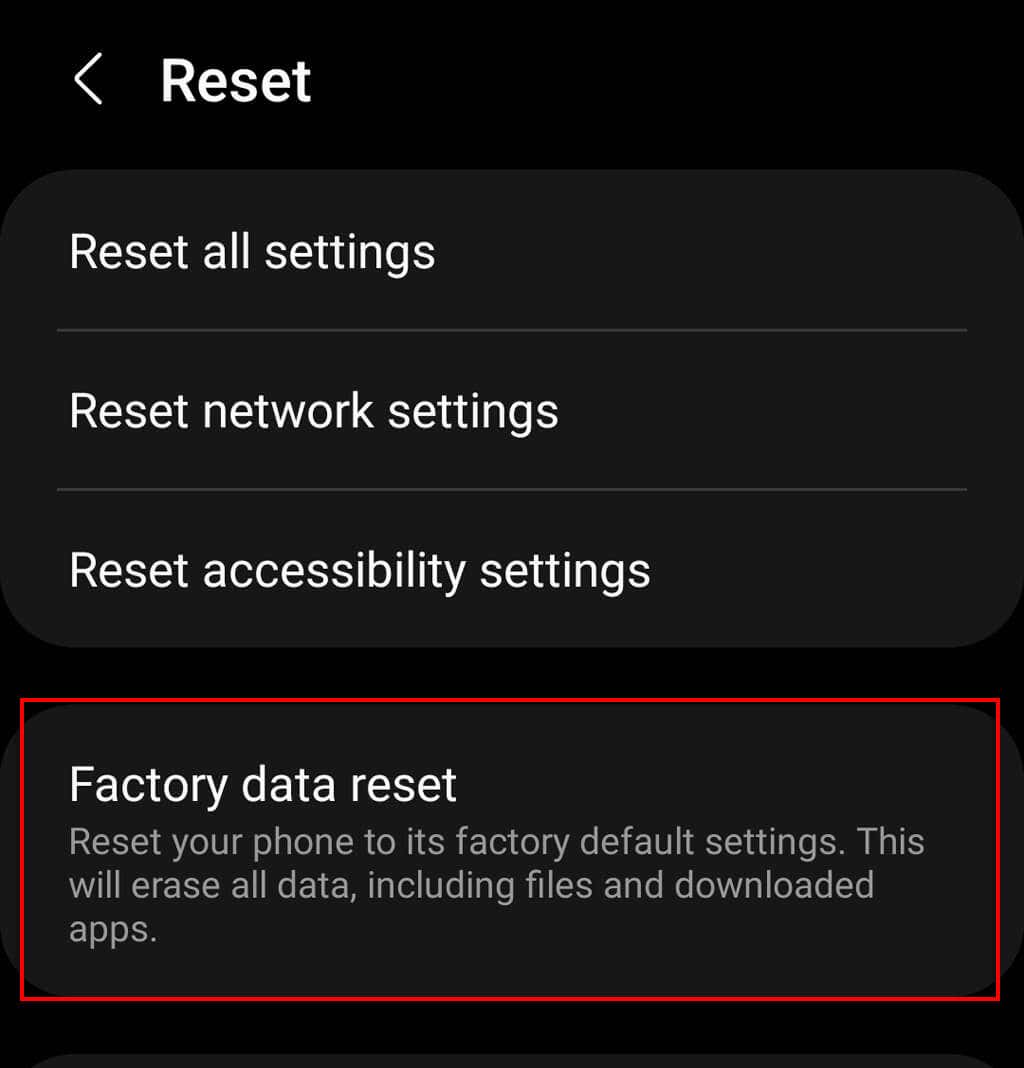
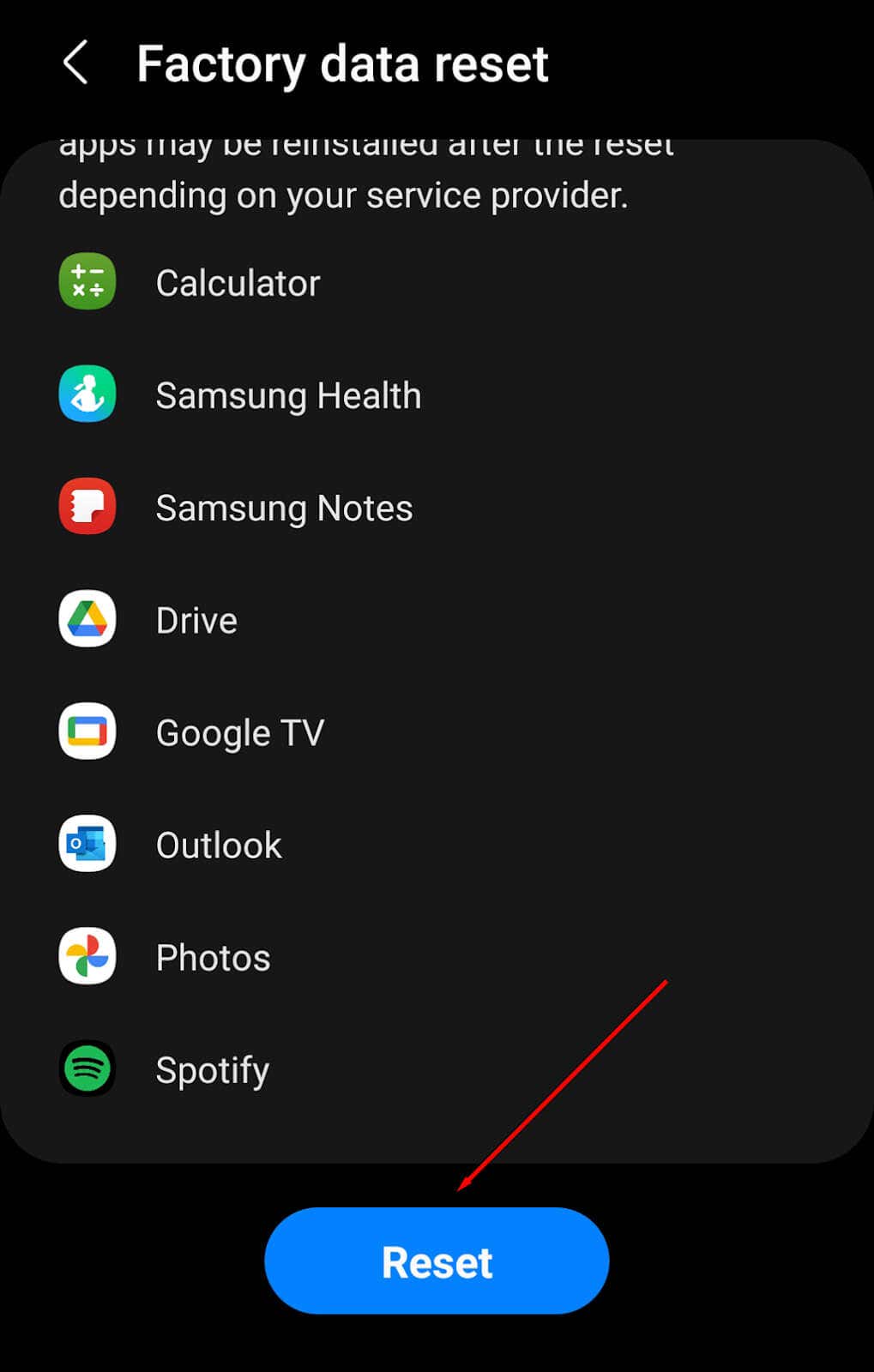
If all else fails, and you’re sure that your camera hasn’t been physically damaged in any way, your last resort is to try a factory reset. This will return your phone to factory conditions, deleting all of your files and reverting your settings to default. To try this: Note: Make sure you backup all of your data before performing a factory reset as it will be deleted for good. We recommend only taking this step if it’s your last option.
Has Nothing Worked? It’s Time to Repair Your Phone
If nothing fixes your back camera, it’s likely been damaged in some way. Most commonly, either your camera sensors are broken or the camera itself is no longer properly connected to the phone’s chipset. Either way, you’ll have to take your phone to professionals in order to get it repaired. Have a look near you for accredited Android phone repair shops, or contact Android to see whether your phone is under warranty or if it can be sent in for repairs.