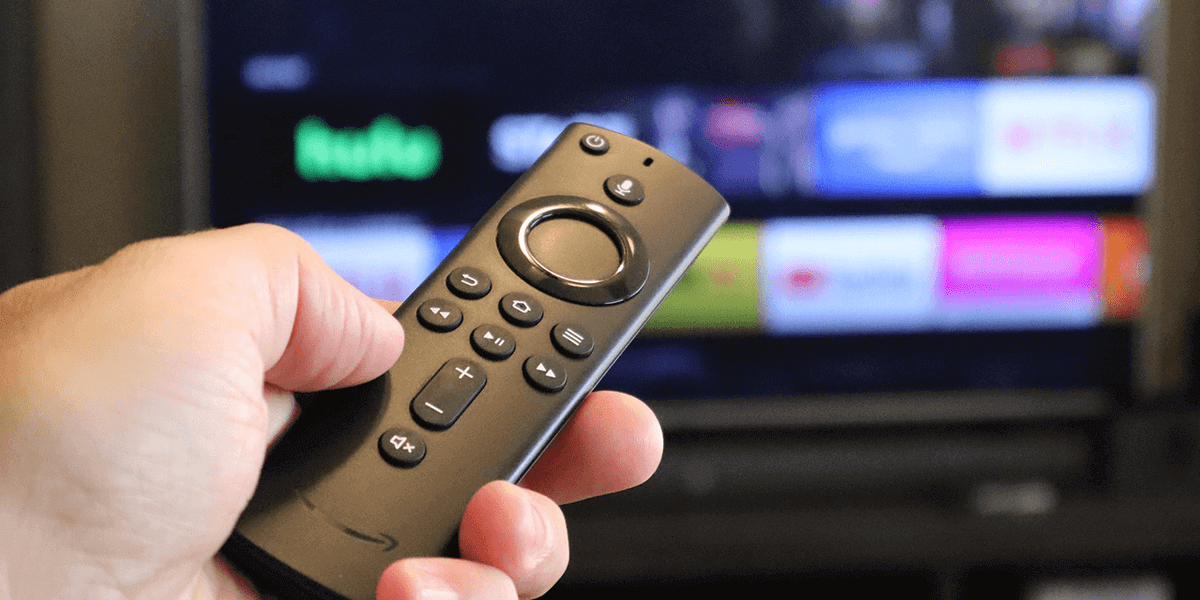
A few reasons your Fire Stick fails to load the Home screen are that your TV is turned off, your Fire Stick isn’t correctly connected to your TV, there’s a problem with the Fire Stick’s software, and more.
1. Turn On the TV
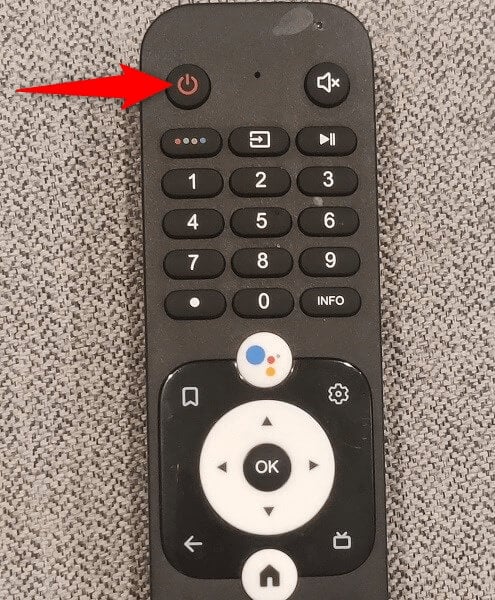
The first fix to apply is to turn on the TV you’ve connected your Fire Stick to. While the Fire Stick is capable of turning on certain TV models, that feature doesn’t work with all makes and models of televisions available. Go ahead and manually switch on your TV, then see if your Fire Stick loads the Home interface.
2. Plug Your Fire Stick Into a Power Socket
If you’ve connected your Fire Stick to an adapter or similar equipment, disconnect the device from there and plug the device into a proper power socket. It’s possible your Fire Stick isn’t getting the required amount of power supply from the current power source, failing to load the main interface. Once you connect the Fire Stick to an actual power socket, you should see the device’s Home screen and other menus on your TV.
3. Check Your Fire Stick’s Connection With the TV
It’s possible you haven’t connected your Fire Stick to the TV correctly, which is causing the Home screen not to load. In this case, establish a proper connection. The first connection item to check is the cable that you use to connect the Fire Stick to the TV. Make sure this cable isn’t physically damaged and is compatible with your device. If the cable isn’t in good condition, get a new one. The second item to check is the HDMI port you use on the TV. Ensure this port isn’t damaged and is marked as HDMI. Most TVs offer multiple HDMI ports, so plug your Fire Stick into another port and see if the Home screen loads. Also, disconnect and reconnect your Fire Stick to your TV to give the device a fresh start.
4. Select the Correct Input Source on the TV
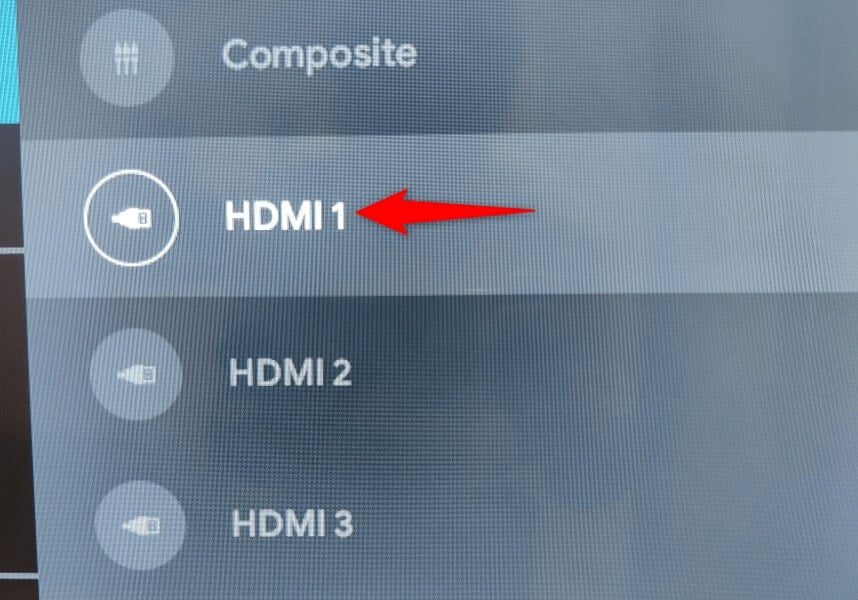
If you’ve made all the connections correctly, ensure you’ve chosen the correct input source on the TV. This is because the input source is where the TV fetches the content from. You must choose the source that you’ve connected your Fire Stick to.
5. Wait a Few Minutes
It’s possible your Fire Stick is busy installing software updates or loading the Home screen. In this case, wait about ten minutes for these processes to finish running. You should then see the Home screen loaded on your TV’s screen.
6. Restart Your Fire Stick
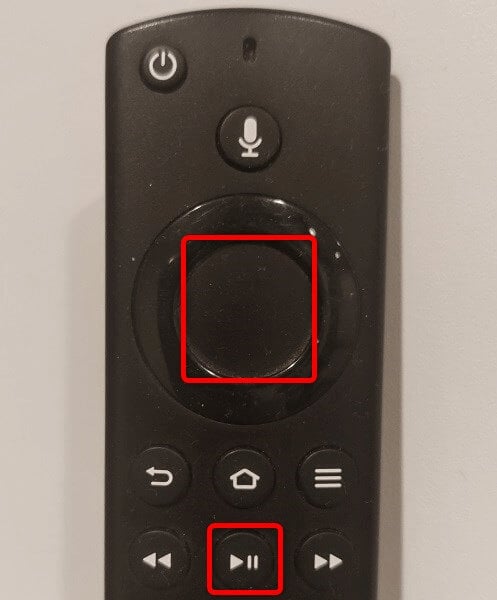
It’s worth restarting your Fire Stick when the device doesn’t work as expected. This turns off and backs on all the system features, possibly fixing the glitch that’s causing the Home screen not to load.
7. Reset Your Fire TV Stick
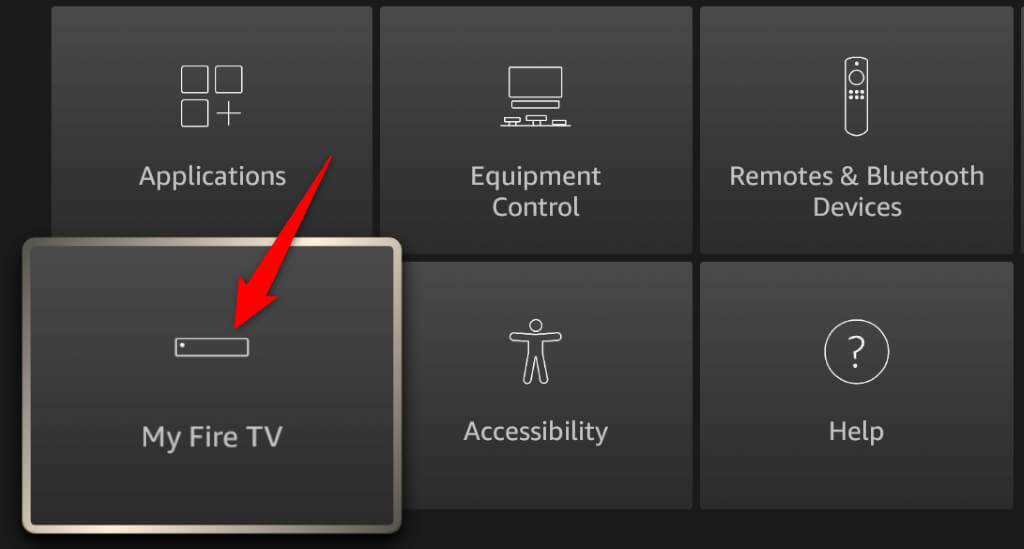
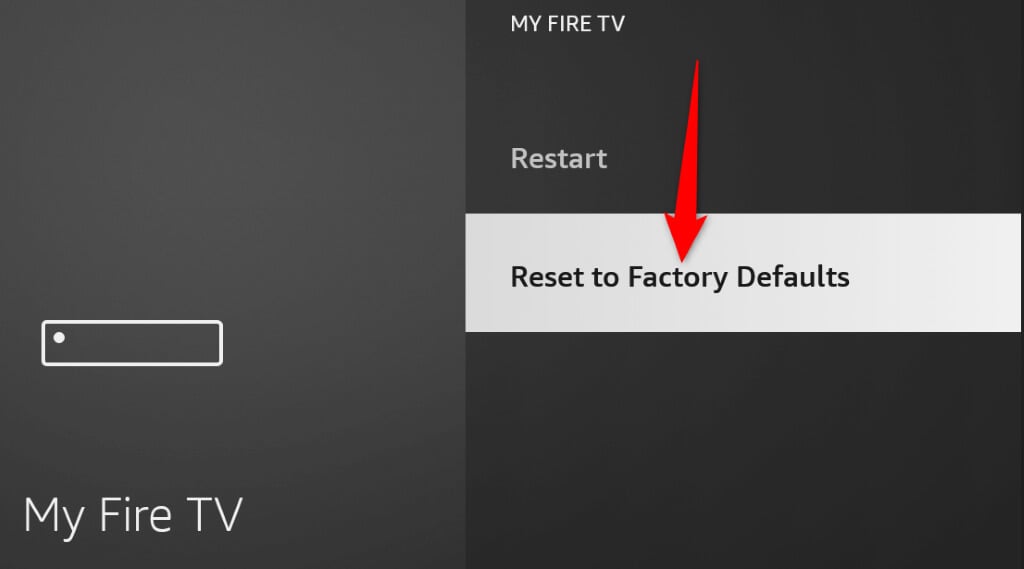
If you can access your Fire Stick’s menus somehow, bring your device’s settings to the factory defaults to possibly fix your issue. This is because the incorrect device configuration might be causing the problem, which you can resolve by resetting the configuration.
8. Try Your Fire Stick With Another TV
When your Fire Stick doesn’t work with a TV, try using the device with another TV. This helps you verify whether it’s the TV or the Fire Stick that’s causing the problem. You can plug your Fire Stick from your first TV and plug the device into a secondary TV. Then, turn on the secondary TV, and you should see Fire Stick’s Home interface. If that doesn’t happen, your Fire Stick is faulty.
Bring Back the Disappeared Home Interface on Your Fire Stick
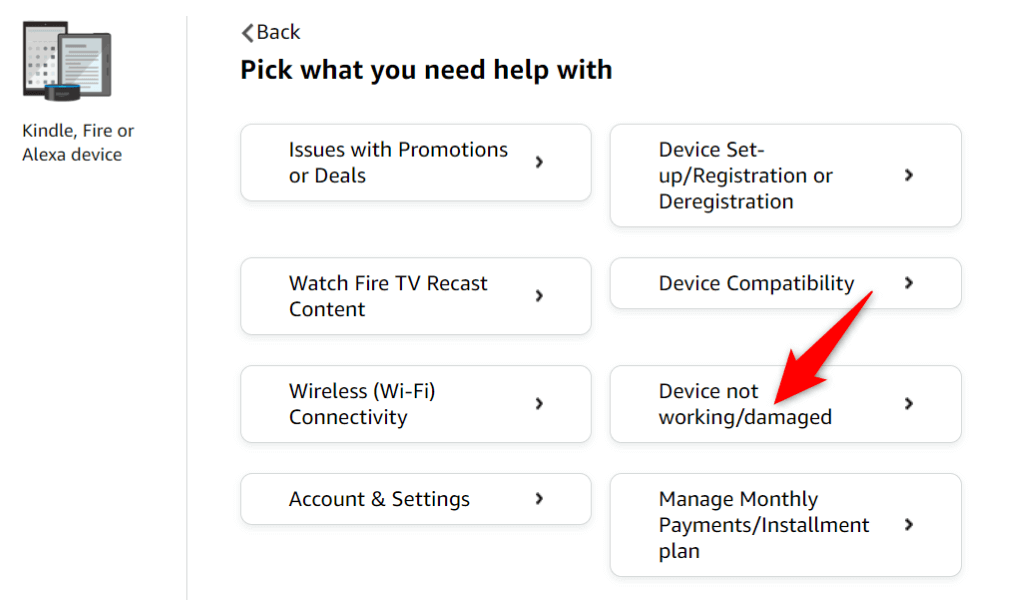
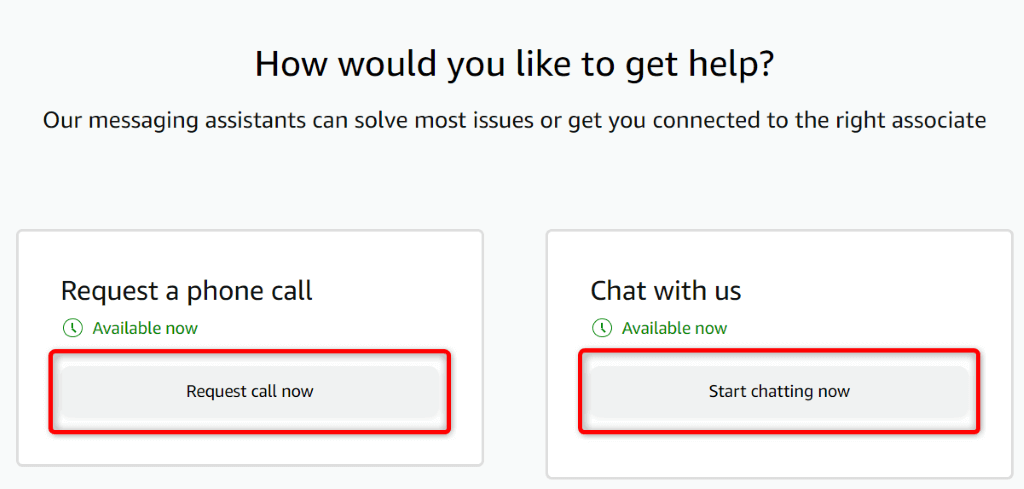
There are various reasons your Fire Stick fails to load the Home screen. If this issue continues and you can’t fix the problem, the methods outlined above should help you. These methods check your streaming device and your TV’s connection, fix issues with the device’s software, and offer instructions on how to contact the device manufacturer if nothing works. Once you’ve followed the above tips, your device should start working, allowing you to continue watching your favorite shows. Happy watching!