You can’t dial a code on your phone because your phone has a minor glitch, your device’s secondary SIM is causing the problem, a malicious app on your phone, your phone’s network settings are incorrect, and more. Luckily, you have a few ways to fix that problem and use your codes without issues. We’ll show you what those fixes are.
1. Add a Comma at the End of Your Code
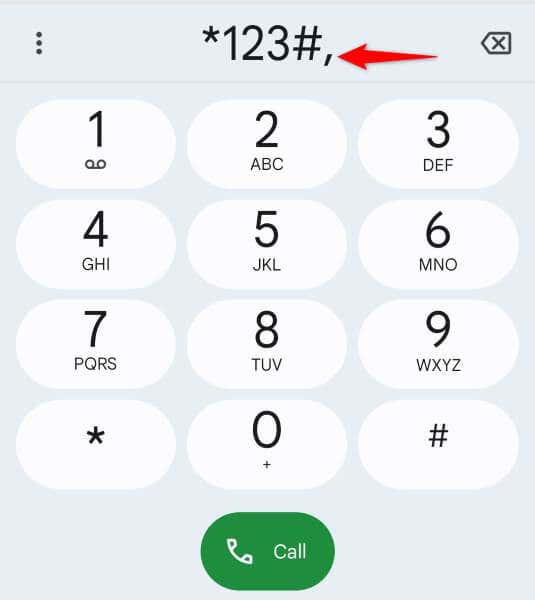
One quick way to fix your issue is to suffix the code you want to dial with a comma. This comma tells your phone to ignore errors and continue executing your code. You can use this tip with any code you want to dial on your phone. For example, if you want to dial *123#, you’d type *123#, (note the comma at the end). This dials your code, ignoring any errors that may appear.
2. Enable and Disable Your Phone’s Airplane Mode
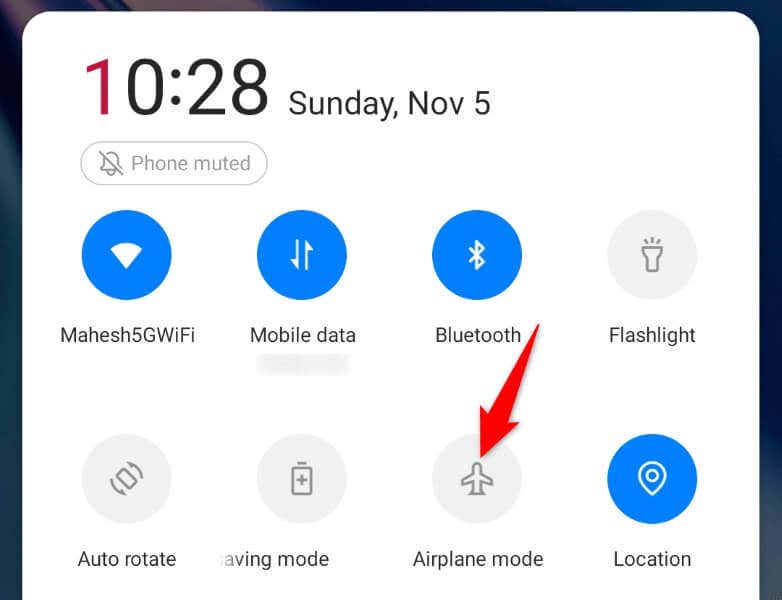
Another way to fix your code issue is to turn on and back off your phone’s airplane mode. Enabling the mode turns off all network connections on your phone, and disabling the mode restores those connections. This helps fix connectivity issues on your phone.
3. Restart Your Android Phone
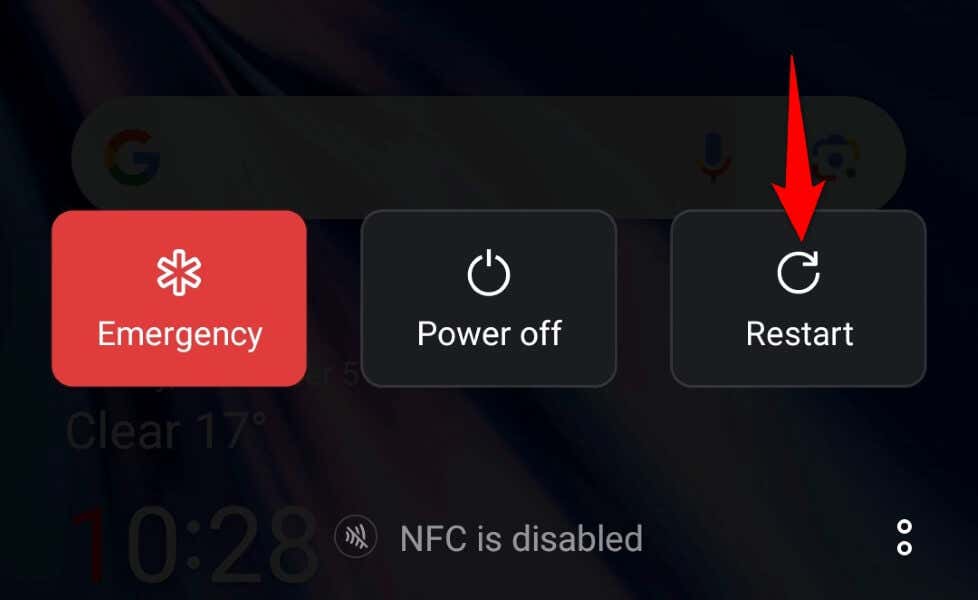
If toggling on and back off airplane mode didn’t fix your issue, give your Android device a reboot and see if that resolves your problem. Doing so fixes many minor glitches with your device, possibly resolving your code dial error.
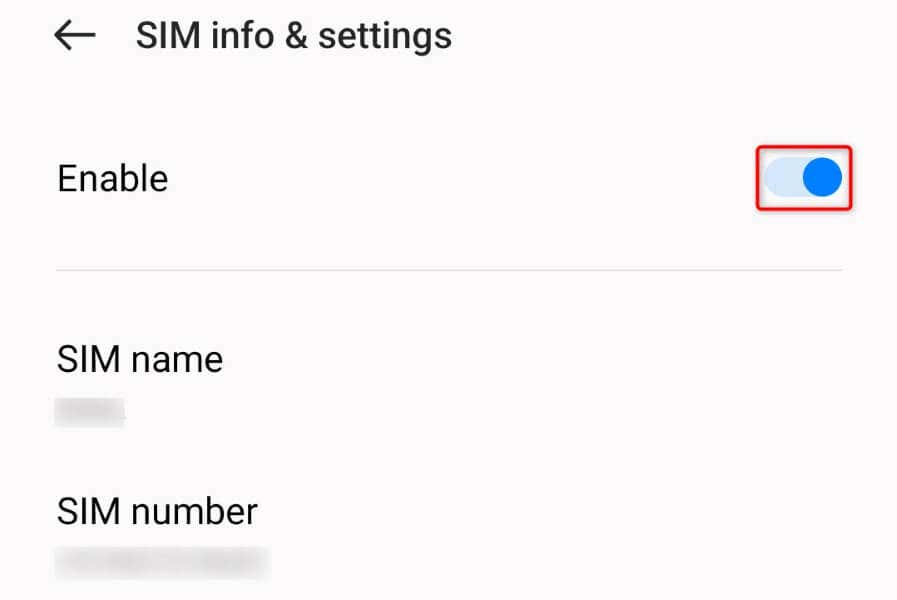
4. Turn Off the Secondary SIM on Your Dual SIM Phone
If your Android phone offers multiple SIM slots, disable the secondary SIM and see if that resolves your issue. This is because your secondary SIM may interfere with your primary SIM, causing your MMI code problem.
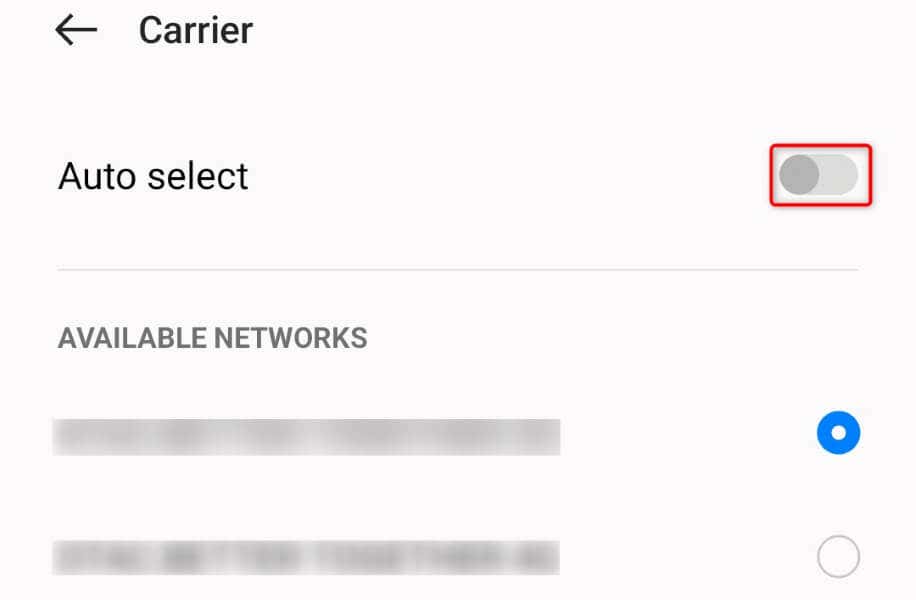
5. Manually Select Your Service Provider on Your Mobile Phone
Sometimes, your phone has trouble connecting to the appropriate network provider, preventing you from dialing your codes. In this case, manually set the correct carrier on your phone to resolve your issue.
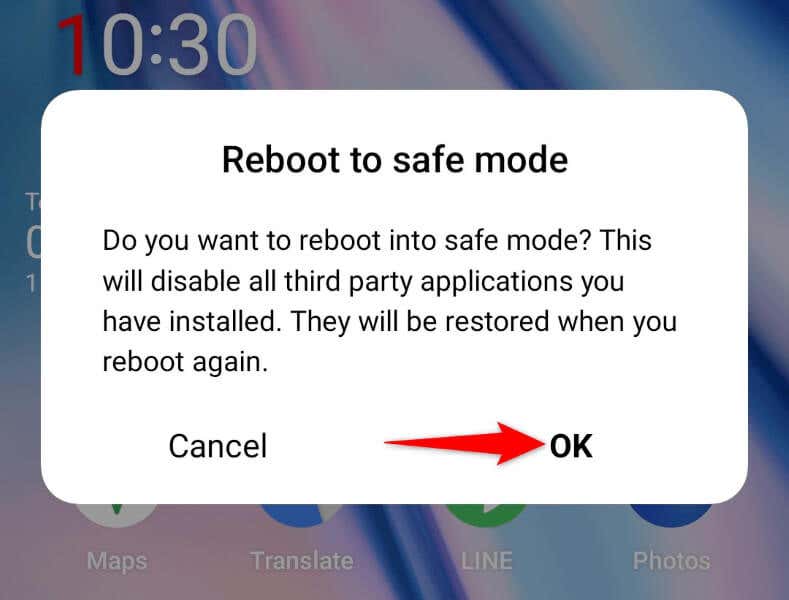
6. Use Safe Mode on Your Android Phone
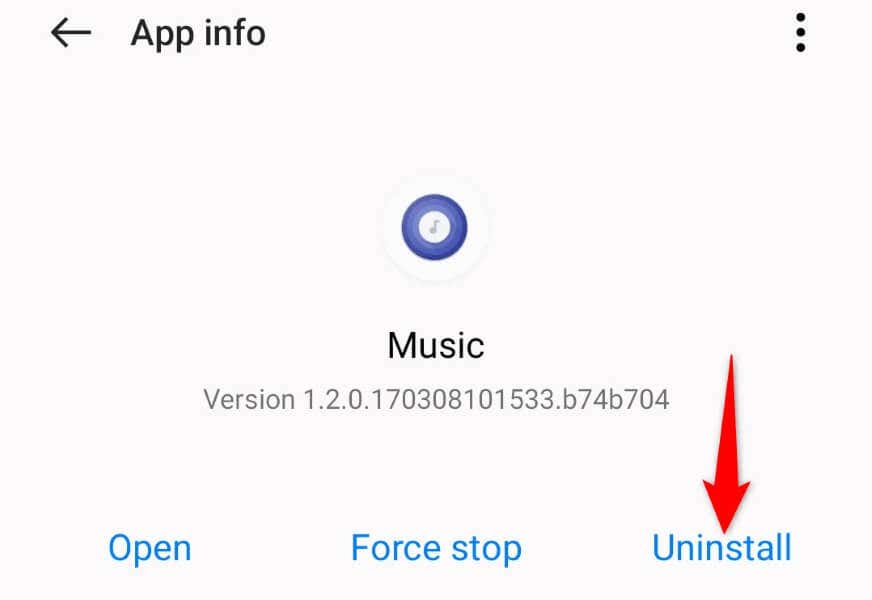
Like Microsoft’s Windows operating system, Android offers a safe mode to isolate your phone’s third-party tools. This lets you turn on your phone where your third-party apps aren’t loaded, allowing you to verify if those items are causing your problem. You can use this mode when you have trouble dialing codes on your device. If your code dials successfully in safe mode, one or more of your installed apps are the culprit. In this case, remove those apps from your phone to resolve your issue.
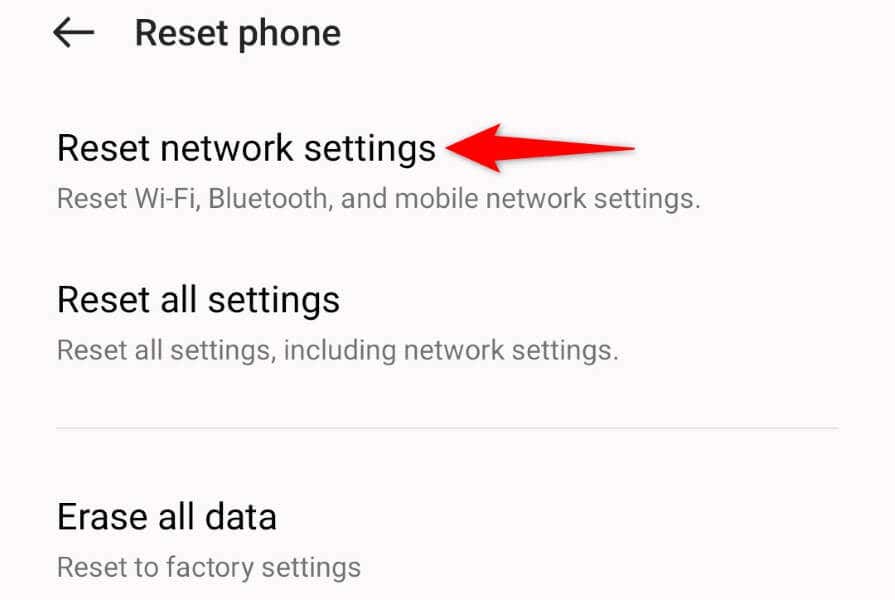
7. Reset Network Settings on Your Phone
Your Android phone allows you to customize various network settings. If you or someone else has incorrectly configured an option, that may be why you can’t dial codes on your phone. In this case, you can reset your phone’s network settings to resolve your issue. Doing so erases your custom network configuration and lets you set up those settings from scratch.
8. Replace Your Physically Damaged SIM Card
If nothing else works, your last resort is to replace your current SIM card with a new one. This is because your current SIM card may be physically damaged, preventing you from dialing codes on your phone. The above methods not working indicates your SIM card is the culprit. You can contact your cellular provider and request a new SIM card. Your new card should work fine and let you dial your codes without errors.
Troubleshooting an Invalid MMI Code Error on Android
Android’s “Connection problem or invalid MMI code” error prevents you from dialing your network-specific codes and getting relevant information. If the issue persists even after multiple attempts to run your code, use the fixes outlined above and dial your codes without issues.