You can’t access Twitch and get the above error because your internet connection has stopped working, Twitch is down, your web browser extensions are interfering, your browser cache is corrupted, and more.
1. Check Your Internet Connection
When you experience issues using an online service like Twitch, your internet connection is the first thing to check and fix. Your connection may have stopped working, causing Twitch not to load in your web browser. Check your internet connection by opening a new tab in your web browser and launching a site. If your site opens, your internet connection is working. If your site fails to launch, your link has problems. You can try various methods to resolve your internet problems, like rebooting your router, rejoining your Wi-Fi network, or contacting your internet service provider (ISP).
2. Refresh Your Twitch Web Page
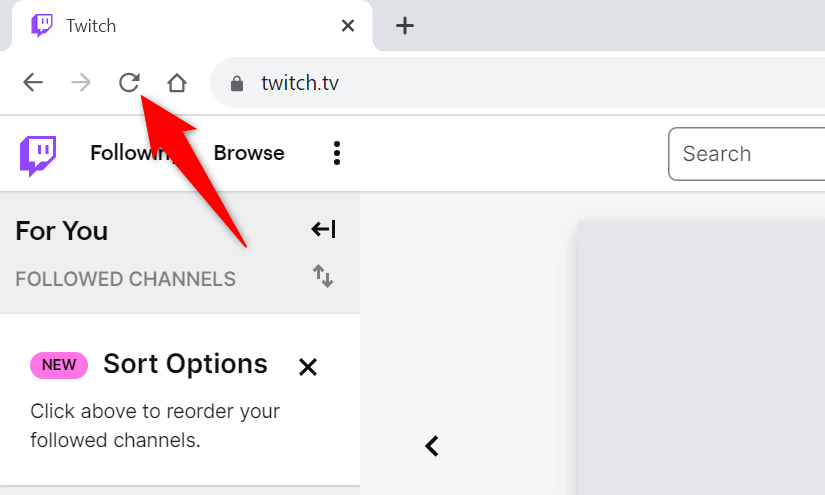
After you’ve confirmed your internet connection is working, reload the Twitch site in your web browser to see if that fixes your issue. The Twitch site or your web browser may have a minor problem, which you can resolve by reloading the site. You can refresh a web page in your web browser by selecting the refresh icon beside the address bar. When Twitch has reloaded, you should have access to your desired content.
3. Check if Twitch Is Down
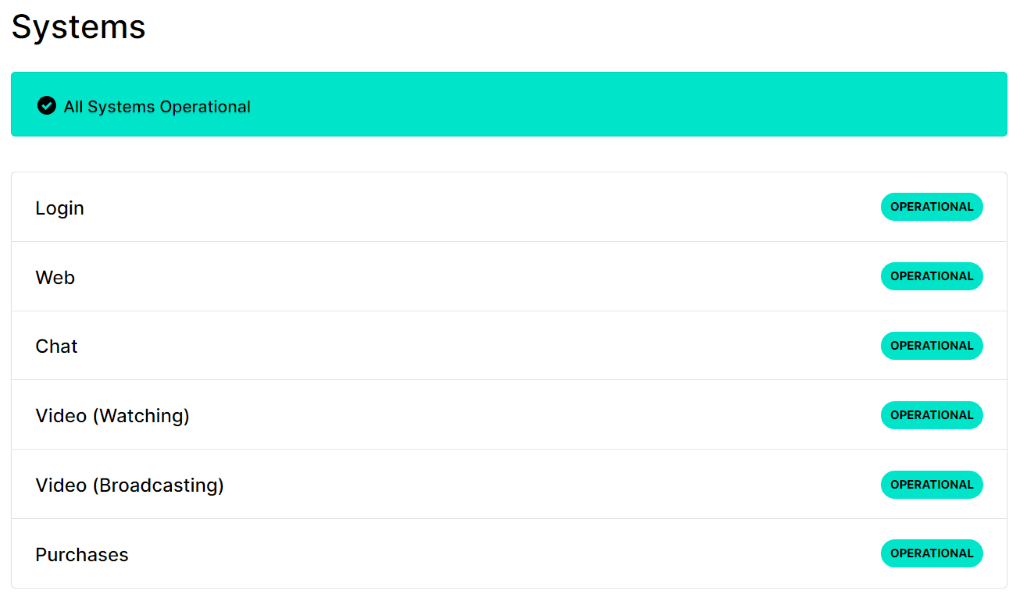
If you still get an “Error loading data” message, Twitch’s servers may be facing an outage. Like many other services relying on the internet, Twitch can face downtimes from time to time, making the service unavailable to users. You can check if Twitch is down using the Twitch Status or the Downdetector site. These sites will tell you if the platform is experiencing issues. If Twitch is indeed down, you’ll have to wait until the platform fixes the issue.
4. Turn Off Your Web Browser’s Ad-Blockers
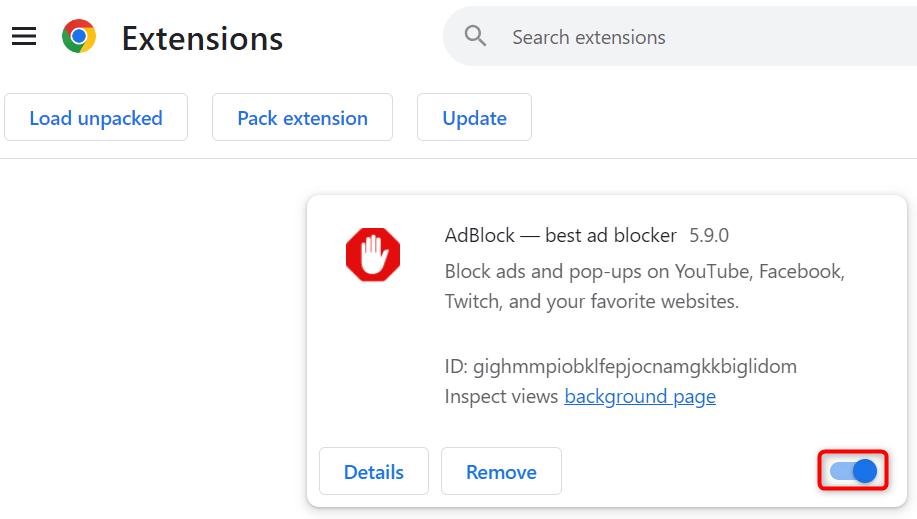
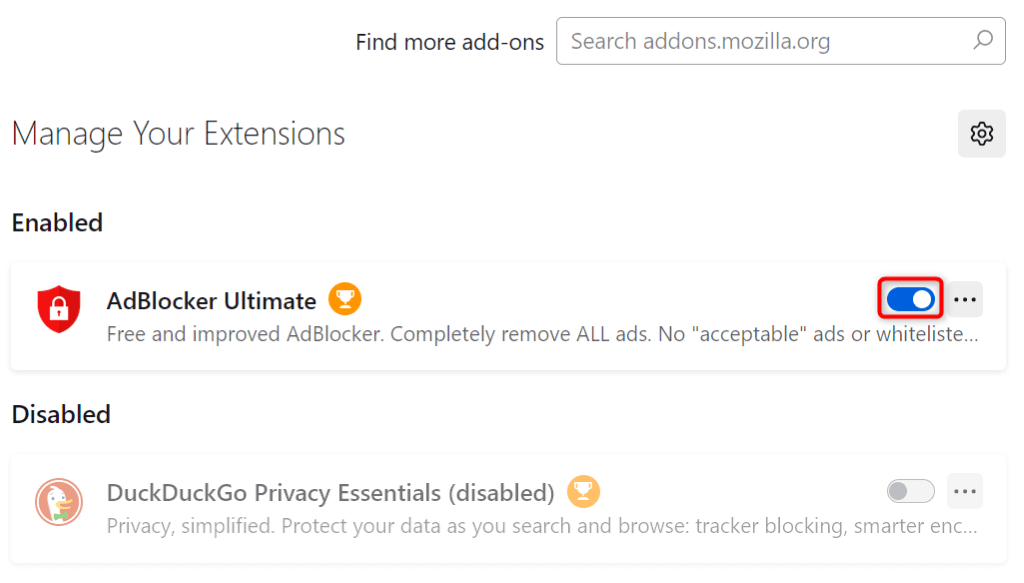
One of the reasons Twitch fails to load is that you’ve enabled an ad-blocker in your web browser. Many users report facing issues loading Twitch when their ad-blocker extensions were enabled. You can fix that by disabling your ad-blocker in your web browser before accessing Twitch. You can re-enable the ad-blocker when you aren’t using this site if you want to restrict ads on other sites you visit.
Google Chrome
Mozilla Firefox
Microsoft Edge
5. Clear Your Web Browser’s Cached Content to Resolve Your Twitch Error
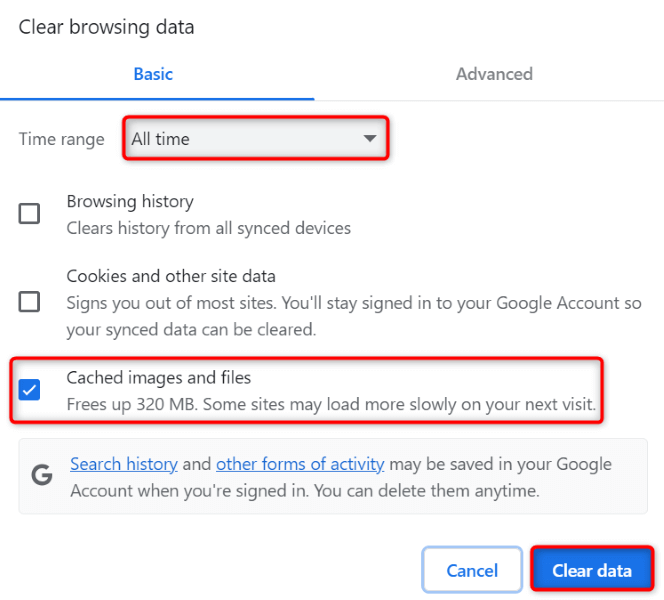
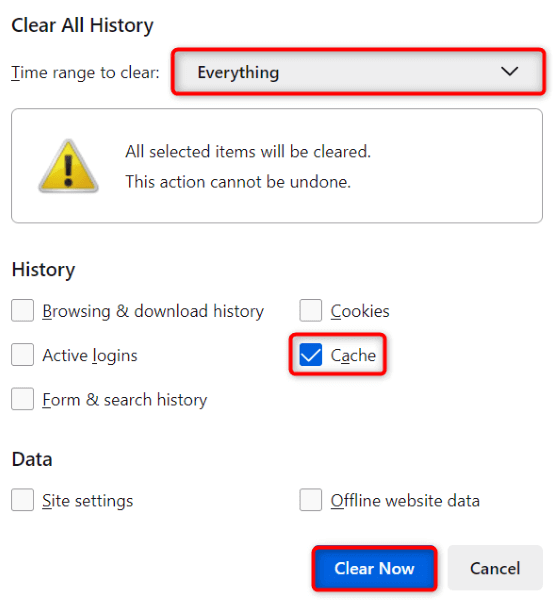
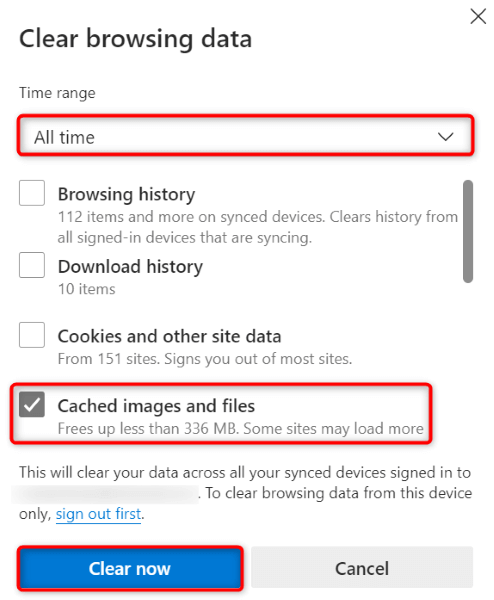
Your web browser caches various content to speed up your browsing sessions. Sometimes, your saved cache becomes corrupted, causing issues with your sites. This may be the case with your web browser, causing Twitch not to load. In this case, you can quickly and easily clear your browser cache to resolve your issue. You don’t lose your saved passwords, bookmarks, or browsing history when you do this.
Google Chrome
Mozilla Firefox
Microsoft Edge
6. Fix Twitch Error by Enabling or Disabling Your VPN Service
Sometimes, you can’t access Twitch because the platform may have put restrictions on your IP address. This can happen whether you use a VPN or not. If you’re currently using a VPN, turn off your VPN service and see if that lets you access Twitch. If the site opens, but you wish to continue using your VPN, choose another location in your app or get a new VPN app. If you aren’t using a VPN, Twitch may have imposed restrictions on your current IP address. In this case, use a VPN app to hide your IP address from Twitch and bypass the platform’s restrictions.
7. Use an Alternate Way to Access Twitch
If you can’t access Twitch on your desktop no matter what, use an alternate way to access the platform’s content. When Twitch’s desktop site fails to load, use the platform’s app on your iPhone or Android device to access your desired content. Twitch’s mobile app gives you access to the same content as the platform’s desktop site.
Get Around Twitch’s “Error loading data” Issue Using Various Ways
Twitch’s “Error loading data” is an annoying error that keeps you from accessing your favorite content on the platform. Since many items can cause this issue, you likely have to follow multiple troubleshooting tips before your issue is resolved. Our guide above walks you through various ways to fix this error on Twitch and get access to the content you want to watch. Happy watching your favorite content!