If you plan on using the PlayStation Store for most of your video game purchases or own a PS5 Digital Edition, you need to know how to download and install your purchases. In this walkthrough, you’ll learn six ways to seamlessly download and install games on a PS5.
1. Download Games Through PSN After Purchasing
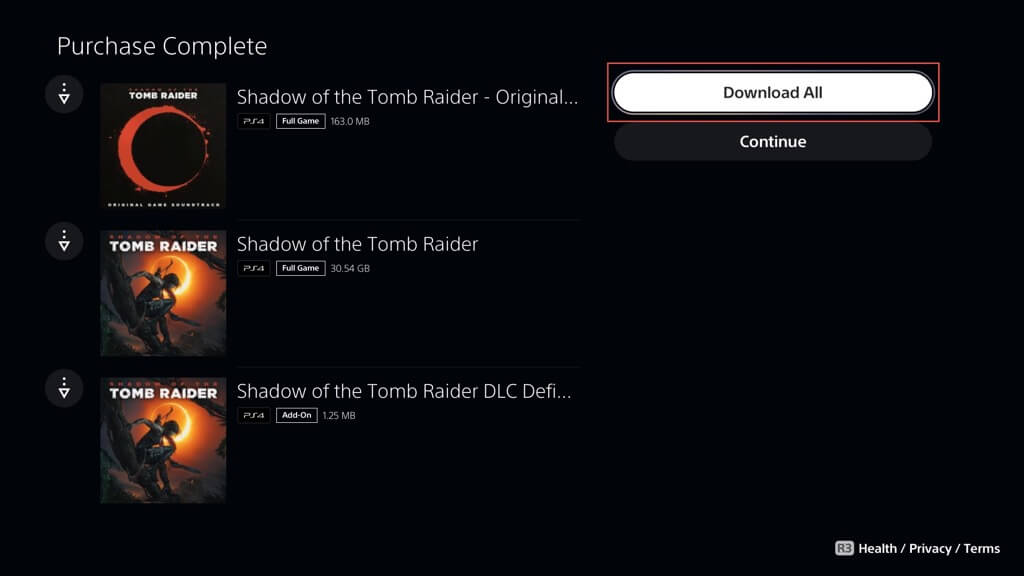
Whenever you purchase a video game or DLC (Downloadable content) on the PlayStation Store, you can download it immediately. Just select the Download option following checkout. If you purchase a video game bundle or compilation, you can choose to Download All or just individual items only.
Depending on the game, you can pick between a PS4 and PS5 version. Unless you have any save data-related compatibility issues, always choose the PS5 version for superior performance and graphical options.
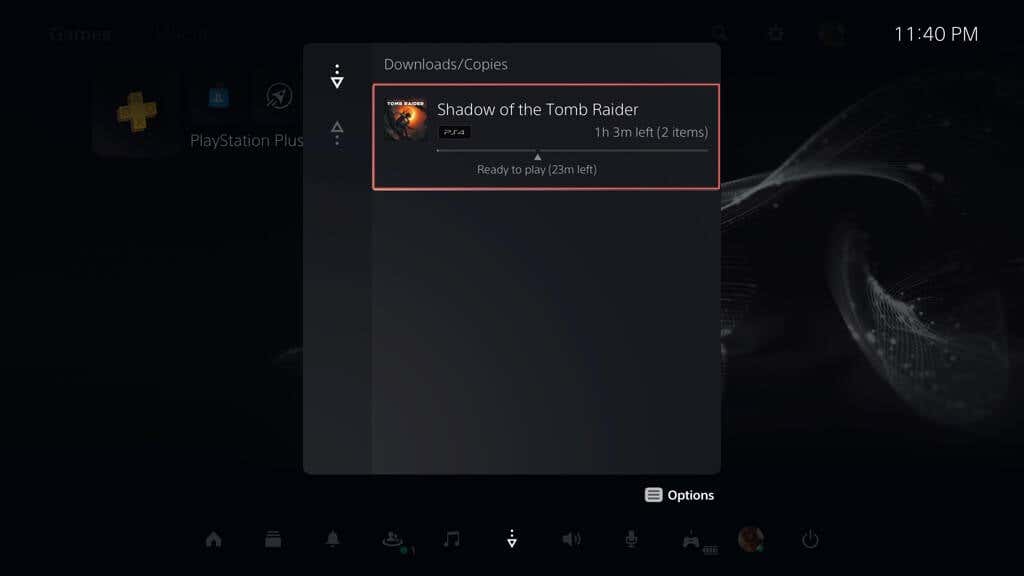
To view the progress of a download, press your DualSense controller’s PS button, select the Downloads/Uploads icon, and select the game on the downloads queue. Your PS5 automatically installs it after the download—usually, that only takes a few seconds.
2. Download Games via the Game Library
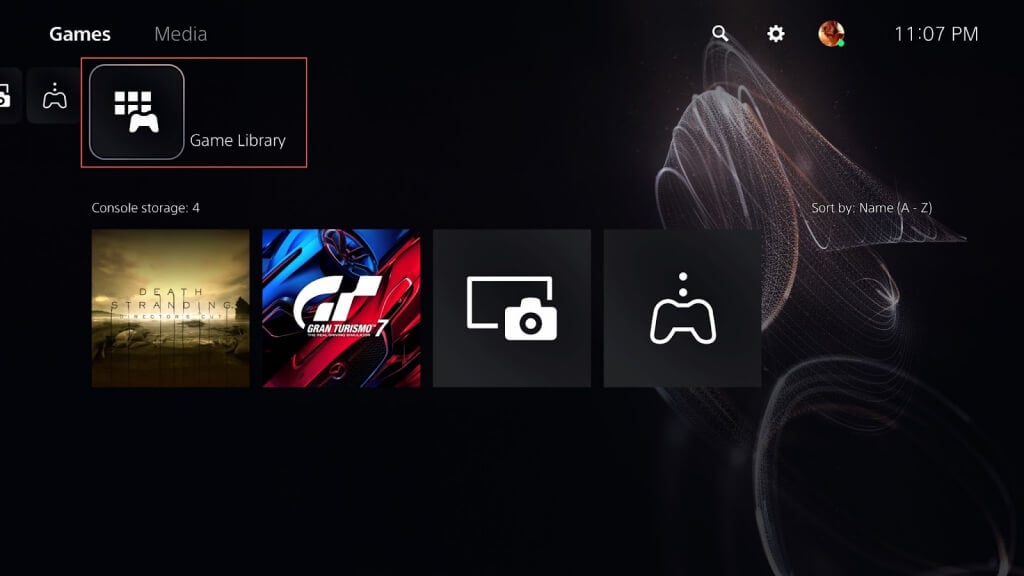
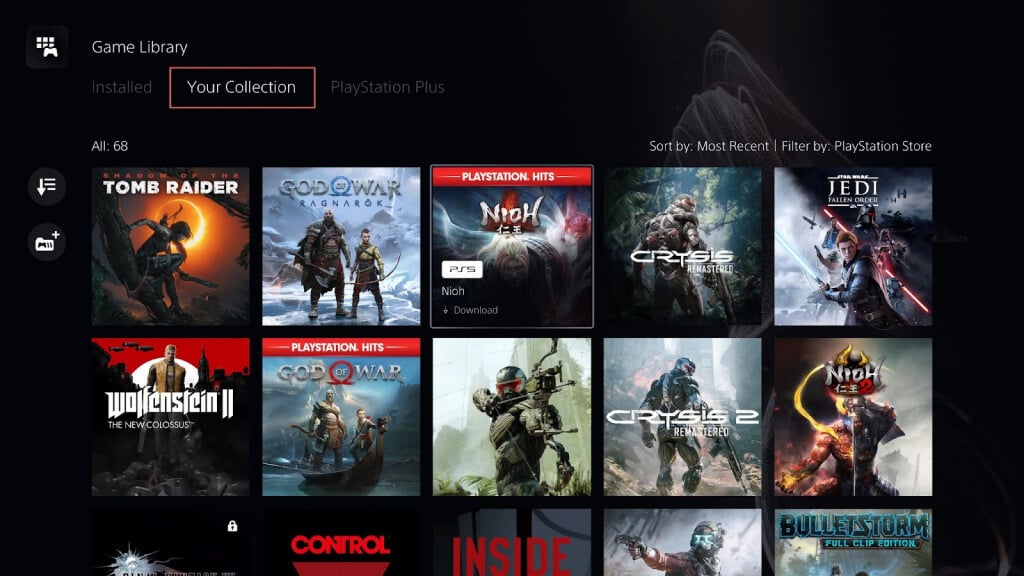
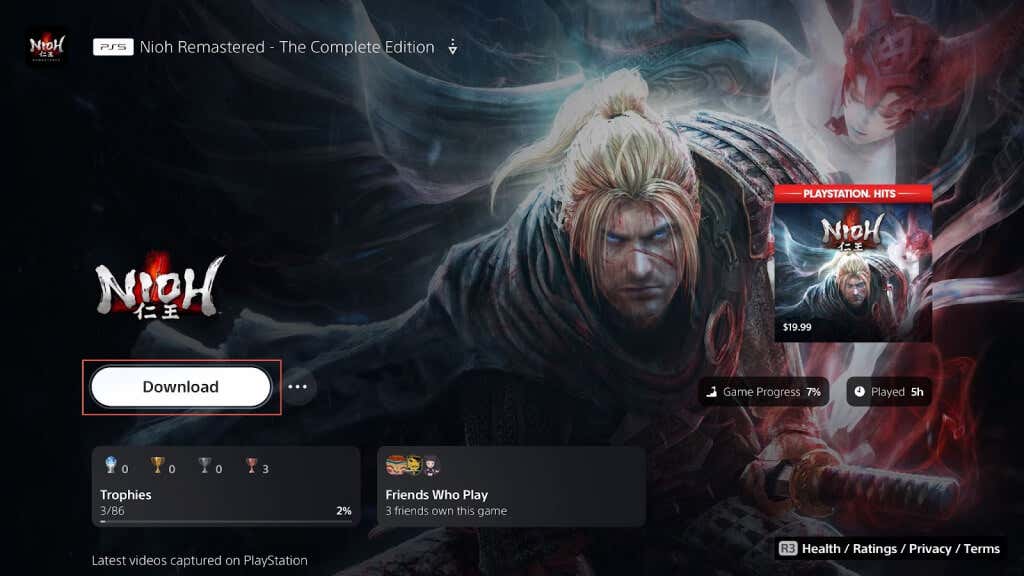
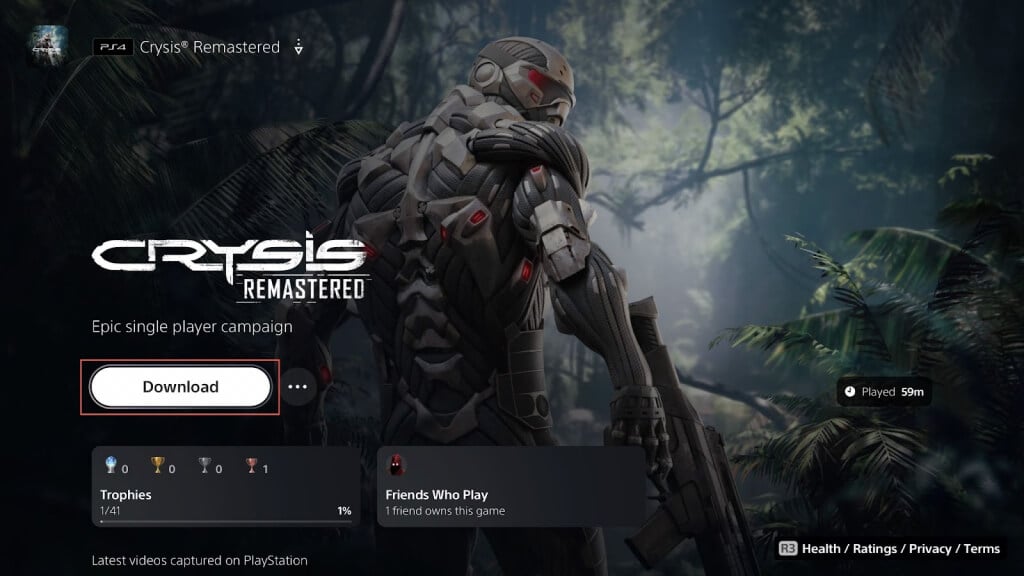
The Game Library on your PS5 houses all the games associated with your PlayStation account. It’s a convenient way to download games you’ve already purchased or added to your library—including titles from PlayStation Plus—but didn’t download right away. Head to the Game Library, locate your desired game, and initiate the download. Here’s how: Note: To view purchased games from the PlayStation Store only, select the Filter icon (right of the screen) and set the Source. Also add PlayStation Plus to the filter if you want to view downloads from your PS Plus subscription.
3. Search and Download Purchases From the PlayStation Store
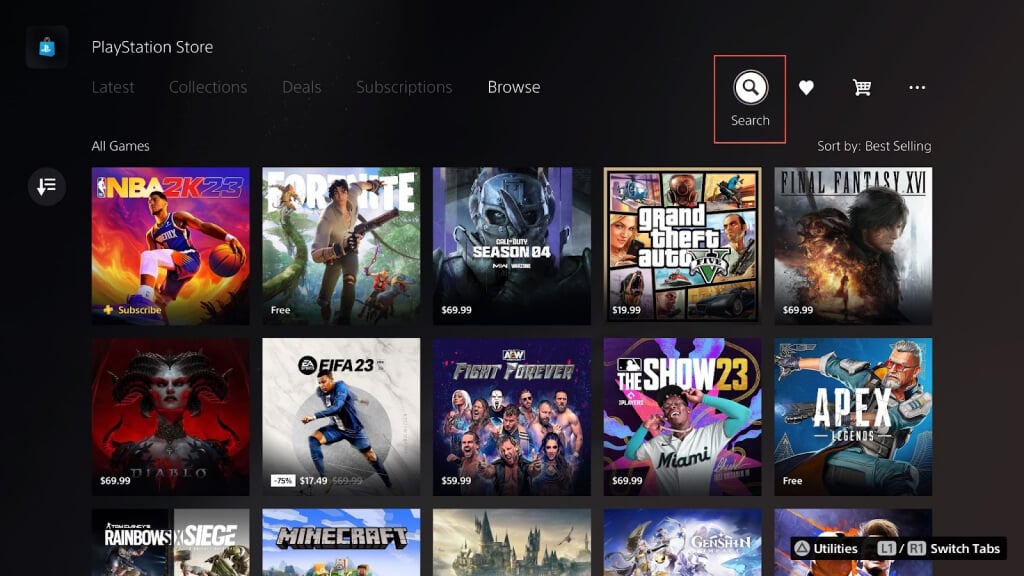
An alternative method to downloading games you’ve purchased earlier is to search for and download them directly via the PlayStation Store. Just:
4. Initiate a Video Game Download via the PlayStation App
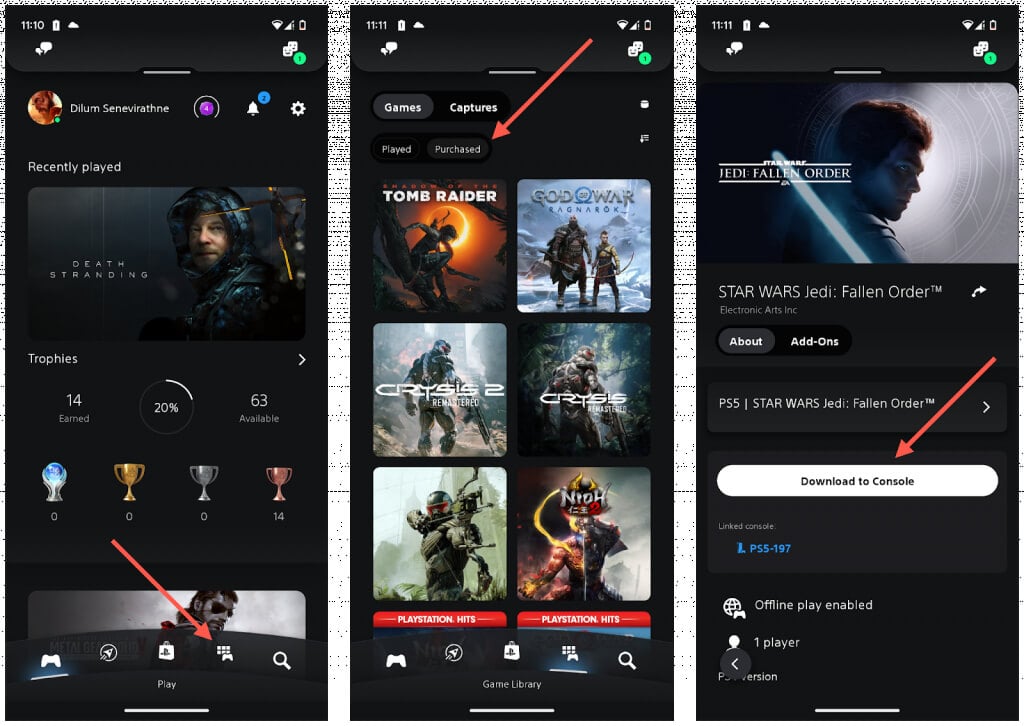
The PS App for Android and iOS helps you manage various aspects of your PS5, including initiating remote downloads. Assuming you already have it set up on your mobile device: Your PlayStation 5 should download the game if it’s in Rest Mode or when you turn on the console the next time. You can also set up your games to download after purchasing them through the PS App’s PS Store tab. If you’ve yet to set up the PS App on your mobile device, here’s how:
5. Initiate a Game Download via a Web Browser
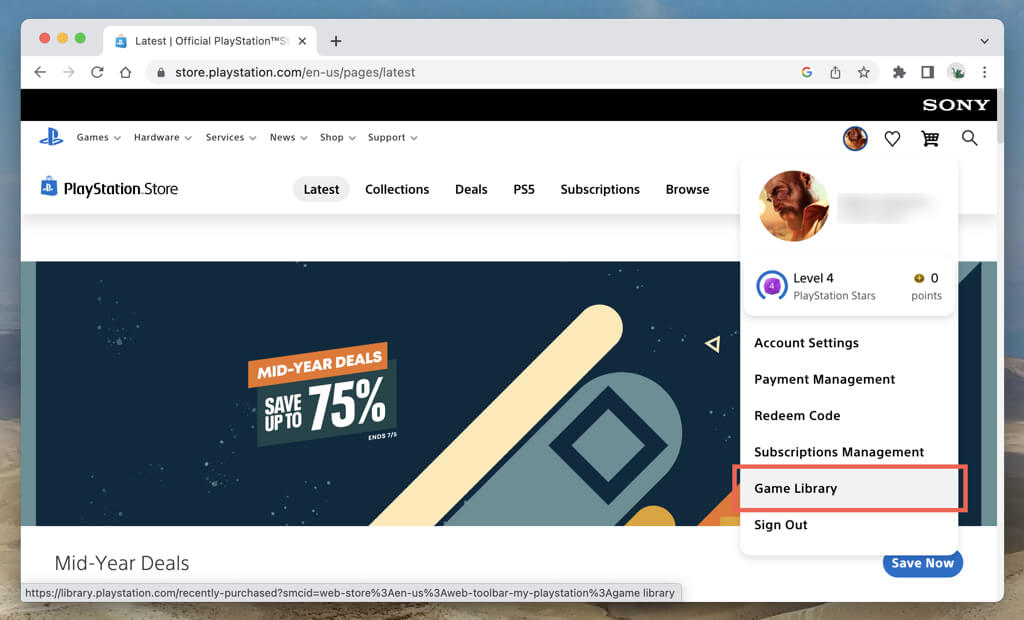
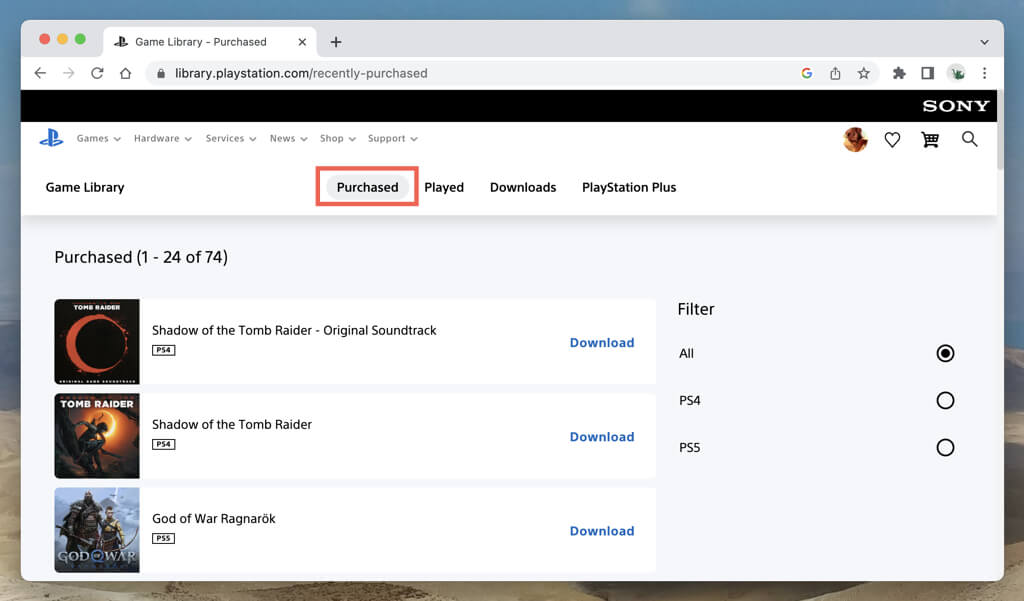
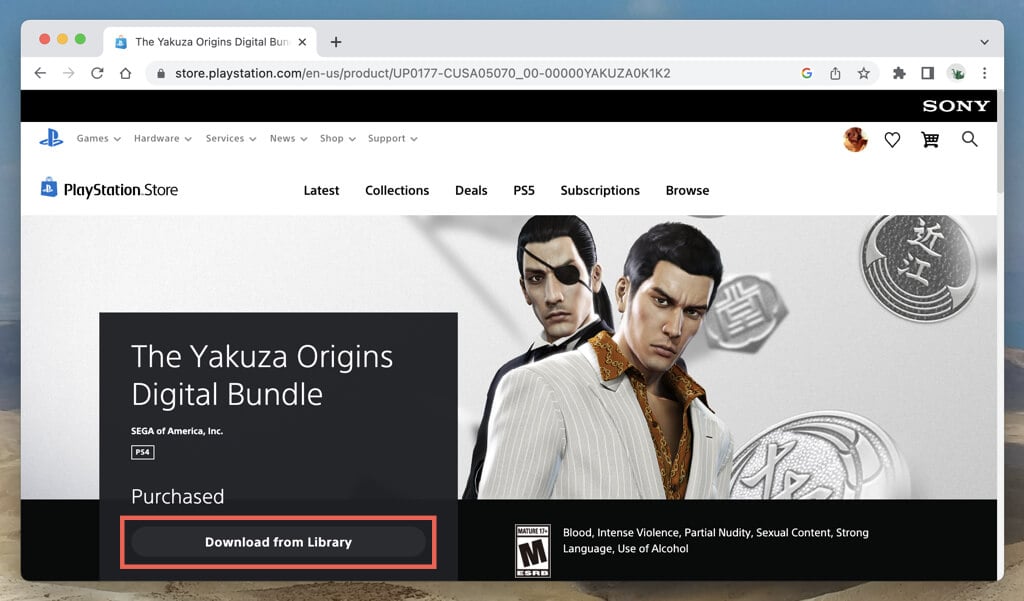
The web version of the PlayStation Store—accessible on any desktop or mobile device—provides another way to prep video game downloads to your PS5. Just visit the PlayStation Store using a web browser on your PC, Mac, Android, or iPhone, sign in with your PlayStation account, and then: The download should start automatically if your PS5 is in Rest Mode and connected to the internet. If not, it should begin the next time you turn on or wake up the console. It’s also possible to download games following a purchase on the PS web store.
6. Download Video Games via Remote Play
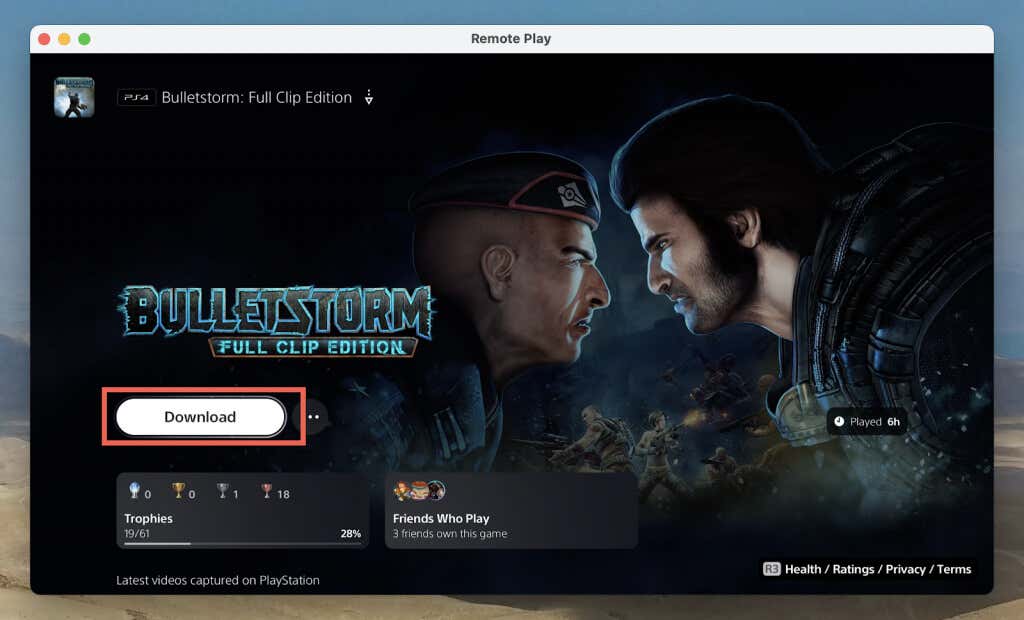
Remote Play allows you to stream your PS5’s screen to another device, such as a smartphone, tablet, or PC, and use it as if you were in front of the console. If you already use PS Remote Play, navigate to your Game Library or the PSN Store and download the game you want. If you don’t have PS Remote Play:
You’ve Got Multiple Ways to Download Games on PS5
The PlayStation 5 simplifies downloading and installing games by providing several methods, including the Game Library, PS App, and PlayStation Store. This flexibility ensures you can set up your games easily, regardless of whether you are near or away from your console. And now that you’ve got some games to play, why not add some friends to play them with?