The PS5 console offers multiple approaches to removing games from its SSD (and extended storage drive if you have one). This guide walks you through each technique, making it easy to free up storage and accommodate new games.
Will Uninstalling a Game Delete Its Save Data?
Your PS5 stores save files separately from game data, so you don’t lose your progress even if you delete a video game. You can reinstall the game later, and it should automatically detect the save files.
If you want to delete or backup your save data, visit your console’s Storage management panel (more on that later).
1. Uninstall Video Games From the Home Screen
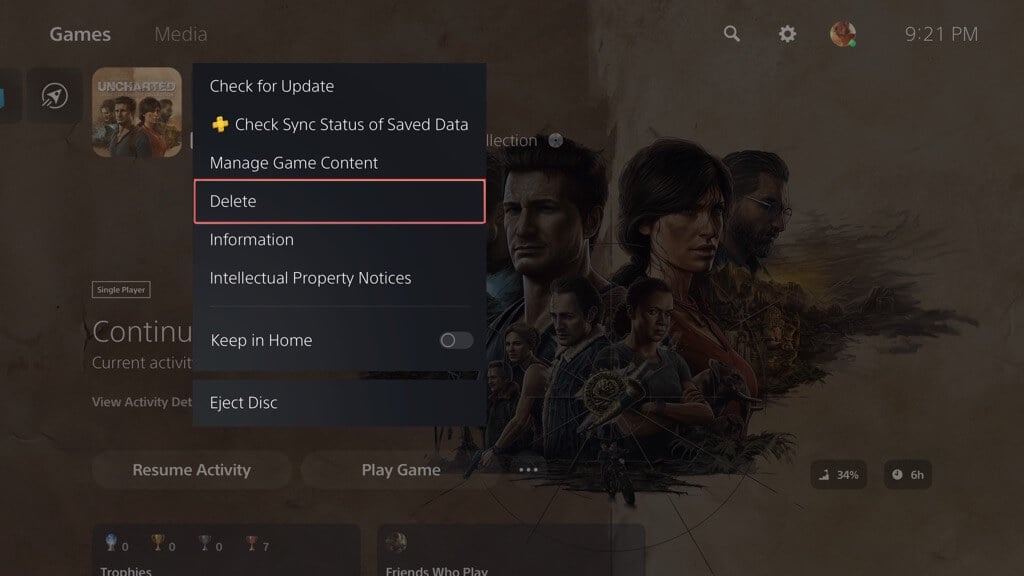
The fastest way to delete a video game on your PS5 is through the Home Screen. Just highlight the game’s thumbnail, press the DualSense controller’s Options button, and select Delete. Tip: Select Information on the context menu to check how much space the game occupies on the console’s storage before deleting it.
2. Uninstall Video Games via the Game Library
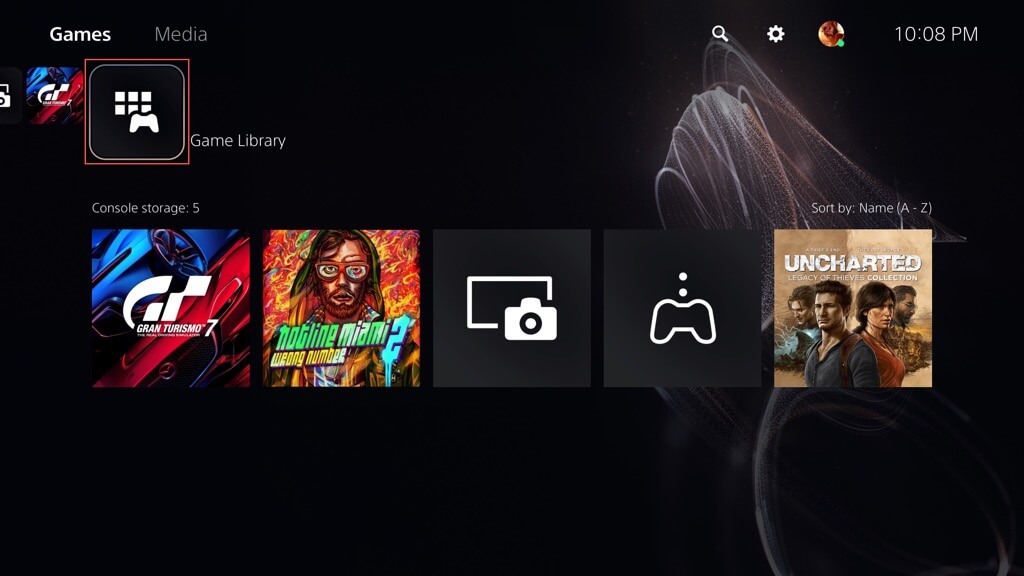
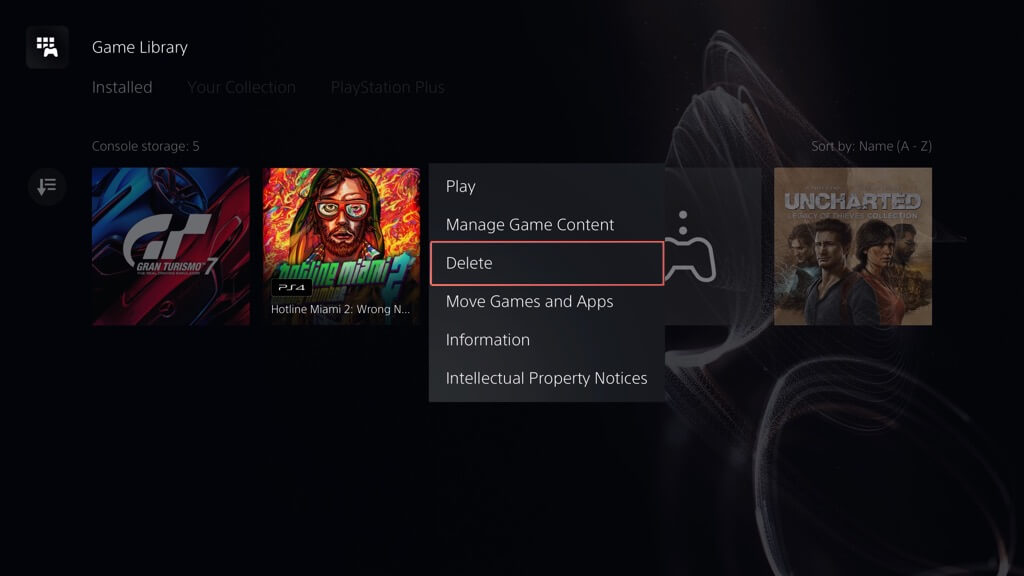
If a video game does not appear on your PS5’s Home Screen (it only shows nine of your most recently-played games), you can delete it via the Game Library. Here’s how:
3. Uninstall Video Games via Storage Management
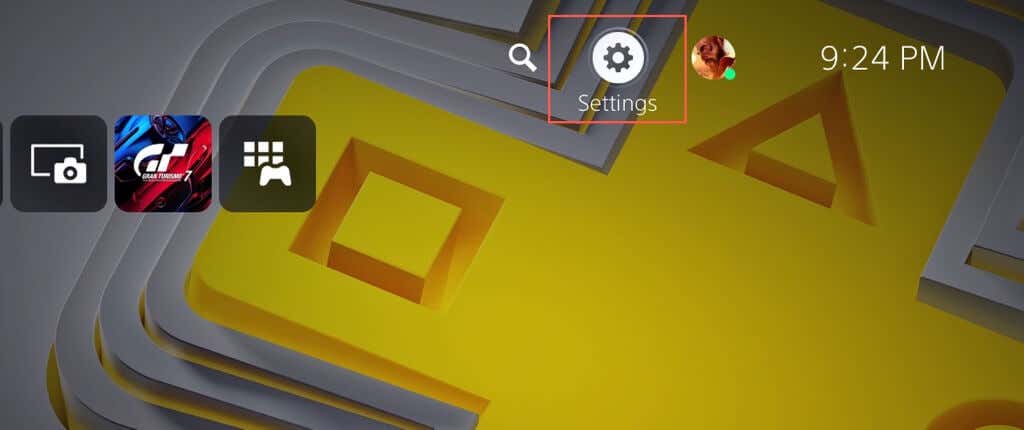
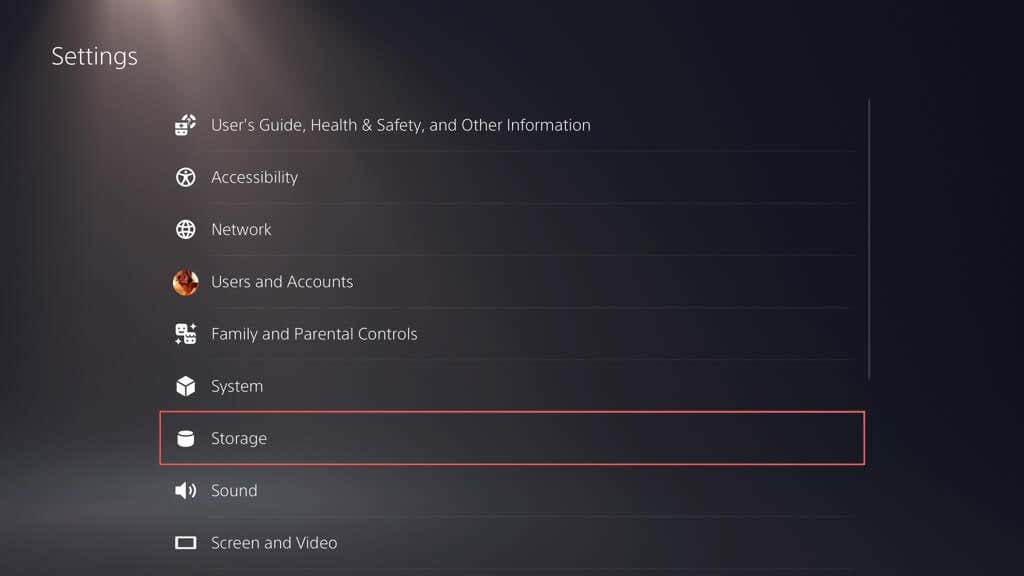
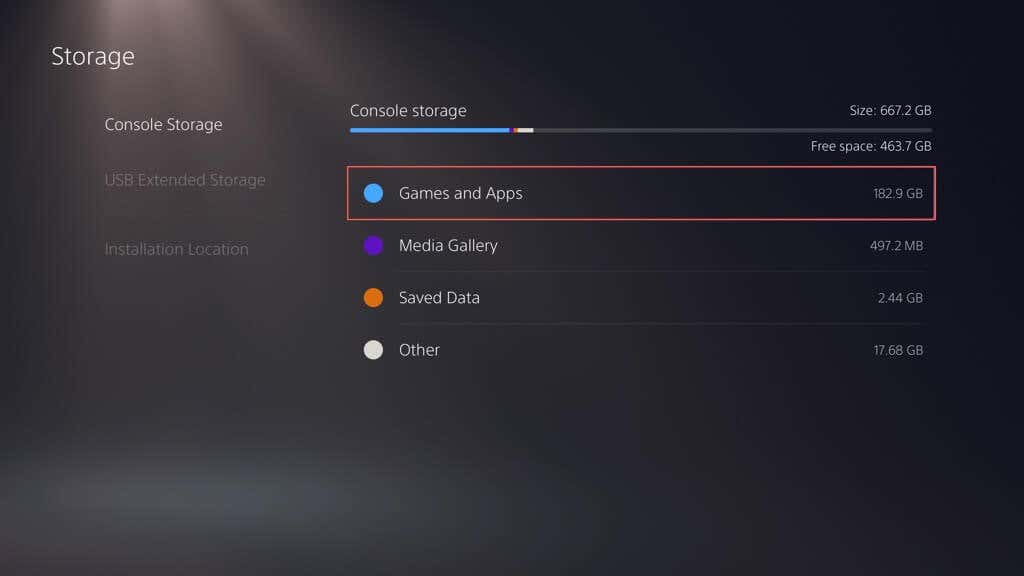
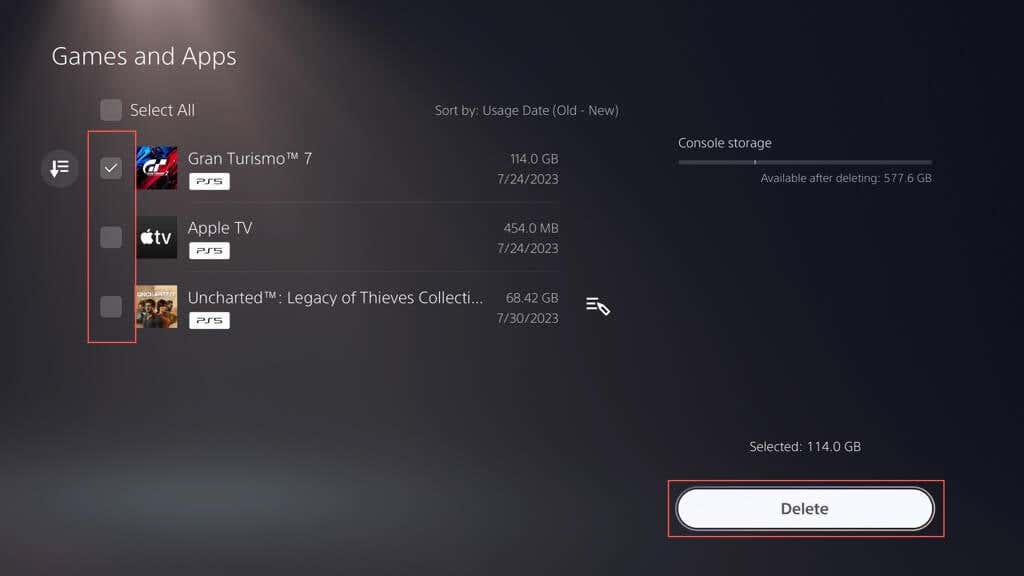
Another way to uninstall PS5 games is through the console’s Storage management panel. This method is ideal if you want to delete multiple games simultaneously while having a clearer picture of how much space you can free up. Here’s how:
4. Uninstall Games via the PlayStation App
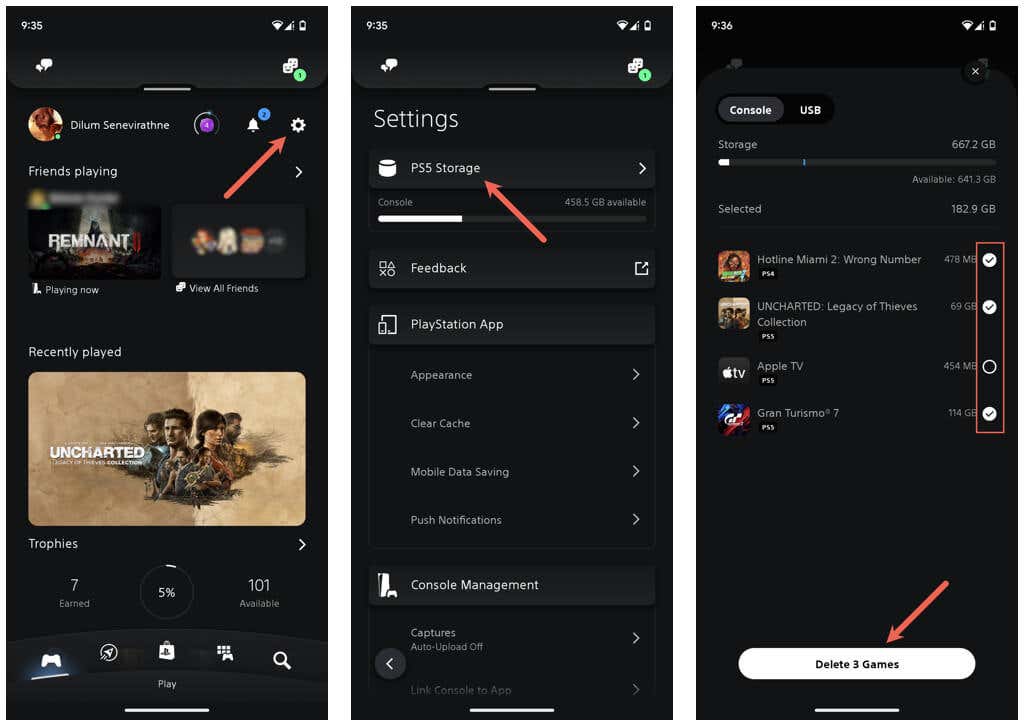
If you’ve set up the PS App to work on your iPhone or Android, you can remotely delete games from your PS5. Like with the Storage management console on your PS5, it lets you delete multiple games at once while allowing you to figure out how much space you get to free up. Just: Your PS5 should automatically delete the game in Rest Mode or when you next turn on the console. If you don’t have the PS App on your mobile device: You can now delete games on your PS5.
5. Uninstall Games on the Extended Storage Device
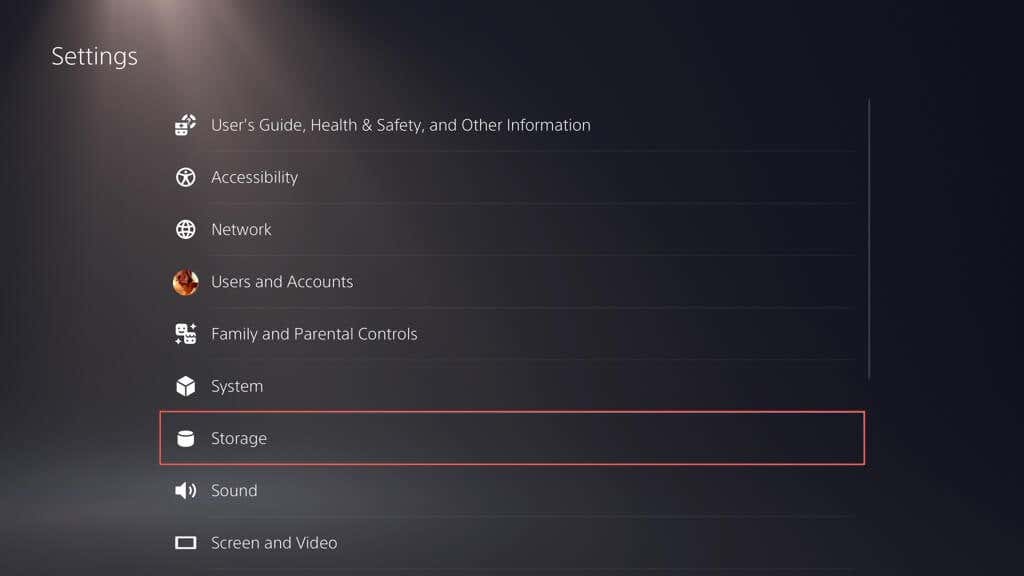
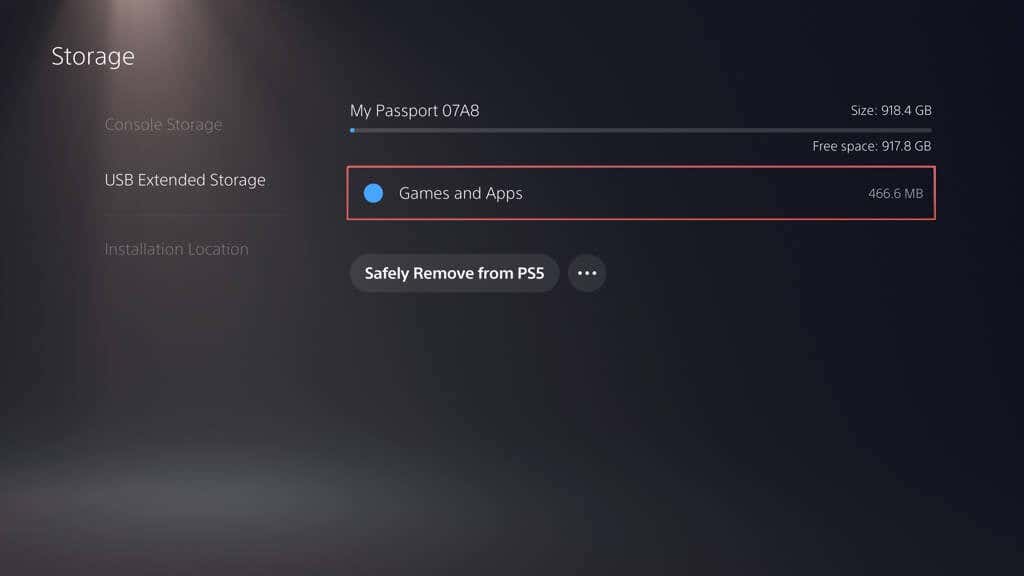
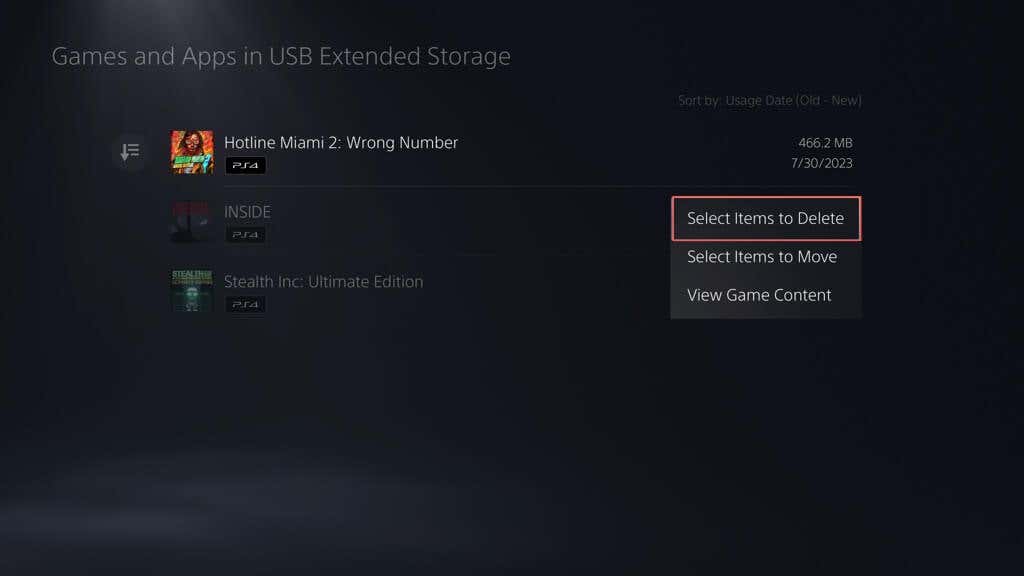
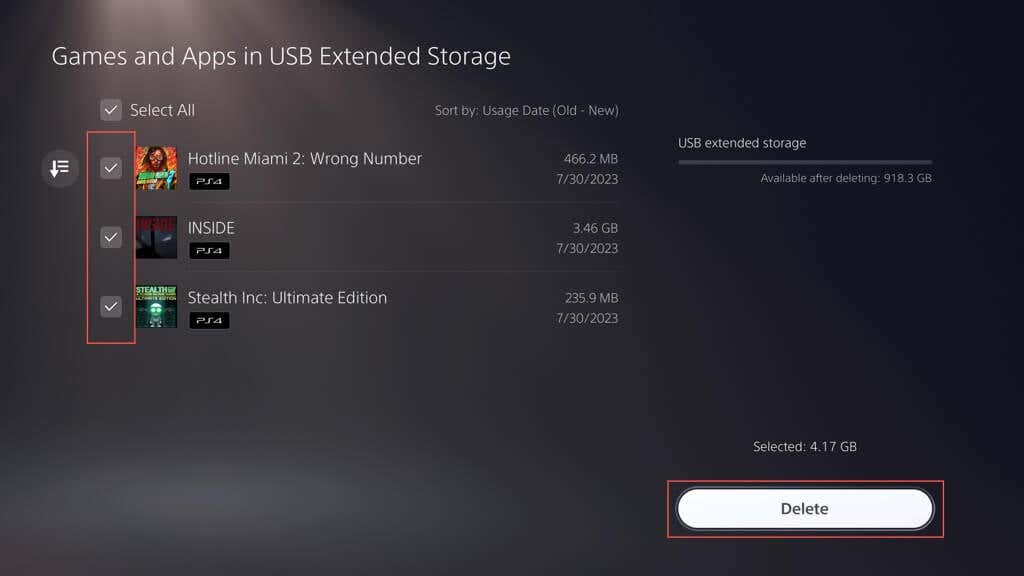
If you’ve set up an external hard drive or SSD to work as extended storage on your PS5, you can delete video games from it through the Home Screen, Game Library (make sure to scroll down to the Extended storage section), or the PS App (switch to the USB tab within PS Storage). The steps are identical to removing games from the console’s internal storage drive. Additionally, you can uninstall games from the extended drive through the PS5’s Storage management panel, but the process is somewhat different. Begin by connecting the storage device to a SuperSpeed USB port on your PS5—the USB-C port on the front or one of the two USB-A ports on the back. Then:
Delete Saved Game Data on Your PS5
If you’d like to delete the saved data for a video game after you’re done uninstalling it: Optionally, you can back up your saved data to PlayStation Plus or a flash drive (PS4 games only) before deleting them. Just switch to the Upload to PS Plus or Copy to USB Drive tabs to upload or copy the files.
Remove PS5 Games You No Longer Play
As you just learned, you’ve got multiple ways to delete games on the PS5. You can do that via the Home Screen, Game Library, Console management screen, or the PS App. If you want to reinstall a game, just redownload it via the PlayStation Store (you should find a list of your purchases within the Game Library) or copy the game content via its Blu-ray disc.