This troubleshooting tutorial will walk you through multiple techniques to fix the “Conversation not found” error in ChatGPT’s web and mobile applications.
1. Refresh ChatGPT
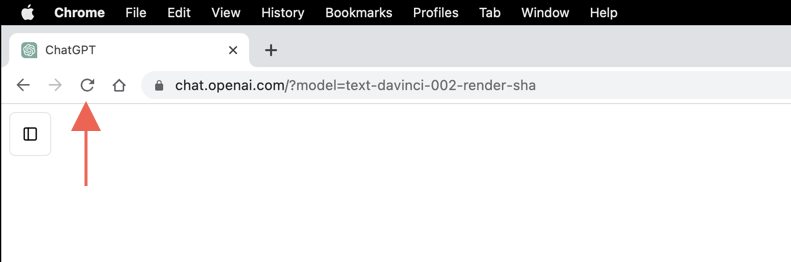
Refreshing ChatGPT is often the quickest way to eliminate random technical glitches preventing the AI chatbot from working correctly. Select the Reload icon next to the address bar and re-open the conversation if you’re on a web browser. If you use the ChatGPT app on your iPhone or Android, you must force-quit the app to refresh the current session. Swipe up from the bottom of the screen, swipe away the ChatGPT card, and relaunch ChatGPT from the Home Screen.
2. Check Your Internet
ChatGPT requires a stable internet connection to its web servers to function. Before you dive into more complex solutions, perform a quick check on your Wi-Fi or cellular network. Run a speed test, load other websites, stream a video—you know the drill. If your internet appears slow, try restarting or resetting your router. On mobile devices, you can also enable and disable Airplane mode. If the problem persists, contact your internet service provider or learn how to troubleshoot a cellular data connection.
3. Check the ChatGPT Server Status
OpenAI’s servers frequently go offline due to high traffic and stop ChatGPT from processing previous interactions within a conversation.
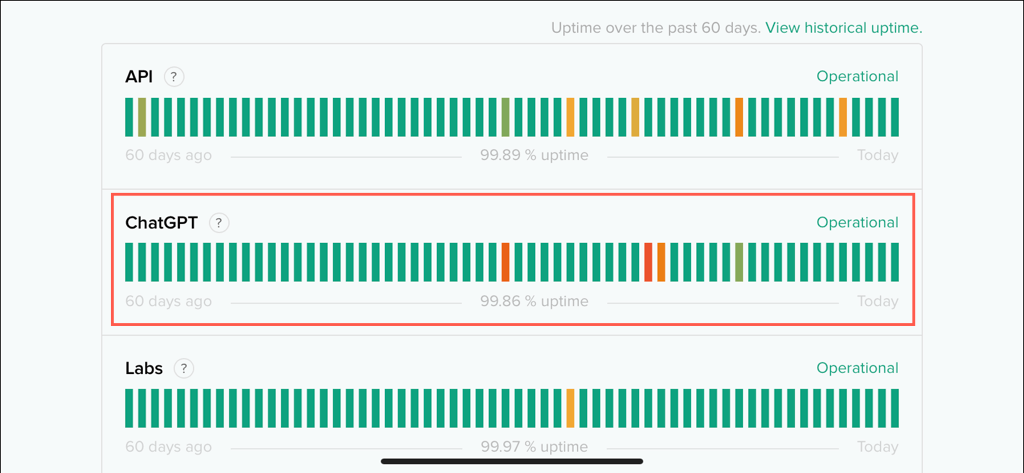
Visit the OpenAI Status page and ensure all ChatGPT systems are operational. You can also check for reports of outages from other ChatGPT users on social media sites like Reddit.
4. Disable VPNs
Virtual private networks, or VPNs, are great for increasing privacy and getting around geographical restrictions. However, VPNs also create regional mismatches between online tools—like ChatGGPT—and their web servers. If you’re using a VPN, try turning it off to see if that resolves the issue.
5. Update the ChatGPT App
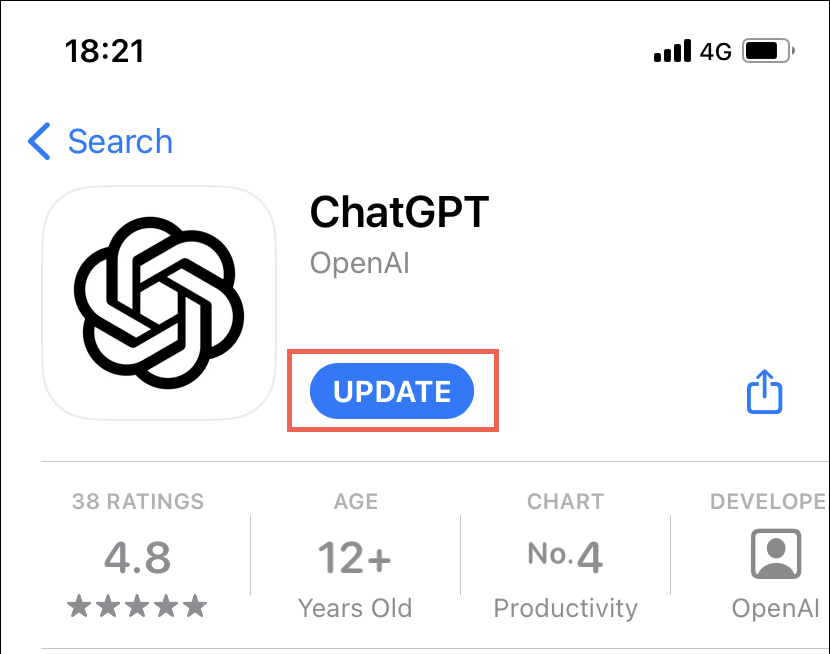
OpenAI frequently releases updates to fix bugs and improve performance in the ChatGPT app for mobile devices. If you don’t have automatic app updates on your iPhone or Android:
6. Check the Guidelines and Parameters
When you use ChatGPT, your prompts must align with OpenAI’s guidelines and parameters. For example, queries that exceed the token limit can overload the LLM (language learning model), leading to errors like “Conversation not found.” For more information, check OpenAI’s prompt engineering support documentation.
7. Log Out and Back In
Logging out and then back into your ChatGPT account can help resolve the “Conversation not found” error by refreshing your access permissions.
To log out, select your profile picture at the bottom left of the window and choose Sign Out. For the mobile app, open the conversations menu (tap the two lines on the top left) to reveal the option to log out.
After that, select Sign In and log back in with your ChatGPT credentials.
8. Clear Browser Cookies and Cache
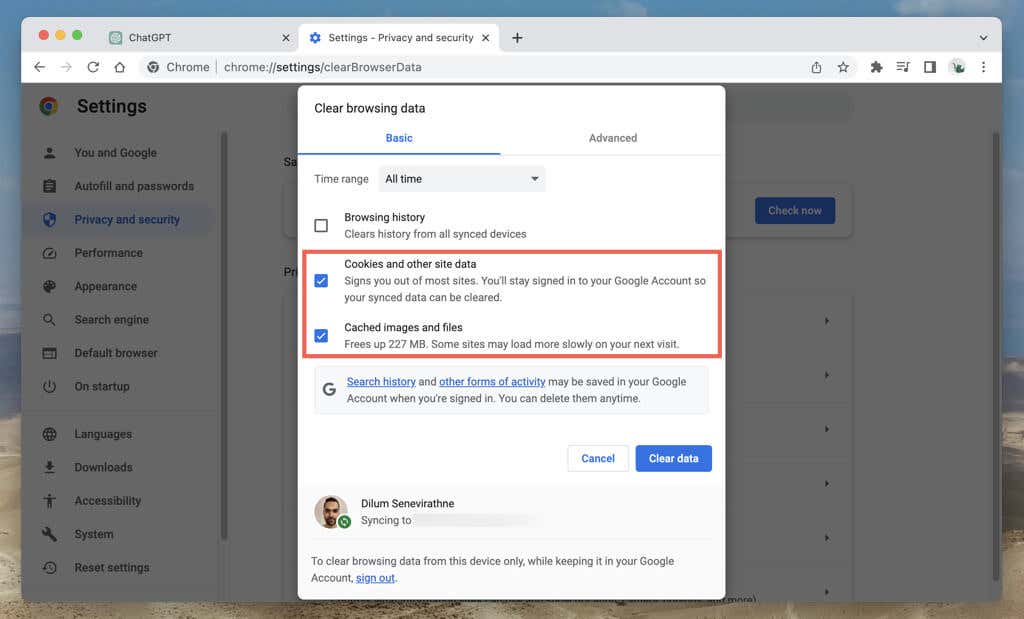
The ChatGPT web app stores data from OpenAI’s servers to improve performance. However, if there’s a problem with this stored data, it can cause errors like “Conversation not found.” To eliminate this possibility, you should clear your browser’s cache. Most browsers like Google Chrome, Mozilla Firefox, and Microsoft Edge follow a similar process for deleting the cookies and cache. Take Chrome as an example: If you need additional help, check our complete guide to clearing the cache on any desktop browser.
9. Clear the Cache on the Mobile App
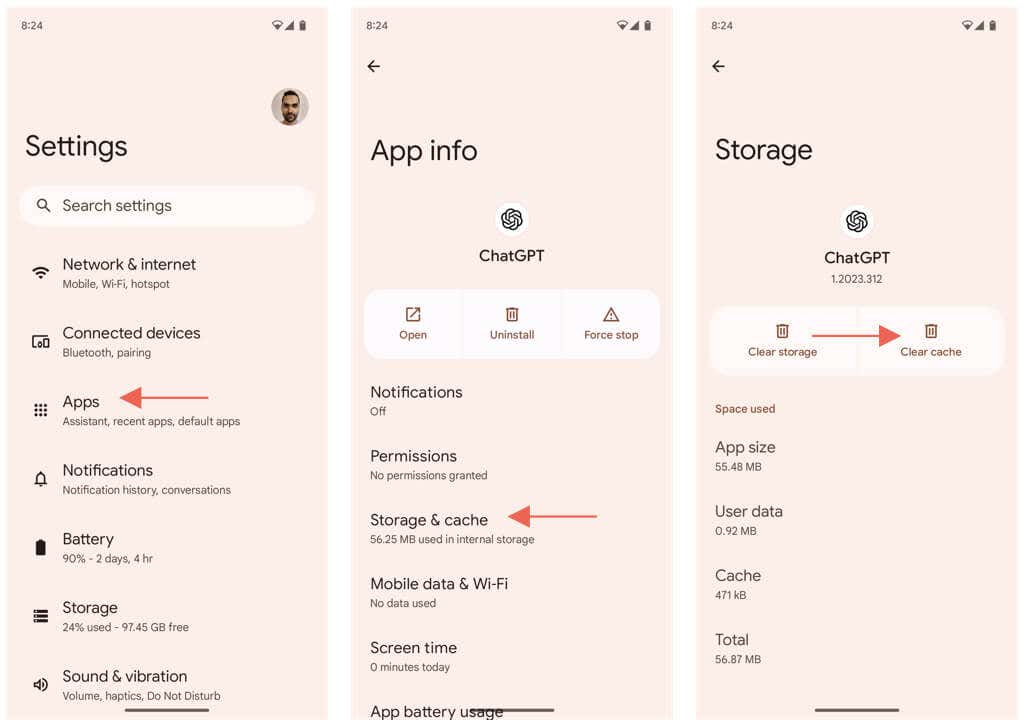
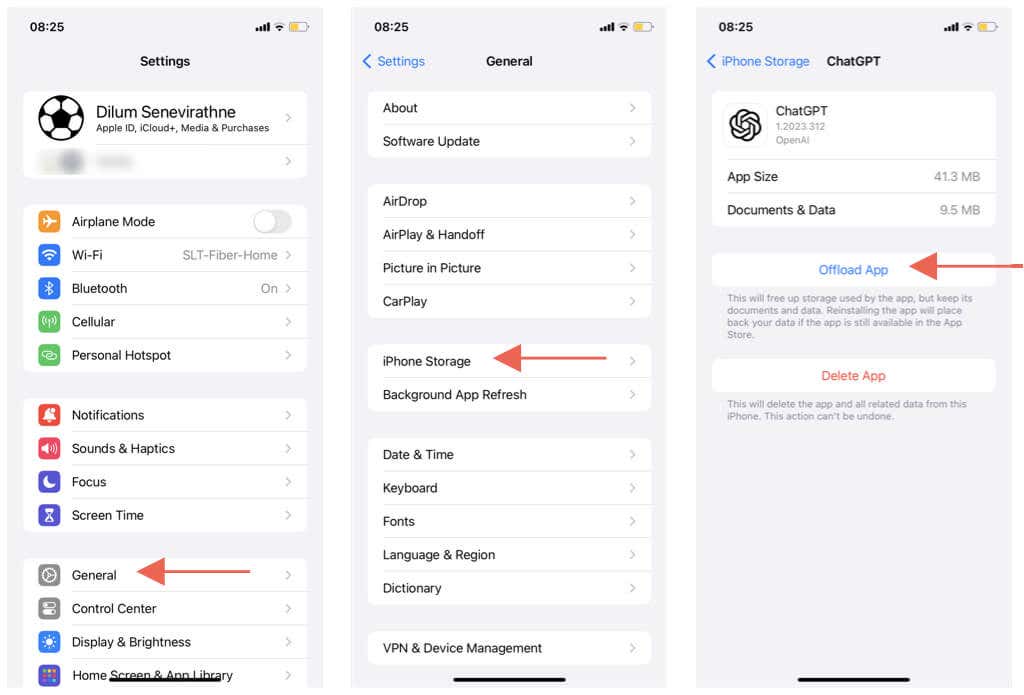
ChatGPT’s mobile app on Android and iPhone stores data in the device’s internal cache, similar to its web counterpart. To clear the ChatGPT cache on Android: The iPhone version of ChatGPT does not offer a straightforward way to clear the app cache. Instead, your only option is to offload and reinstall the app. To do that: Note: If you have a subscription to ChatGPT Plus, open the app’s conversations menu, tap your profile picture, and select Restore Purchases.
10. Clear the DNS Cache
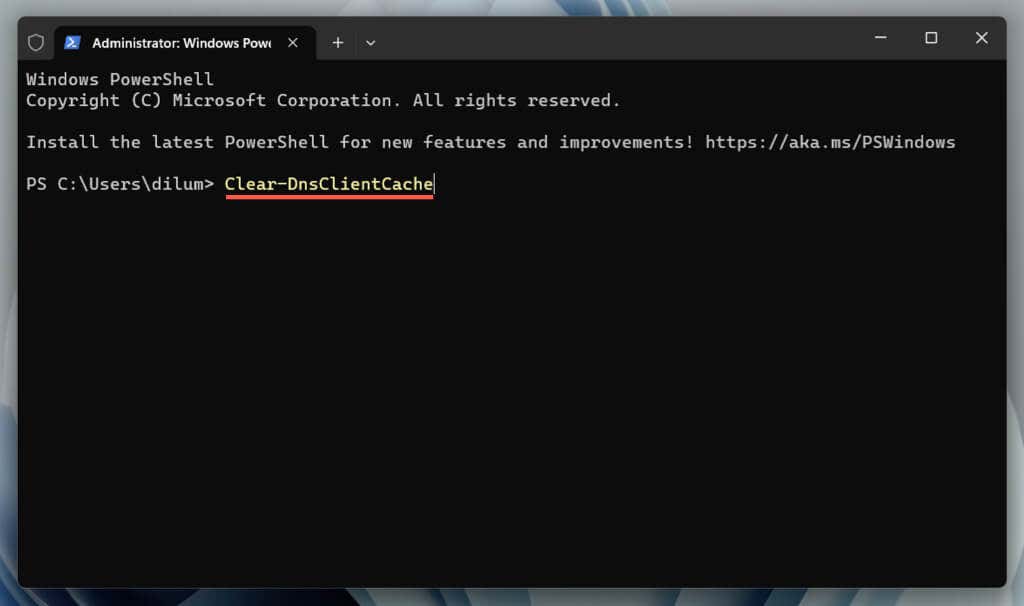
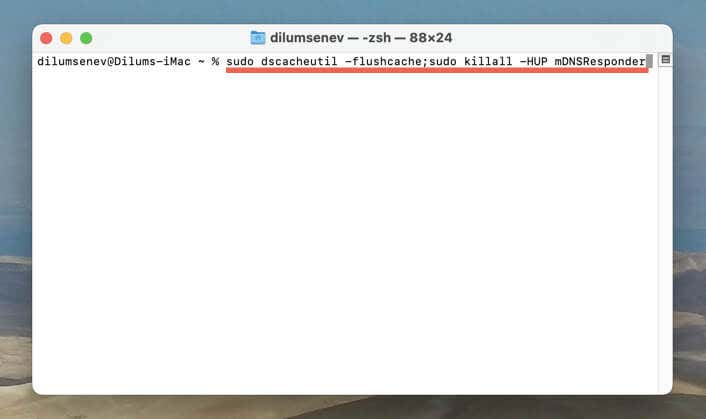
A corrupt or obsolete DNS (Domain Name Server) cache can lead to random connectivity issues with various websites and servers, especially on desktop devices. To clear the DNS cache:
Windows
ipconfig /flushdns
Mac
sudo dscacheutil -flushcache;sudo killall -HUP mDNSResponder
11. Disable Browser Extensions
Browser extensions—notably content and ad blockers—can interfere with ChatGPT. To confirm: If that works, re-enable the extensions individually to identify the problematic browser add-on.
12. Open a New ChatGPT Conversation
Older conversations in ChatGPT might not function properly due to recent changes to language learning models. If the problem recurs, regardless of what you do, the best solution is to start a new chat from scratch.
13. Contact OpenAI Support
If all else fails and the “Conversation Not Found” error pops up intermittently with both old and new conversations, it’s time to get support from OpenAI.
Visit the OpenAI Help Center, select Chat > Messages in the lower-right corner, and choose ChatGPT > Other > Report a Bug or Error as responses. Explain your problem, attach a screenshot of the “Conversation not found” error, and wait until you hear back from OpenAI.
Conversation Found
ChatGPT’s “Conversation not found” error occurs for several reasons. Start with straightforward solutions like refreshing the AI tool or checking your internet connection, then move on to advanced fixes such as clearing your DNS cache or identifying conflicting browser add-ons. If the problem persists, contact the ChatGPT support team for assistance.