Here, we’ll walk through several cool Google Sheets features that might just become your fast favorites. Head to Google Sheets, sign in with your Google account, and try out some of these hidden gems.
1. Extract Data From a Smart Chip
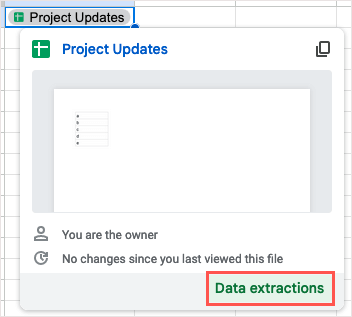
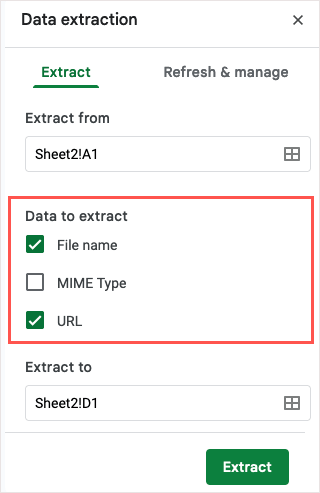
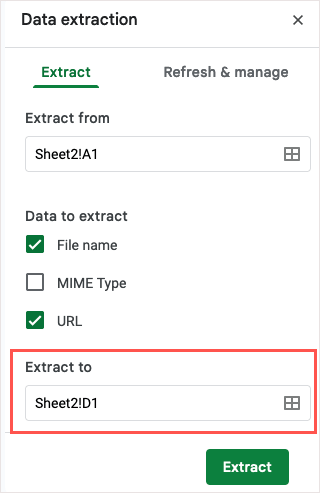
If you’ve taken advantage of the Smart Chips in Google’s apps, then you’ll be happy to know you can do even more with them. After you insert a Smart Chip, you can extract data from it and place it in your sheet, making chips even more useful. You can currently extract data from People, File, and Calendar Event Smart Chips. This includes name and email, owner and filename, and summary and location. If you need to refresh the extracted data, you can use the Refresh & manage tab in the sidebar.
2. Create a QR Code
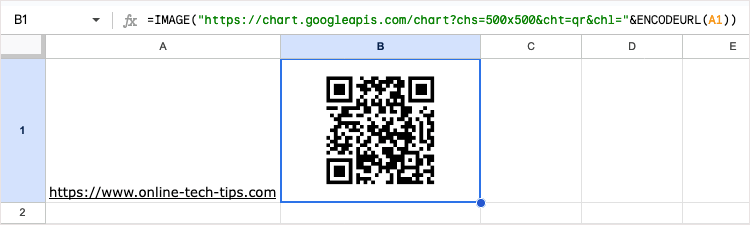
QR codes are popular ways to share information, direct people to your website, and even provide discounts. By creating your own QR code in Google Sheets without add-ons or third-party tools, you or your collaborators can quickly take action. To make the QR code, you’ll use the Google Sheets IMAGE function and a link to Google’s root URL: https://chart.googleapis.com/chart?. Here, we’ll link to the website in cell A1 using the formula below. Place the formula in the cell where you want the QR code. =IMAGE(“https://chart.googleapis.com/chart?chs=500×500&cht=qr&chl=”&ENCODEURL(A1)) Use the following arguments to build your formula:
CHS argument: Define the dimensions of the QR code in pixels (chs=500×500). CHT argument: Specify a QR code (cht=qr). CHL argument: Choose the URL data (chl=”&ENCODEURL(A1)).
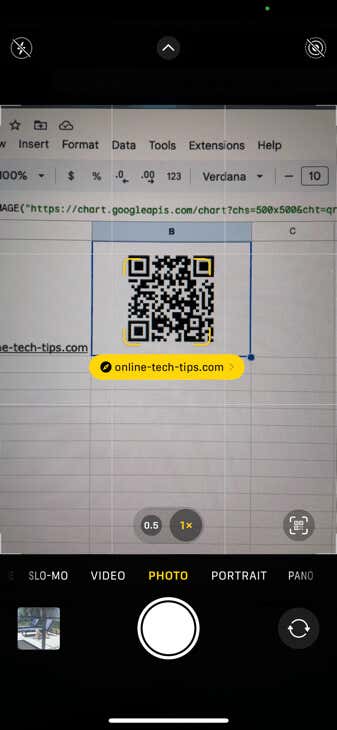
Then, use the ampersand operator (&) to connect the arguments. Once you see the code, you may need to resize the row and/or column to view its full size. Then, scan the QR code to make sure it works as you expect. You can also use optional arguments for encoding the data in a particular way or assigning a correction level. For more on these arguments, check out the Google Charts Infographics reference page for QR codes.
3. Insert a Drop-Down List
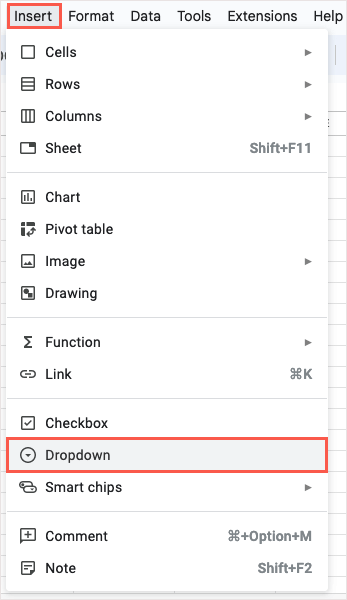
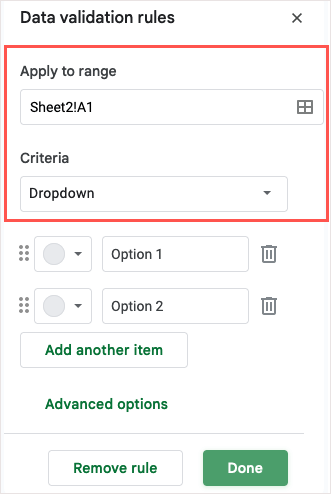
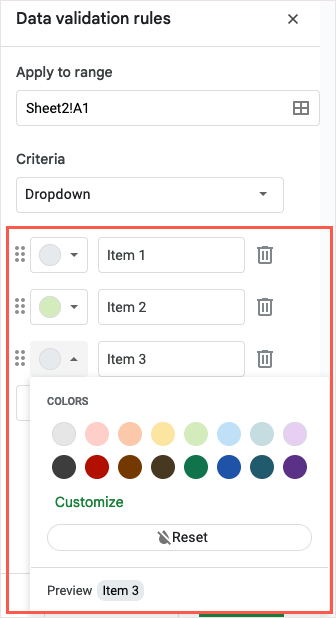
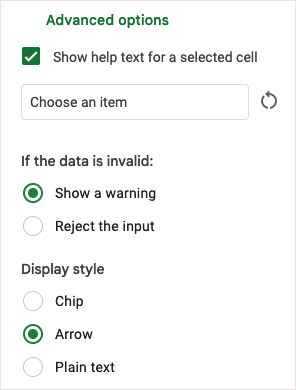
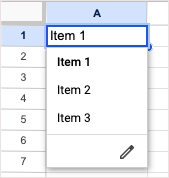
Drop-down lists are terrific tools for data entry. By selecting an item from a list, you can make sure you’re entering the data you want and can reduce errors at the same time. Since the introduction of drop-down lists in Sheets, the feature has been enhanced to give you a simpler way to create and manage these helpful lists.
4. Validate an Email Address
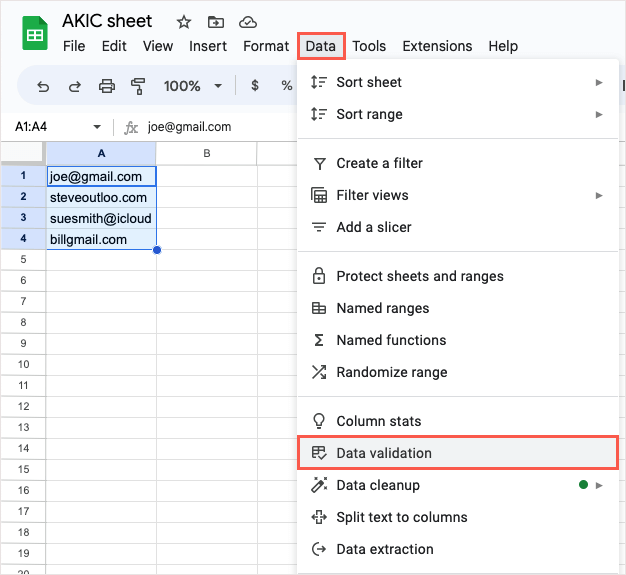
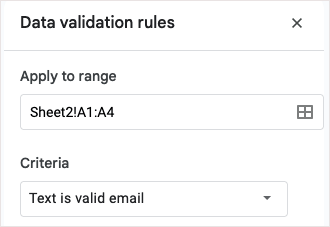
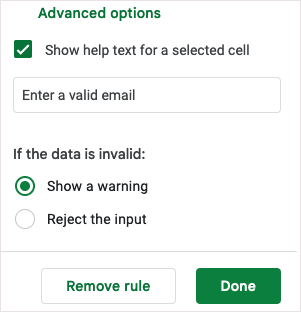
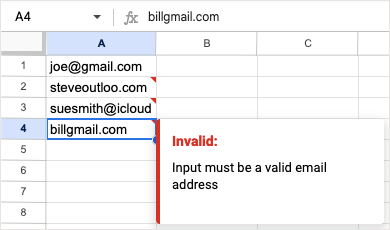
When you have a spreadsheet that contains email addresses, whether Gmail, Outlook, or something else, you may want to make sure they’re valid. While Sheets doesn’t show you if an address is legitimate, it does show you if it’s formatted correctly with the @ (At) symbol and a domain. You can then test the validation and options by entering an invalid email address.
5. Make a Custom Function
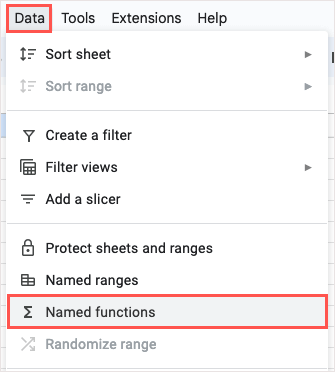
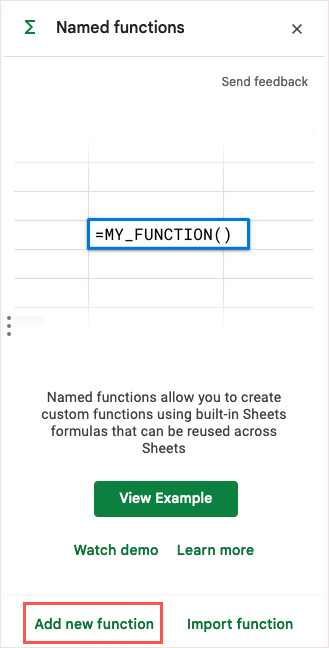
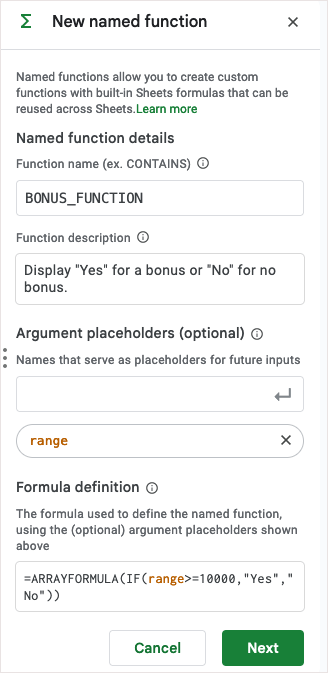
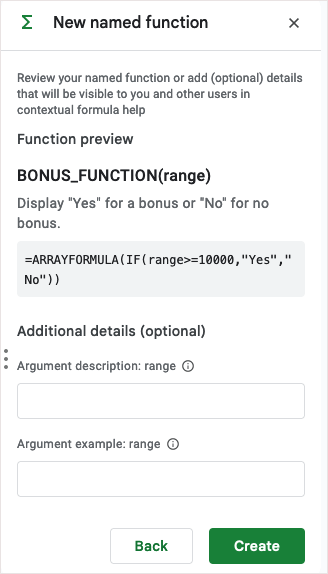
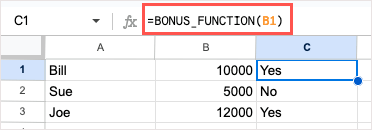
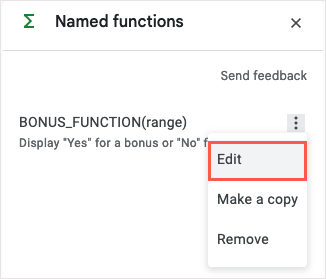
Are you a fan of using functions and formulas in Google Sheets? If so, why not create your own? Using the Custom Function feature, you can set up your own function and reuse it whenever you like. If you need to make edits, reopen the Named Functions sidebar, select the three dots to the right of the function, and pick Edit.
6. Use a Slicer to Filter a Chart
Charts give you handy and effective ways to display your data. Using a slicer, you can filter the data that displays in the chart. This is convenient for reviewing specific portions of the chart data when needed.
Insert a Slicer
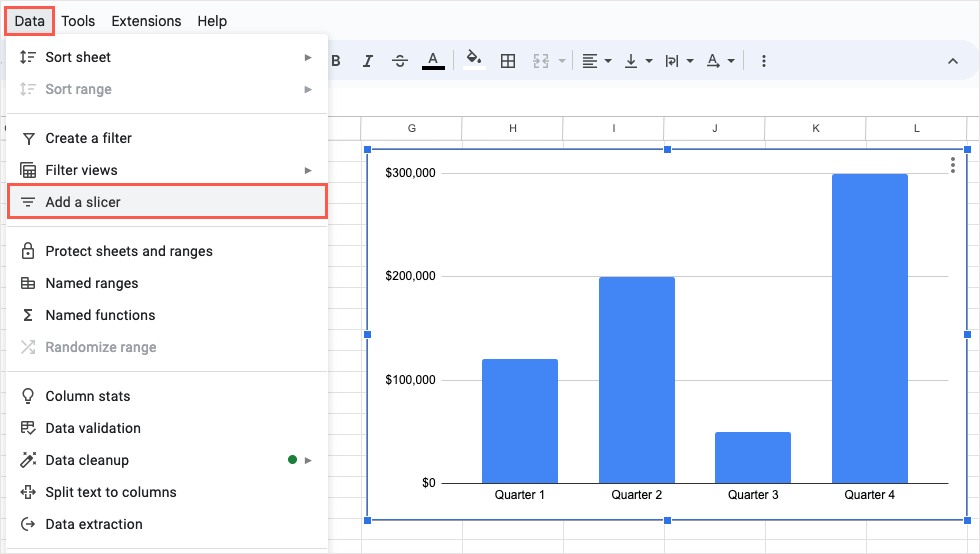
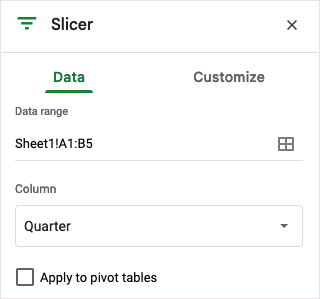
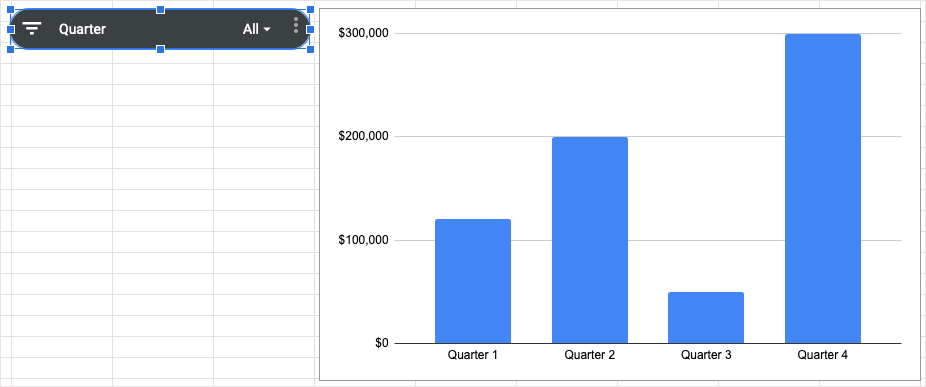
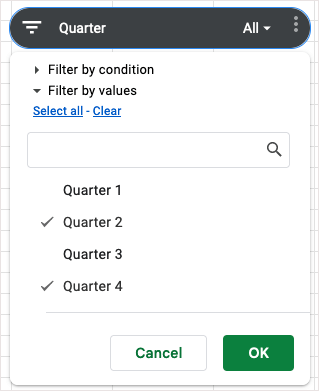
After you insert your chart, select it and go to Data > Add a slicer in the menu. When the sidebar opens, open the Data tab, confirm the Data Range at the top, and then pick the Column to use for the filter. You’ll see the slicer appear as a black rounded rectangle which you can move or resize as you please.
Use a Slicer
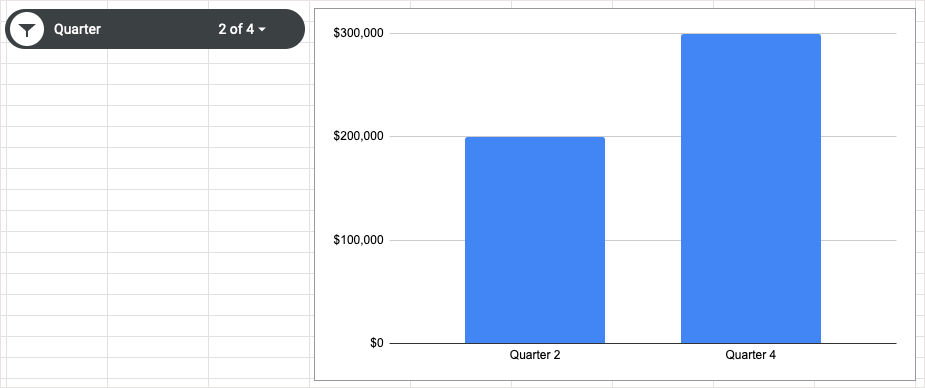
Once you have your slicer, select the Filter button on the left or drop-down arrow on the right. Then, select the data you want to see in the chart which places checkmarks next to those items.
Select OK and you’ll see your chart update immediately.
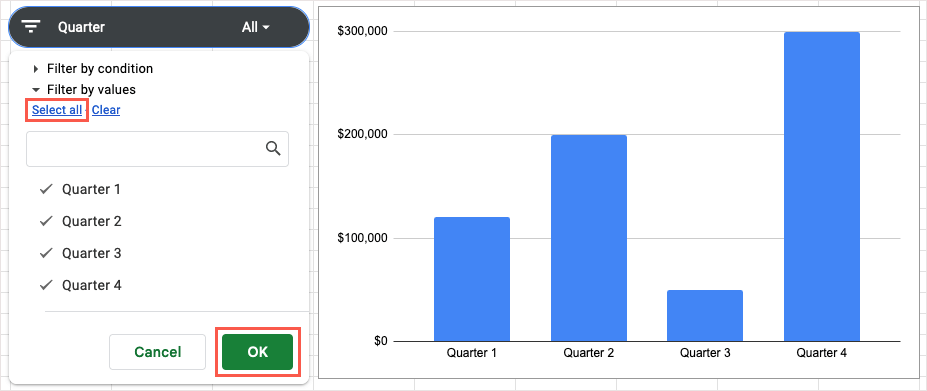
To return your chart to the original view showing all data, open the filter and pick Select all > OK.
7. Quickly Calculate Data
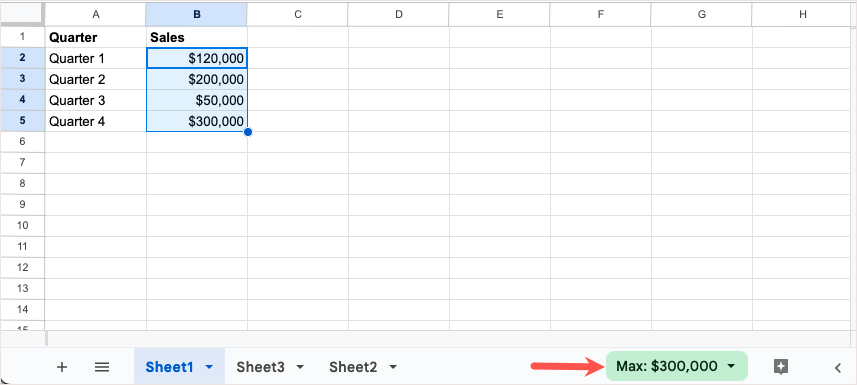
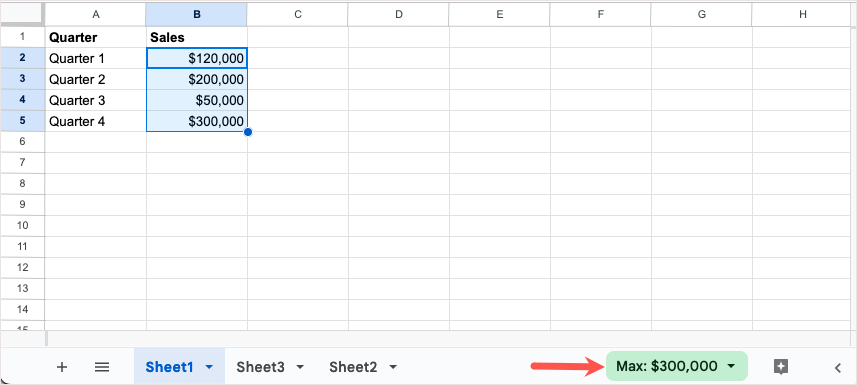
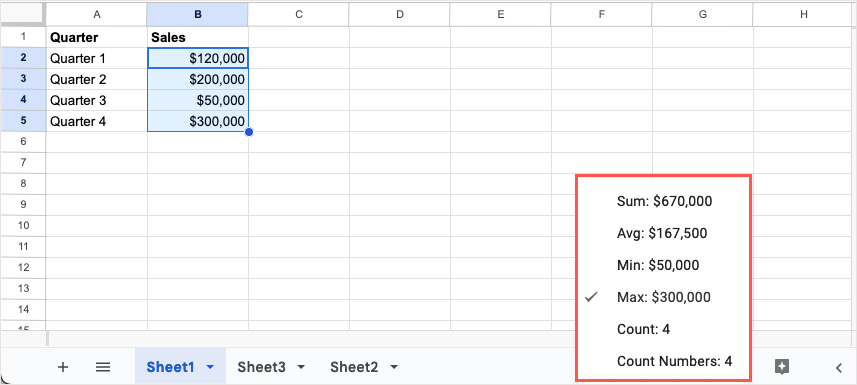
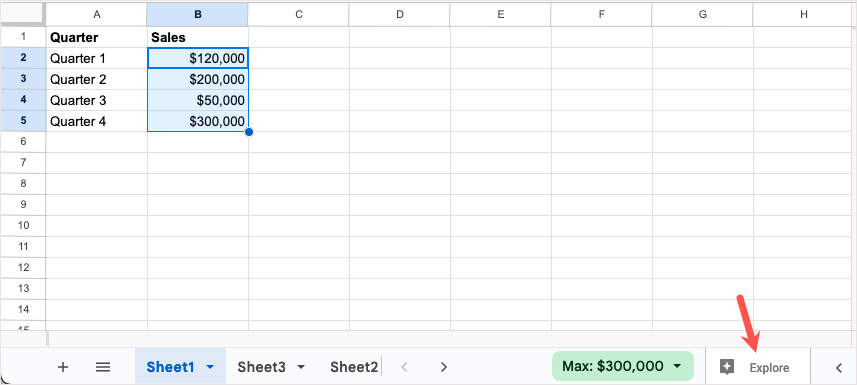
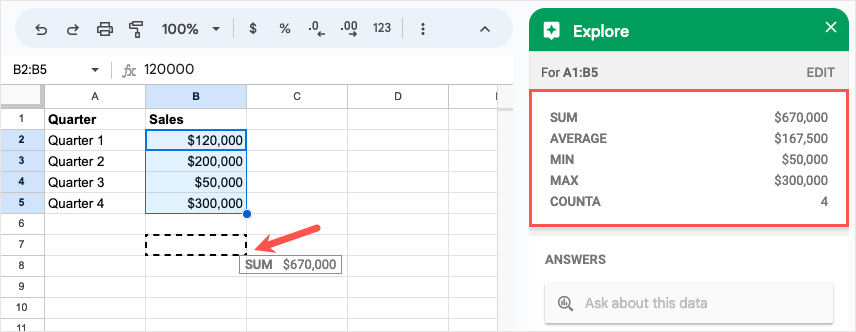
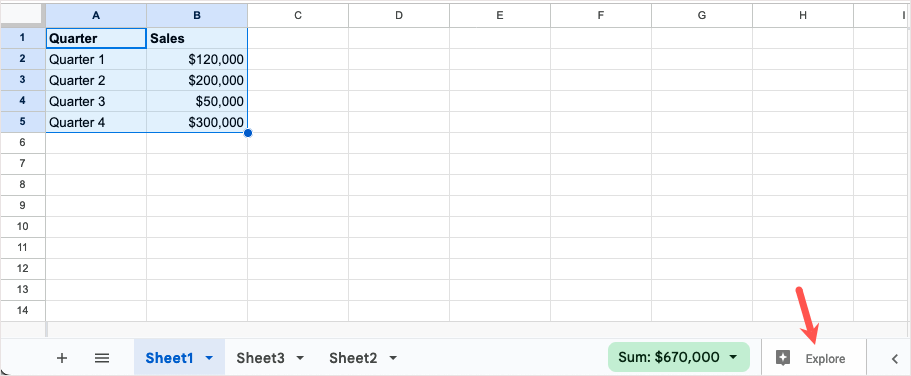
Sometimes you want to see a quick calculation without adding a formula to your sheet. In Google Sheets, you can simply select the values and then choose a calculation to view without any extra work. If you decide to include the calculation in your sheet, keep the cell selected and choose Explore to the right of the sheet tabs. When the sidebar opens, drag the calculation you want to use to a cell in your sheet.
8. Explore Ways to Present Your Data
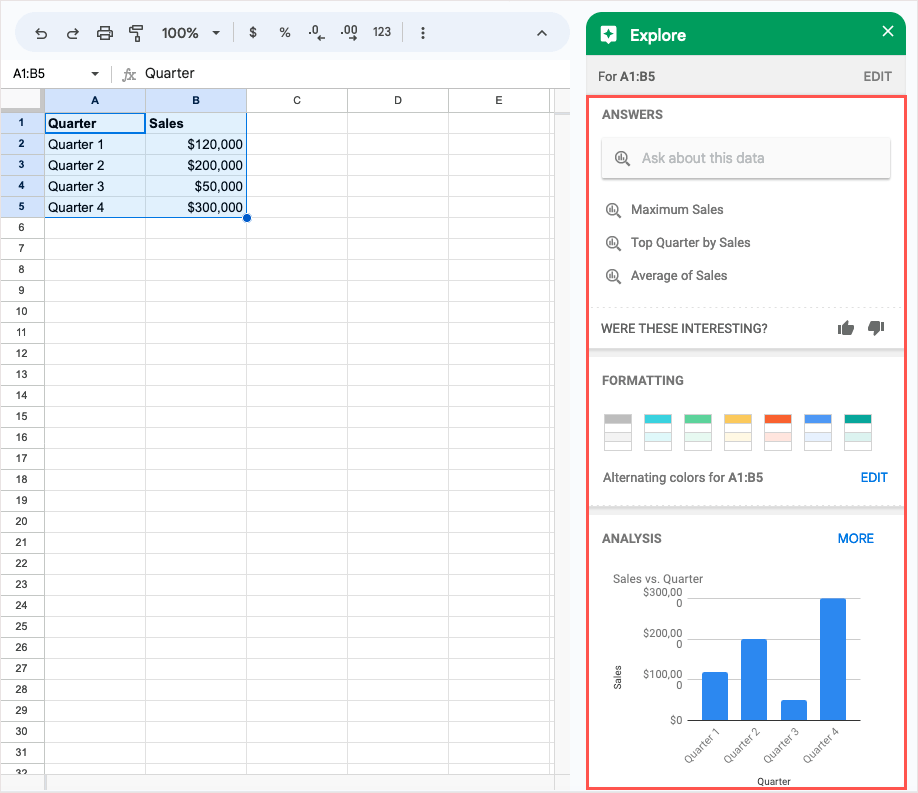
Maybe you have data in your spreadsheet but aren’t sure of the best way to display or analyze it. With the Explore feature, you can see various quick ways to present your data, review details about it, and ask questions. Select your data and pick Explore on the bottom right. When the Explore sidebar opens, you’ll see options for your data. Type a question in the Answers section, apply color using the Formatting section, or insert a chart from the Analysis section. After you finish, simply use the X on the top right of the sidebar to close it.
9. Request Sheet Approvals
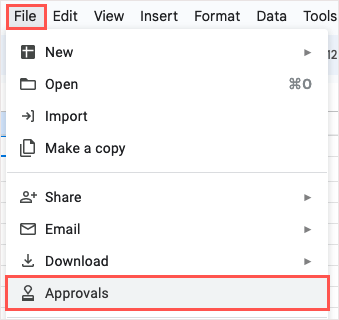
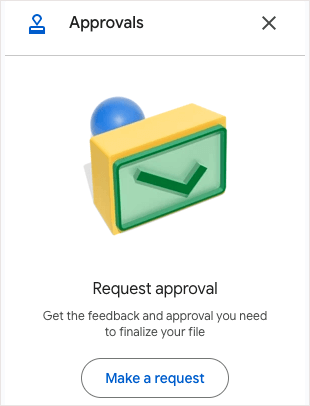
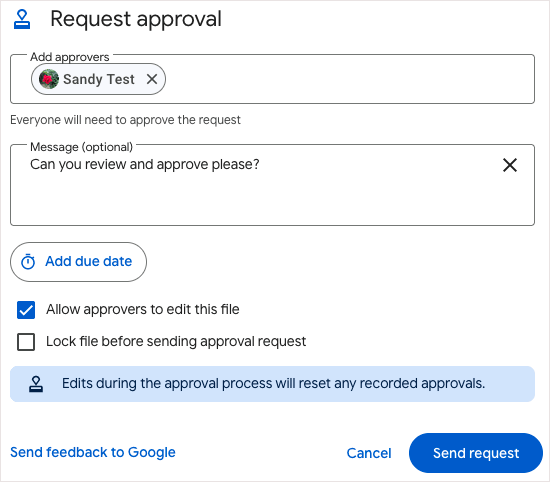
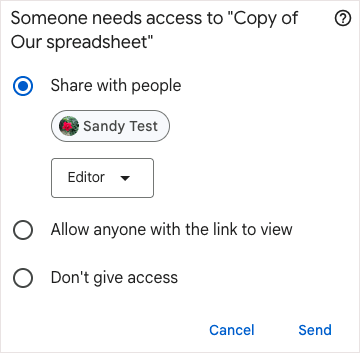
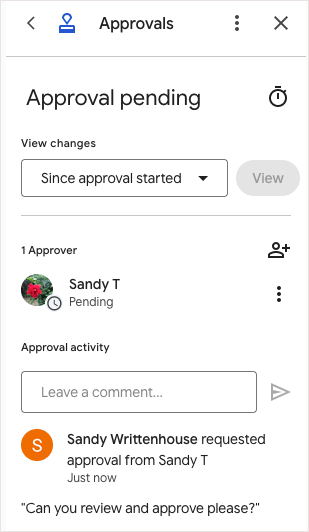
If you use a Google Workspace account for business or education, check out the Approvals feature. With it, you can request approvals from others and keep track of what’s approved and what isn’t. Go to File and select Approvals. When the Approvals sidebar opens, choose Make a request. In the pop-up window, add those you want to approve your request and optionally a message. You can also include a due date, allow the approvers to edit the sheet, or lock the file before sending your request for approval. Choose Send request when you finish. If you haven’t shared the document with the approvers already, you’ll be asked to do so and assign the permissions. You can then view the status by returning to the Approvals sidebar.
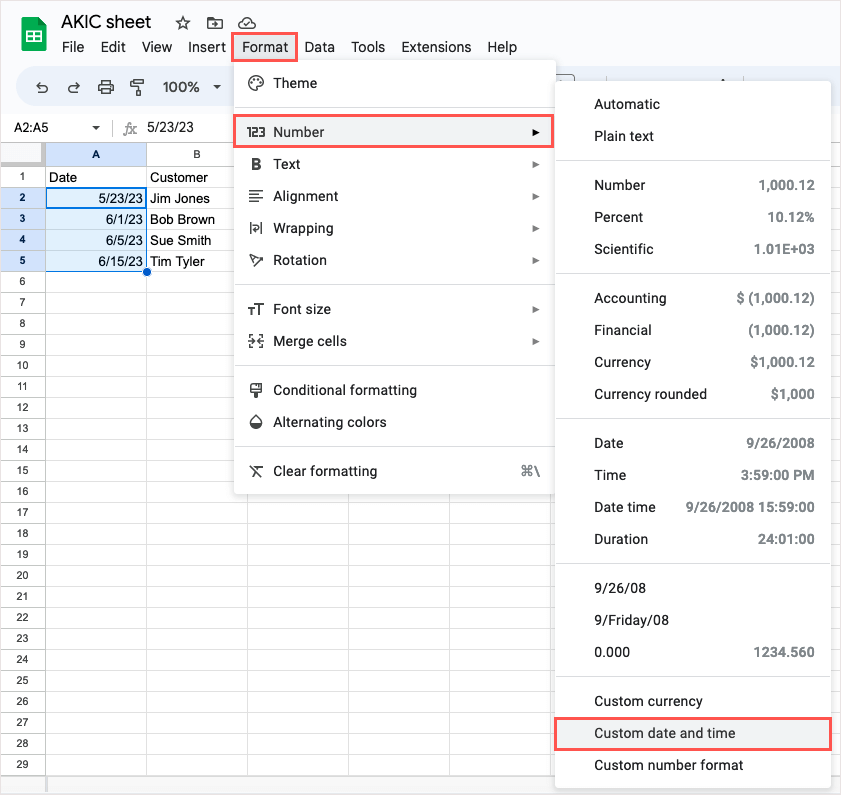
10. Set Up a Custom Date and Time Format
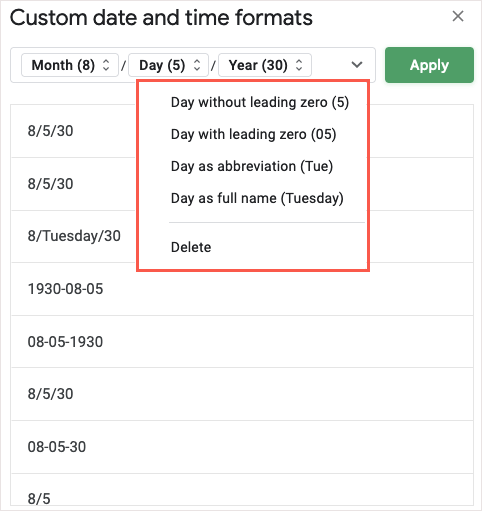
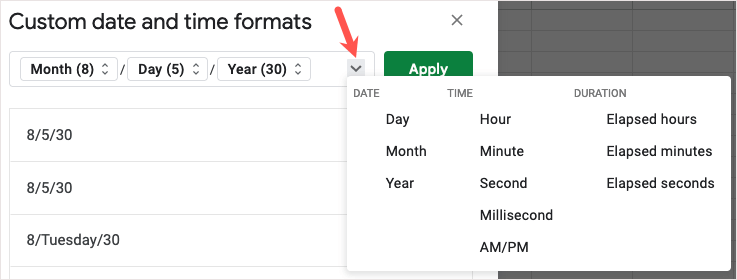
While Google Sheets provides many different ways to format your dates and times, maybe you want something in particular. You can create your own date and time format with the structure, colors, and style you want. With these Google Sheets features, you can do even more with your data. Be sure to try one or more and see which come in handy for you. For related tutorials, look at how to find duplicates in Google Sheets using the conditional formatting options.